

How to export distribution list members in Microsoft 365
Last updated on:In this page
- Method 1: How to view distribution list members using the Exchange admin center
- Method 2: How to get Microsoft 365 distribution list members using Exchange Online PowerShell
- Method 3: How to export Microsoft 365 distribution list members to CSV using M365 Manager Plus
- Monitor your Exchange Online mailbox sizes and more
- Important tips
- Frequently asked questions
Distribution lists are a quick way to reach entire teams or departments. But without visibility, they can quietly grow to hold outdated members, contractors who should no longer have access, or sensitive groups that no one is monitoring. This can create compliance risks, cluttered mail flow, and even data exposure.
Export distribution list members periodically to CSV and filter and optimize Exchange Online groups. Keep reading to find out how you can do it with native tools and with ManageEngine M365 Manager Plus, a dedicated Microsoft 365 administration tool.
- Exchange Online
- Graph PowerShell
- M365 Manager Plus
Method 1: How to view distribution list members using the Exchange admin center
Prerequisites
- You have the Exchange Administrator role assigned.
Steps
- Sign in to the Exchange admin center (EAC) and navigate to Recipients > Groups.
- Select Distribution list from the top ribbon.
- Click the group that you want to get the members for.
- Select Members in the pop-up that opens and click View all and manage members.

Limitation to consider
- The EAC does not provide a way to export distribution list members. You will have to use Exchange Online PowerShell or a reporting tool such as M365 Manager Plus.
Method 2: How to get Microsoft 365 distribution list members using Exchange Online PowerShell
Prerequisites
Before using Exchange Online PowerShell, please verify that:
- The Exchange Administrator or Global Administrator role is applied to the account you use to sign in to Exchange Online PowerShell.
- You are connected to the Exchange Online module.
- To check if the ExchangeOnlineManagement PowerShell module is installed, use this script:
Install-Module ExchangeOnlineManagement -Scope CurrentUser

Update-Module ExchangeOnlineManagement
- To check if the ExchangeOnlineManagement PowerShell module is installed, use this script:
- Connect to Exchange Online PowerShell with this script:
Connect-ExchangeOnline
Export members of a specific distribution list using Get-DistributionGroupMember
The Get-DistributionGroupMember cmdlet can be used to retrieve and export members of a single distribution list.
Get-DistributionGroupMember -Identity "<identity>" -ResultSize Unlimited |
				Select-Object DisplayName, PrimarySmtpAddress, RecipientType |
				Export-Csv -Path ("C:\Reports\DLMembers-{0:yyyyMMdd-HHmmss}.csv" -f (Get-Date)) -NoTypeInformation -Encoding UTF8
Supported parameters
The following table contains some parameters that can be used with the Get-DistributionGroupMember and Get-EXORecipient cmdlets to provide details on your distribution lists and their members.
| Parameter | Description |
|---|---|
| DisplayName | The name of the distribution list. |
| PrimarySmtpAddress | The primary email address of the member or distribution list. |
| RecipientType | Identifies the type of recipient (UserMailbox, MailUser, etc.). |
| RecipientTypeDetails | Filters the results based on the specific type of recipient (e.g., MailUniversalDistributionGroup or MailUniversalSecurityGroup). |
| Alias | The unique alias of the object within Exchange Online. |
An example use case: Export Microsoft 365 distribution group members to CSV
For organization-wide audits, it’s often necessary to export all distribution lists and their memberships.
This script allows you to export members of distribution lists to a single CSV file for quarterly reviews or compliance checks.
$groups = Get-DistributionGroup -ResultSizeUnlimited

			$result = foreach ($group in $groups) {
			$members = Get-DistributionGroupMember -Identity$group.Identity -ResultSizeUnlimited
			foreach ($memberin$members) {
			 [PSCustomObject]@{
			GroupName = $group.DisplayName
			GroupEmail = $group.PrimarySmtpAddress
			MemberName = $member.DisplayName
			MemberEmail = $member.PrimarySmtpAddress
			MemberType = $member.RecipientTypeDetails
			 }
			 }
			}

			$result | Export-Csv"C:\Reports\DistributionGroupMembers_EXO.csv" -NoTypeInformation -EncodingUTF8
Method 3: How to export Microsoft 365 distribution list members to CSV using M365 Manager Plus
- Log in to M365 Manager Plus and click the Reports tab.
- Navigate to Azure Active Directory > Group Reports.
- Select the Distribution List Members report to view all distribution group lists with their members.
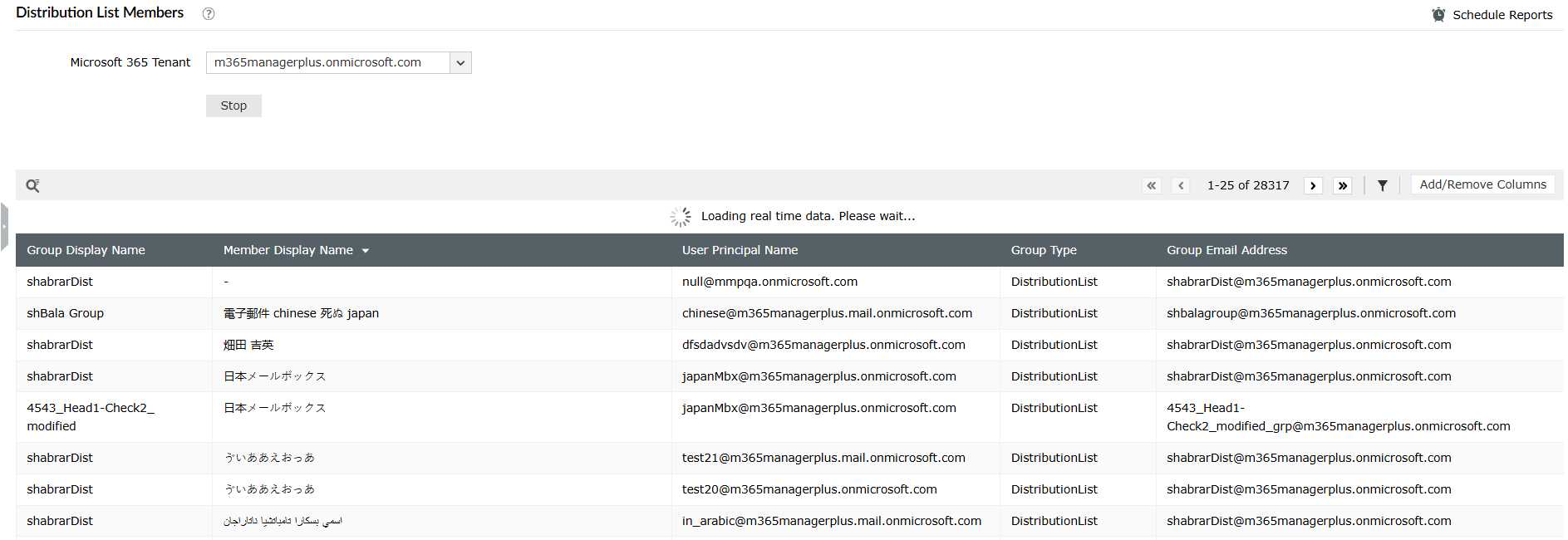
- Click Export As and select the desired file format to export your Microsoft 365 distribution list members to CSV or another option, such as PDF, XLSX, or HTML.



Monitor your Exchange Online distribution lists and more
M365 Manager Plus simplifies the management of your distribution lists, allowing you to view, monitor, and control them across your Microsoft 365 environment. It streamlines membership audits, identifies inactive groups, and offers proactive alerts.
Distribution list membership management
Effortlessly add or remove members from distribution lists in bulk through an intuitive interface, removing the need for complex PowerShell scripts.
Reports on Microsoft 365 distribution lists
Generate comprehensive reports on distribution lists, their members, and recent activity to maintain control over your Exchange Online setup.
Real-time alerts on Microsoft 365 group membership changes
Configure alerts for any modifications to distribution list memberships. Receive immediate notifications when members are added or removed, allowing for quick action on unauthorized changes.
Eliminate PowerShell complexity
Run detailed reports on distribution list members in a single click, avoiding the complexities of cmdlets like Get-DistributionGroupMember. This minimizes reliance on scripting and reduces the risk of errors.
Important tips
Utilize dynamic distribution groups: For membership that changes frequently based on roles or departments, consider using dynamic distribution groups to automate the process.
Monitor membership changes for critical groups: For sensitive distribution lists (e.g., All Employees or Leadership Team), it's vital to have a record of when members are added or removed. Tracking these changes helps ensure that unauthorized modifications are quickly identified and reverted.
Identify and clean up stale distribution lists: Over time, organizations accumulate lists that are no longer in use or have no members. Periodically run reports to identify distribution lists that haven't received emails over a long period or are empty to declutter your Global Address List.
Frequently asked questions
You need the Exchange Administrator role to get the list of members from distribution groups in Exchange Online.
You can export the members of a distribution list in Exchange Online with the following Exchange Online PowerShell cmdlet:
Get-DistributionGroupMember -Identity "<DL display name or primary SMTP>" -ResultSize Unlimited |
Select-Object DisplayName, PrimarySmtpAddress, RecipientType |
Export-Csv -Path ("C:\Reports\DLMembers-{0:yyyyMMdd-HHmmss}.csv" -f (Get-Date)) -NoTypeInformation -Encoding UTF8
You cannot schedule report exports natively with PowerShell alone. You will have to use task schedulers with Windows PowerShell or an automated SIEM tool like Microsoft Sentinel, which is both complex and demands a separate subscription. M365 Manager Plus can schedule these exports and deliver them by email without scripts.
Yes. The maximum number of members in a distribution group is 100,000.
A distribution list forwards messages to its members and doesn’t store email. A shared mailbox is a central mailbox that multiple users can open, read, and reply from. Use a distribution list for broadcast; use a shared mailbox when a team needs a common inbox.