

How to get a Microsoft 365 failed login attempts report
Last updated on:In this page
- How to view failed logins using the Microsoft Entra admin center
- How to view failed logins using Microsoft Graph PowerShell (Get-MgAuditLogSignIn)
- Track Microsoft 365 failed logins attempts using M365 Manager Plus
- Streamline Microsoft Entra ID user governance and group management
- Important tips
- Frequently asked questions
Failed logins in Microsoft 365 occur when a user or service principal attempts to authenticate but is denied access due to incorrect credentials, expired passwords, or conditional access policy violations. Monitoring these failures is critical for IT administrators to detect early signs of brute-force attacks or unauthorized logins from suspicious geographic locations, which can help flag these user accounts as suspicious targets and take action before it's too late.
This article will show you how to get a Microsoft 365 failed login attempts report with native tools, including the Microsoft Entra admin center and Microsoft Graph PowerShell, and with ManageEngine M365 Manager Plus, a dedicated Microsoft 365 administration tool.
- Entra admin center
- Graph PowerShell
- M365 Manager Plus
Method 1: How to view failed logins using the Microsoft Entra admin center
Prerequisites
A Microsoft Entra ID user account that has at least the Reports Reader or Security Reader role assigned to it.
Steps
- Log in to the Microsoft Entra admin center and navigate to Entra ID > Users > Sign-in logs.
- Click Add filters and select Status.
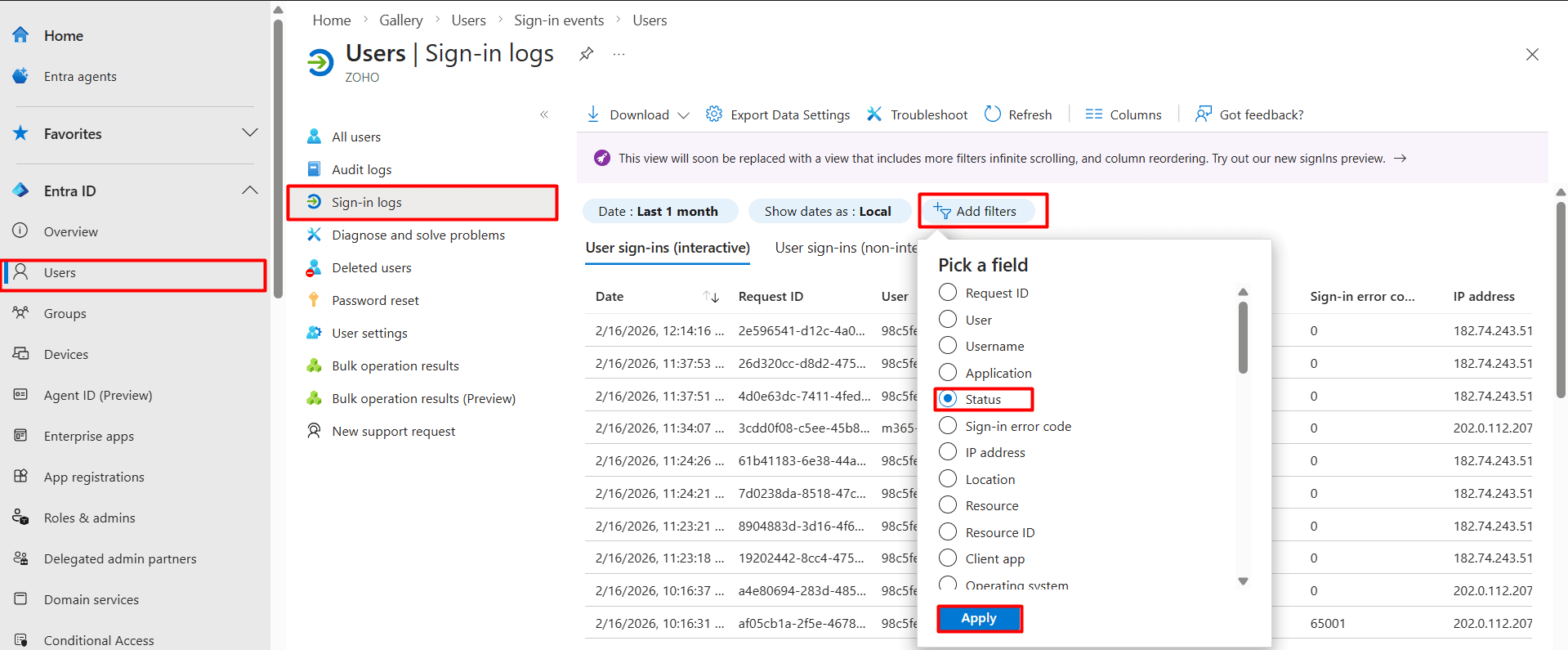
- Select the Status chip, choose Failure and click Apply.
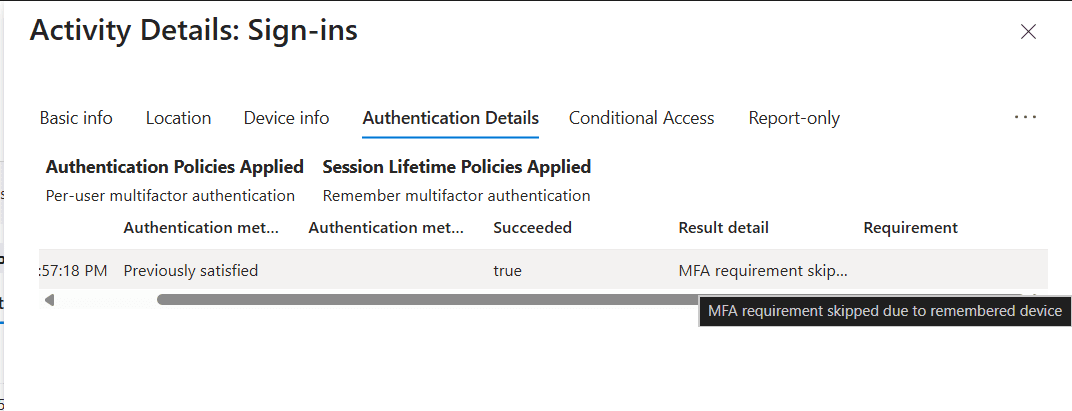
- Select a specific record to view more details such as the Sign-in error code, Failure reason, Device info, IP address, and more.


Limitations to consider
- Reviewing the Result detail of a specific sign-in failure record will help identify the exact reason for failure and can help you plan the next steps. However, you will have to retrieve every sign-in record one at a time to get the Result detail of all failed sign-ins, which can be taxing and unrealistic in large environments.
- Tracking failed sign-ins will help you identity threats in their early stages. However, you cannot schedule this sign-in failure report using the Microsoft Entra admin center.
Method 2: How to view failed logins using Microsoft Graph PowerShell (Get-MgAuditLogSignIn)
Prerequisites
- The Reports Reader or Security Reader role must be applied to the account you use to sign in to Microsoft Graph PowerShell.
- You must be connected to the Microsoft Graph PowerShell module.
- To check if the Microsoft Graph PowerShell module is installed, use this script:
Get-Module Microsoft.Graph -ListAvailable
If it does not return a value, you will have to install the module.
- To install the Microsoft Graph PowerShell module, execute this script:
Install-Module Microsoft.Graph -Scope CurrentUser
- To connect to Microsoft Graph, run this script:
Connect-MgGraph -Scopes "AuditLog.Read.All"
- To check if the Microsoft Graph PowerShell module is installed, use this script:
Using Get-MgAuditLogSignIn to view failed login attempts
The Get-MgAuditLogSignIn cmdlet in Microsoft Graph PowerShell retrieves interactive and non-interactive sign-in records from Microsoft Entra ID sign-in logs.
You can use the Get-MgAuditLogSignIn cmdlet with the error code ne 0 (not equal to zero) to identify all failed login attempts in Microsoft 365 as shown in the Microsoft Graph PowerShell script below.
Get-MgAuditLogSignIn -Filter "status/errorCode ne 0" -All |
Select-Object UserDisplayName, UserPrincipalName, AppDisplayName,
IPaddress, CreatedDateTime, Status |
Export-Csv -Path "C:\Reports\M365-FailedLogins-$(Get-Date -Format yyyyMMdd-HHmmss).csv" -NoTypeInformation -Encoding UTF8
Common Microsoft Entra ID sign-in error codes
| Error code | Meaning | Failure reason |
|---|---|---|
| 0 | Success | The sign-in was completed successfully. |
| 500121 | Authentication failed during MFA | The user didn't complete the MFA prompt (i.e., timed out, cancelled, or rejected). |
| 50053 | Account is locked | The user tried to sign in too many times with an incorrect password, locking the account. |
| 50055 | Password expired | The user's password has expired and must be changed. |
| 50057 | User account is disabled | The administrator has disabled the user's account. |
| 50058 | User not signed in | The user did not complete the sign-in process, often seen in non-interactive or silent sign-ins. |
| 50126 | Invalid credentials | The username or password entered is incorrect. |
| 53003 | Access blocked by CA | A Conditional Access (CA) policy blocked the sign-in (e.g., untrusted location or device). |
| 70046 | Session expired | The session token has expired, or a re-authentication check (triggered by risk levels) failed. |
| 90025 | Internal retry limit | An internal Entra service hit its retry allowance; usually resolved by the user trying again later. |
Method 3: Track Microsoft 365 failed logins attempts using M365 Manager Plus
- Log in to M365 Manager Plus, navigate to the Reports tab > Azure Active Directory > Other Azure Reports and select the Azure AD Logon Failures report.
- This report displays all login failures within the selected period, including date, time, failure reason, IP address, and location.
- Use the filter icon to narrow down results by specific attributes (e.g., a specific User Principal Name or IP).
- Click Export As to download the report in your preferred format (CSV, PDF, HTML, or XLS).
Streamline Microsoft Entra ID user governance and group management
M365 Manager Plus provides a unified command center for managing the entire life cycle of your Microsoft Entra ID users and groups. Gain instant visibility into group memberships, ownership gaps, and orphaned objects, plus view, manage, and track identity objects across your Microsoft 365 tenant from a single console—all without switching between multiple admin portals.
Review and manage Microsoft Entra ID users and groups
Easily identify users without managers, groups without owners, inactive accounts, and stale memberships. Assign or update group owners, modify user properties, set up MFA for your Microsoft 365 users, and clean up unused or risky identities directly from the same interface to maintain accountability and ownership across your directory.
Built-in reports for Microsoft Entra ID users and groups
Access ready-made reports covering user status, sign-in activity, password and MFA changes, license assignments, group memberships, orphaned groups, and privileged accounts. These reports help you quickly spot inactive users, over-licensed accounts, and groups that lack proper ownership, without manual data collection.
Audit Entra user and group changes
Track changes made to users and groups, including membership updates, role assignments, license changes, and account status modifications. Audit trails provide clear visibility into who changed what and when, helping you meet security and compliance requirements.
Real-time alerts for critical Microsoft Entra ID events
Configure instant alerts for events such as new admin role assignments, untimely sign-ins, group owner changes, user creation or deletion, and license updates. Stay informed the moment high-impact identity changes occur instead of discovering them during audits.
Automate routine user and group management tasks
Automate common identity operations such as assigning licenses, updating group memberships, disabling inactive users, or enforcing ownership rules using policy-based automation. Reduce manual effort while keeping your Microsoft Entra ID environment clean and controlled.
Act without PowerShell
Perform reporting, audits, bulk updates, and corrective actions through a GUI-driven interface, without relying on Microsoft Graph PowerShell scripts. This reduces operational complexity, minimizes errors, and enables Microsoft Entra ID administration with just a few clicks.
Important tips
Encourage MFA adoption: Even with strong passwords, MFA remains a secure authentication method. Ensure your users are configured to use MFA for all sign-ins.
Set real-time failed login alerts: Configure alerts for abnormal login failures to receive instant notifications when the number of failed attempts exceeds a specific threshold or occurs outside of business hours.
Monitor for impossible travel: Look for successful or failed logins from geographic locations that are too far apart to be reached in the time between sign-ins.
Frequently asked questions
Administrators can view failed logins via the sign-in logs in the Microsoft Entra admin center by applying a filter where Status equals Failure.
This often indicates a password spray attack where attackers attempt to access multiple accounts using common passwords from various IP addresses to evade detection.
Yes. In the sign-in log details, the Failure reason field provides a description of the error, such as "Invalid password" or "User did not complete MFA."
By default, Microsoft Entra ID retains sign-in logs for 30 days. For longer retention, you must export the logs to a storage account or use a tool like M365 Manager Plus for historical auditing.