

How to find users with Microsoft 365 and Entra roles
Last updated on:In this page
- How to get Microsoft 365 users with Entra roles using the Microsoft 365 admin center
- How to get users with Microsoft 365 admin and Entra roles using Microsoft Graph PowerShell
- How to get users with Microsoft 365 admin and Entra roles using M365 Manager Plus
- Monitor your Microsoft Entra ID environment and more
- Important tips
- Frequently asked questions
Admin roles in Microsoft 365 grant access to tenant-wide settings and sensitive operations. Over time, role assignments often expand beyond their original intent, leaving users with privileges they no longer require. Without a clear, centralized view of who holds administrative access, it can become difficult to enforce least-privilege principles.
This article explains how to create a list of Microsoft 365 users who have been assigned Microsoft 365 admin roles using the Microsoft 365 admin center, Microsoft Graph PowerShell, and ManageEngine M365 Manager Plus, a dedicated Microsoft 365 administration tool.
- Microsoft Entra admin center
- Graph PowerShell
- M365 Manager Plus
Method 1: How to get Microsoft 365 users with Entra roles using the Microsoft 365 admin center
Prerequisites
You must be assigned at least the Privileged Role Administrator or Global Reader role to view and download Microsoft 365 admin and Entra role assignments.
Steps
- Sign-in to the Microsoft Entra admin center.
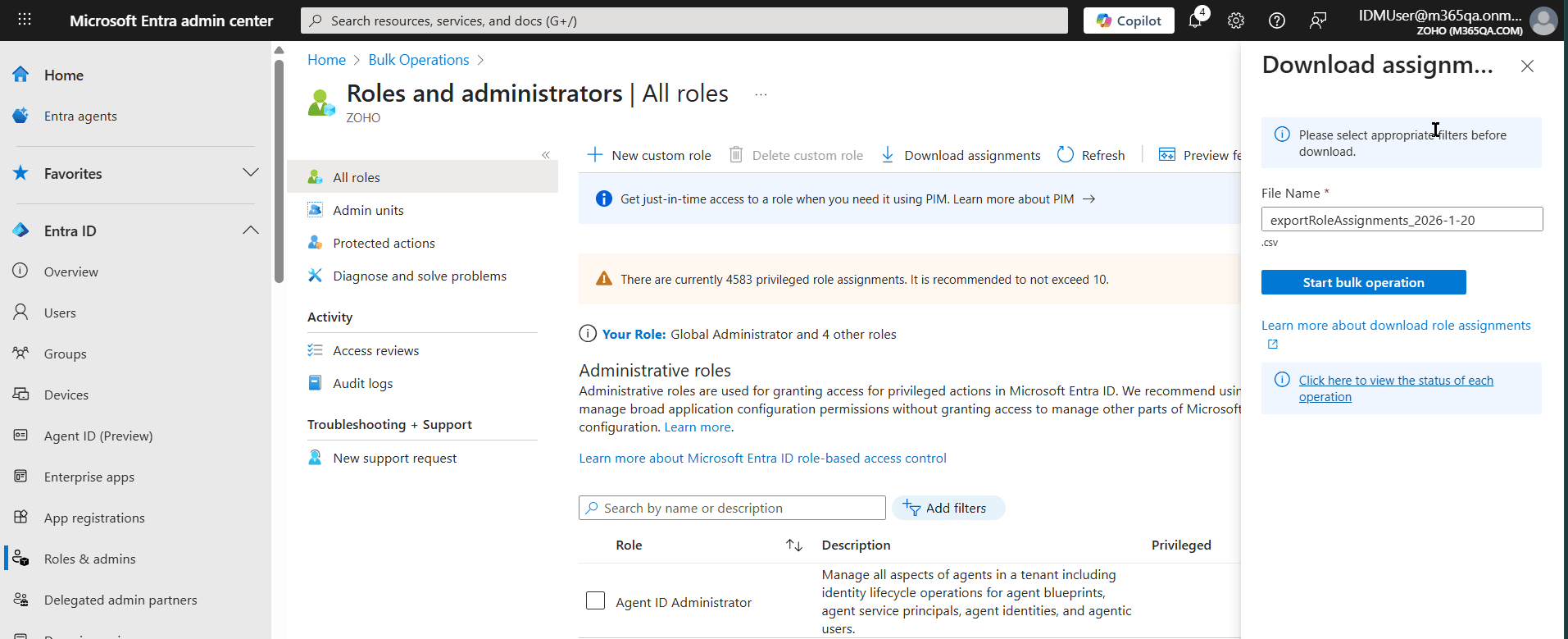
- Navigate to Entra ID > Roles & admins > All roles.
- Select Download assignments and click Start bulk operation
to export the list of users who are assigned Microsoft 365 admin and Entra roles.

Method 2: How to get users with Microsoft 365 admin and Entra roles using Microsoft Graph PowerShell (Get-MgDirectoryRole)
Prerequisites
Before using Microsoft Graph PowerShell, verify that:
- The Privileged Role Administrator or Global Reader role is applied to the account you use to sign in to Microsoft Graph PowerShell.
- You are connected to the Microsoft Graph PowerShell module.
- To check if the Microsoft Graph PowerShell module is installed, use this script:
Get-Module Microsoft.Graph -ListAvailable
If it does not return a value, you will have to install the module.
- To install the Microsoft Graph PowerShell module, use this script:
Install-Module Microsoft.Graph -Scope CurrentUser
- To connect to Microsoft Graph, use this script:
Connect-MgGraph -Scopes "User.Read.All","RoleManagement.Read.Directory"
- To check if the Microsoft Graph PowerShell module is installed, use this script:
Using Get-MgDirectoryRole to list all Microsoft 365 admin role users
Microsoft 365 admin roles are only activated in a tenant when assigned, so you must first fetch the active roles and then list their members. Since roles are distinct objects, your script will have to iterate through each role to find its members. Use the following script to generate a list of users with Microsoft 365 admin roles.
# Get all activated directory roles
$Roles = Get-MgDirectoryRole

$AdminReport = foreach ($Role in $Roles) {
    $Members = Get-MgDirectoryRoleMember -DirectoryRoleId $Role.Id
    foreach ($Member in $Members) {
        # Fetch user details (ignoring service principals)
        $UserDetails = Get-MgUser -UserId $Member.Id -Property "DisplayName,UserPrincipalName" -ErrorAction SilentlyContinue
        if ($UserDetails) {
            [PSCustomObject]@{
                RoleName          = $Role.DisplayName
                DisplayName       = $UserDetails.DisplayName
                UserPrincipalName = $UserDetails.UserPrincipalName
            }
        }
    }
}

# Export the report to CSV
$AdminReport | Export-Csv -Path "C:\Reports\M365_Admins_$(Get-Date -Format yyyyMMdd).csv" -NoTypeInformation
Supported parameters
The following table contains some parameters that can be used with the Get-MgDirectoryRole cmdlet.
| Parameter | Description |
|---|---|
| DirectoryRoleId | The unique ID of the specific directory role to query. |
| -All | Used with Get-MgDirectoryRole to ensure all active roles are retrieved. |
| UserPrincipalName | The sign-in name of the user assigned to the role. |
| DisplayName | The friendly name of the role (e.g., "Global Administrator"). |
Method 3: How to get users with Microsoft 365 admin and Entra roles using M365 Manager Plus
Steps
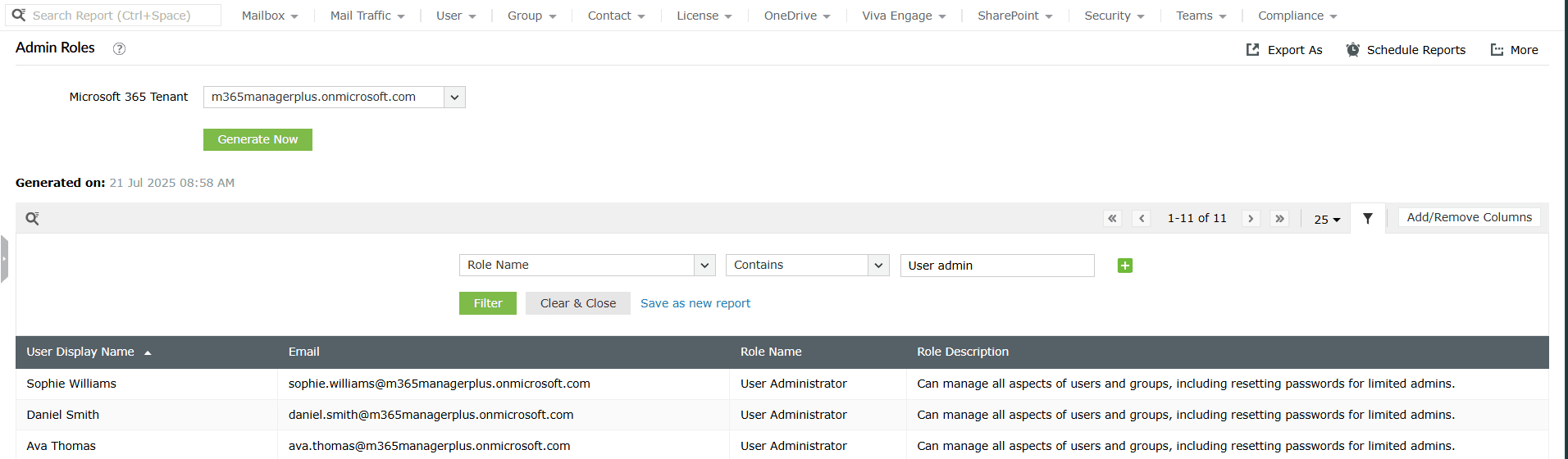
- Log in to M365 Manager Plus, navigate to Reports > Azure Active Directory > User Reports and select the Admin Roles report.
- You can now view a comprehensive Microsoft 365 users list with the specific Microsoft 365
and Microsoft Entra ID roles assigned to them. You can filter this report for the exact set
of admin roles that you want by clicking the <filter> filter icon and
typing in the roles that you want to search for.

Monitor your Microsoft Entra ID environment and more
M365 Manager Plus gives you centralized visibility and control over Microsoft Entra ID objects and configurations of your Microsoft 365 users groups, licenses, admin roles, authentication settings, and more. Create, modify, and track identities across your tenant without hopping between multiple admin portal settings.
Review and manage Entra admin role assignments
Quickly view all users with privileged roles, understand which roles they hold, and identify over-privileged or inactive administrators. From the same interface, you can remove disable accounts that no longer require administrative access.
Audit Microsoft 365 admin activity
Analyze sign-in activity, account status, and license usage of admin users to spot risky patterns such as dormant admins or roles assigned without clear justification. This helps enforce least-privilege access instead of relying on periodic manual reviews.
Get alerts for Entra admin role changes
Set up real-time alerts for critical events such as new admin role assignments, role removals, or changes to privileged user accounts. This ensures you are notified the moment elevated access is granted.
Act without PowerShell overhead
Perform admin role reviews, audits, and cleanup actions without Microsoft Graph PowerShell scripts. M365 Manager Plus' GUI-driven actions reduce errors and fatigue significantly and speed up your identity management processes with actions that bring our results in just a few clicks.
Important tips
Track Microsoft 365 admin activity: Regularly monitor audit logs to track specific administrative actions, identifying which changes were made, by whom, and at what time to maintain a clear audit trail.
Follow access reviews: Periodically conduct formal access reviews for all admin accounts to ensure that users still require their elevated permissions for their current job functions.
Look out for new admin role assignments: Set up proactive alerts to notify the security team immediately whenever a new user is added to a privileged role, helping to detect unauthorized privilege escalation.
Implement strict RBAC: Use custom admin roles or take it a step further with M365 Manager Plus' delegation feature that can restrict your admins to a single action for a selected set of users, to enforce the principle of least privilege, ensuring users are only granted the specific permissions necessary for their tasks rather than broad administrative roles.
Frequently asked questions
In the Entra admin center, navigate to Roles & admins, search for Global Administrator, and click it to see the members.
In Microsoft Graph PowerShell, use the following cmdlet in the first line of the script provided in the PowerShell section.
$Role = Get-MgDirectoryRole | Where-Object {$_.DisplayName -eq "Global Administrator"}Get-MgDirectoryRoleMember -DirectoryRoleId $Role.Id
The Entra admin center provides this in the Audit Logs. Search for the Add member to role activity to see the timestamp and the actor who performed the assignment.
Yes. A single user can hold multiple admin roles simultaneously. This increases their level of privilege and risk exposure, which is why it is important to review role assignments regularly and remove roles that are no longer required.
Native tools can show role assignments, but correlating them with sign-in activity is manual. With M365 Manager Plus, you can combine admin role data with Microsoft 365 logon reports to identify dormant or rarely used admin accounts that should be reviewed or disabled.