

How to check for active forwarding rules in Microsoft 365
Last updated on:In this page
- Method 1: How to check forwarding rules using the Exchange admin center
- Method 2: How to get a list of forwarding rules using Exchange Online PowerShell
- Method 3: How to view a list of mailboxes with forwarding rules in M365 Manager Plus
- Proactively monitor email forwarding rules and more
- Important tips
- Frequently asked questions
Regularly auditing email forwarding rules is a critical administrative task for preventing data exfiltration and ensuring corporate compliance. Creating mailbox forwarding rules does not require admin privileges; this can be exploited by malicious actors after gaining access to an user's account, making it a subtle way to transfer sensitive data without raising major alarms. This necessitates admins to keep track of all email forwarding rules in the organization.
For admins, manually checking every user's mailbox for forwarding is impractical, especially in large organizations. Without a straightforward way to list all active forwarding rules, it's difficult to ensure that data isn't being improperly routed outside the organization and that it remains compliant with data protection regulations.
- Exchange Online
- Graph PowerShell
- M365 Manager Plus
Method 1: How to check forwarding rules using the Exchange admin center
Prerequisites
The Exchange Administrator or Global Administrator role is applied to the account you use to sign in to the Exchange admin center.
Steps
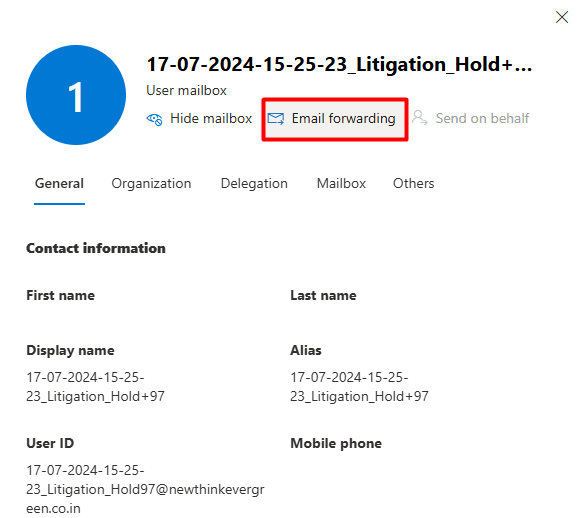
- Sign in to the Exchange admin center and navigate to to Recipients > Mailboxes.
- Click the user mailbox that you want to check forwarding rules for and click Email forwarding.
- You can find the forwarded address of this user mailbox on the Manage email forwarding page.
Limitations to consider
The Exchange admin center is suitable for managing individual mailboxes, but it does not provide a way to view or export all forwarding rules across the organization at once. To achieve this, you must use Exchange Online PowerShell or a dedicated tool like M365 Manager Plus.
Method 2: How to get a list of forwarding rules using Exchange Online PowerShell
Prerequisites
Before using Exchange Online PowerShell, please verify that:
- The Exchange Administrator or Global Administrator role is applied to the account you use to sign in to Exchange Online PowerShell.
- You are connected to the Exchange Online module.
- To check if the ExchangeOnlineManagement PowerShell module is installed, use this script:
- Connect to Exchange Online PowerShell with this script:
Install-Module ExchangeOnlineManagement -Scope CurrentUser
Update-Module ExchangeOnlineManagement
Connect-ExchangeOnline
How to use Get-Mailbox to export a list of mailboxes with their forwarding rules
The Get-Mailbox cmdlet can be used in Exchange Online PowerShell to get details of mailboxes, which also includes their forwarding email and SMTP addresses. The syntax for this is given below:
    Get-Mailbox -ResultSize Unlimited -Filter "ForwardingAddress -like '*' -or ForwardingSmtpAddress -like '*'" | Select-Object DisplayName, ForwardingAddress, ForwardingSmtpAddress

    Export-Csv -Path "C:\Reports\ForwardingRules-$(Get-Date -Format yyyyMMdd-HHmmss).csv" -NoTypeInformation -Encoding UTF8
Using Get-EXOMailbox to export a list of mailboxes with their forwarding rules
Microsoft recommends using the modern Get-EXOMailbox cmdlet to retrieve mailbox details. It is optimized for performance and will continue to be updated, whereas older cmdlets are maintained only for backward compatibility. The syntax below retrieves a list of all mailboxes that have a forwarding address configured:
Get-EXOMailbox -ResultSize Unlimited -Properties ForwardingSmtpAddress,DeliverToMailboxAndForward |

Where-Object { $_.ForwardingSmtpAddress -ne $null } |

Select-Object DisplayName, PrimarySmtpAddress, ForwardingSmtpAddress, DeliverToMailboxAndForward | Export-Csv -Path "C:\Reports\ForwardingRules-$(Get-Date -Format yyyyMMdd-HHmmss).csv" -NoTypeInformation -Encoding UTF8
Supported parameters
The following table contains some parameters that can be used with the Get-Mailbox and Get-EXOMailbox cmdlets to get details on forwarding configurations.
| Parameter | Description |
|---|---|
| DisplayName | The friendly name of the mailbox, as shown in the admin center and address book. |
| PrimarySmtpAddress | The primary email address of the mailbox. |
| ForwardingSmtpAddress | Specifies the email address to which messages are forwarded. If this property is empty ($null), the mailbox is not configured to forward mail. |
| DeliverToMailboxAndForward | Specifies whether a copy of the forwarded email is kept in the original mailbox. A value of True means a copy is kept; False means it is not. |
Note: In addition to mailbox-level forwarding, users can create inbox rules to forward emails. Check this page to find out how you can audit inbox rules with the Exchange admin center and Graph PowerShell.
Method 3: How to view a list of mailboxes with forwarding rules in M365 Manager Plus
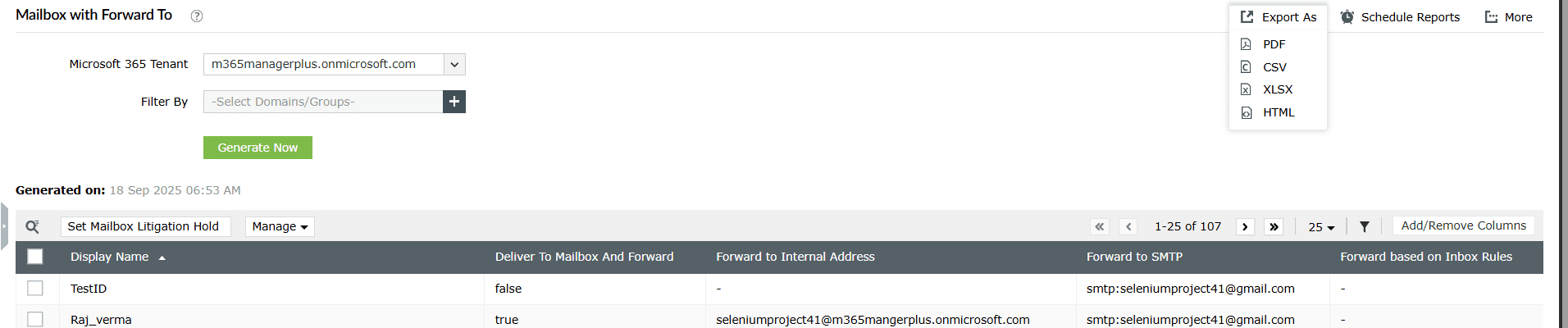
- Log in to M365 Manager Plus and click the Reports tab.
- Navigate to Exchange Online > Mailbox Reports>General Mailbox Reports.
- Click the Mailbox with Forward To report to view a comprehensive list of all users whose mailboxes are configured to forward emails.
- You can also click Export As and download a list of all email forwarding rules in the report as a CSV, PDF, XLSX, or HTML file.
Proactively monitor email forwarding rules and more
M365 Manager Plus' reporting and alerting capabilities help you view, monitor, and control email forwarding across your Microsoft 365 environment. It simplifies security audits, highlights risky configurations, and provides proactive alerts.
Audit forwarding configurations
Easily generate reports on which mailboxes have forwarding enabled, the destination address, and whether a copy is kept in the mailbox. Differentiate between internal and external forwarding at a glance.
Real-time alerts on new forwarding rules
Set up proactive alerts for any new or modified forwarding rule. Get notified instantly when a user's mailbox is configured to forward email, enabling administrators to take immediate action if the change is unauthorized.
Eliminate PowerShell complexity
Run detailed forwarding reports in a single click instead of using complex cmdlets like Get-EXOMailbox and Get-InboxRule. This reduces dependency on scripting and minimizes the chance of configuration errors.
Important tips
Disable automatic forwarding to external domains: Use remote domain settings or mail flow rules in Exchange Online to block all users from auto-forwarding emails to external email addresses. This is a highly recommended security practice.
Establish a clear policy: Create and communicate a company policy regarding email forwarding. Users should know when it is permissible and what the process is for getting an exception.
Regularly audit forwarding rules: Periodically run reports to check for any newly created or unauthorized forwarding rules to prevent data leaks.
Frequently asked questions
You can disable forwarding in the Exchange admin center under the user's mailbox settings or by using the Set-Mailbox -Identity "user@domain.com" -ForwardingSmtpAddress $null command in PowerShell.
When an email is forwarded, the From field is changed to the person who forwarded it, and the message appears as FW: [Original Subject]. When an email is redirected, the original sender is kept, and the message appears to the final recipient as if it came directly from the original source.
Yes; by default, users can set up both mailbox-level forwarding and inbox rule forwarding on their own mailboxes through Outlook or Outlook on the web.
Monitoring external forwarding is critical for security and data loss prevention. An attacker who gains access to a user's account can set up a forwarding rule to secretly exfiltrate all incoming emails, including sensitive documents, financial data, and credentials.