

How to find licensed shared mailboxes in Microsoft 365
Last updated on:In this page
- How to find licensed shared mailboxes using the Microsoft 365 admin center
- How to get a list of licensed shared mailboxes using PowerShell
- How to view a list of licensed shared mailboxes in M365 Manager Plus
- Monitor your Exchange Online shared mailboxes and more
- Important tips
- Frequently asked questions
Regularly auditing shared mailbox licenses helps control costs and maintain compliance. While shared mailboxes typically don’t require licenses, some may have them for added benefits like expanded storage, archiving, or advanced compliance features. Over time, these unnecessary licenses may stay assigned, increasing costs and complicating management.
For admins, manually tracking which shared mailboxes have licenses can be tedious, especially in large organizations. Without a straightforward way to list them, it's difficult to ensure that licenses are allocated only where they are needed for features like increased storage or archiving. However, you can do this efficiently using the Microsoft 365 admin center, PowerShell, or with ManageEngine M365 Manager Plus, a dedicated Microsoft 365 administration tool.
- M365 Admin Center
- Graph PowerShell
- M365 Manager Plus
Method 1: How to find licensed shared mailboxes using the Microsoft 365 admin center
Prerequisites
You need the Global Administrator or User Administrator role for the account you use to sign in to the Microsoft 365 admin center.
Steps
- Log in to the Microsoft 365 admin center.
- Navigate to Users > Active users. The list of active users includes user accounts for shared mailboxes.
- Click the Filter button and create a filter where Assigned product license is set to any specific license you want to check for (any subscription with an Exchange Online Plan 2 license such as Microsoft 365 E3 or E5)
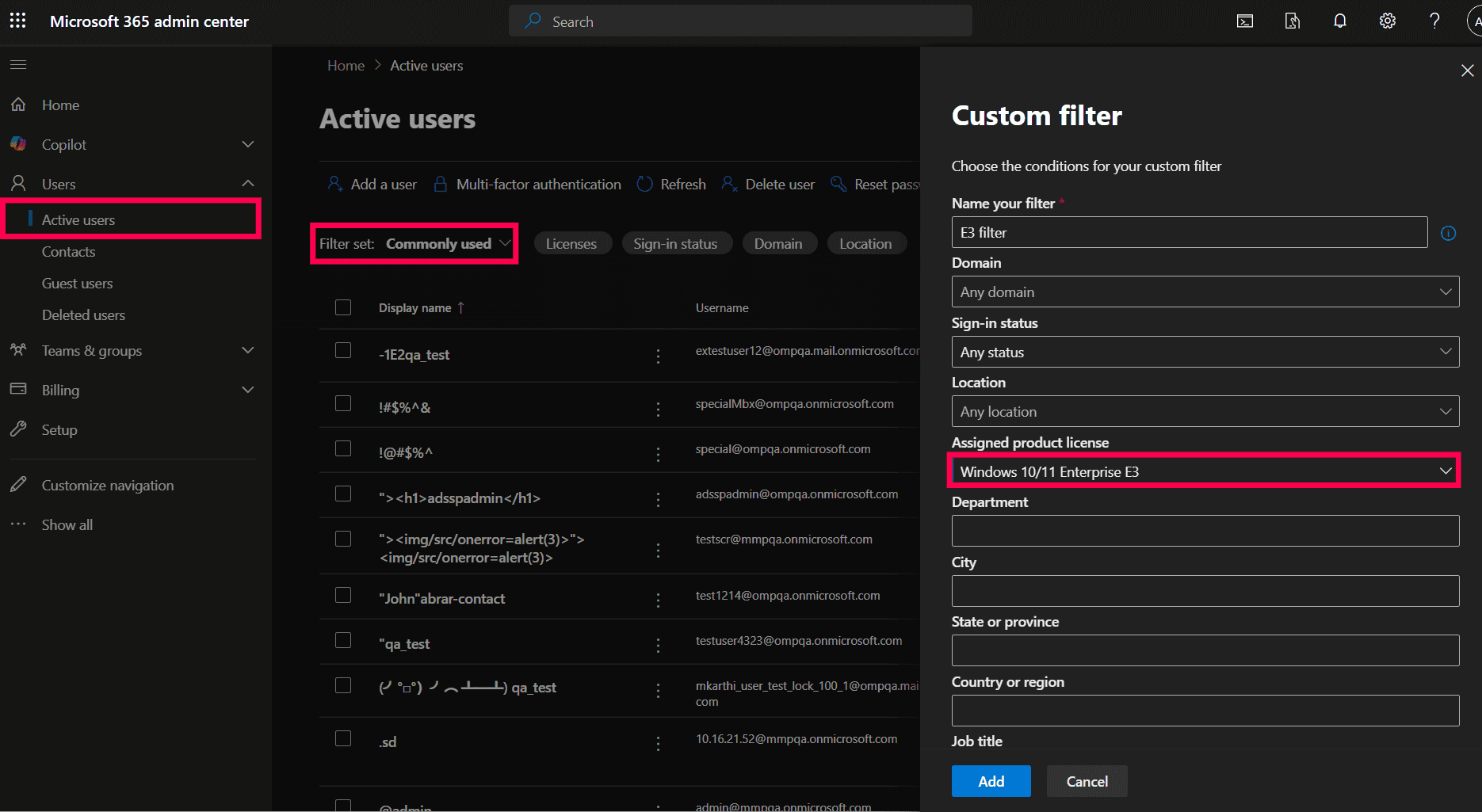
- Review the filtered list to identify shared mailboxes that have licenses assigned. You can use the list of shared mailboxes under Teams & groups > Shared Mailboxes as a reference.
- Click an individual user (mailbox) to see the specific licenses under the Licenses and apps tab.

Limitation to consider
- This manual process can be time-consuming and inefficient in organizations with many shared mailboxes, as it requires checking mailboxes individually or relying on naming conventions to identify them in the user list.
- You can only check for one specific license using a filter. You will have to generate the report again with different filters to find all licensed shared mailboxes.
Method 2: How to get a list of licensed shared mailboxes using PowerShell (Get-MgUser)
Prerequisites
Before using Exchange Online PowerShell, please verify that:
- The Exchange Administrator role is applied to the account you use to sign in to Exchange Online PowerShell.
- You are connected to the Exchange Online module. This helps you read the details on shared mailboxes.
- To check if the ExchangeOnlineManagement PowerShell module is installed, use this script:
Install-Module ExchangeOnlineManagement -Scope         CurrentUser

Update-Module ExchangeOnlineManagement - Connect to Exchange Online PowerShell with this script:
Connect-ExchangeOnline
- To check if the ExchangeOnlineManagement PowerShell module is installed, use this script:
- You are connected to the Microsoft Graph module This helps you get the details of shared mailbox licenses.
- To check if the Microsoft Graph PowerShell module is installed, use this script:
Get-Module Microsoft.Graph -ListAvailableIf it does not return a value, you will have to install the module.
- To install the Microsoft Graph PowerShell module, execute this script:
Install-Module Microsoft.Graph -Scope CurrentUser - To connect to Microsoft Graph, run this script:
Connect-MgGraph -Scopes "User.Read.All","Directory.Read.All"
- To check if the Microsoft Graph PowerShell module is installed, use this script:
Using Get-MgUser with Get-EXOMailbox to export a list of licensed shared mailboxes
The modern Get-EXOMailbox cmdlet, combined with Get-MgUser, can retrieve a list of all shared mailboxes and filter for those with assigned licenses. Microsoft recommends using the EXO V3 module cmdlets, as they are optimized for cloud services and performance.
Use this syntax to retrieve the licensed shared mailboxes in Exchange Online:
# -------------------------------------------
# Licensed Shared Mailboxes Audit (Friendly License Names)
# -------------------------------------------

# --- Pre-req modules ---
# Install-Module ExchangeOnlineManagement -Scope CurrentUser
# Install-Module Microsoft.Graph -Scope CurrentUser

# --- Connect to services ---
Connect-ExchangeOnline -UserPrincipalName admin@contoso.com
Connect-MgGraph -Scopes "User.Read.All","Directory.Read.All"

# --- Ensure export path exists ---
$date = Get-Date -Format "yyyyMMdd"
$exportPath = "C:\Reports\LicensedSharedMailboxes_Audit_$date.csv"
$exportDir = Split-Path $exportPath
if (-not (Test-Path $exportDir)) { New-Item -Path $exportDir -ItemType Directory | Out-Null }

# --- Fetch tenant SKU list for mapping ---
$skuData = Get-MgSubscribedSku | Select-Object SkuId, SkuPartNumber

# --- Define a friendly name mapping (extend this as needed) ---
$friendlyNames = @{
    "ENTERPRISEPACK"                  = "Microsoft 365 E3"
    "ENTERPRISEPREMIUM"               = "Microsoft 365 E5"
    "STANDARDPACK"                    = "Office 365 E1"
    "EXCHANGESTANDARD"                = "Exchange Online Plan 1"
    "EXCHANGEENTERPRISE"              = "Exchange Online Plan 2"
    "BUSINESS_PREMIUM"                = "Microsoft 365 Business Premium"
    "BUSINESS_STANDARD"               = "Microsoft 365 Business Standard"
    "BUSINESS_BASIC"                  = "Microsoft 365 Business Basic"
    "SPE_E5"                          = "Microsoft 365 E5 Security + Compliance"
    "SPE_E3"                          = "Microsoft 365 E3 Security + Compliance"
    "EMS"                             = "Enterprise Mobility + Security E3"
    "EMSPREMIUM"                      = "Enterprise Mobility + Security E5"
}

# --- Get all shared mailboxes ---
$sharedMailboxes = Get-EXOMailbox -RecipientTypeDetails SharedMailbox -ResultSize Unlimited -Properties "ArchiveStatus"

# --- Build report ---
$report = foreach ($mbx in $sharedMailboxes) {
    $user = Get-MgUser -UserId $mbx.ExternalDirectoryObjectId -Property "assignedLicenses" -ErrorAction SilentlyContinue
    if ($user.AssignedLicenses) {

        # Map assigned licenses to friendly names
        $licenseList = foreach ($lic in $user.AssignedLicenses) {
            $sku = $skuData | Where-Object { $_.SkuId -eq $lic.SkuId }
            if ($sku) {
                $part = $sku.SkuPartNumber
                if ($friendlyNames.ContainsKey($part)) {
                    $friendlyNames[$part]
                } else {
                    $part  # fallback to raw part number
                }
            } else {
                $lic.SkuId  # fallback to GUID if no match
            }
        }

        [PSCustomObject]@{
            DisplayName        = $mbx.DisplayName
            PrimarySmtpAddress = $mbx.PrimarySmtpAddress
            ArchiveStatus      = $mbx.ArchiveStatus
            IsLicensed         = "Yes"
            LicenseType        = ($licenseList -join ", ")
        }
    }
}

# --- Export to CSV ---
$report | Export-Csv -Path $exportPath -NoTypeInformation -Encoding UTF8
Write-Host "Licensed Shared Mailboxes report exported to:`n$exportPath"

# --- Disconnect sessions ---
Disconnect-ExchangeOnline -Confirm:$false
Disconnect-MgGraph
Supported parameters
The following table contains some of the key cmdlets and properties used in the script to audit and report on your licensed shared mailboxes.
| Parameter | Description |
|---|---|
| -RecipientTypeDetails | Filters the results based on the specific type of recipient. In this script, it's set to SharedMailbox to target only shared mailboxes. |
| -Properties | Retrieves additional mailbox attributes that are not returned by default. The script uses it to fetch the ArchiveStatus. |
| Get-MgUser | Retrieves the license details of shared mailboxes from Microsoft Entra ID. |
| ExternalDirectoryObjectId | A unique identifier that links an Exchange mailbox to its corresponding user object in Microsoft Entra ID. It's used to query for license information. |
| assignedLicenses | A property of the user object that contains a list of all Microsoft 365 licenses (SKUs) assigned to it. |
| Get-MgSubscribedSku | A Microsoft Graph cmdlet that retrieves a list of all product licenses (SKUs) your organization is subscribed to. |
| SkuId & SkuPartNumber | Properties retrieved by Get-MgSubscribedSku. The script uses these to map the license's GUID (SkuId) to a readable product code (SkuPartNumber), which is then converted into a friendly name. |
Method 3: How to view a list of licensed shared mailboxes in M365 Manager Plus
- Log in to M365 Manager Plus and click the Reports tab.
- Navigate to Azure Active Directory > License Reports and select the Licensed Mailboxes report.
- Filter the report by selecting the Filter icon to search for Recipient Type contains SharedMailbox.

With this report, you can find all of your licensed shared mailboxes in one go without multiple iterations or complex PowerShell scripting.
Monitor your Exchange Online shared mailboxes and more
M365 Manager Plus’ shared mailbox management capabilities help you view, monitor, and control shared mailboxes across your Microsoft 365 environment. It simplifies permission audits, highlights inactive mailboxes, and provides proactive alerts.
Shared mailbox permission management
Easily manage Send As, Send on Behalf, and Full Access permissions for shared mailboxes in bulk. Add or remove permissions for multiple mailboxes at once using the intuitive GUI, eliminating the need for complex PowerShell scripts.
Reports on Microsoft 365 shared mailboxes
Generate detailed reports on shared mailboxes, their permissions, mailbox sizes, and any recent activity to stay on top of your Exchange Online environment.
Real-time alerts on access and permission changes
Set up proactive alerts for any changes to shared mailbox permissions. Get notified instantly when permissions are added or removed, enabling administrators to take immediate action if the changes are unauthorized.
Reclaim unused shared mailbox licenses
Configure automation policies to automatically remove licenses from shared mailboxes after a set period of inactivity, ensuring you only pay for the resources you need.
Eliminate PowerShell complexity
Run shared mailbox reports in a single click instead of using complex cmdlets like Get-EXOMailbox and Get-MailboxPermission. This reduces dependency on scripting and minimizes the chance of configuration errors.
Important tips
Regularly audit mailbox permissions: Periodically review who has Full Access, Send As, and Send on Behalf permissions to your shared mailboxes to prevent unauthorized access.
Check for license-dependent features: Before removing a license, confirm that features like In-Place Archive or Litigation Hold are not in use as these require a license to function.
Apply retention policies on Microsoft 365 shared mailboxes: Unlicensed shared mailboxes are typically limited to 50GB. Apply Microsoft 365 retention policies to shared mailboxes for archiving or deleting old emails and keep mailbox sizes under control.
Frequently asked questions
Microsoft 365 shared mailboxes typically do not require a license as long as their storage size is under 50GB. A license is required if the mailbox exceeds 50GB or if you need to enable features like In-Place Archive or Litigation Hold.
You can check a specific shared mailbox's license status by querying its underlying user object in Microsoft Graph. Use this command, replacing the email address with your own:
Get-MgUser -UserId (Get-EXOMailbox -Identity "info@company.com").ExternalDirectoryObjectId -Property "assignedLicenses"You can convert a user mailbox in the Exchange admin center or by using the Set-Mailbox cmdlet in PowerShell. This is a common practice when an employee leaves, as it preserves mailbox data without requiring a user license.