

How to find orphaned Teams
Last updated on:In this page
Unmanaged Microsoft Teams can exist without active members or assigned owners due to user removals, role changes, or incomplete deprovisioning. These empty or orphaned Teams may still retain associated resources such as SharePoint sites, files, apps, and channel data.
Empty Teams must be identified to restore ownership, enforce access controls, and prevent unmanaged resources from persisting in the tenant. Once detected, these Teams should be either reassigned to valid owners, archived for retention purposes, or deleted if they no longer serve a business need.
This page explains how to find empty Teams in your tenant using the Microsoft Teams admin center, Microsoft Graph PowerShell, and using ManageEngine M365 Manager Plus, a dedicated Microsoft 365 administration tool.
- Teams admin center
- Graph PowerShell
- M365 Manager Plus
Method 1: How to find orphaned teams using the Microsoft Teams admin center
Prerequisites
You need the Teams Administrator or Global Administrator role for the account you use to sign in to the Microsoft Teams admin center.
Steps
- Log in to the Microsoft Teams admin center, navigate to Teams > Manage teams and click the settings icon.
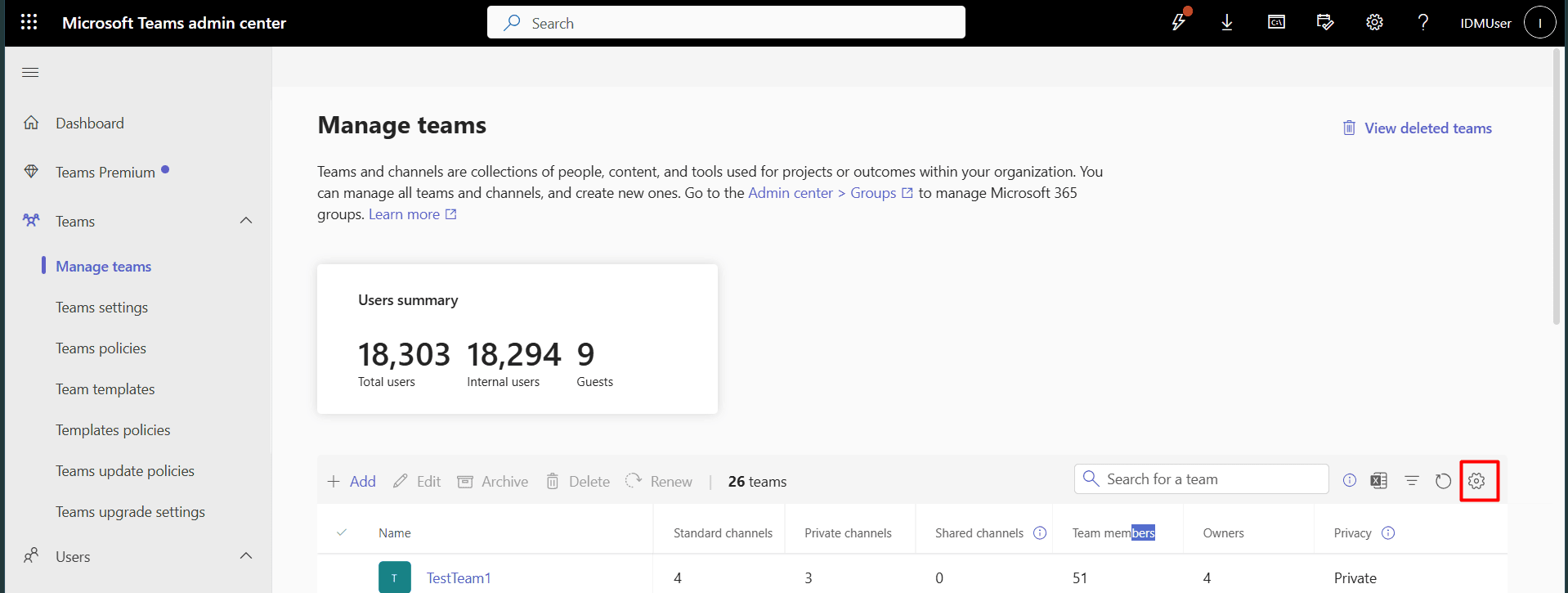
- Click the settings icon and enable Team members and Owners.
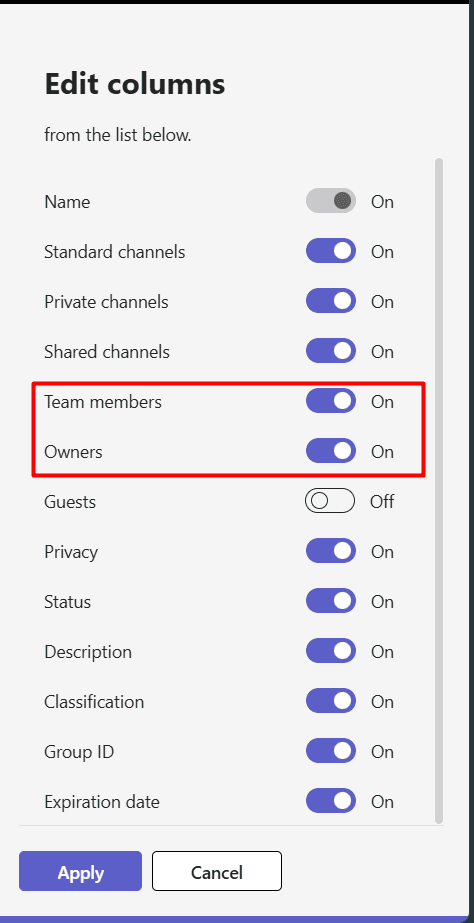
- Look at the Members and Owners columns to identify teams with zero counts.



Method 2: How to find orphaned Microsoft Teams using Microsoft Graph PowerShell (Get-MgGroup)
Prerequisites
Before using Microsoft Graph PowerShell, please verify that:
- The Teams Administrator or Global Administrator role is applied to the account you use to sign in to Microsoft Graph PowerShell.
- You are connected to the Microsoft Graph PowerShell module.
- To check if the Microsoft Graph PowerShell module is installed, use this script:
Get-Module Microsoft.Graph -ListAvailable
If it does not return a value, you will have to install the module.
- To install the Microsoft Graph PowerShell module, execute this script:
Install-Module Microsoft.Graph -Scope CurrentUser
- To connect to Microsoft Graph using the required permissions (Group.Read.All and Directory.Read.All), run this script:
Connect-MgGraph -Scopes "Group.Read.All","Directory.Read.All"
- To check if the Microsoft Graph PowerShell module is installed, use this script:
Using Get-MgGroup to identify empty Teams
The Get-MgGroup cmdlet is used to get the details of Microsoft 365 groups in your tenant. You can then filter this list for groups that are provisioned as a team. The following script will get you the list of empty Teams in your tenant.
# Get all Microsoft 365 Groups that are also Teams
$Teams = Get-MgGroup -Filter "resourceProvisioningOptions/any(x:x eq 'Team')" -All

$EmptyTeams = foreach ($Team in $Teams) {
    # Retrieve the count of members for the specific team
    $MemberCount = (Get-MgGroupMember -GroupId $Team.Id -All).Count

    if ($MemberCount -eq 0) {
        [PSCustomObject]@{
            TeamName = $Team.DisplayName
            TeamId   = $Team.Id
            Created  = $Team.CreatedDateTime
        }
    }
}

# Export the results to a CSV file
$EmptyTeams | Export-Csv -Path "C:\Reports\Graph_EmptyTeams_$(Get-Date -Format yyyyMMdd).csv" -NoTypeInformation -Encoding UTF8
Supported parameters
The following table describes the properties used in the Graph script to identify and report on empty teams.
| Property | Description |
|---|---|
| Id | The unique identifier (GUID) for the Team/Group in Azure AD. |
| DisplayName | The public-facing name of the team. |
| CreatedDateTime | The timestamp indicating when the Team was created. |
| resourceProvisioningOptions | A filter used to ensure the script only targets Groups that have Teams functionality enabled. |
Method 3: How to find orphaned Teams in M365 Manager Plus
Steps
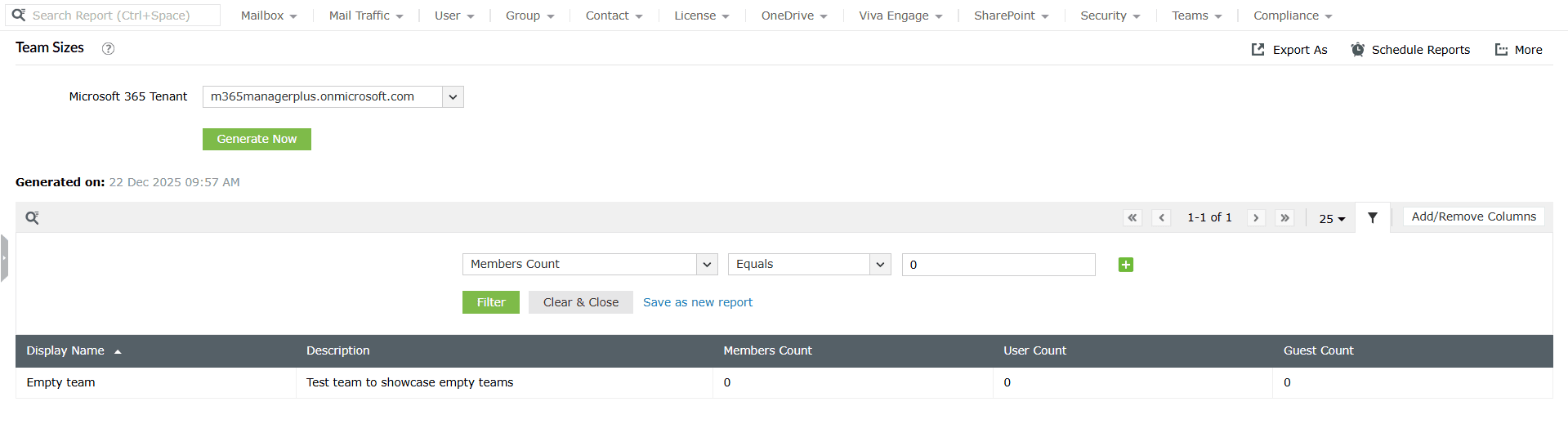
- Log in to M365 Manager Plus, navigate to Reports > Teams Reports, and select Team Sizes.
- Click Generate Now to get an updated list of your Teams and their member counts.
- Click the <filter>filter icon, select Members Count in the first dropdown, type 0 in the last field, and click Apply.

Stay on top of your Microsoft Teams activity
M365 Manager Plus’ Microsoft Teams administration capabilities help you view, monitor, and manage Teams environments on scales beyond what the Teams admin center is capable of. Track team and channel creation, membership changes, guest access, messaging policies, and meeting configurations, all from a single console.
Bulk Teams management
Handle large-scale Teams tasks such as creating or deleting teams, adding or removing users, assigning policies, and managing guest access through simple, GUI-driven actions.
Reports on Microsoft Teams usage and governance
Access ready-made reports covering team and channel inventory, user activity, guest users, policy assignments, meeting usage, and ownership gaps. Get a clear picture of how Teams is used without hopping across multiple admin portals.
Real-time alerts on Teams changes
Set up instant alerts for critical Teams changes such as new team creation, guest user additions, policy modifications, and ownership changes. Detect risky or unauthorized activity as it happens, not after damage is done.
Eliminate PowerShell complexity
Audit Teams configurations, review usage, and perform bulk administrative actions without relying on PowerShell or Microsoft Graph cmdlets. One-click actions reduce errors and make Teams administration faster, safer, and far more manageable.
Important tips
Watch out for ownerless Teams: Sometimes a Team isn't empty of members, but it's empty of owners (e.g., the owner left the company). These are often more dangerous than Teams with no members because no one can manage them.
Remove licenses from empty groups: If the empty team does not need to exist anymore, you can remove its group-based Teams licensing to reduce costs or assign it to another team. You can automate license removal from inactive objects or empty teams in just a few clicks with M365 Manager Plus.
Frequently asked questions
Yes, it is safe to delete empty Teams for a cleaner offboarding. However, deleting a team also deletes the associated Microsoft 365 Group, SharePoint Online site, and mailbox, so proceed with caution.
Even without members, the underlying Microsoft 365 Group and SharePoint site of an empty Team can still retain sensitive files, have external sharing enable and be subjected to misconfigured permissions. Unmonitored teams increase compliance and data exposure risks.
After you find an empty Team, you can do any of the following.
- Assign a valid owner if the team is still needed
- Archive the team if it’s inactive but must be retained
- Delete the team if it serves no business purpose and has no compliance hold
Microsoft does not auto-delete empty Teams. You can automate this process with PowerShell or Power Automate, but those require complex scripting or a separate license to manage them. You can use M365 Manager Plus' no-code automations to remove unused licenses from inactive users and empty groups automatically.