

How to get shared mailbox permissions in Office 365
Last updated on:In this page
- Method 1: How to view shared mailbox permissions using the Exchange admin center
- Method 2: How to get a list of shared mailboxes using Exchange Online PowerShell (Get-EXOMailbox)
- Method 3: How to export Microsoft 365 shared mailbox permissions using M365 Manager Plus
- Monitor your Exchange Online shared mailboxes and more
- Important tips
- Frequently asked questions
Shared mailboxes are vital for team collaboration, but they can easily become a security risk. Without clear visibility into who has access to what, sensitive information in a shared mailbox could be exposed to unauthorized users, leading to data breaches and compliance failures. Knowing exactly who holds Full Access, Send As, or specific folder-level permissions is critical.
Exporting a shared mailbox permissions report allows you to audit access rights, ensure the principle of least privilege is being followed, and provide clear documentation for compliance checks. With a clear list, you can filter, share, and manage permissions effectively to secure your organization's data.
- Exchange Online
- Graph PowerShell
- M365 Manager Plus
Method 1: How to view shared mailbox permissions using the Exchange admin center
Prerequisites
You have the Exchange Administrator role assigned.
Steps
- Sign in to the Exchange admin center and navigate to Recipients > Mailboxes.
- Select a shared mailbox from the list.
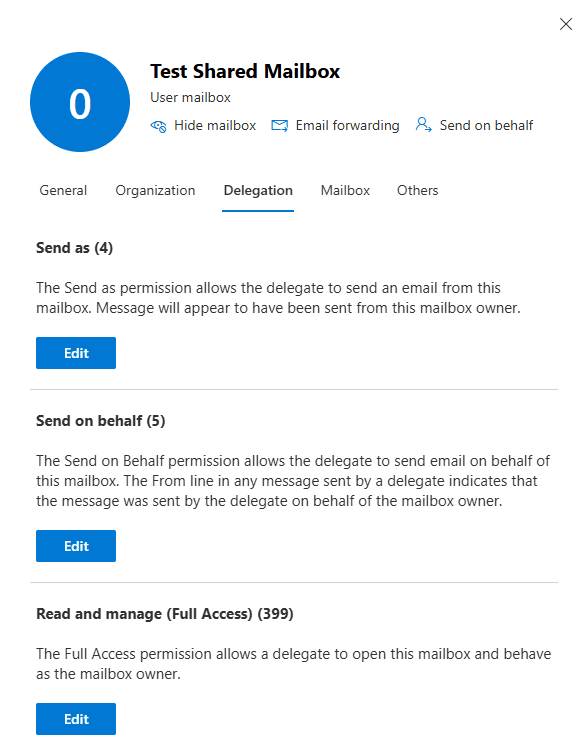
- In the details pane that opens, select the Delegation tab.
- Here, you can view users with Send As, Send on Behalf, and Full Access permissions.
Limitations to consider
- The Exchange admin center does not provide a way to export the list of users who are assigned these shared mailbox permissions.
- You will have to click through each mailbox individually to get the list of users who are assigned shared mailbox permissions.
To do either of these, you will have to use Exchange Online PowerShell or a Microsoft 365 reporting tool such as M365 Manager Plus.
Method 2: How to get a list of shared mailboxes using Exchange Online PowerShell (Get-EXOMailbox)
Prerequisites
Before using Exchange Online PowerShell, please verify that:
- The Exchange Administrator or Global Administrator role is applied to the account you use to sign in to Exchange Online PowerShell.
- You are connected to the Exchange Online module
- To check if the ExchangeOnlineManagement PowerShell module is installed. use this script:
- Connect to Exchange Online PowerShell with this script:
Install-Module ExchangeOnlineManagement -Scope CurrentUser
Update-Module ExchangeOnlineManagement
Connect-ExchangeOnline
Use Get-Mailbox to export Microsoft 365 shared mailbox permissions
The Get-Mailbox cmdlet allows you to retrieve all permission types such as Full Access, Send As, and Send on Behalf for all shared mailboxes at once, and export the data for auditing and review.
Each permission type has its own syntax requirements. Below are the cmdlets to list mailboxes delegated with these permissions.
Full access:
Get-Mailbox |?{$_.RecipientTypeDetails -eq "<identity> "} | Get-MailboxPermission|?{$_.User -ne 'nt authority./self'} |Select-Object Identity,User,AccessRights
Send as:
Get-Mailbox |?{$_.RecipientTypeDetails -eq "<identity>"} | Get-RecipientPermission | where {($_.Trustee -ne 'nt authority./self') -and ($_.Trustee -ne 'Null sid')} | select Identity,Trustee,AccessRights
Send on behalf:
Get-Mailbox |?{$_.RecipientTypeDetails -eq "<identity>" -and $_.GrantSendOnBehalfTo -ne $null }| Select PrimarySmtpAddress,GrantSendOnBehalfTo,RecipientTypeDetails
To view the current settings for a user, use the Get-MailboxAutoReplyConfiguration cmdlet.
Supported parameters
The following table contains parameters that can be used with the Get-Mailbox cmdlet to provide details on your shared mailbox permissions.
| Parameter | Description |
|---|---|
| Identity | The mailbox the permission applies to (display name or SMTP). |
| User | Principal granted FullAccess (from Get-EXOMailboxPermission). |
| Trustee | Principal granted SendAs (from Get-EXORecipientPermission). |
| AccessRights | The rights granted (e.g., FullAccess, SendAs). |
| IsInherited | Whether the ACE is inherited; explicit permissions should be False. |
| Deny | Indicates a deny ACE; typically filtered out in reports. |
| DisplayName | Friendly name of the mailbox or grantee (resolved via Get-Recipient where needed). |
| PrimarySmtpAddress | Primary email address of the mailbox or grantee (resolved via Get-Recipient). |
| RecipientType / RecipientTypeDetails | Type of grantee (e.g., UserMailbox, MailUser, Group) for context in audits. |
| GrantSendOnBehalfTo | Mailbox property listing SoB delegates; resolve each to DisplayName/SMTP with Get-Recipient. |
| RecipientTypeDetails=SharedMailbox | Common filter used with Get-EXOMailbox to scope to shared mailboxes. |
| ResultSize | Use -ResultSize Unlimited with Get-EXOMailbox when enumerating all shared mailboxes. |
An example use case: Export Microsoft 365 shared mailbox permissions to CSV
For organization-wide audits, it’s often necessary to export all shared mailbox permissions to ensure access is appropriate.
This script exports a list of users with permissions on shared mailboxes in your organization into a single CSV file, for periodic reviews or compliance checks.
              $timestamp = Get-Date -Format 'yyyyMMdd-HHmmss'

              $outPath   = "C:\Reports\SharedMailboxPermissions-$timestamp.csv"

              $newline   = [Environment]::NewLine

              $shared = Get-Mailbox -ResultSize Unlimited |

              Where-Object { $_.RecipientTypeDetails -eq 'SharedMailbox' }

              # --- Full Access ---

              $fa = Get-MailboxPermission -Identity $mailboxId |

              Where-Object {

              -not $_.IsInherited -and

              -not $_.Deny -and

              ($_.AccessRights -contains 'FullAccess') -and

              ($_.User -notmatch 'NT AUTHORITY\\SELF|S-1-5-|ANONYMOUS LOGON')

              } |

              ForEach-Object {

              [pscustomobject]@{

              MailboxPrimarySmtpAddress = $mailboxId

              MailboxDisplayName = $mailboxName

              PermissionType = 'FullAccess'

              Grantee = $_.User.ToString()

              GranteePrimarySmtpAddress = $null

              AccessRights = ($_.AccessRights -join ',')

              Inherited = $_.IsInherited

              Deny = $_.Deny

              }

              }

              # --- Send As ---

              $sa = Get-RecipientPermission -Identity $mailboxId |

              Where-Object {

              -not $_.IsInherited -and

              ($_.AccessRights -contains 'SendAs') -and

              ($_.Trustee -notmatch 'NT AUTHORITY\\SELF|S-1-5-|NULL SID')

              } |

              ForEach-Object {

              [pscustomobject]@{

              MailboxPrimarySmtpAddress = $mailboxId

              MailboxDisplayName = $mailboxName

              PermissionType = 'SendAs'

              Grantee = $_.Trustee.ToString()

              GranteePrimarySmtpAddress = $null

              AccessRights = ($_.AccessRights -join ',')

              Inherited = $_.IsInherited

              Deny = $false

              }

              }

              # --- Send on Behalf ---

              $sob = @()

              if ($m.GrantSendOnBehalfTo) {

              foreach ($u in $m.GrantSendOnBehalfTo) {

              $rec = Get-Recipient $u -ErrorAction SilentlyContinue

              if ($rec) {

              $sob += [pscustomobject]@{

              MailboxPrimarySmtpAddress = $mailboxId

              MailboxDisplayName = $mailboxName

              PermissionType = 'SendOnBehalf'

              Grantee = $rec.DisplayName

              GranteePrimarySmtpAddress = $rec.PrimarySmtpAddress

              AccessRights = 'SendOnBehalf'

              Inherited = $false

              Deny = $false

              }

              }

              }

              }

              $fa + $sa + $sob

              }

              # Ensure output folder exists

              $folder = Split-Path $outPath -Parent

              if (-not (Test-Path $folder)) { New-Item -ItemType Directory -Path $folder | Out-Null }

              $results | Sort-Object MailboxPrimarySmtpAddress, PermissionType, Grantee |

              Export-Csv -Path $outPath -NoTypeInformation -Encoding UTF8 "Permissions report successfully saved to: $outPath
Method 3: How to export Microsoft 365 shared mailbox permissions using M365 Manager Plus
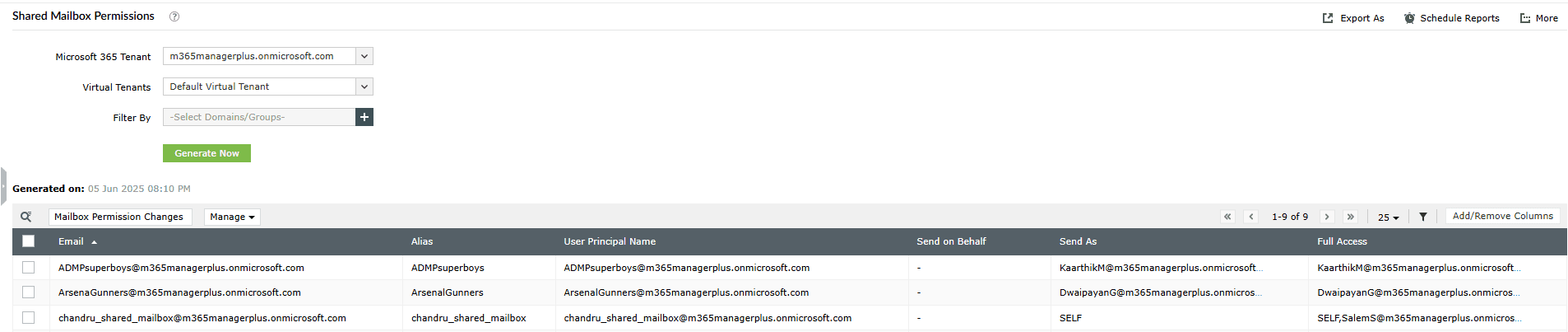
- Log in to M365 Manager Plus and click the Reports tab.
- Navigate to Exchange Online > Other Exchange Reports, and select the Shared Mailbox Permissions report.
- Click Export As and select your desired file format (CSV, PDF, XLSX, HTML) to export your shared mailbox permissions report.
Monitor your Exchange Online shared mailboxes and more
M365 Manager Plus simplifies the complex task of auditing shared mailbox permissions, giving you complete visibility and control over your Exchange Online environment.
Shared mailbox permission management
Effortlessly add, remove, or modify mailbox permissions in bulk from a simple, GUI-based interface, eliminating the need for complex and error-prone PowerShell scripts.
Reports on Microsoft 365 shared mailboxes
Generate dozens of pre-configured reports on shared mailboxes, including permissions, size, activity, and more to maintain tight control over your collaborative workspaces.
Real-time alerts on Microsoft 365 permission changes
Configure alerts for any modifications to shared mailbox permissions. Get instant notifications when access rights are changed, allowing you to revert unauthorized modifications quickly.
Eliminate PowerShell complexity
Run a detailed report on shared mailbox folder permissions with a single click, avoiding the complexities of cmdlets like Get-MailboxFolderPermission and nested loops. This reduces dependency on scripting and minimizes the risk of errors.
Important tips
Regularly audit shared mailbox permissions: Schedule periodic reviews of shared mailbox permissions, especially for mailboxes containing sensitive data (e.g., HR or Finance), to ensure access levels remain appropriate.
Differentiate between Full Access and Folder Permissions: Use Full Access for managers who need complete control over a mailbox. Use granular folder permissions for team members who only need to interact with specific folders like the Inbox or Calendar.
Clean up stale permissions regularly: Periodically review and remove permissions for shared mailboxes that are no longer accessed. This declutters your access lists and strengthens security.
Frequently asked questions
You need to be assigned the Exchange Administrator role in Microsoft 365 to view and export shared mailbox permissions.
You cannot schedule permission reports using only PowerShell. This requires setting up a scheduled task. However, M365 Manager Plus allows you to schedule any report, including mailbox folder permissions, to be run and emailed to you automatically.
Set-MailboxAutoReplyConfiguration -Identity >user's email address< -AutoReplyState Enabled -InternalMessage "Your message here"
Full Access allows a user to open the shared mailbox, read, create, and delete items. Send As allows a user to send emails that appear to come directly from the shared mailbox's address. They are independent permissions.
Yes. By default, shared mailboxes have a storage limit of 50 GB. To increase this limit, you will have to apply an Exchange Online Plan 2 license to your shared mailbox.