

How to list archive-enabled mailboxes in Microsoft 365
Last updated on:In this page
- Method 1: How to check mailbox archive status using the Exchange admin center
- Method 2: How to get a list of Microsoft 365 archive mailboxes using Exchange Online PowerShell (Get-EXOMailbox)
- Method 3: How to export a list of archive-enabled mailboxes using M365 Manager Plus
- Monitor your Exchange Online mailbox sizes and more
- Important tips
- Frequently asked questions
Exchange Online archive mailboxes are a great way to manage storage and meet compliance requirements. But without clear visibility, it's easy to lose track of which users have archives enabled. This can lead to unnecessary license costs, compliance risks if archives aren't enabled for the right users, and challenges in managing your organization's data life cycle.
Getting a report on Microsoft 365 mailbox archive status allows you to audit usage, reclaim unused licenses, and ensure your archiving policies are correctly implemented across the organization. With an exported list, you can perform detailed analysis, plan storage needs, and feed data into your automation workflows. Keep reading to find out how you can do it with native tools and with ManageEngine M365 Manager Plus, a dedicated Microsoft 365 administration tool.
- Exchange Online
- Graph PowerShell
- M365 Manager Plus
Method 1: How to check mailbox archive status using the Exchange admin center
The Exchange admin center allows you to check the archive status for individual mailboxes one by one.
Prerequisites
You have the Exchange Administrator role or any role with the Mail Recipients permission assigned to view mailbox properties and archive status in Exchange Online.
Steps
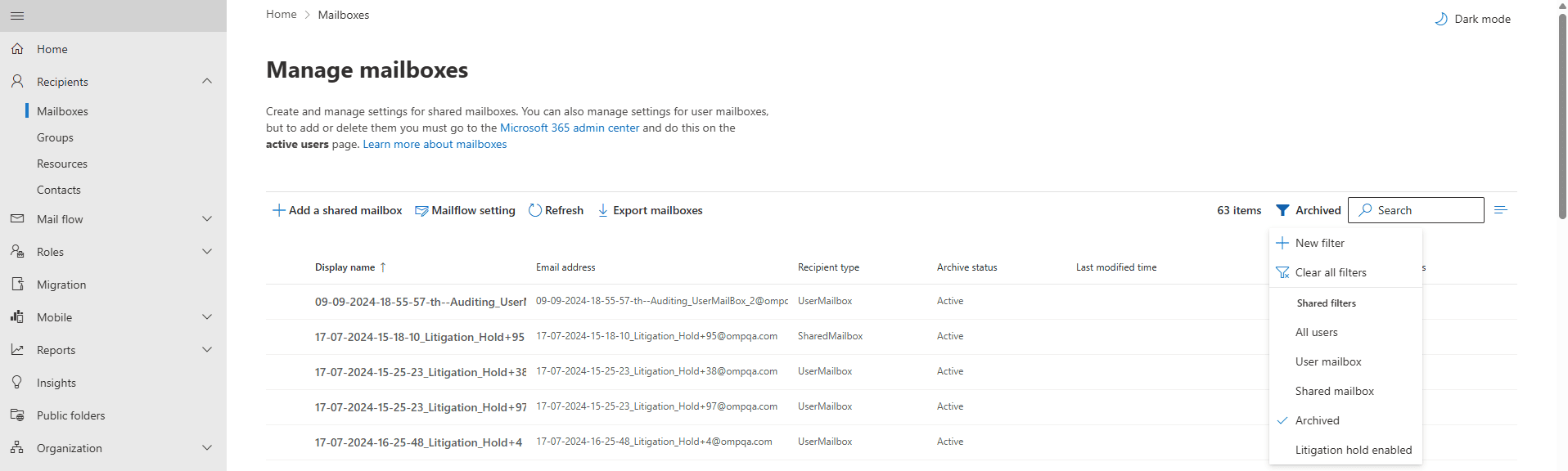
- Log in to the Exchange admin center and navigate to Recipients > Mailboxes.
- Click the filter button and select Archived from the drop-down.
- You can now view a list of all archive enabled mailboxes. You can also export this list to a CSV file by clicking Export mailboxes.
Method 2: How to get a list of Microsoft 365 archive mailboxes using Exchange Online PowerShell (Get-EXOMailbox)
Prerequisites
Before using Exchange Online PowerShell, please verify that:
- The Exchange Administrator or Global Administrator role is applied to the account you use to sign in to Exchange Online PowerShell.
- You are connected to the Exchange Online module.
- To check if the ExchangeOnlineManagement PowerShell module is installed, use this script:
- Connect to Exchange Online PowerShell with this script:
Install-Module ExchangeOnlineManagement -Scope CurrentUser

Update-Module ExchangeOnlineManagementConnect-ExchangeOnline
Export a list of archive-enabled mailboxes using Get-Mailbox
The Get-Mailbox cmdlet can be used to filter for all mailboxes that have an archive enabled and export the results to a CSV file.
                              Get-Mailbox -ResultSize Unlimited -Filter {ArchiveStatus -ne "None"} |
Select-Object DisplayName, UserPrincipalName, ArchiveStatus, ArchiveState |
Export-Csv -Path ("C:\Reports\ArchiveEnabledMailboxes-{0:yyyyMMdd-HHmmss}.csv" -f (Get-Date)) -NoTypeInformation -Encoding UTF8
Using the new Get-EXOMailbox per Microsoft's recommendation
Microsoft recommends using Get-EXOMailbox instead of Get-Mailbox in Exchange Online. The EXO cmdlets are optimized for the cloud service, offer better throttling management, and will continue to be updated, whereas the older cmdlets are maintained mainly for backward compatibility.
Get-EXOMailbox -ResultSize Unlimited -Filter {ArchiveStatus -ne "None"} |
Select-Object DisplayName, UserPrincipalName, ArchiveStatus, ArchiveState |
Export-Csv -Path ("C:\Reports\ArchiveEnabledMailboxes-{0:yyyyMMdd-HHmmss}.csv" -f (Get-Date)) -NoTypeInformation -Encoding UTF8
Supported parameters
The following table contains some parameters that can be used with the Get-Mailbox and Get-EXOMailbox cmdlets to get details on your Microsoft 365 archive-enabled mailboxes.
| Parameter | Description |
|---|---|
| DisplayName | The name of the mailbox user. |
| UserPrincipalName | The user's sign-in name. |
| ArchiveStatus | Indicates whether the archive is active (Active) or not (None). |
| ArchiveState | Shows if the archive is on-premises (Local) or in the cloud (HostedProvisioned). |
| ArchiveGuid | The unique identifier for the archive mailbox. A value of all zeros indicates no archive. |
Method 3: How to export a list of archive-enabled mailboxes using M365 Manager Plus
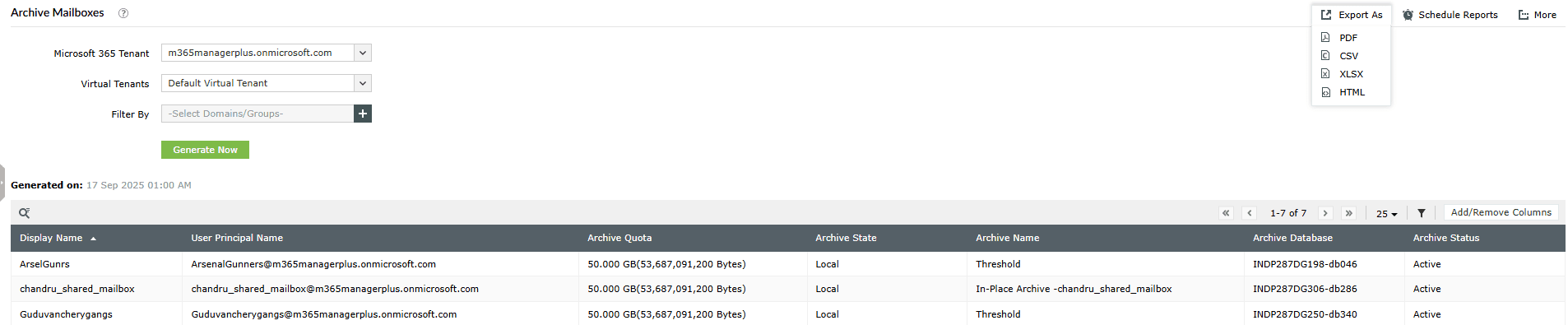
- Log in to M365 Manager Plus and click the Reports tab.
- Navigate to Exchange Online > Mailbox Reports and select Archive Reports.
- Click Export As and select your desired file format (CSV, XLSX, PDF, or HTML) to export the list of Microsoft 365 archive mailboxes.
Monitor your Exchange Online archive mailboxes and more
M365 Manager Plus simplifies the management of your Exchange Online archive mailboxes, giving you complete visibility and control over your Microsoft 365 environment.
Bulk archive mailbox management
Effortlessly enable or disable archive mailboxes for users in bulk using a simple, GUI-based action, removing the need for complex PowerShell scripts.
Reports on Microsoft 365 archive mailboxes
Generate detailed reports on archive mailbox size, growth trends, and inactive archives to optimize storage and manage costs effectively.
Real-time alerts on mailbox changes
Configure alerts to get immediate notifications when a mailbox archive is enabled or disabled, allowing you to quickly verify that the change was authorized.
Eliminate PowerShell complexity
Run detailed reports on archive mailboxes in a single click, avoiding the complexities of cmdlets like Get-Mailbox and its filtering syntax. This reduces reliance on scripting and minimizes the risk of errors.
Important tips
Use retention policies: Combine archive mailboxes with retention policies to automatically move older emails from a user's primary mailbox to their archive, keeping mailboxes lean and performant.
Leverage auto-expanding archives: For users with very large archives, enable the auto-expanding archive feature in Microsoft 365 to get additional storage space.
Perform regular audits: Periodically export the list of archive-enabled mailboxes to ensure it aligns with your company's licensing and data retention policies. This helps in identifying and cleaning up unnecessary archives, thereby controlling costs.
Frequently asked questions
You need to be assigned the Exchange Administrator role or have a role with the Mail Recipients permission to view mailbox properties and archive status in Exchange Online.
You can enable it in the Exchange admin center on the user's mailbox properties page or by using the Enable-Mailbox -Identity <user> - Archive PowerShell cmdlet.
This isn't possible with PowerShell alone and requires setting up scheduled tasks. M365 Manager Plus allows you to schedule any report, including the Mailboxes with Archive Enabled report, and have it delivered to your inbox automatically.
A regular mailbox stores recent, day-to-day emails. An archive mailbox is secondary storage intended for older emails that need to be retained for compliance or historical purposes. It helps keep the primary mailbox small and is accessed as a separate folder in Outlook.
You can use the following cmdlet to get the archive status of a single mailbox in Microsoft 365:
Get-EXOMailbox -Identity | Select-Object DisplayName, UserPrincipalName, ArchiveStatus, ArchiveState