

How to get a list of shared mailboxes in Exchange Online
Last updated on:In this page
- Method 1: How to get a list of shared mailboxes using the Exchange admin center
- Method 2: How to get a list of shared mailboxes using Exchange Online PowerShell
- Method 3: How to view a list of Exchange Online shared mailboxes in M365 Manager Plus
- Monitor your Exchange Online shared mailboxes and more
- Important tips
- Frequently asked questions
Regularly auditing your shared mailboxes is a key administrative task for maintaining security and operational efficiency. When shared mailboxes are unmonitored, they can become repositories for outdated data, or worse, pose security risks if access permissions are not properly managed.
For admins, manually tracking these mailboxes can be tedious, especially in large organizations. Without a straightforward way to list them, it's difficult to ensure they are being used appropriately, have the correct permissions assigned, and are not consuming unnecessary resources.
- Exchange Online
- Graph PowerShell
- M365 Manager Plus
Method 1: How to get a list of shared mailboxes using the Exchange admin center
Prerequisites
- You need the Exchange Administrator role for the account you use to sign in to the Exchange admin center.
Steps
- Log in to the Exchange admin center and navigate to Recipients > Mailboxes.
- Click the Filter button and select Shared mailbox from the drop-down.
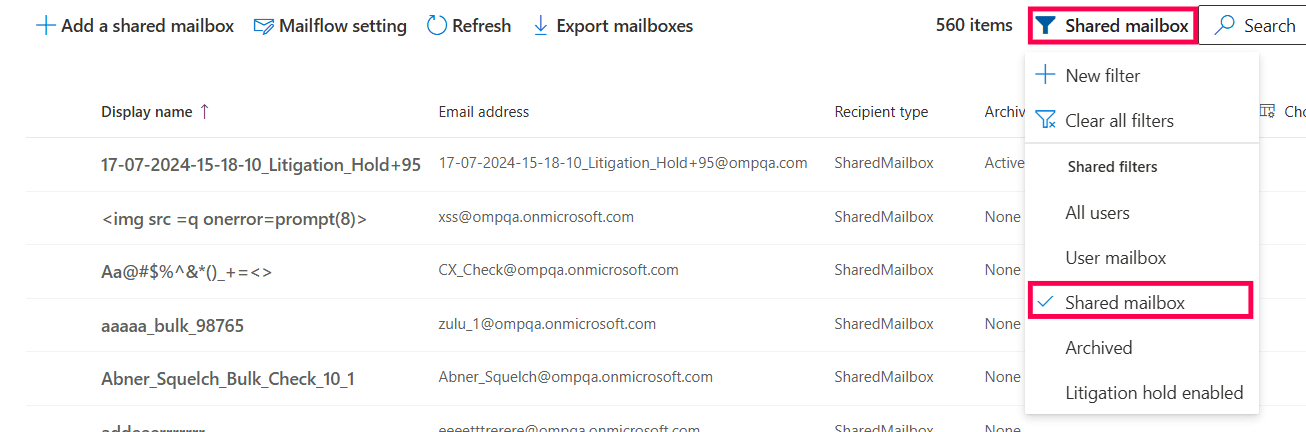
- You can now view a list of all shared mailboxes. You can also export this list to a CSV file by clicking Export mailboxes.

Limitation to consider
- You have to reapply filters every time you need an updated list of your shared mailboxes.
Method 2: How to get a list of shared mailboxes using Exchange Online PowerShell
Prerequisites
Before using Exchange Online PowerShell, please verify that:
- The Exchange Administrator role is applied to the account you use to sign in to Exchange Online PowerShell.
- You are connected to the Exchange Online module
- To check if the ExchangeOnlineManagement PowerShell module is installed, use this script:
Install-Module ExchangeOnlineManagement -Scope CurrentUser
- Connect to Exchange Online PowerShell with this script:
Connect-ExchangeOnline
- To check if the ExchangeOnlineManagement PowerShell module is installed, use this script:
Using Get-Mailbox to export a list of shared mailboxes in Exchange Online
The Get-Mailbox cmdlet can be used to retrieve a list of all shared mailboxes along with their key properties.
Use this syntax to retrieve a list of shared mailboxes:
Get-Mailbox -RecipientTypeDetails SharedMailbox -ResultSize Unlimited |
    Select-Object DisplayName, PrimarySmtpAddress, WhenCreated |
    Export-Csv -Path "C:\Reports\SharedMailboxes-$(Get-Date -Format yyyyMMdd HHmmss).csv" -NoTypeInformation -Encoding UTF8
Using the new Get-EXOMailbox cmdlet per Microsoft's recommendation
Microsoft recommends using Get-EXOMailbox instead of Get-Mailbox in Exchange Online. The EXO cmdlets are optimized for the cloud service, offer better throttling management, and will continue to be updated, whereas the older cmdlets are maintained mainly for backward compatibility.
Use this syntax to retrieve the shared mailboxes in Exchange Online:
Get-EXOMailbox -RecipientTypeDetails SharedMailbox -ResultSize Unlimited -Properties Alias |
    Select-Object DisplayName, PrimarySmtpAddress, Alias, WhenCreated |
    Export-Csv -Path "C:\Reports\SharedMailboxes-$(Get-Date -Format yyyyMMdd-HHmmss).csv" -NoTypeInformation -Encoding UTF8
Supported parameters
The following table contains some parameters that can be used with the Get-Mailbox and Get-EXOMailbox cmdlet to provide details on your shared mailboxes.
| Parameter | Description |
|---|---|
| DisplayName | The friendly name of the shared mailbox, as shown in the admin center and address book. |
| PrimarySmtpAddress | The primary email address of the shared mailbox. |
| RecipientTypeDetails | Filters the results based on the specific type of recipient. For this use case, it's SharedMailbox. |
| -Properties | Retrieve additional attributes such as Alias or WhenCreated using Get-EXOMailbox. |
| WhenCreated | The date and time when the shared mailbox was created. |
| Alias | The unique alias of the shared mailbox within the Exchange organization. |
An example use case for the Get-Mailbox cmdlet
Scenario: An IT administrator needs to conduct a quarterly audit of all shared mailboxes created in the last year to ensure they are still in use and have the correct permissions.
This is the cmdlet you will have to run to generate a report of all shared mailboxes created within the last 365 days:
$date = (Get-Date).AddDays(-365)

Get-Mailbox -RecipientTypeDetails SharedMailbox -ResultSize Unlimited |
    Where-Object { $_.WhenCreated -ge $date } |
    Select-Object DisplayName, PrimarySmtpAddress, WhenCreated |
    Export-Csv -Path "C:\Reports\SharedMailboxes_LastYear.csv" -NoTypeInformation -Encoding UTF8
Note: You can also use the modern Get-EXOMailbox cmdlet to export a list of shared mailboxes. This cmdlet provides faster performance and improved handling of large datasets, such as the list of all shared mailboxes in your organization:
$date = (Get-Date).AddDays(-365)
Get-EXOMailbox -RecipientTypeDetails SharedMailbox -ResultSize Unlimited -Properties WhenCreated,Alias |
    Where-Object { $_.WhenCreated -ge $date } |
    Select-Object DisplayName, PrimarySmtpAddress, Alias, WhenCreated |
    Export-Csv -Path "C:\Reports\SharedMailboxes_LastYear.csv" -NoTypeInformation -Encoding UTF8
Method 3: How to view a list of Exchange Online shared mailboxes in M365 Manager Plus
- Log in to M365 Manager Plus and click the Reports tab.
- Navigate to Other Exchange Reports.
- Click the Shared Mailboxes report to view a comprehensive list of all shared mailboxes in your organization.

Monitor your Exchange Online shared mailboxes and more
M365 Manager Plus’ shared mailbox management capabilities help you view, monitor, and control shared mailboxes across your Microsoft 365 environment. It simplifies permission audits, highlights inactive mailboxes, and provides proactive alerts.
Shared mailbox permission management
Easily manage Send As, Send on Behalf, and Full Access permissions for shared mailboxes in bulk. Add or remove permissions for multiple mailboxes at once using the intuitive GUI, eliminating the need for complex PowerShell scripts.
Reports on Microsoft 365 shared mailboxes
Generate detailed reports on shared mailboxes, their permissions, mailbox sizes, and any recent activity to stay on top of your Exchange Online environment.
Real-time alerts on access and permission changes
Set up proactive alerts for any changes to shared mailbox permissions. Get notified instantly when permissions are added or removed, enabling administrators to take immediate action if the changes are unauthorized.
Eliminate PowerShell complexity
Run shared mailbox reports in a single click instead of using complex cmdlets like Get-EXOMailbox and Get-MailboxPermission. This reduces dependency on scripting and minimizes the chance of configuration errors.
Important tips
Regularly audit mailbox permissions: Periodically review who has Full Access, Send As, and Send on Behalf permissions to your shared mailboxes to prevent unauthorized access.
Establish an ownership policy: Assign a specific owner or team to each shared mailbox. The owner should be responsible for managing its content and periodically reviewing access rights.
Apply retention policies on Microsoft 365 shared mailboxes: Unlicensed shared mailboxes are typically limited to 50GB. Apply Microsoft 365 retention policies to shared mailboxes for archiving or deleting old emails, helping to keep mailbox sizes under control.
Frequently asked questions
You can create a shared mailbox through the Exchange admin center or PowerShell. With M365 Manager Plus, you can also create and manage Microsoft 365 shared mailboxes directly from the console with simplified workflows.
Microsoft 365 shared mailboxes under 50GB do not require a license. However, if you need more than 50GB of storage or require features like In-Place Archive, you must assign an Exchange Online Plan 1 or Plan 2 license.
You can convert a user mailbox to a shared mailbox in the Exchange admin center or by using the Set-Mailbox cmdlet in PowerShell. This is often done when an employee leaves the company, but access to their mailbox data is still needed.
The following cmdlet lists all Exchange Online shared mailboxes along with their display name, primary SMTP address, and creation date:
Get-Mailbox -RecipientTypeDetails SharedMailbox -ResultSize Unlimited | Select-Object DisplayName, PrimarySmtpAddress, WhenCreated