

How to modify an Exchange Online address book policy for shared mailboxes
Last updated on:In this page
Exchange address book policies allow administrators to restrict the list of users and resources that a shared mailbox can view in the Global Address List (GAL), ensuring that sensitive departmental information remains private or that different business units operate within their own virtual directory boundaries. Without an address book policy, a shared mailbox can view the full tenant address list, which may be unnecessary for departmental or role-based mailboxes and can make address lookups less focused in Outlook.
This article explains how to modify Exchange Online address book policies for shared mailboxes in Microsoft 365 using the Exchange admin center; Exchange Online PowerShell; and ManageEngine M365 Manager Plus, a dedicated Microsoft 365 administration tool.
- Exchange Admin Center
- Graph PowerShell
- M365 Manager Plus
Method 1: How to modify address book policies using the Exchange admin center
Prerequisites
You need the Exchange Administrator role for the account you use to sign in to Exchange admin center.
Steps
- Log in to the Exchange admin center and navigate to Mailboxes.
- Select the shared mailbox for which you want to change the address book policy.
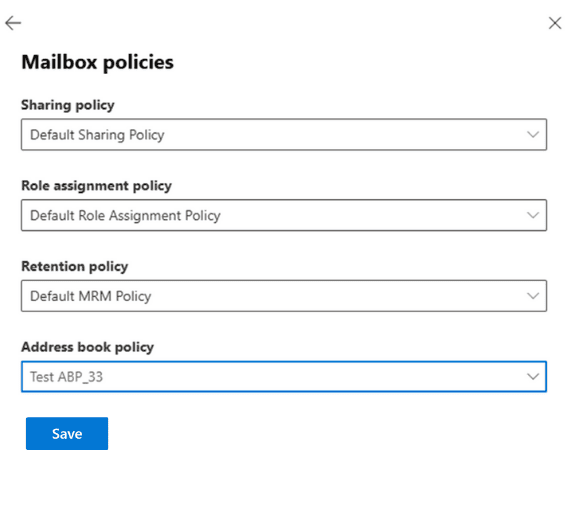
- Click the Mailbox tab and select Manage mailbox policies.
- Select the address book policy you want in the Address book policy drop-down and click Save.

A limitation to consider
You have to repeat the process of modifying Exchange Online address book policies individually for every mailbox if you are using the Exchange admin center, which can be time-consuming for large organizations. To configure address book policies for multiple mailboxes at once, use Exchange Online PowerShell or M365 Manager Plus' Modify Address Book Policy management task.
Method 2: How to modify an address book policy using Exchange Online PowerShell (Set-Mailbox)
Prerequisites
Before using Exchange Online PowerShell, please verify that:
- The Exchange Administrator role is applied to the account you use to sign in to Exchange Online PowerShell.
- You are connected to the Exchange Online PowerShell module.
- To check if the Exchange Online PowerShell module is installed, use this script:
Get-Module -ListAvailable ExchangeOnlineManagement
- If it does not return a value, you will have to install the module. To install the Exchange Online PowerShell module, run this script:
Install-Module ExchangeOnlineManagement -Scope CurrentUser
- To connect to Exchange Online PowerShell, run this script:
Connect-ExchangeOnline
- To check if the Exchange Online PowerShell module is installed, use this script:
Using Set-Mailbox to assign Exchange Online address book policy
The Set-Mailbox cmdlet is used to update the AddressBookPolicy attribute for a specific shared mailbox.
You can modify the address book policy of a single shared mailbox using the following cmdlet:
Set-Mailbox -Identity "MarketingShared" -AddressBookPolicy "Marketing-address book policy"
You can bulk modify the address book policy of multiple shared mailboxes using the following cmdlet:
Get-EXOMailbox -RecipientTypeDetails SharedMailbox -Filter "Department -eq 'Sales'" |
Set-Mailbox -AddressBookPolicy "Sales-address book policy"
Supported parameters
The following parameters are used when modifying the address book policies of Exchange Online mailboxes.
| Parameter | Description |
|---|---|
| -Identity | The unique identifier (Name, Alias, or Email) of the shared mailbox. |
| -AddressBookPolicy | Specifies the name of the address book policy you want to apply to the mailbox. |
| -RecipientTypeDetails | Used with Get-EXOMailbox to filter for shared mailboxes in the tenant. |
Method 3: Modify an address book policy for Exchange Online mailboxes in M365 Manager Plus
Steps
- Log in to M365 Manager Plus, navigate to Management > Exchange Online > Shared Mailbox Management, and select Modify Address Book Policy.
- Choose the Address Book Policy that you want to apply to your shared mailboxes.
- Enter the display names of the mailboxes you want to configure the address book policy for and click Find, or upload a CSV with the display names using CSV Import and click Import CSV.
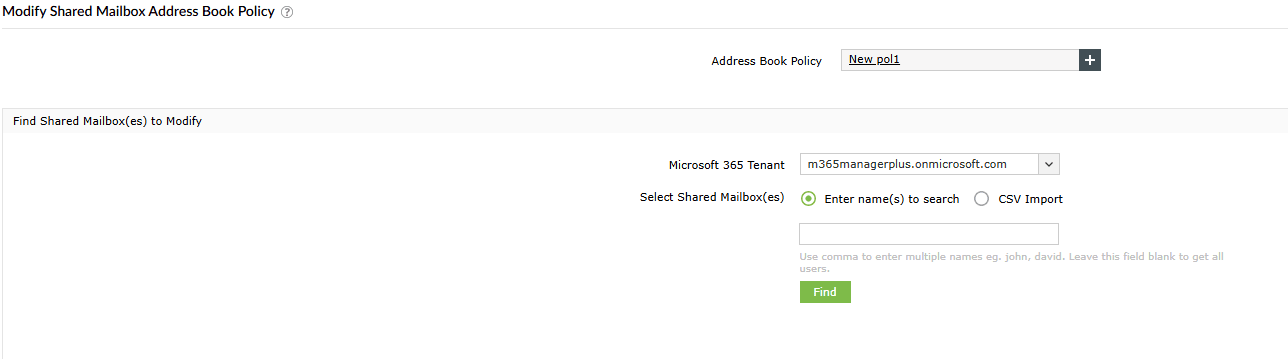
- After finalizing the list of mailboxes you want to apply the address book policy to, click Apply.

Monitor your Exchange Online protocols and more
M365 Manager Plus’ mailbox management capabilities help you view, monitor, and modify not just your address book policies but also other Exchange Online mailbox properties, like mailbox quotas, archive status, and inbox rules.
Bulk mailbox management
Handle large-scale mailbox actions—such as enabling features, updating settings, or modifying permissions—through simple, GUI-driven operations. No manual scripts, no repetitive tasks.
Reports on Microsoft 365 mailboxes
Access ready-made reports that cover mailbox size, activity, license usage, storage trends, permission assignments, and more. Get the insights you need without digging through multiple admin centers.
Real-time alerts on mailbox changes
Set up instant alerts for critical mailbox changes, including permission updates, forwarding rule modifications, and configuration changes. Stay aware of risky or unauthorized activity as it happens.
Eliminate PowerShell complexity
Perform mailbox audits, configuration checks, and bulk updates without relying on cmdlets or scripting expertise. One-click actions reduce errors and make mailbox administration more manageable.
Important tips
Verify address book details: Before assigning a policy, ensure the associated GAL, OAB, and Room List are correctly populated to avoid empty address books for the shared mailbox users.
Audit address book policy events: Periodically review the address book policies assigned to your shared mailboxes and any changes made to them to ensure they align with your organizational security policies.