

How to find inactive mailboxes in Exchange Online
Last updated on:In this page
- Method 1: How to find inactive mailboxes using the Exchange admin center
- Method 2: Get an inactive mailbox report in Microsoft 365 using PowerShell (Get-EXOMailbox)
- Method 3: How to get a list of inactive Microsoft 365 mailboxes using M365 Manager Plus
- Manage your Exchange Online inactive mailboxes and more
- Important tips
- Frequently asked questions
Regularly identifying and auditing inactive mailboxes is a critical administrative task for optimizing license usage, enhancing security, and maintaining a clean Exchange Online environment. Unchecked inactive mailboxes consume valuable licenses and can become security risks, if their credentials are ever compromised.
For administrators, manually finding these mailboxes is nearly impossible, especially in large organizations. Without a clear method to find them, it's difficult to reclaim licenses, secure data, and ensure that resources are allocated effectively.
Keep reading to find out how you can find inactive mailboxes in Microsoft 365 with native tools and with ManageEngine M365 Manager Plus, a dedicated Microsoft 365 administration tool.
- Exchange Online
- Graph PowerShell
- M365 Manager Plus
Method 1: How to find inactive mailboxes using the Exchange admin center
Prerequisites
The Exchange Administrator role is applied to the account you use to sign in to the Exchange admin center.
Steps
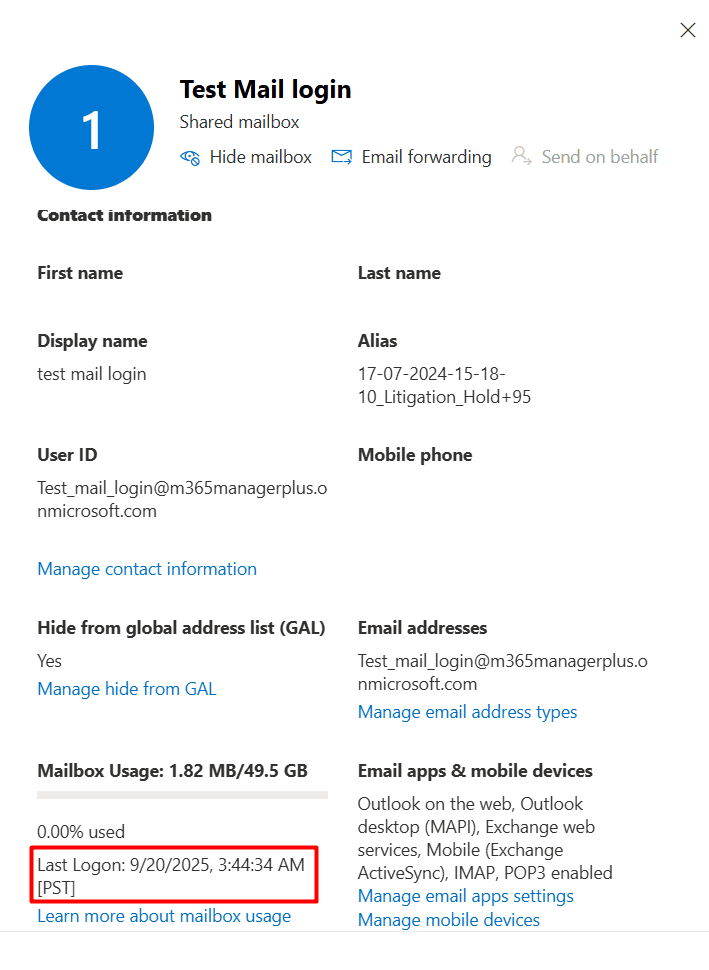
- Log in to the Exchange admin center and navigate to Recipients > Mailboxes.
- Select a user mailbox and check the Last Logon attribute of the mailbox.
Limitations to consider
- You must check the Last Logon attribute of individual mailboxes manually by clicking on every one of them.
- You cannot filter for a certain period of inactivity, for example: a specific set of dates or a range of inactive periods using EAC.
Method 2: Get an inactive mailbox report in Microsoft 365 using PowerShell (Get-EXOMailbox)
Prerequisites
Before using Exchange Online PowerShell, please verify that:
Before using Exchange Online PowerShell, please verify that:
- The Exchange Administrator or Global Administrator role is applied to the account you use to sign in to Exchange Online PowerShell.
- You are connected to the Exchange Online module:
- To check if the ExchangeOnlineManagement PowerShell module is installed. use this script:
              Install-Module ExchangeOnlineManagement -Scope CurrentUser

Update-Module ExchangeOnlineManagement - Connect to Exchange Online PowerShell with this script:
Connect-ExchangeOnline
- To check if the ExchangeOnlineManagement PowerShell module is installed. use this script:
Using the Get-Mailbox cmdlet to export a list of inactive Microsoft 365 mailboxes
The Get-Mailbox cmdlet can be combined with the Get-MailboxStatistics cmdlet to retrieve a list of all mailboxes and their last logon times. You can cut off this list by a specified period of inactivity to classify the result as a list of inactive mailboxes.
              $InactiveDays = 90

              $CutoffDate = (Get-Date).AddDays(-$InactiveDays)

              Get-Mailbox -ResultSize Unlimited | Get-MailboxStatistics | Where-Object { $_.LastLogonTime -lt $CutoffDate } |

              Select-Object DisplayName, PrimarySmtpAddress, LastLogonTime |

              Export-Csv -Path "C:\Reports\InactiveMailboxes-$(Get-Date -Format yyyyMMdd-HHmmss).csv" -NoTypeInformation -Encoding UTF8
Using new Get-EXOMailbox and Get-EXOMailboxStatistics per Microsoft's recommendation
Microsoft recommends using the modern EXO V3 cmdlets like Get-EXOMailbox and Get-EXOMailboxStatistics. These cmdlets are optimized for the cloud, providing better performance and a more reliable handling of large datasets, which is ideal for generating a list of all inactive mailboxes in your organization.
              $InactiveDays = 90

              $CutoffDate = (Get-Date).AddDays(-$InactiveDays)

              Get-EXOMailbox -ResultSize Unlimited | Get-EXOMailboxStatistics | Where-Object { $_.LastLogonTime -lt $CutoffDate } |

              Select-Object DisplayName, PrimarySmtpAddress, LastLogonTime |

              Export-Csv -Path "C:\Reports\InactiveMailboxes-$(Get-Date -Format yyyyMMdd-HHmmss).csv" -NoTypeInformation -Encoding UTF8
Supported parameters
The following table contains some parameters that can be used with the Get-InboxRule cmdlet to provide details on users' inbox rules.
| Parameter | Description |
|---|---|
| DisplayName | The friendly name of the mailbox, as shown in the admin center and address |
| PrimarySmtpAddress | The primary email address of the mailbox. |
| LastLogonTime | The date and time the user last logged on to the mailbox. |
| LastInteractionTime | The last time the mailbox data was accessed by the owner, a delegate, or a background process |
| ItemCount | The total number of items in the mailbox |
| TotalitemSize | The total size of the mailbox. |
An example use case for the Get-EXOMailboxStatistics cmdlet
Scenario: An IT administrator needs to perform a semi-annual license audit and wants to generate a report of all user mailboxes that have not been accessed in the last 180 days to reclaim licenses.
This is the cmdlet you will have to run to generate an inactive mailbox report in Microsoft 365.
              $CutoffDate = (Get-Date).AddDays(-180)

              Get-EXOMailbox -ResultSize Unlimited | Get-EXOMailboxStatistics |

              Where-Object { $_.LastLogonTime -lt $CutoffDate } |

              Select-Object DisplayName, PrimarySmtpAddress, LastLogonTime, TotalItemSize |

              Export-Csv -Path "C:\Reports\Inactive_180Days.csv" -NoTypeInformation -Encoding UTF8
Method 3: How to get a list of inactive Microsoft 365 mailboxes using M365 Manager Plus
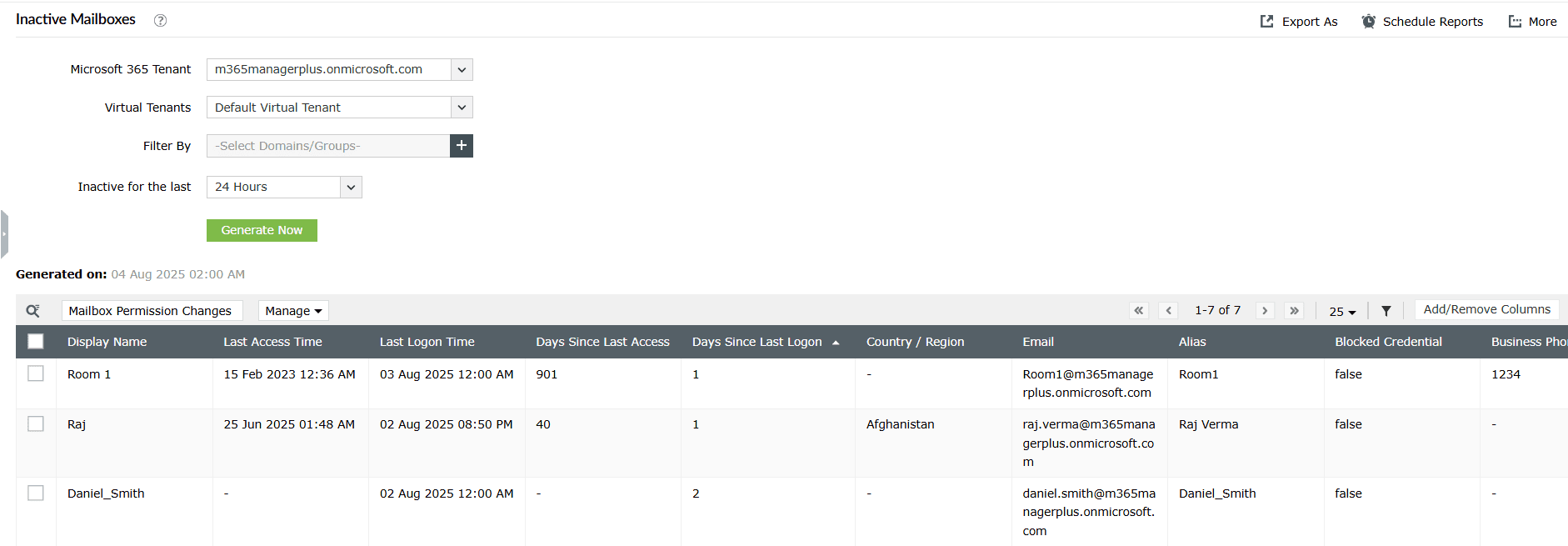
- Log in to M365 Manager Plus and click the Reports tab.
- Navigate to Exchange Online > Mailbox Reports and select the Inactive Mailboxes report.
- Click the Filter icon to filter the report based on mailbox attributes such as DisplayName, Last Logon Time and other attributes, or on Export As to export the Inactive Mailboxes report in file formats such as XLSX, CSV, and PDF.
Manage your Exchange Online inactive mailboxes and more
M365 Manager Plus’ mailbox management capabilities help you easily identify, report on, and manage inactive mailboxes across your Microsoft 365 environment. It simplifies license reclamation, enhances security, and provides proactive automation.
Inactive mailbox management
Easily perform bulk management actions on inactive mailboxes. Disable, delete, or convert mailboxes to shared mailboxes directly from the reports to secure data and free up licenses.
Detailed reports on Microsoft 365 mailboxes
Generate detailed reports on mailbox sizes, activity, permissions, and growth trends to get a complete picture of your Exchange Online environment.
Automated license reclamation
Configure automation policies to remove licenses from users after a set period of inactivity automatically, ensuring you only pay for the resources you need.
Eliminate PowerShell complexity
Run an inactive mailboxes report in a single click instead of creating and executing complex PowerShell scripts. This reduces dependency on scripting expertise and saves valuable time.
Important tips
Convert inactive user mailboxes to shared mailboxes: For departing employees, consider converting their user mailboxes to shared mailboxes. This retains the data without requiring a license.
Set up a cleanup policy: Create an automated workflow that removes licenses from user mailboxes as soon as they are offboarded, freeing up your inventory for more usable mailboxes.
Apply retention policies: Ensure that Microsoft 365 retention policies are applied to all mailboxes to manage data life cycle and compliance, even for inactive accounts.
Frequently asked questions
No. When a user account is disabled or its license is removed, the mailbox data is retained for a grace period (typically 30 days) before it is permanently deleted. This allows time for data recovery if needed. You can safely disable a mailbox without data loss if you do not want anyone to access it.
After identifying an inactive user and backing up or converting their mailbox, you can remove the Microsoft 365 license from their account in the Microsoft 365 admin center. The license then returns to your pool for assignment to a new user.
You can restore an inactive mailbox by using the New-MailboxRestoreRequest cmdlet in Exchange Online PowerShell. This command merges the contents of the inactive mailbox into an existing, active mailbox. The process does not recover the original mailbox but rather copies its data to a specified target mailbox, preserving the inactive mailbox in its state.