

How to get a list of all email addresses and aliases in Microsoft 365
Last updated on:In this page
- How to get a list of email addresses and aliases using the Exchange admin center
- How to get a list of all email addresses and aliases using Exchange Online PowerShell
- How to view a list of all Microsoft 365 email aliases in M365 Manager Plus
- Monitor your Exchange Online email addresses and more
- Important tips
- Frequently asked questions
Auditing all email addresses and aliases in your Microsoft 365 environment is a crucial task for maintaining organizational efficiency and ensuring proper email routing. Manually tracking all primary email addresses and their associated aliases is a cumbersome process, especially in larger organizations, and can lead to complex email delivery issues if not managed correctly.
This guide explores three methods to retrieve a comprehensive list of all Microsoft 365 email addresses and aliases using the Exchange admin center, PowerShell, and M365 Manager Plus.
- Microsoft Purview
- Graph PowerShell
- M365 Manager Plus
Method 1: How to get a list of email addresses and aliases using the Exchange admin center
Prerequisites
The Exchange Administrator role is applied to the account you use to sign in to the Exchange admin center.
Steps
- Log in to the Exchange admin center and navigate to Recipients > Mailboxes.
- Click Choose columns, select Alias, and click Save.
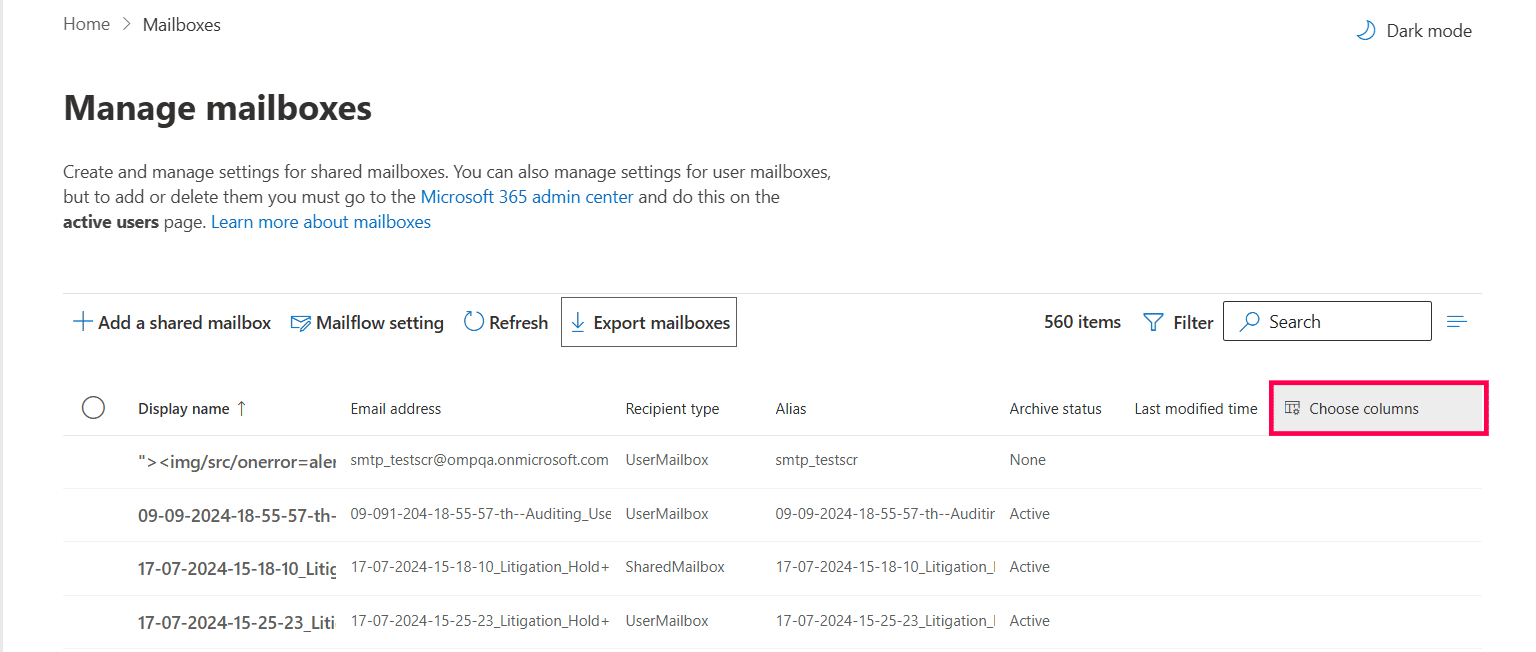
- Click Export Mailboxes to get a list of all email and aliases in Microsoft 365 in a CSV file.

Method 2: How to get a list of all email addresses and aliases using Exchange Online PowerShell (Get-Mailbox and Get-EXOMailbox)
Prerequisites
Before using Exchange Online PowerShell, please verify that:
- The Exchange Administrator or Global Administrator role is applied to the account you use to sign in to Exchange Online PowerShell.
- You are connected to the Exchange Online module.
- To check if the ExchangeOnlineManagement PowerShell module is installed, use this script:
Install-Module ExchangeOnlineManagement          -Scope CurrentUser

Update-Module ExchangeOnlineManagement - Connect to Exchange Online PowerShell with this script:
Connect-ExchangeOnline
- To check if the ExchangeOnlineManagement PowerShell module is installed, use this script:
Using Get-Mailbox to export the Microsoft 365 users email list
The Get-Mailbox cmdlet can be used to retrieve a list of all email addresses and aliases in Microsoft 365.
Get-Mailbox -RecipientTypeDetails UserMailbox -ResultSize Unlimited -Properties EmailAddresses |
Select-Object DisplayName, PrimarySmtpAddress, @{Name="EmailAliases";Expression={$_.EmailAddresses | Where-Object {$_ -clike "smtp:*"} | ForEach-Object {$_ -replace "smtp:",""}}} |
Export-Csv -Path "C:\Reports\AllEmailAddressesAndAliases-$(Get-Date -Format yyyyMMdd-HHmmss).csv" -NoTypeInformation -Encoding UTF8
Using Get-EXOMailbox to export a list of all email addresses and aliases
Microsoft recommends using the modern Get-EXOMailbox cmdlet to retrieve mailbox details. It is optimized for performance and will continue to be updated, whereas older cmdlets are maintained only for backward compatibility.
The following script will retrieve the display name, primary SMTP address, and all alias email addresses for every user mailbox and export the data to a CSV file.
Get-EXOMailbox -RecipientTypeDetails UserMailbox -ResultSize Unlimited -Properties EmailAddresses |
Select-Object DisplayName, PrimarySmtpAddress, @{Name="EmailAliases";Expression={$_.EmailAddresses | Where-Object {$_ -clike "smtp:*"} | ForEach-Object {$_ -replace "smtp:",""}}} |
Export-Csv -Path "C:\Reports\AllEmailAddressesAndAliases-$(Get-Date -Format yyyyMMdd-HHmmss).csv" -NoTypeInformation -Encoding UTF8
Supported parameters
Here are some of the key parameters that can be used with the Get-Mailbox and Get-EXOMailbox cmdlets for this purpose:
| Parameter | Description |
|---|---|
| DisplayName | The friendly name of the mailbox. |
| PrimarySmtpAddress | The primary email address of the mailbox. |
| RecipientTypeDetails | Filters the results based on the recipient type, such as UserMailbox. |
| -Properties | Specifies additional properties to retrieve, like EmailAddresses. |
| EmailAddresses | A multi-valued property containing all email addresses (primary and aliases) for the mailbox. |
An example use case: Get a list of old email aliases in Microsoft 365
Scenario: An IT administrator is preparing to decommission a domain (old-domain.com) and needs to identify all users who still have an email alias with that domain.
This is the cmdlet the admin would have to run to generate a report of all users with an alias from the specified domain.
Get-EXOMailbox -ResultSize Unlimited -Properties DisplayName,EmailAddresses |
Select-Object DisplayName, @{Name="MatchingAlias";Expression={($_.EmailAddresses | Where-Object {$_ -like "*@old-domain.com"}) -join ";"}} |
Where-Object {$_.MatchingAlias -ne ""} |
Export-Csv -Path "C:\Reports\OldDomainAliases.csv" -NoTypeInformation -Encoding UTF8
Method 3: How to view a list of all Microsoft 365 email aliases in M365 Manager Plus
- Log in to M365 Manager Plus and click the Reports tab.
- Navigate to Exchange Online > Mailbox Reports and click the Mailbox Users report.
- This will list all Microsoft 365 user email addresses and aliases in your organization. You can filter for email addresses in specific domains using the Filter By field or export the list of Microsoft 365 email addresses and aliases in multiple file formats by clicking Export As.

Monitor your Exchange Online email addresses and more
M365 Manager Plus offers robust capabilities to manage and monitor email addresses and other critical aspects of your Microsoft 365 environment.
Detailed mailbox reports
Generate reports on mailbox sizes, permissions, forwarding rules, and more to get a complete picture of your Exchange Online environment.
Bulk mailbox management
Add or remove email aliases for Microsoft 365 users in bulk using CSV import, saving significant time and effort.
Real-time alerts on Microsoft 365 email alias changes
Get instant notifications for critical changes made to mailbox properties, including adding or removing aliases.
Eliminate PowerShell complexity
Run detailed reports in a single click, reducing reliance on scripting and minimizing the potential for errors.
Important tips
Regularly audit email aliases: Periodically review all email aliases to ensure they are still required and are not causing any mail flow issues.
Standardize naming conventions: Establish and enforce a clear naming convention or management template for enforcing email alias rules to maintain consistency and avoid confusion.
Document alias ownership: Maintain a record of the purpose of each alias and who is responsible for it. You can collect the data for the same by filtering for specific aliases in M365 Manager Plus' Exchange Online reports.
Frequently asked questions
A primary email address is the main email address associated with a mailbox and is the one that appears in the From field when a user sends an email. An email alias is an additional email address that also delivers email to the same mailbox in Microsoft 365.
You can add an alias through the Microsoft 365 admin center, the Exchange admin center, or by using the Set-Mailbox cmdlet in PowerShell. With M365 Manager Plus, you can add aliases in bulk via a simple GUI action.
You can use the following command to get the email addresses for a specific user. This cmdlet requires you to use PowerShell as an Exchange Administrator.
Get-EXOMailbox -Identity "user@domain.com" -Properties EmailAddresses | Select-Object DisplayName, PrimarySmtpAddress, @{Name="EmailAliases";Expression={$_.EmailAddresses | Where-Object {$_ -clike "smtp:*"} | ForEach-Object {$_ -replace "smtp:",""}}}No, multiple users cannot use the same alias in Microsoft 365, as an alias must be unique for each user within the entire organization's directory.
If you need multiple users to receive emails sent to a single address, you should use a distribution list or a shared mailbox, not an alias. The single address would be the address of the group or shared mailbox, and the members or users would be granted access to it.