

How to remove mailbox permissions in Microsoft 365
Last updated on:In this page
Mailbox permissions determine who can access, send as, or manage another user’s mailbox in Exchange Online. Over time, users may accumulate access they no longer require due to role changes, project completion, or offboarding. If these permissions are not reviewed and removed promptly, they increase the risk of unauthorized mailbox access and complicate audits.
This article explains how to remove Exchange Online mailbox permissions using native tools such as the Exchange Admin Center (EAC) and Exchange Online PowerShell, and how to remove mailbox permissions for multiple mailboxes in just a few clicks using ManageEngine M365 Manager Plus, a dedicated Microsoft 365 administration tool.
- Exchange Online
- Graph PowerShell
- M365 Manager Plus
Method 1: How to remove mailbox permissions using the Exchange admin center
Prerequisites
You have the Exchange Administrator role assigned for the account you use to sign in to EAC.
Steps
- Sign in to the Exchange admin center and navigate to Recipients > Mailboxes.
- Select a shared mailbox from the list.
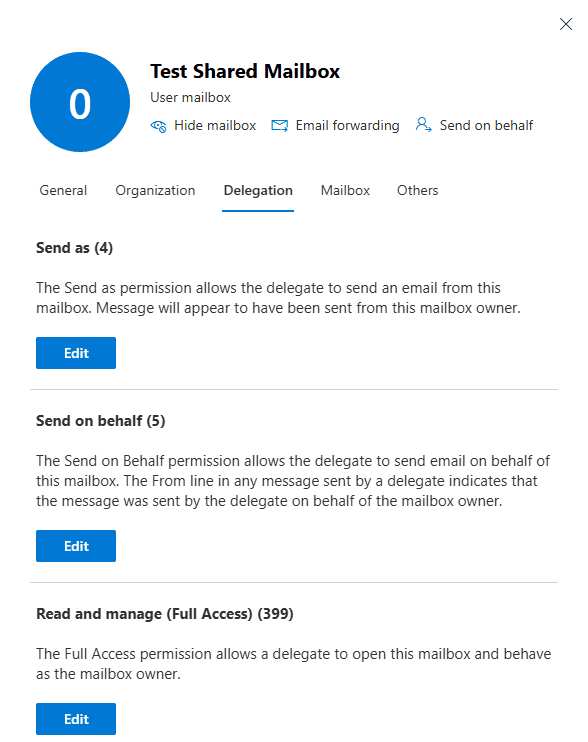
- In the details pane that opens, select the Delegation tab.
- Click Edit below the Send As, Send on Behalf, and Full Access permissions to modify them.
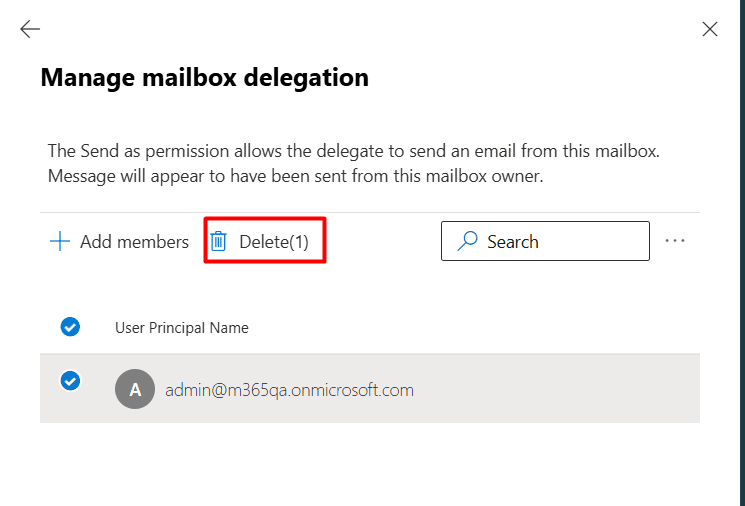
- Select the user(s) that you want to remove mailbox permissions for, and click Delete.


Limitation to consider
The Exchange admin center only allows you to remove mailbox permissions for one mailbox at a time. You will have to use Exchange Online PowerShell or a third-party Microsoft 365 administration tool, like M365 Manager Plus, to remove mailbox permissions for multiple mailboxes in a single operation.
Method 2: How to remove mailbox permissions using Exchange Online PowerShell
Prerequisites
Before using Exchange Online PowerShell, verify that:
- The Exchange Administrator role is applied to the account you use to sign in to Exchange Online PowerShell.
- You are connected to the Exchange Online PowerShell module.
- To check if the Exchange Online PowerShell module is installed, use this script:
Get-Module -ListAvailable ExchangeOnlineManagement - If it does not return a value, you will have to install the module. To install the Exchange Online PowerShell module, execute this script:
Install-Module ExchangeOnlineManagement -Scope CurrentUser - To connect to Exchange Online PowerShell, run this script:
Connect-ExchangeOnline
- To check if the Exchange Online PowerShell module is installed, use this script:
PowerShell cmdlets to remove mailbox permissions
Each type of mailbox permission requires their own cmdlet to remove them using Exchange Online PowerShell. Below are the cmdlets to remove the specific mailbox permissions.
Remove Full Access permission using Remove-MailboxPermission
The Full Access permission allows a user to open the mailbox and view its contents, but it does not provide rights to send mail using the delegated mailbox. You can remove the Full Access mailbox permission using Remove-MailboxPermission, as shown in the script.
Remove-MailboxPermission -Identity "MailboxName" -User "UserName" -AccessRights FullAccess -InheritanceType All
Remove Send As permission using Remove-RecipientPermission
The Send As permission allows a user to send emails that appear to come directly from the mailbox owner. You have to use the Remove-RecipientPermission cmdlet to remove the Send As permission over the delegated mailbox.
Remove-RecipientPermission -Identity "MailboxName" -Trustee "UserName" -AccessRights SendAs
Remove Send on Behalf permission using Set-Mailbox
The Send on Behalf permission allows a user to send emails with the on behalf of tag. The Set-Mailbox cmdlet is used to remove the Send on Behalf permission of the mailbox.
Set-Mailbox -Identity "MailboxName" -GrantSendOnBehalfTo @{remove="UserName"}
Supported parameters
The following table contains the parameters used when you remove mailbox permissions using Exchange Online PowerShell.
| Parameter | Description |
|---|---|
| Identity | The identity (Alias, Email, or Name) of the mailbox. |
| User/Trustee | The user or group whose permissions are being revoked. |
| AccessRights | Specifies the permission level to remove (FullAccess or SendAs). |
Method 3: How to remove mailbox permissions using M365 Manager Plus
Steps
- Log in to M365 Manager Plus and navigate to the Management tab > Exchange Online > Mailbox Management and select Mailbox Delegation.
- Select the checkboxes next to the permissions that you want to modify, and select the Remove Permission radio button.
- Select Users/Groups from whom the mailbox permissions have to be revoked.
- Type in the name of the mailboxes from which you want to remove the permissions in the Select Mailbox(es) field and click Find.
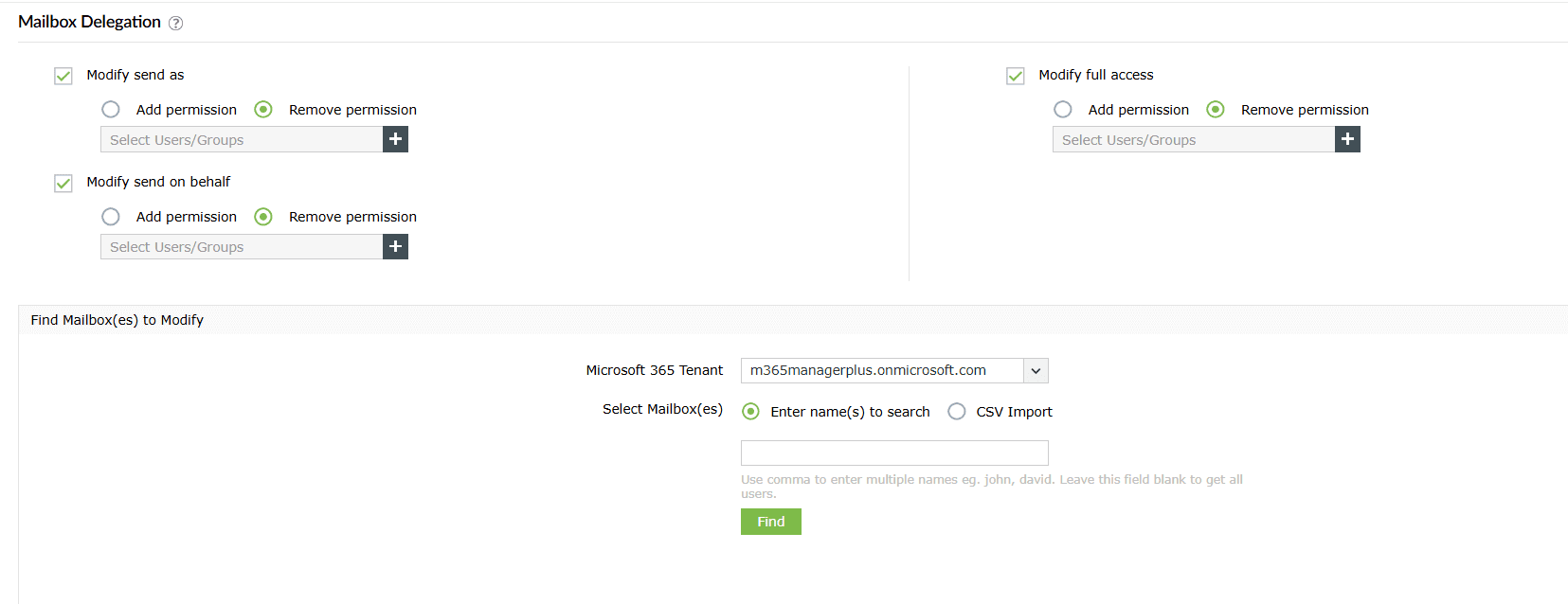
- After finalizing the list of mailboxes you want to remove permissions for, click Apply.

Monitor your Exchange Online mailboxes and more
M365 Manager Plus simplifies the complex task of managing and tracking your Exchange Online mailbox permissions, giving you complete visibility and control over your Exchange Online environment.
Mailbox permission management
Effortlessly add, remove, or modify mailbox permissions in bulk from a simple, GUI-based interface, eliminating the need for complex and error-prone PowerShell scripts.
Reports on Microsoft 365 mailboxes
Generate dozens of preconfigured reports on Exchange Online mailboxes, including permissions, size, activity, and more to maintain tight control over your collaborative workspaces.
Real-time alerts on Microsoft 365 permission changes
Configure alerts for any modifications to mailbox permissions. Get instant notifications when access rights are changed, allowing you to revert unauthorized modifications quickly.
Eliminate PowerShell complexity
Run detailed reports and modify mailboxes in bulk with a single click, avoiding the complexities of cmdlets like Remove-MailboxPermission and Set-Mailbox. This reduces dependency on scripting and minimizes the risk of errors.
Important tips
Regularly audit mailbox permissions: Schedule periodic reviews of shared mailbox permissions, especially for mailboxes containing sensitive data (e.g., HR or finance), to ensure access levels remain appropriate.
Clean up stale permissions regularly: Periodically review and remove permissions for shared mailboxes that are no longer accessed. This declutters your access lists and strengthens security.
Frequently asked questions
You need to be assigned the Exchange Administrator role in Microsoft 365 to view and export shared mailbox permissions.
Full Access allows a user to open the shared mailbox, read, create, and delete items. Send As allows a user to send emails that appear to come directly from the shared mailbox's address. They are independent permissions.