

How to configure mailbox auto-reply in Microsoft 365
Last updated on:In this page
- Method 1: How to set out of office emails in the Exchange Admin Center
- Method 2: How to configure Microsoft 365 auto-reply settings using Exchange Online PowerShell (Set-MailboxAutoReplyConfiguration)
- Method 3: How to configure Microsoft 365 auto-replies using M365 Manager Plus
- Monitor your Exchange Online auto-replies and more
- Important tips
- Frequently asked questions
Automatic replies are essential for helping employees manage expectations when they are out of office. But without proper oversight, they can lead to inconsistent corporate messaging or security vulnerabilities due to malicious messages sent to external contacts.
Managing mailbox auto-reply configurations allows you to standardize messages, schedule them for holidays, and ensure professionalism across your organization. You can also ensure any miscommunications do not take place internally or with external contacts when employees are out of office.
- Exchange Online
- Graph PowerShell
- M365 Manager Plus
Method 1: How to set out of office emails in the Exchange Admin Center
Prerequisites
You must have the Exchange Administrator role assigned.
Steps
- Sign in to the Exchange Admin Center (EAC) and navigate to Recipients > Mailboxes.
- Click the user mailbox that you want to configure.
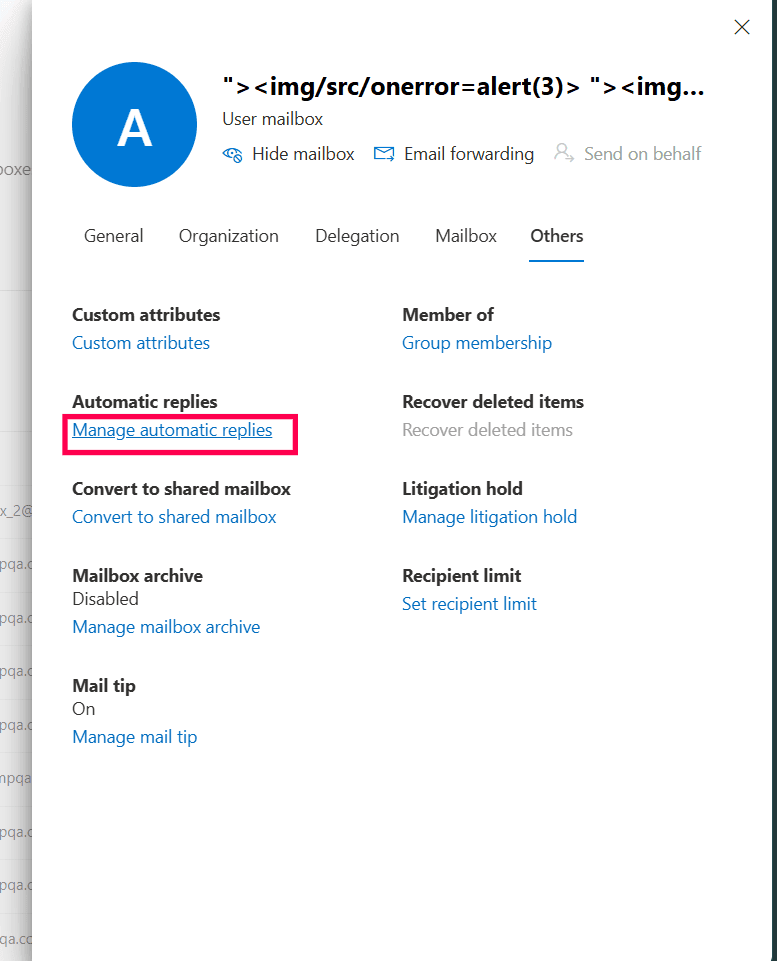
- In the flyout pane that opens, navigate to the Others tab and under Automatic replies, click Manage automatic replies.
- Toggle Automatic replies on.
- If you wish to have automatic replies enabled only for a certain period, select the Send replies only during this time period check box and configure a start and end date.
- Type in your internal auto-reply content in the Reply to all senders inside the organizations from this mailbox field.
- To enable external auto-reply for Exchange Online mailboxes, select the Send automatic replies to senders outside this organization check box.
- Type in your external auto-reply content in the Reply to all senders outside the organizations from this mailbox field.
- You can choose to either limit external automatic replies to just the receiver’s contacts or configure it for all external members by choosing one of the two radio buttons above the external auto-reply field.
Limitations to consider
The EAC is suitable for managing individual mailboxes, but it does not provide a way to configure auto-reply messages in bulk or view the status of all out of office messages across the organization at once. If you wish to configure out of office messages for multiple Exchange Online mailboxes simultaneously, you must use Exchange Online PowerShell or a dedicated tool like M365 Manager Plus.
Method 2: How to configure Microsoft 365 auto-reply settings using Exchange Online PowerShell (Set-MailboxAutoReplyConfiguration)
Prerequisites
Before using Exchange Online PowerShell, please verify that:
- The Exchange Administrator or Global Administrator role is applied to the account you use to sign in to Exchange Online PowerShell.
- You are connected to the Exchange Online module.
- To check if the ExchangeOnlineManagement PowerShell module is installed, use this script:
- Connect to Exchange Online PowerShell with this script:
Install-Module ExchangeOnlineManagement -Scope CurrentUser

Update-Module ExchangeOnlineManagementConnect-ExchangeOnline
Set an automatic reply for a specific mailbox using Set-MailboxAutoReplyConfiguration
The Set-MailboxAutoReplyConfiguration cmdlet can be used to configure auto-reply settings for a single mailbox. This is the primary command for scripting and automating out of office messages for one mailbox in Exchange Online.
  Set-MailboxAutoReplyConfiguration -Identity "<identity>" -AutoReplyState Enabled -InternalMessage "I am currently out of the office and will respond upon
my return." -ExternalMessage "Thank you for your message. I am currently out of office with limited access to email."
To view the current settings for a user, use the Get-MailboxAutoReplyConfiguration cmdlet.
Supported parameters
The following table contains key parameters that can be used with the Set-MailboxAutoReplyConfiguration cmdlet to manage automatic replies.
| Parameter | Description |
|---|---|
| Identity | The name, alias, or email address of the mailbox. |
| AutoReplyState | Sets the state of the auto-reply. Valid values are Enabled, Disabled, or Scheduled . |
| StartTime | The start date and time for a scheduled auto-reply. |
| EndTime | The end date and time for a scheduled auto-reply. |
| InternalMessage | The auto-reply message sent to senders within the organization. |
| ExternalMessage | The auto-reply message sent to senders outside the organization. |
| ExternalAudience | Controls who receives the external auto-reply. Valid values are None, Known, or All. |
Use case: Set a scheduled auto-reply for all members of a department
For a planned office closure or team event, you may need to set a standard out of office message for an entire department that is active for a specific period. The following Exchange Online PowerShell script fetches all members of the marketing department and configures a scheduled auto-reply message for them.
PowerShell
              $members = Get-Mailbox -Filter "Department -eq 'Marketing'" -ResultSize Unlimited


              $members | foreach {


                Set-MailboxAutoReplyConfiguration -Identity $_.Identity `


                -AutoReplyState Scheduled `


                -StartTime "9/20/2025 09:00" `


                  -EndTime "9/22/2025 17:00" `


                -InternalMessage "The Marketing team is out of the office for a team event until September 22nd. We will respond to your message upon our return." `


                -ExternalMessage "Thank you for contacting the Marketing Department. Our team is currently at an off-site event and will reply after September 22."


              }
Method 3: How to configure Microsoft 365 auto-replies using M365 Manager Plus
- Log in to M365 Manager Plus and click the Management tab.
- Navigate to Mailbox Management > Mailbox Auto-Reply Configuration.
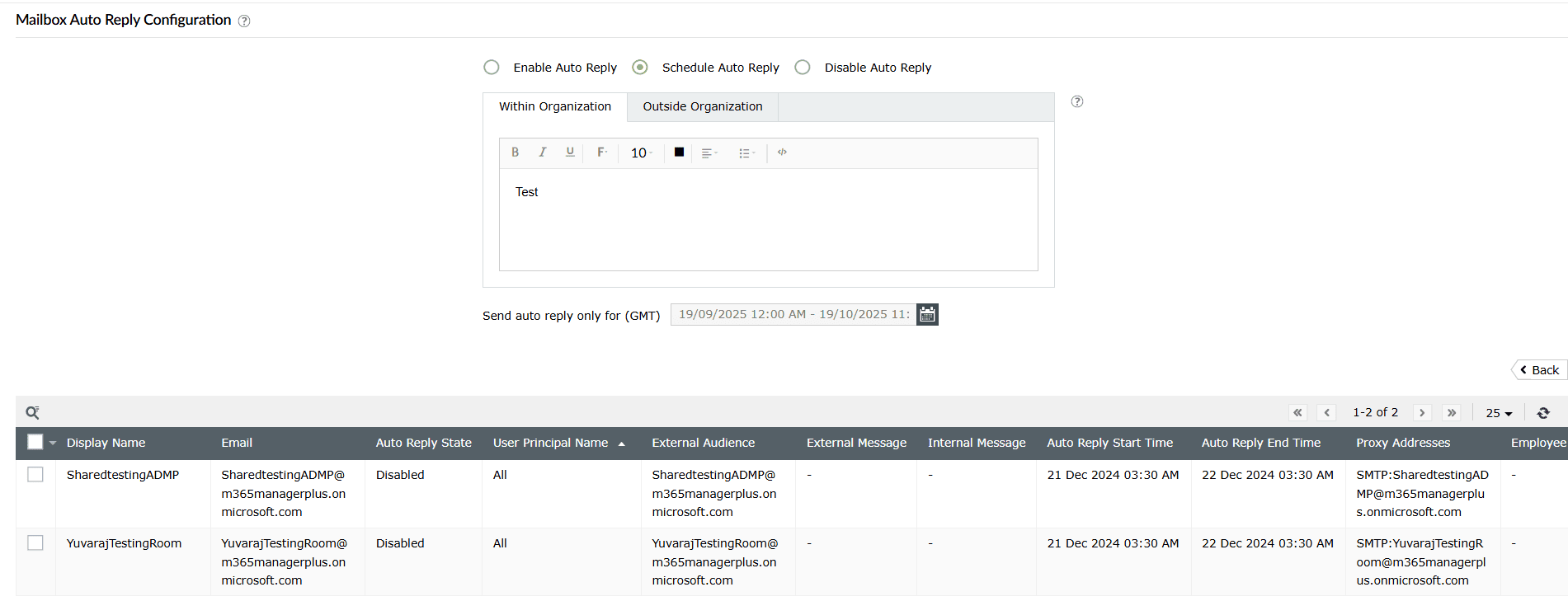
- Select the desired Microsoft 365 tenant, configure the auto-reply message and schedule, and select the mailboxes to apply the configuration to from the report.
- Click Apply to configure the settings in bulk.
Monitor your Exchange Online auto-replies and more
M365 Manager Plus simplifies the management of mailbox settings, allowing you to view, monitor, and control auto-replies across your Microsoft 365 environment from a single console. It streamlines bulk configurations, provides detailed reports, and offers proactive alerts.
Bulk auto-reply management
Effortlessly enable, disable, or schedule automatic replies for hundreds of users at once using a simple, GUI-based action, removing the need for complex PowerShell scripts.
Reports on Microsoft 365 auto-reply settings
Generate comprehensive reports on auto-reply status, including scheduled times and message content, to maintain complete visibility and control over your Exchange Online communications.
Real-time alerts on mailbox changes
Configure alerts for any modifications to critical mailbox settings. Receive immediate notifications when permissions are changed or auto-replies are configured on sensitive accounts, allowing for quick action on unauthorized changes.
Eliminate PowerShell complexity
Run detailed reports on auto-reply configurations with a single click, avoiding the complexities of cmdlets like Get-MailboxAutoReplyConfiguration. This minimizes reliance on scripting and reduces the risk of errors.
Important tips
Control external reply audience: Be cautious with the information shared externally. Use the -ExternalAudience parameter in PowerShell to restrict replies to known contacts (Known) instead of everyone (All) to minimize security risks.
Audit active auto-replies regularly: Periodically generate a report of all users with auto-replies enabled. This helps identify users who have returned from leave but forgot to disable their out of office message, which can cause communication delays.
Standardize messages for company-wide holidays: To maintain a professional and consistent brand voice, use templates and bulk configuration tools to set a uniform out of office message for all employees during public holidays or company-wide shutdowns.
Frequently asked questions
You need to be a member of the Exchange Administrator role to configure automatic reply settings for another user's mailbox.
You can use the Set-MailboxAutoReplyConfiguration cmdlet in Exchange Online PowerShell. There is no native way to do this for another user directly within the Outlook client.
Set-MailboxAutoReplyConfiguration -Identity >user's email address< -AutoReplyState Enabled -InternalMessage "Your message here"
You cannot schedule report exports natively with PowerShell alone. You should use Windows Task Scheduler to run a script, which can be complex to set up and maintain. M365 Manager Plus can schedule these reports and deliver them by email without scripts.
Use the Get-MailboxAutoReplyConfiguration cmdlet in Exchange Online PowerShell.
PowerShell
Get-MailboxAutoReplyConfiguration -Identity >user's email address<
Yes. Use the -InternalMessage parameter for messages sent to senders inside your organization and the -ExternalMessage parameter for messages sent to senders outside your organization.