Support
 
PhoneGet Quote
 
Support
 
US Sales: +1 888 720 9500
US Support: +1 844 245 1108
Intl: +1 925 924 9500
Aus: +1 800 631 268
UK: 0800 028 6590
CN: +86 400 660 8680

Direct Inward Dialing: +1 408 916 9890


Service pack installation for M365 Manager Plus

Update Path Finder


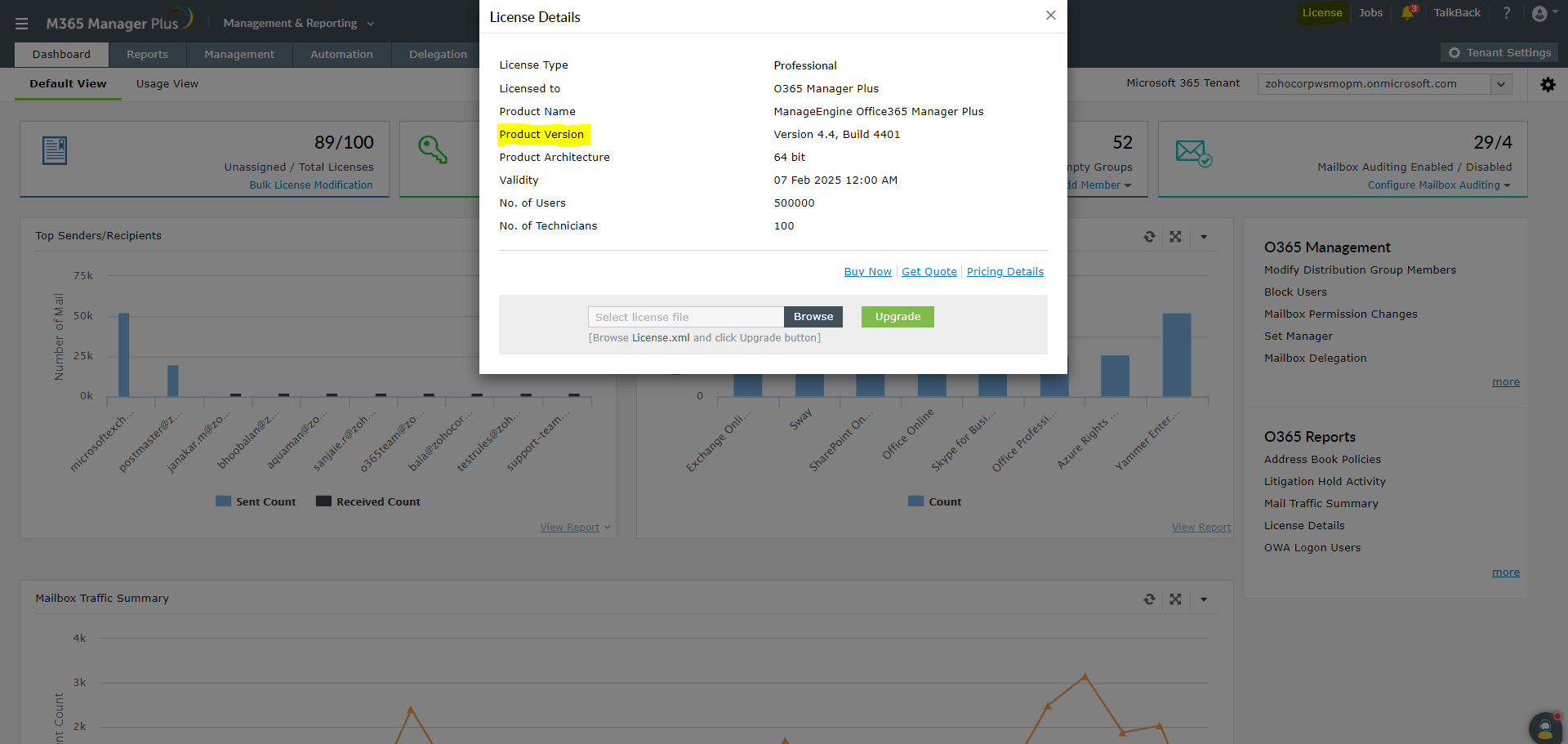
How do I find my current build number?

Important: We strongly recommend you take backups before applying the service pack. This helps prevent accidental loss of data. Steps to update builds

Service packs

If your build number is Update to build number SHA256 Checksum hash value
4800 to 4820
4820Latest
Readme
Download
ccde16a4d5bdf9251652b22dba7e2aa8f7b693defb8efb7670811f2e2262aee2
4700 to 4703
d98ea19523f1dd5813bc7a3cdcd5f076d5013014a2487bcdea6f5141c32094e6
4600 to 4619
4da9f3bfdda5a71e4b783e1895662278f02453f9f894f69d24109fd88dc86c40
4500 to 4543
e14acfd9a3457457cee922d06980ae166f467f5fbd36803660117a71367371b3
4400 to 4425
d38d6056d6ca6a96ce2878b5a1fbcd47ef69216d39c401e38bd5e11e3fa8ce09
4300 to 4336
cf7e3ced91dae72b573c184231c1330a3b74c2dbad8e5d84d3e6fdeeba53370f
4200 to 4222
5106deae883d5510146a447c22d312bf15e4d644abe0c83990135522c68bbea0
4100 to 4119
60b9d4903ab0bc8ef6e876c7a82e7e3292eab79cbf051558ca1bfdf515444bad
4002 to 4014
65f11b014ead4b69ff310e4529e9821867fee15d536779744a365d4b30d539b0

Instructions to apply Service Pack

Step 1: Shut down M365 Manager Plus

  1. If the product is running as an application, click Start > All Programs > M365 Manager Plus > Stop M365 Manager Plus.

  2. If the product is running as a Windows service, click Start > Run. Type services.msc and stop ManageEngine M365 Manager Plus.
Step 2: Stop the database

Execute the stopDB.bat file stored in the <M365 Manager Plus>\bin directory.

Step 3: Back up M365 Manager Plus

Back up M365 Manager Plus by zipping the contents of the <M365 Manager Plus> directory.

Step 4: Back up Microsoft SQL Server (if applicable)

If you're using Microsoft SQL Server, take a backup of the database.

Step 5: Open Update Manager

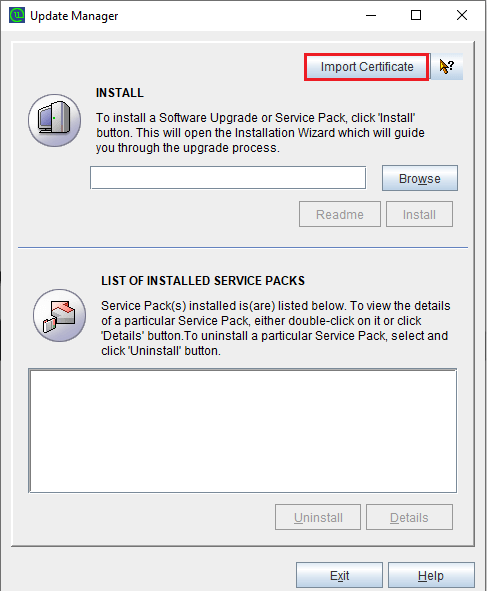
Open Command Prompt as an administrator and execute the UpdateManager.bat file stored in the <M365 Manager Plus>\bin directory.

Step 6: Select the service pack

Click Browse and select the service pack (.ppm) file that you downloaded.

Step 7: Install the service pack

Click Install. Depending on the amount of data to be migrated, the installation procedure might take a few minutes. Please do not terminate the process prematurely. The certificate required to verify the service pack's integrity will be automatically imported by the product.

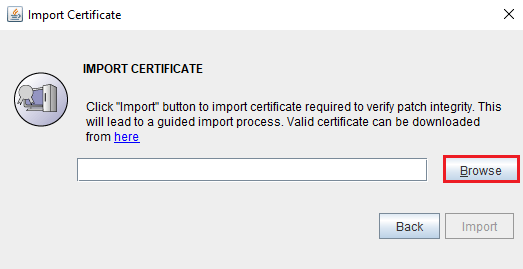
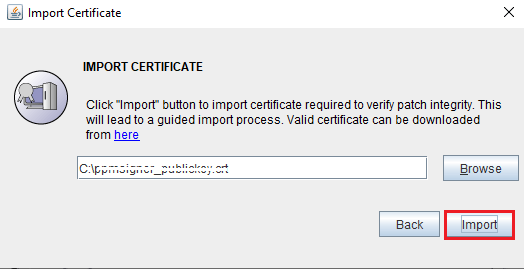
If the automatic certificate import process fails, please import the certificate manually. Otherwise, click Close and then Exit to quit the Update Manager tool.

Step 8: Start M365 Manager Plus

  1. If the product runs as an application, click Start > All Programs > M365 Manager Plus > Start M365 Manager Plus.

  2. If the product runs as a Windows service, click Start > Run. Type services.msc and start ManageEngine M365 Manager Plus.

A holistic Microsoft 365 administration and security solution