Android Guided Access is an advanced lockdown feature that allows users to pin their device screens to a single app or screen and restrict the features that can be accessed, similar to Apple's Guided Access on iPhones and iPads.
Though Guided Access for Android is built as an accessibility feature, it's also used to provision single-purpose devices with the required app. Leveraging Guided Access is a common way to lock down devices to be used as self check-in kiosks, point-of-sale (POS) terminals at self-service restaurants, digital signage, dedicated displays used for advertising, etc. On enabling Guided Access mode on Android devices, specific device settings can be controlled such as the volume buttons, sleep/wake button, touch, etc. When the Guided Access session has to be terminated, the Guided Access passcode has to be entered, which was configured earlier, at the start.
This Android Guided Access guide covers the following:
- Guided Access for Android
- Limitations of Android screen pinning over guided access
- Do I need an MDM for guided access on Android?
- Benefits of Android Guided Access
- Implementing Guided Access on Android using MDM
- Pre-requisites for enabling Guided Access on Samsung and Android devices
- How to enable Guided Access on Android and Samsung devices?
- How to enable Guided Access on iPhone?
Guided Access for Android
Guided Access on Samsung and Android devices can be achieved using a functionality called Screen Pinning that can be used to limit the devices' access to specific apps. Here, a PIN can be set up which has to be entered each time the app is to be 'unpinned' or removed from the screen. Configuring Screen Pinning, the equivalent of Guided Access on Android, on all the devices in an organization only implies manually enabling the feature on each device, followed by setting a password for each user. Also, as single-purpose devices are widely used in industried such as construction, healthcare, education, and retail, deploying multiple devices with the required app and device restrictions would be a tedious task using Guided Access in Samsung and Android devices.
Limitations of Android screen pinning over guided access
Screen Pinning feels like a reasonable starting point, until you actually try running it across an organization. What works on one device starts falling apart pretty quickly when you scale up.
- No remote management.
There's no central switch to flip. Each device has to be configured individually, in person. For a team managing devices across multiple sites or cities, that alone is a serious problem.
- Thin access controls
Pinning an app to the screen is one thing, but the device underneath is still fairly open. Depending on the Android version, users can often still reach the notification shade, tap hardware buttons or stumble into system menus. That's not really a locked-down device.
- App changes require physical access.
If the pinned app needs an update or needs to be swapped out entirely, someone has to physically handle each device. There's no way to push that change remotely or schedule it quietly in the background.
- In-house apps aren't supported.
A lot of organizations run proprietary software that never touches the Play Store. Screen Pinning doesn't have a clean way to handle those apps, which rules it out for many enterprise use cases from the start.
- No way to fix things remotely.
When something breaks on an unattended kiosk, and it will, you're looking at a site visit. Screen Pinning offers no remote access, no screen sharing, no diagnostics. Whatever the issue is, it waits until someone shows up.
- Lost device? You're out of options.
There's no remote lock, no data wipe, no way to track where the device went. If a Screen Pinned device leaves the building, your data leaves with it.
Taken individually, some of these might feel manageable. Together, they make Screen Pinning a poor fit for any organization running dedicated-purpose devices at any meaningful scale. Mobile Device Manager Plus, through its Kiosk Mode, covers all of these gaps and then some.
Do I need an MDM for guided access on Android?
The short answer is: it depends on what you're managing and how much it matters if something goes sideways.
For personal use like handing a tablet to a child or setting up a single display at home, Screen Pinning is perfectly fine. It's built into Android, it costs nothing, and it does exactly what you need it to do.
Running devices in a business context is a different matter entirely. Once devices are tied to daily operations, the stakes change. Here's where MDM starts making sense:
- Scale.
There's no central switch to flip. Each device has to be configured individually, in person. For a team managing devices across multiple sites or cities, that alone is a serious problem.MDM allows you to configure and push Kiosk profiles to all devices simultaneously from a central console.
- Control.
Which buttons should users be able to press? Can they see the notification bar? Should Wi-Fi settings be accessible? MDM lets IT teams answer all of these questions upfront, without having to revisit each device individually.
- Compliance and security.
Healthcare, education, retail and more, these sectors operate under compliance requirements that a native Screen Pin simply can't satisfy. Remote wipe, geofencing, lost mode, aren't just nice extras, they're often mandatory.
- App lifecycle management.
MDM handles installations, updates and removals silently, in the background, for both Play Store and internal apps. No one has to touch the device.
- Ongoing maintenance
Kiosks break at inconvenient times and in inconvenient places. MDM gives IT teams the ability to diagnose and fix issues without dispatching anyone, which matters a lot when your devices are spread across multiple locations.
If your devices do real work like in check-in terminals, POS systems, field tools, exam tablets and such, MDM is what makes that deployment reliable and maintainable over time. Screen Pinning gets you through day one. MDM gets you through the year and beyond.
Benefits of Android Guided Access
Guided Access in Android using Mobile Device Manager Plus provides organizations various benefits, including:
- Deploy with ease
Unlike Android Guided Access, where devices must be manually locked to the required app, MDM allows multiple Android devices to be provisioned in Kiosk at once without hassle. As MDM provides bulk enrollment of devices using various enrollment techniques to support BYOD, COPE, and COSU environments, the process of on-boarding is quick and seamless. This is beneficial especially in large organizations with multiple departments and specific device requirements.
- Customize settings and restrictions
When devices are provisioned manually using Guided Access for Android, the user will be unable to access even the basic settings such as Wi-Fi, Bluetooth, Brightness, etc., whereas MDM provides a means to configure these settings even when devices are locked in Kiosk Mode. For instance, a device is provisioned in Kiosk with a single app used for an examination at school and the student using the device wants to adjust the brightness. This can be achieved by enabling the Custom Settings app. Users can be allowed to view/modify certain settings as configured on MDM. Also, restrictions can be applied on the Task Manager, Status Bar, physical buttons on the Kiosk device to prevent the user from navigating away from the required screen or factory resetting the device. These restrictions can be revoked as and when required from MDM.
- Store and Enterprise app support
To manually enable Android Guided Access, the apps must be manually installed on the devices and it's only supported for Play Store apps, whereas using MDM, Play Store apps as well as in-house apps, specific to the organization can be silently installed on the devices as Kiosk apps. Also, system apps which are pre-installed with the device, can be provisioned as Kiosk apps. As MDM supports the complete app life cycle management right from app installation, managing app updates as well as app removal, the exhausting process of manually managing the apps is eliminated. In addition to apps, MDM supports provisioning specific web apps or websites in Kiosk which locks the device access to the specific URL content.
- Customize your Home Screen Layout
Kiosk devices often have a designated purpose and are used by multiple employees. Hence, the apps need to easily locatable on the device for improved user experience. Using home screen customization, you can organize frequently accessed app icons on the home screen and standardize the home screen layout across your organization. Apps and web shortcuts pinned to ṭhe home screen can not be uninstalled or removed by the user, giving you additional control over your devices.
- Remotely troubleshoot
Kiosk devices used for self-service purposes are mostly unattended. If Guided Access is enabled on these unattended Android devices, it can be tricky to resolve technical issues without direct user intervention. Usually, issues on managed devices can be fixed by remotely taking control or viewing the device screen, with the user permitting access to do so. But on unattended devices, fixing issues can be difficult due to the absence of a user. Also, the user, even if present might be a contract employee, who is not technically adept to rely upon. To solve the problem of troubleshooting devices in these situations, MDM provides unattended remote access for Android devices, using which the issues on the devices can be fixed without any user intervention. Additionally, MDM supports a remote chat feature where security commands can be used to temporarily exit and re-enter Kiosk on the device, thereby saving time and cost to the organization.
- Secure devices and data
As single app Kiosk devices are generally used by remote or contract employees, there is a high possibility of the devices being lost or stolen. MDM provides the Remote alarm feature to help in retrieving the device as well as Geotracking feature to track them down. Also, the devices can be locked completely using Lost Mode. Security commands such as Complete wipe or Corporate wipe can be initiated on the device if need be. Furthermore, mobile devices can easily be carried out of the organization premises which in most cases, is not ideal as the devices are meant to be used only within the premises. To address these cases, virtual fences can be set up using Geofencing, so that access to the device is blocked, once it leaves the organization premises or a particular area. Also, the devices can be preconfigured to erase all data on leaving the fencing area, if need be.
To implement Guided Access for Android devices, enroll the devices with MDM, add the app required to the App Repository, and associate a Kiosk profile to the devices.
Implementing Guided Access on Android using MDM
Guided Access mode for Android devices can be better implemented using the Kiosk Mode of Mobile Device Manager Plus, a comprehensive mobile device management solution.
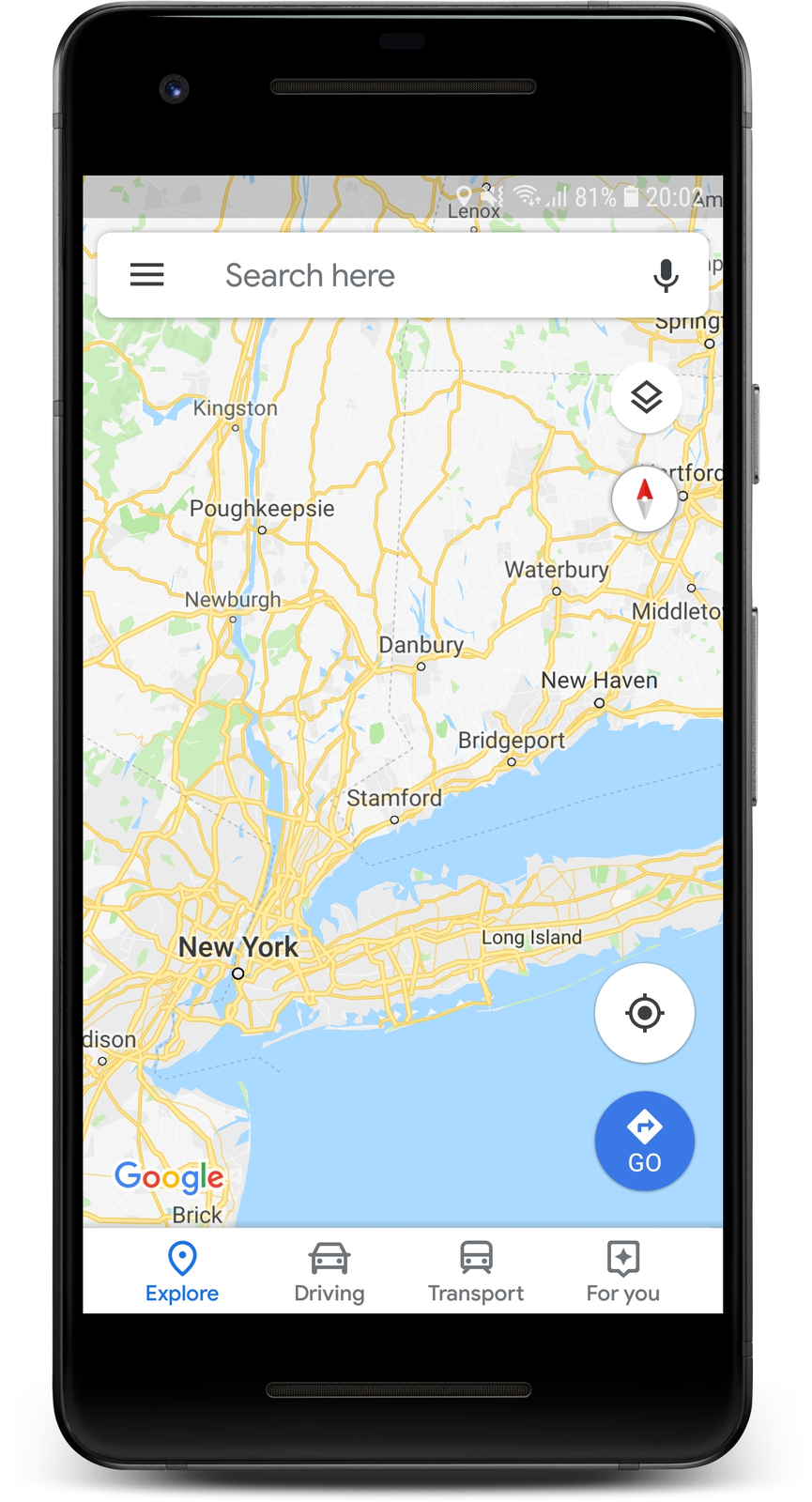
With Android Kiosk Mode, devices (both Samsung and non-Samsung) can be remotely provisioned with the required app (single app Kiosk) or a set of apps (multi-app Kiosk) and with advanced restrictions applied, ensuring better control over the devices. Single app Kiosk functions similar to Android Guided Access and ensures the device is locked down only to one particular app while blocking access to the rest of the features and settings. For instance, a device may be provided to a driver to be used only for navigation and is thus provisioned with the Maps app. The rest of the device functionality is restricted.
What are the Pre-requisites for enabling Guided Access Android devices?
To enable Guided Access on Samsung tablets, mobile devices and other non-Samsung Android devices, ensure the following pre-requisite is met:
- The Samsung and non-Samsung devices should be provisioned as Device Owner.
How to enable Guided Access on Android and Samsung devices?
To enable Guided Access on Android and Samsung devices using Kiosk Mode, follow the steps given below:
- On the MDM console, click on the Device Mgmt tab.
- Select Profiles from the left pane and navigate to Create Profile->Android.
- Provide the name and description for the profile and click on Continue.
- Select Kiosk from the left pane.
- Now, choose Single App (or Multi App Kiosk type if need be).
- In the Allowed Apps tab, specify the app name(s) or bundle identifier(s). Additionally, a wallpaper can be configured.
- Configure the other Device Restrictions, Custom Settings App, and Advanced Settings for the Kiosk profile.
- Click on Edit Screen Layout, drag and drop the icons to arrange the apps in home screen.
- Next, Save and Publish the profile.
- Navigate to the Device Mgmt->Groups & Devices->Devices.
- Select a particular device on which the functionality of the profile is to be tested and from the Action dropdown, select Associate profile.
- From the options available, select the profile that was just created and click on Select.
The Kiosk profile is associated with the device, thus implementing the equivalent of Guided Access for Android successfully.
How to enable Guided Access on iPhone?
Guided Access can be enabled on iPhones by navigating to Settings->Accessibility->Guided Access. However, when there are multiple devices to be deployed and managed, enabling Guided Access on each device manually can prove to be a tedious task. These devices can instead be restricted to a single app or a specific set of apps through Kiosk Mode using Mobile Device Manager Plus. Kiosk Mode also allows the IT admin to remotely provision the required app(s) to these devices and facilitates advanced restrictions to be applied on them.
While MDM secures mobile devices, learn how Application Control Plus is used to secure fixed-function Windows and server devices like ATMs and POS terminals.