Last updated: October 27, 2026
How to Put Android Tablets & Smartphones into Dedicated Kiosks?
Key takeaways
- Android Kiosk Mode locks a device to a single app or a fixed set of apps and blocks access to everything else, including settings and the notification bar.
- Android's built-in screen pinning works for one app at a time, but any user can exit it and it doesn't survive a restart, so it isn't suited to business deployments.
- With Mobile Device Manager Plus, non-Samsung devices running Android 5.0 or later must be enrolled as Fully Managed (Device Owner) to use Kiosk. Knox-enabled Samsung devices are also supported.
- Supported enrollment methods include Zero Touch, Samsung Knox Mobile Enrollment, EMM Token (QR code), and NFC. Work Profile (BYOD) devices can't be put into Kiosk.
- Admins can pause Kiosk from the console, with a passcode on the device, or through remote chat commands, and remove it entirely by disassociating the Kiosk profile.
Android Kiosk Mode is a lockdown mechanism that lets IT admins run a single app or a pre-defined set of apps on Android smartphones and tablets, so the devices work as dedicated kiosks. Once Kiosk Mode is on, all other apps and device functions, such as the status bar and notification bar, are disabled, and users can't change device settings. Depending on the device, admins can also restrict hardware buttons like volume, power, and home while Kiosk is active.
Tablets and smartphones now run self-checkouts, patient check-in desks, digital signage, and point-of-sale counters. A device sitting on a counter all day will get tapped by hundreds of people, and Kiosk Mode makes sure every one of them sees the same app, with no way to wander into settings or personal content.
This Android Kiosk Mode guide covers the following:
- What is Android Kiosk Mode?
- Android Kiosk Mode vs. Screen Pinning
- Why use Kiosk Mode on Android devices?
- Why use MDM for Android Kiosk Mode?
- Prerequisites for setting up Android Kiosk Mode and supported enrollment methods
- How to set up Kiosk Mode on Android devices with MDM?
- How to enable Android Kiosk Mode with the built-in feature
- How to disable Android Kiosk Mode
- Common Android Kiosk Mode use cases
- Frequently asked questions
What Is Android Kiosk Mode?
Android Kiosk Mode turns a general-purpose phone or tablet into a single-purpose device. Instead of a normal home screen, users see only the app or apps the admin has approved, and the rest of the device stays locked away. Organizations use it for customer-facing kiosks, digital signage, patient check-in, and shared work devices. With an MDM solution, the Kiosk configuration is pushed over the air, so admins don't have to set up each device by hand.
Single-App Kiosk Mode
Single-app Kiosk Mode locks the device to one app, which opens automatically and stays on screen. It's the right choice when a device has exactly one job, such as a payment app at a checkout counter or a feedback form at a restaurant exit. Mobile Device Manager Plus also supports a single web app Kiosk, which locks the device to one web shortcut and can automatically refresh the page after a set period of inactivity, clearing the session and cookies for the next user.
Multi-App Kiosk Mode
Multi-app Kiosk Mode shows only a specific set of approved apps on the home screen. It fits devices used by staff, such as a warehouse tablet that needs a scanning app, a messaging app, and a browser. With the MDM launcher, admins can customize the home screen layout with pages, folders, and a dock, run selected apps in the background as hidden apps, and set a default app that launches automatically after the device has been idle for a specified time (minimum 20 seconds).
Android Kiosk Mode vs. Screen Pinning
Android includes a feature called screen pinning (also called app pinning) that locks the screen to a single app. It's useful when you hand your phone to someone for a minute, but it was built as a convenience feature, not a security control. Here's how the two compare:
- Who controls it: Screen pinning is turned on and off by the person holding the device. Kiosk Mode through MDM is set and enforced by the IT admin.
- Exiting: Any user can exit screen pinning by holding the navigation buttons, and Android shows the steps on screen. A PIN can be required, but it's optional. In MDM Kiosk Mode, exiting requires an admin action or a passcode the admin controls.
- Restarts: Restarting the device usually ends screen pinning. MDM Kiosk Mode is re-applied after a restart.
- Number of apps: Screen pinning supports one app. Kiosk Mode supports one app or a set of apps.
- Scale: Screen pinning is set up manually on each device. Kiosk Mode is configured once and pushed to device groups.
- Remote management: Screen pinning can't be monitored or changed remotely. Kiosk devices managed through MDM can be paused, updated, and troubleshot from the console.
Screen pinning is fine for personal, short-term use. For devices deployed for a business purpose, MDM-based Kiosk Mode is the dependable option.
Why Use Kiosk Mode on Android Devices?
- Security: Users can't open other apps, change settings, or reach data that has nothing to do with the device's purpose.
- Consistent experience: Every customer or employee who picks up the device starts from the same screen, in the same app.
- Less downtime: When users can't change Wi-Fi, uninstall apps, or switch off settings, there's less for IT to fix.
- Focus: Staff devices stay on work apps, without games, social media, or other distractions.
- Lower cost: Off-the-shelf Android tablets and phones can do the job of purpose-built kiosk hardware.
Why Use MDM for Android Kiosk Mode?
Using Mobile Device Manager Plus as your Android Kiosk software gives you controls that screen pinning can't offer:
- Single-app and multi-app Kiosk: Lock devices to one app, a set of apps, or a web shortcut.
- Automatic app installation: If an app provisioned under Kiosk isn't on the device, MDM distributes and installs it automatically. Where silent installation isn't supported, the app is sent to the App Catalog for the user to install.
- Hardware and interface restrictions: Restrict the status bar, task manager, and, depending on the device, the home, power, and volume buttons.
- Custom settings app: Give users access to only the basic settings you choose, such as Wi-Fi, brightness, screen orientation, or Bluetooth, through a custom settings app.
- Bulk deployment: Associate a Kiosk profile with a device group, and every device added to that group receives the profile and its apps.
- Remote troubleshooting: View and control the screens of supported Android devices, and use unattended remote access on Kiosk devices so nobody needs to be present to accept the session.
- Lost device protection: Locate, lock, and wipe Kiosk devices that go missing.
Prerequisites for Setting Up Android Kiosk Mode & Supported Enrollment Methods
To enable Kiosk Mode on Android tablets, smartphones, and Android TVs using Mobile Device Manager Plus, make sure your devices meet one of the following requirements:
- Knox-enabled Samsung devices
- Non-Samsung Android devices running Android 5.0 or later, enrolled as Fully Managed (Device Owner)
Supported enrollment methods:
Not supported: Personally-owned Work Profile (BYOD) enrollment, and invite or self enrollment that provisions devices in a non-Device Owner mode. If a device can't be put into Kiosk, check its management mode first. Moving an Android device from Work Profile to Fully Managed requires a factory reset and fresh enrollment.
Reference: ManageEngine MDM: Android Kiosk Mode help documentation
How to Set Up Kiosk Mode on Android Devices with MDM?
To enable Kiosk Mode on Android tablets, smartphones, and TVs, create a Kiosk profile in Mobile Device Manager Plus by following the steps below:
Step 1: Navigate to Device Mgmt -> Profiles and create an Android profile. Provide the required name and description for the profile.
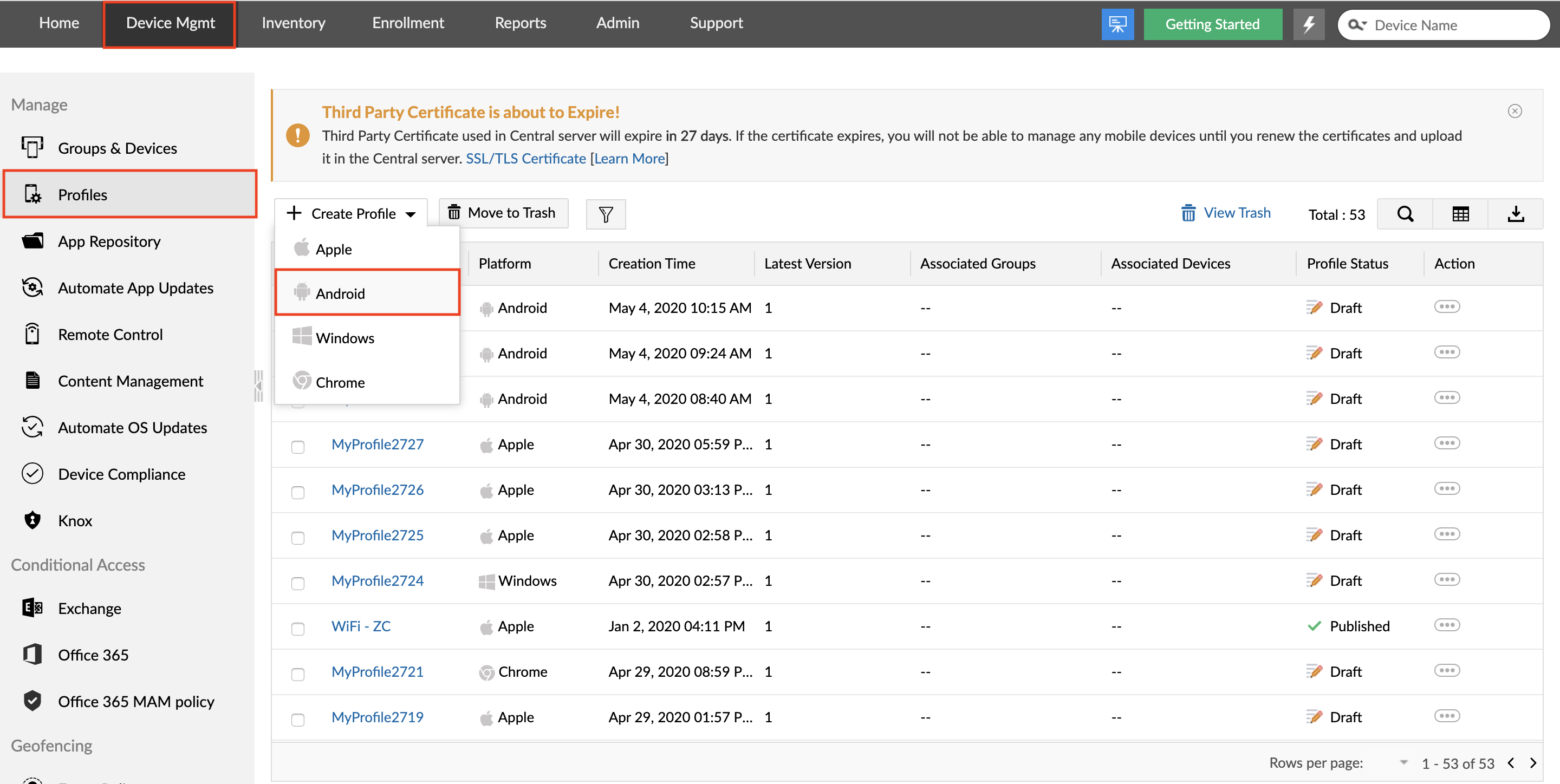
Step 2: From the left pane, select Kiosk to create an Android Kiosk profile.
Step 3: Select Single app to lock devices to one app, or Multi-app to allow a set of apps.
Step 4: Select the app or apps to be provisioned in Kiosk Mode, based on the choice made in the previous step. You can choose Store apps, enterprise apps, apps already installed on managed devices, or web shortcuts.
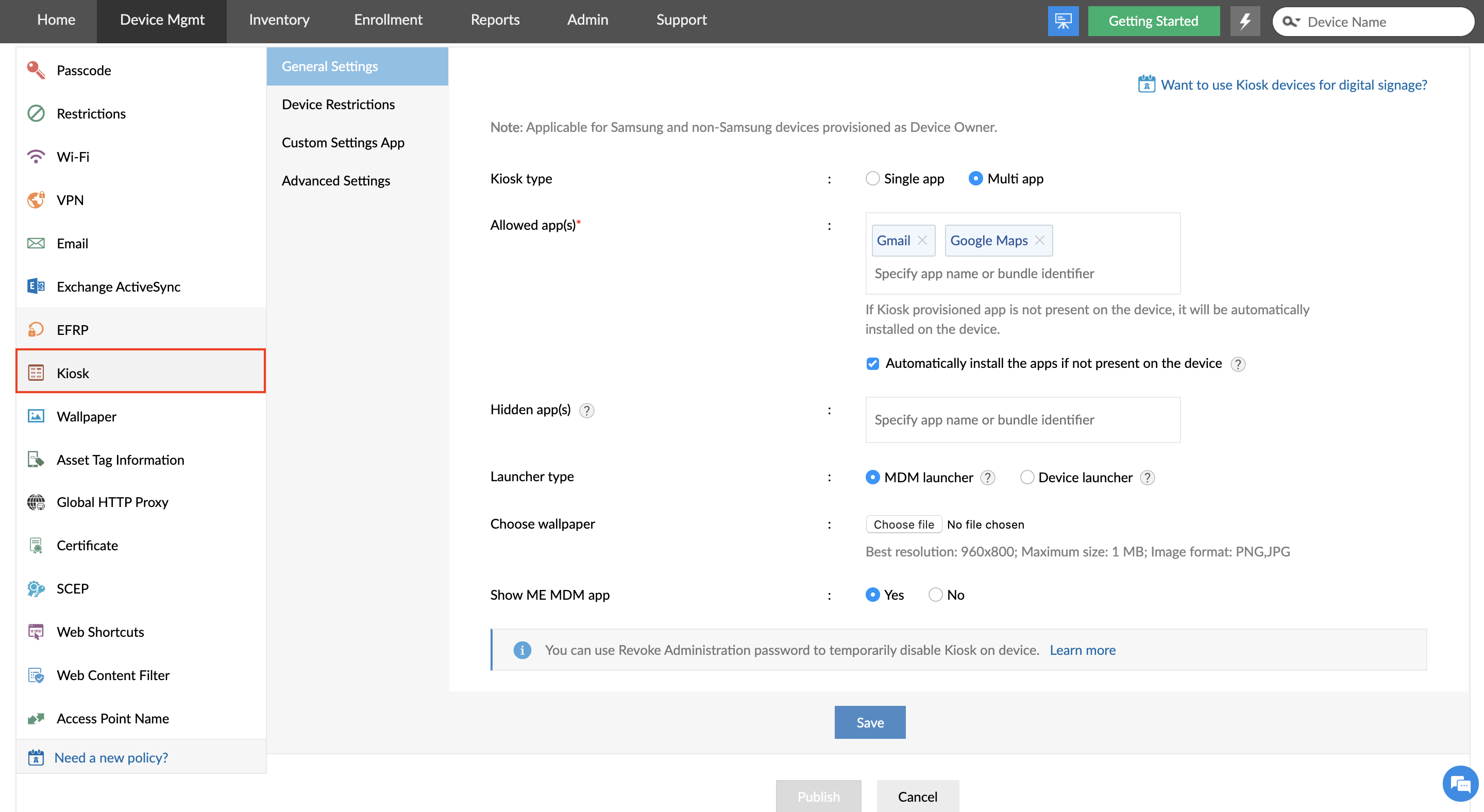
Step 5: Configure optional settings, such as:
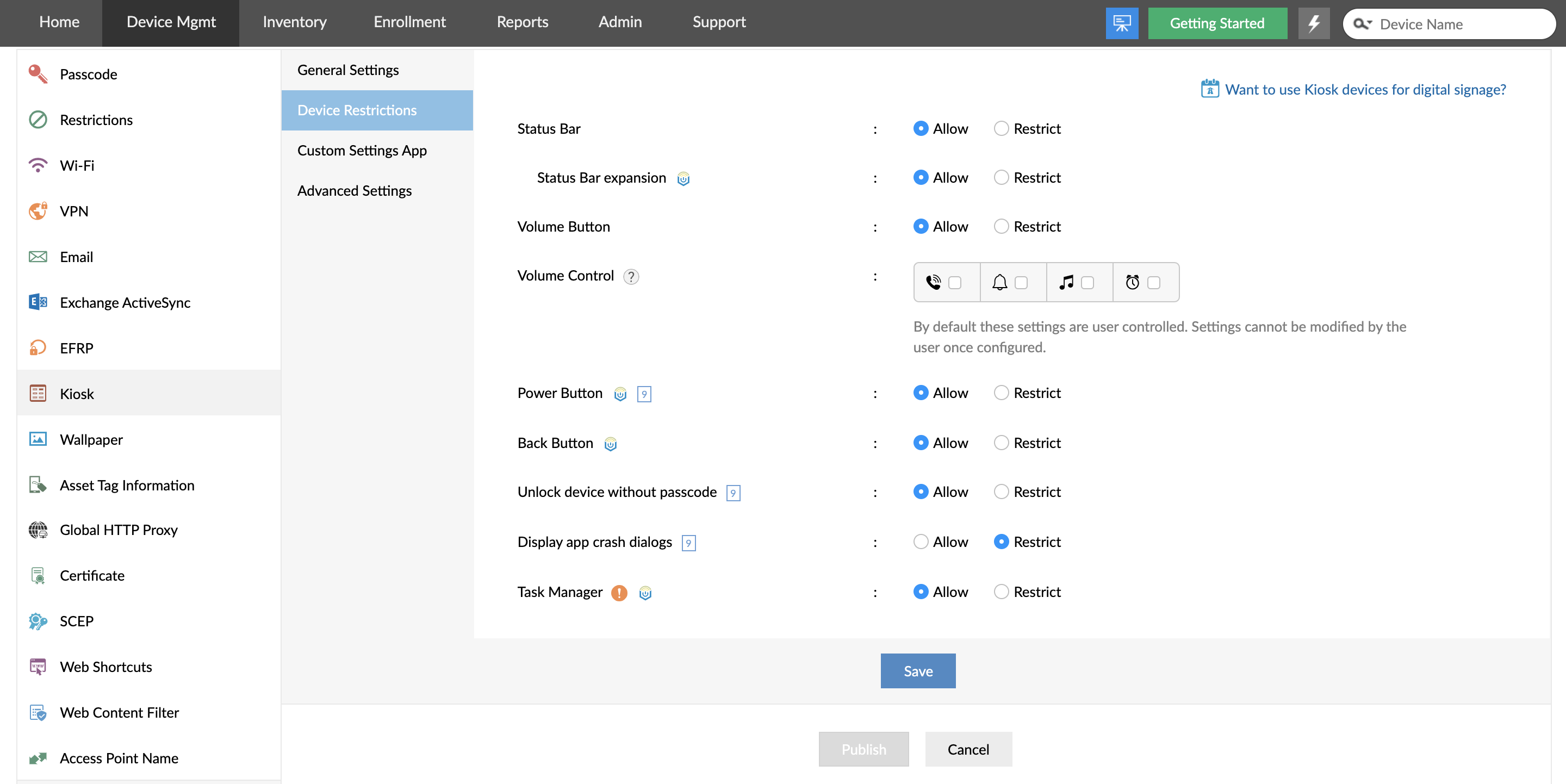
Device Restrictions: Choose which device functions stay enabled or disabled once the device is in Kiosk Mode.
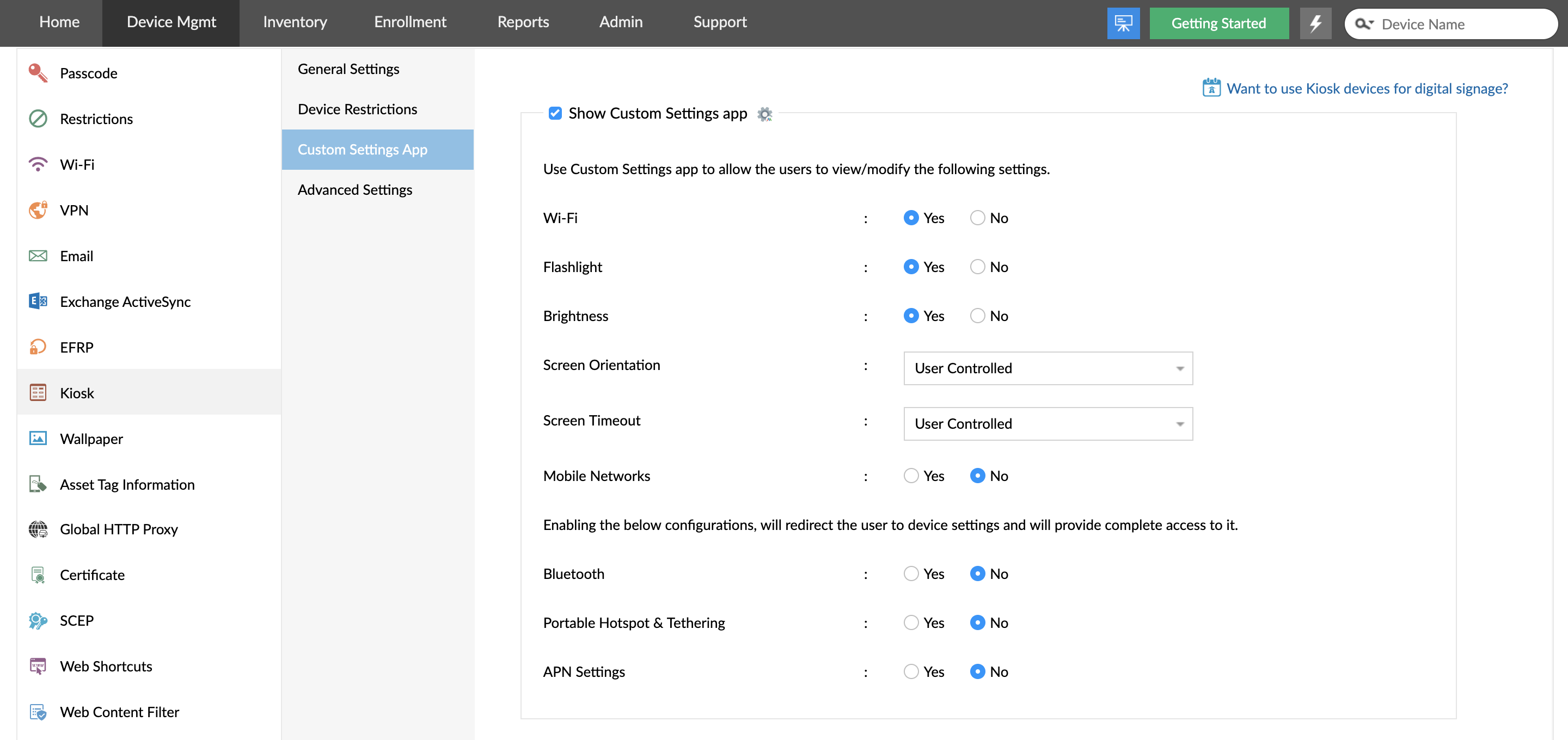
- Custom Settings App: Choose whether to give users access to basic settings such as Wi-Fi, brightness, and screen orientation alongside the Kiosk app(s).
- Pause Kiosk Password: Set the password that lets an authorized person temporarily exit Kiosk on the device.
Step 6: Click Save and Publish to save the Android Kiosk Mode profile.
Step 7: Test the profile by distributing it to a single device before distributing it to your production group. Publishing alone doesn't apply the profile, so make sure it's associated with the devices or groups you want to lock down.
NOTE: It's best to associate only one Kiosk profile per device or group. If two are associated, the one applied last takes effect. You can also restrict browsing to approved websites using web content filtering for iOS and Android devices in Mobile Device Manager Plus.
How to Enable Android Kiosk Mode with Built-in Feature [No Extra App]
If you only need to lock one device to one app for a short time, Android's built-in screen pinning does the job without installing anything. The menu path differs by manufacturer and Android version:
- Stock Android 12 and later: Settings > Security & Privacy > More security & privacy > App pinning
- Stock Android 9 to 11: Settings > Security > Advanced > Screen pinning
- Samsung One UI 6 (Android 14) and later: Settings > Security and Privacy > Other security settings > Pin windows
Once the setting is on, turn on the option to ask for a PIN, pattern, or password before unpinning. Then open the app, go to the Recents screen, tap the app's icon at the top of its card, and select Pin. If you can't find the setting, search for "pin" in the Settings app.
Keep the limits in mind. Screen pinning supports only one app, it usually ends when the device restarts, and it can't be managed remotely. For step-by-step instructions, see our guide to Android screen pinning.
How to Disable Android Kiosk Mode
You might need to exit Kiosk to troubleshoot an app, read logs, or repurpose a device. Mobile Device Manager Plus lets you pause Kiosk temporarily or remove it completely.
To pause Kiosk temporarily:
- From the MDM console: Go to Inventory, select the device, click Actions, and choose Pause Kiosk. Enter a reason, then choose whether Kiosk resumes only when you trigger it from the server or automatically after a set time.
- On the device: Enter the Pause Kiosk Password configured in the profile. If no password was configured, generate a time-bound passcode from the device's details in the console under Device Access Recovery Key, choosing Pause Kiosk. To bring up the password prompt, press the Home button four times in a row, or, if the Self Service app is allowed in Kiosk, open it and go to Settings > Exit Kiosk.
- With remote chat commands: During a remote session, send /EXIT-KIOSK through the chat window to pause Kiosk, and /ENTER-KIOSK to bring it back once you're done.
To resume Kiosk, use Resume Kiosk under the device's Actions in the console, tap the notification shown on the paused device, or select Resume Kiosk Mode in the Self Service app's Settings tab.
To remove Kiosk permanently: Disassociate the Kiosk profile from the device or group under Device Mgmt > Profiles. The restrictions applied through that profile are reverted automatically.
Keep Kiosk devices connected to the network. A device that loses contact with the MDM server stays locked in Kiosk, and you'll need to recover it from Kiosk Mode using its recovery key.
Common Android Kiosk Mode Use Cases
Here are some of the places where Android Kiosk Mode is used most:
- Hospitality: Restaurants and hotel chains use Kiosk devices for taking orders, managing inventory, and collecting customer feedback.
- Retail: Stores use Kiosk devices at self-checkouts and as digital signage that displays current offers.
- Education: Schools and universities lock tablets to an exam app so students can't open other apps during tests.
- Transport and logistics: Logistics companies give drivers devices locked to delivery and navigation apps, and track their location through MDM.
- Healthcare: Hospitals use Kiosk devices for patient check-in and monitoring, keeping other data on the device out of reach.
Frequently asked questions
Can I lock an Android tablet to one app?
Yes. With Mobile Device Manager Plus, create a Kiosk profile, select Single app, and choose the app the tablet should run. The tablet must be a Knox-enabled Samsung device, or a non-Samsung device running Android 5.0 or later enrolled as Fully Managed (Device Owner). For one-off, personal use, Android's built-in screen pinning also locks the screen to one app, but users can exit it.
Can Android kiosk mode run multiple apps?
Yes. Multi-app Kiosk Mode shows only a set of approved apps on the home screen. With the MDM launcher, admins can arrange the home screen layout, hide background apps, and set a default app that opens automatically after the device has been idle for a specified time.
Can users exit Android kiosk mode?
Not without authorization. Users can exit only with the Pause Kiosk Password set in the profile or a time-bound passcode generated by the admin. Admins can also pause Kiosk from the MDM console or through remote chat commands, and remove it completely by disassociating the Kiosk profile.
Can kiosk devices be managed remotely?
Yes. From the Mobile Device Manager Plus console, admins can update Kiosk profiles and apps, pause and resume Kiosk, remotely view and control supported Android devices, restart devices, track their location, and lock or wipe lost devices. Unattended remote access lets admins start remote sessions on Kiosk devices without anyone on site accepting a prompt.
What is the best Android kiosk software solution for securing kiosk tablets & smartphones?
The right Android kiosk software should support single-app and multi-app Kiosk, restrict hardware buttons and settings, install Kiosk apps automatically, deploy configurations to device groups in bulk, and let IT troubleshoot devices remotely. ManageEngine Mobile Device Manager Plus covers all of these and manages Kiosk devices alongside the rest of your Android, iOS, Windows, macOS, and ChromeOS fleet from one console. You can try it free for 30 days.