Add, View, and Apply Commands in an Existing CLI Monitor
OpManager’s CLI Monitoring feature has been enhanced to give users full control over monitor commands directly from the UI. You can now add custom commands to existing CLI monitors, select from available commands, and configure which ones should run during polling intervals.
For example, we use the vmstat command and perform additional calculations on its output to determine system CPU utilization. If there is any issue with the vmstat command or the calculations, the user can add a custom command for this monitor from the UI to retrieve the required data.
This upgrade enables network administrators to personalize CLI monitoring by creating and assigning specific commands to each monitor, ensuring seamless execution during regular polling. These features are accessible from both the Device Snapshot and Device Template pages.
Manage CLI Monitors in OpManager using these three main actions:
- Add a Custom CLI Monitor – Create monitors with specific commands tailored to your needs.
- Associate a Custom CLI Monitor – Link your custom monitors to devices or templates.
- Apply Commands on a CLI Monitor – Select and configure which commands should run during polling.
In OpManager, the enhanced CLI Monitoring feature now includes template-level customization. From the Device Template page, network administrators can define and manage CLI monitors with greater flexibility by adding custom commands, selecting from available predefined commands, and configuring which ones to execute during polling. This allows for centralized configuration of CLI monitors per device type, ensuring consistency and efficiency across multiple devices using the same template. The upgrade streamlines CLI command management, offering a more tailored and automated approach to device monitoring.
From the Device Template Page:
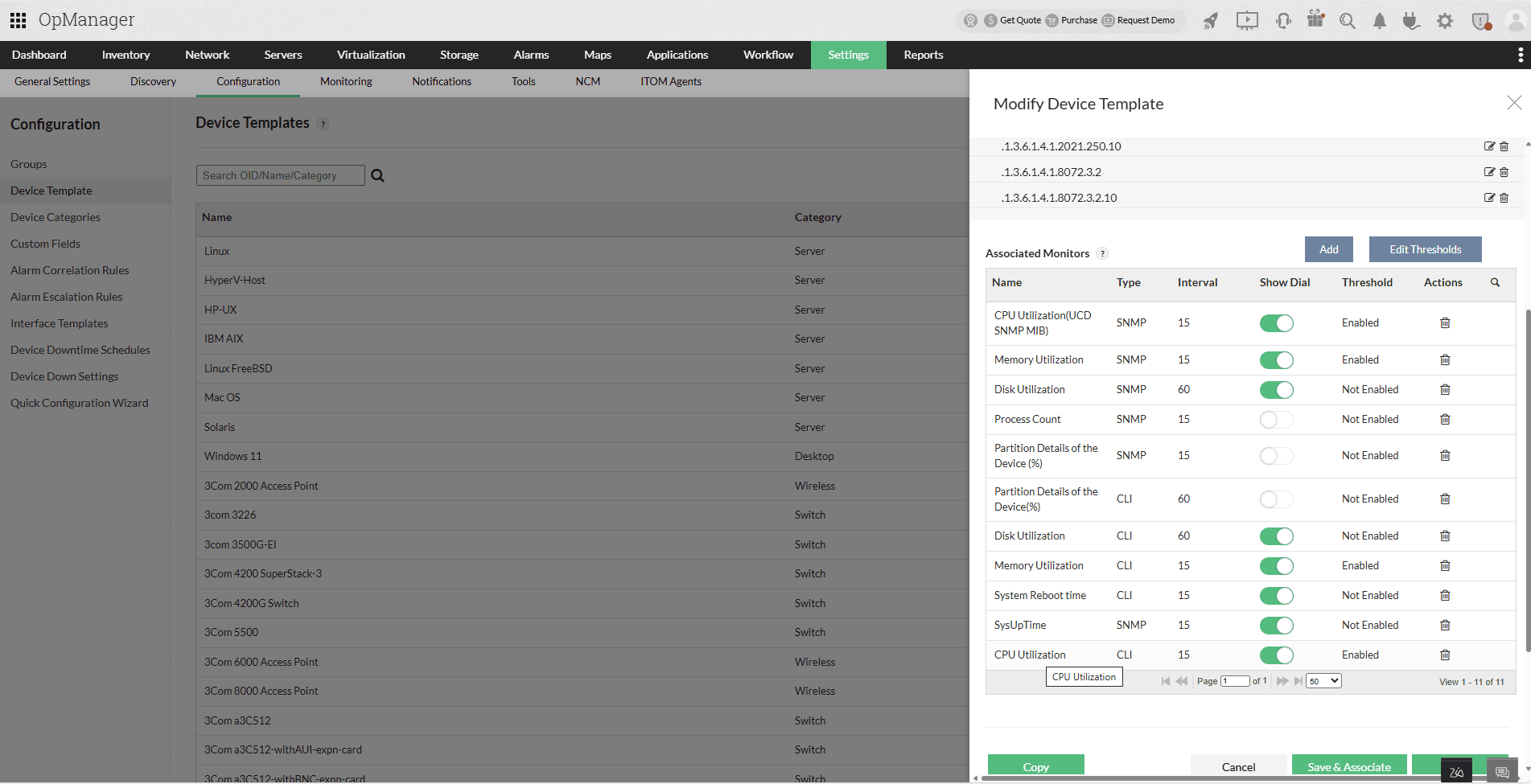
- Go to Settings → Configuration → Device Templates.
- Select a CLI-based template to open it.
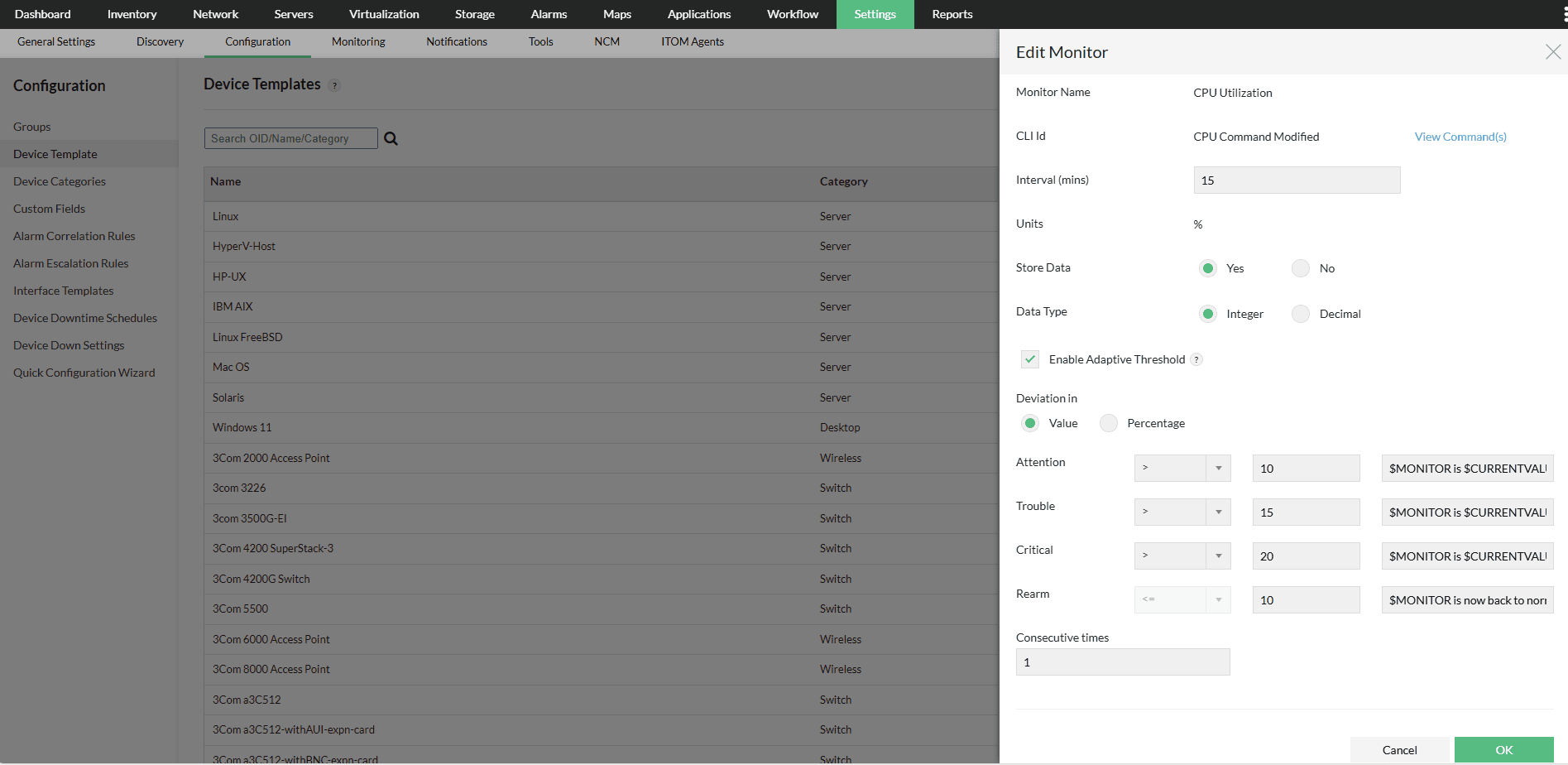
- In the Associated Monitors section, click the monitor icon for the monitor you want to edit.
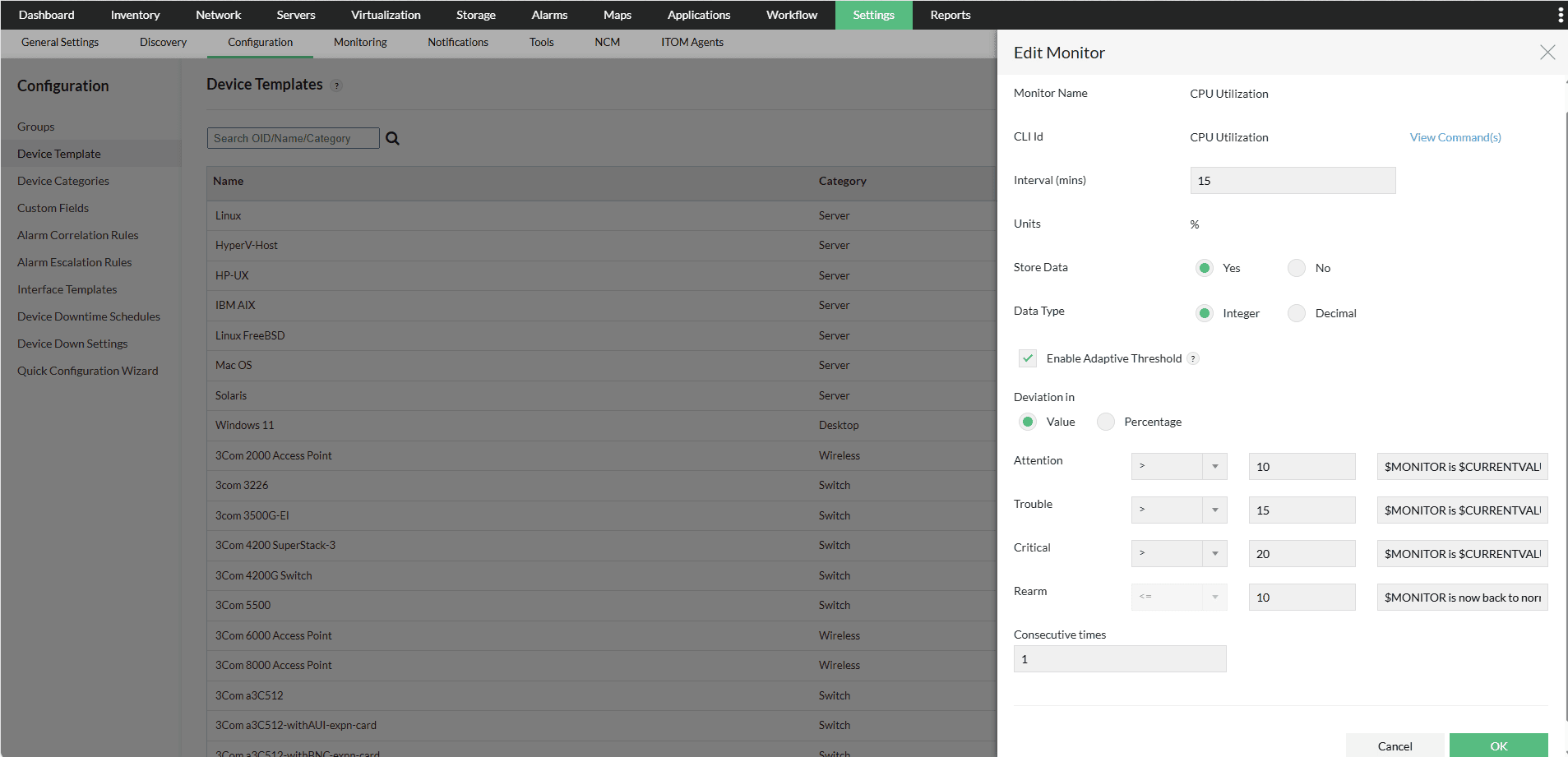
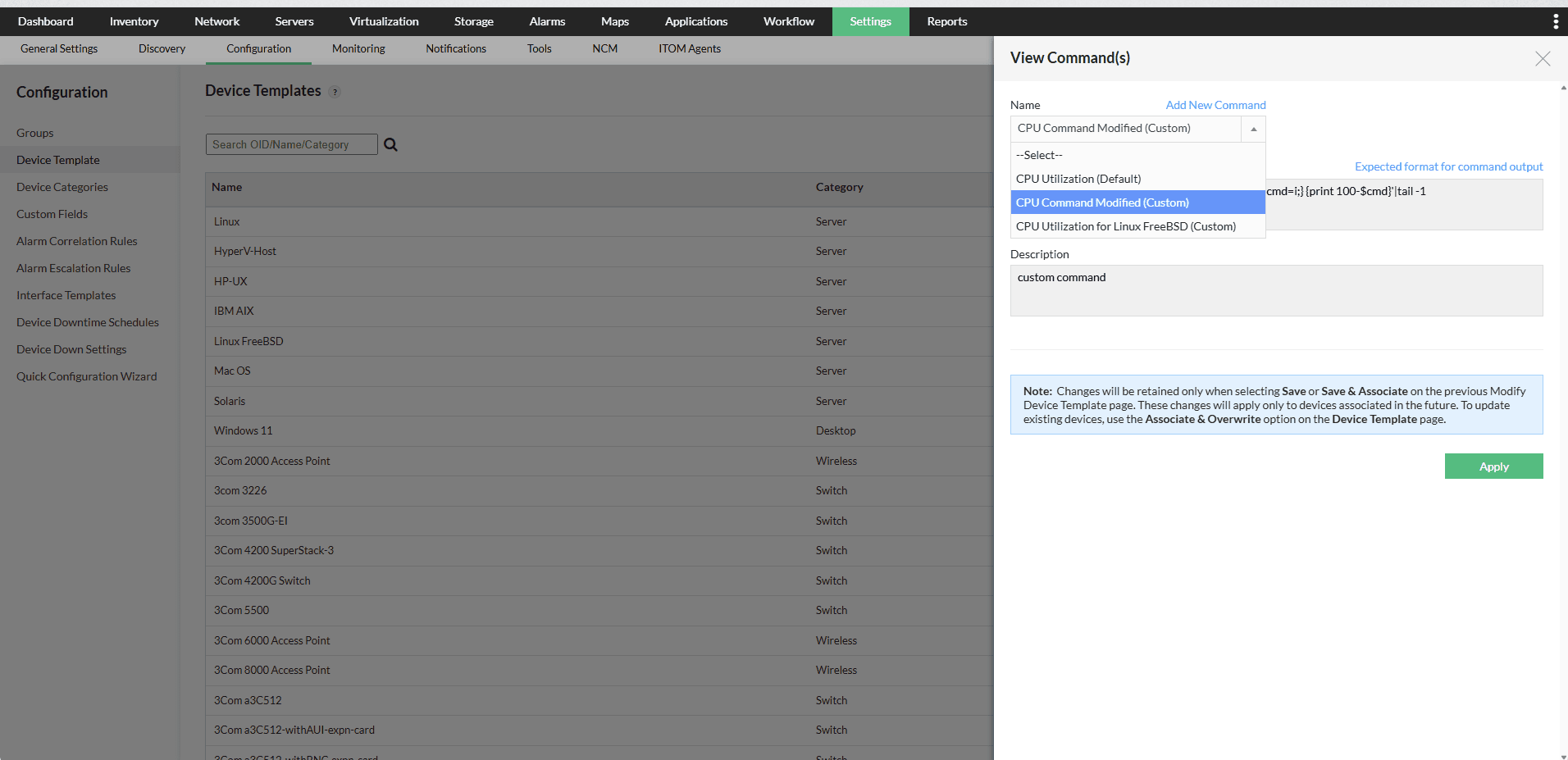
- On the Edit Monitor page, locate the "View Commands" option near the "CLI Id" field.
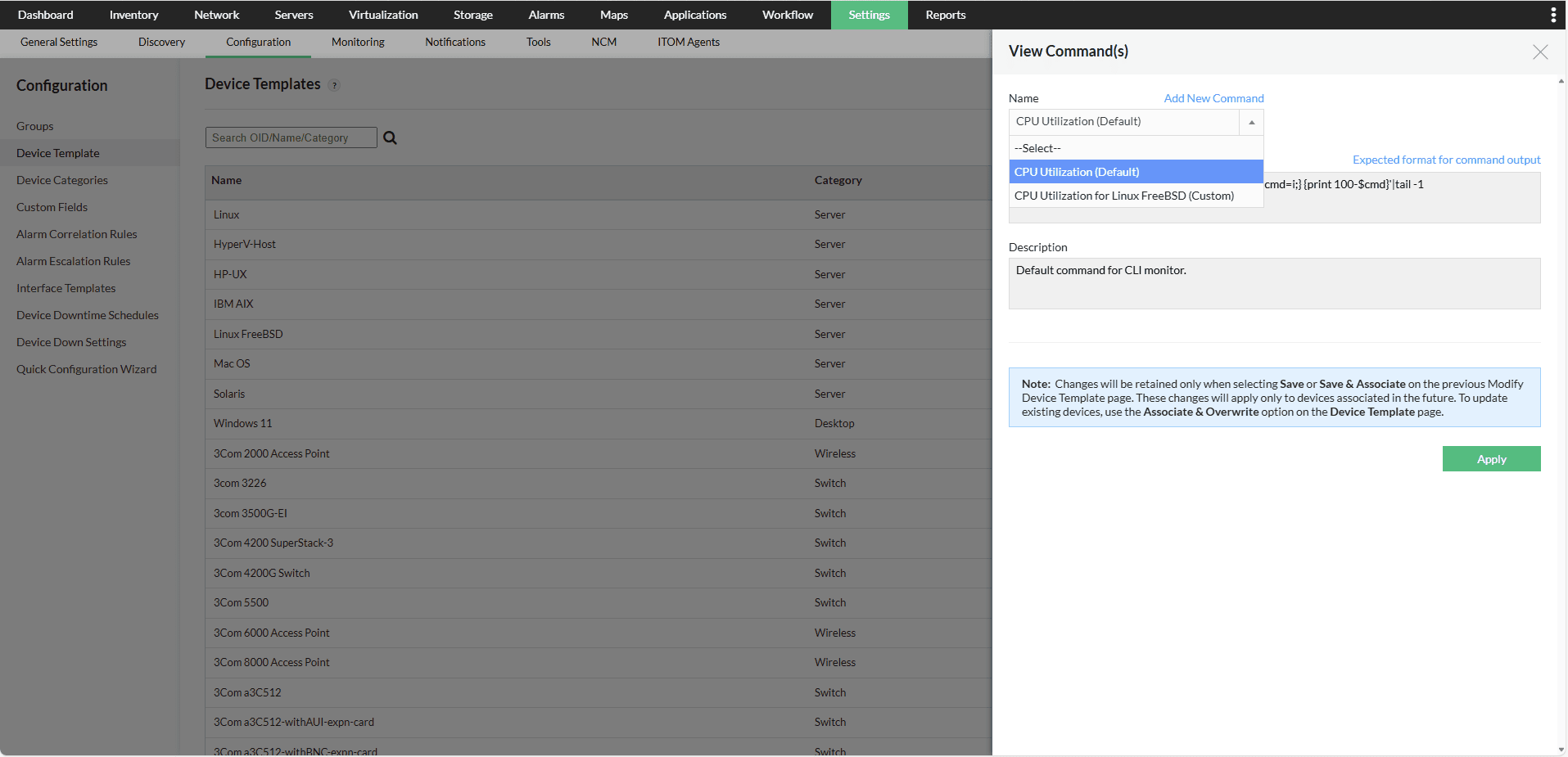
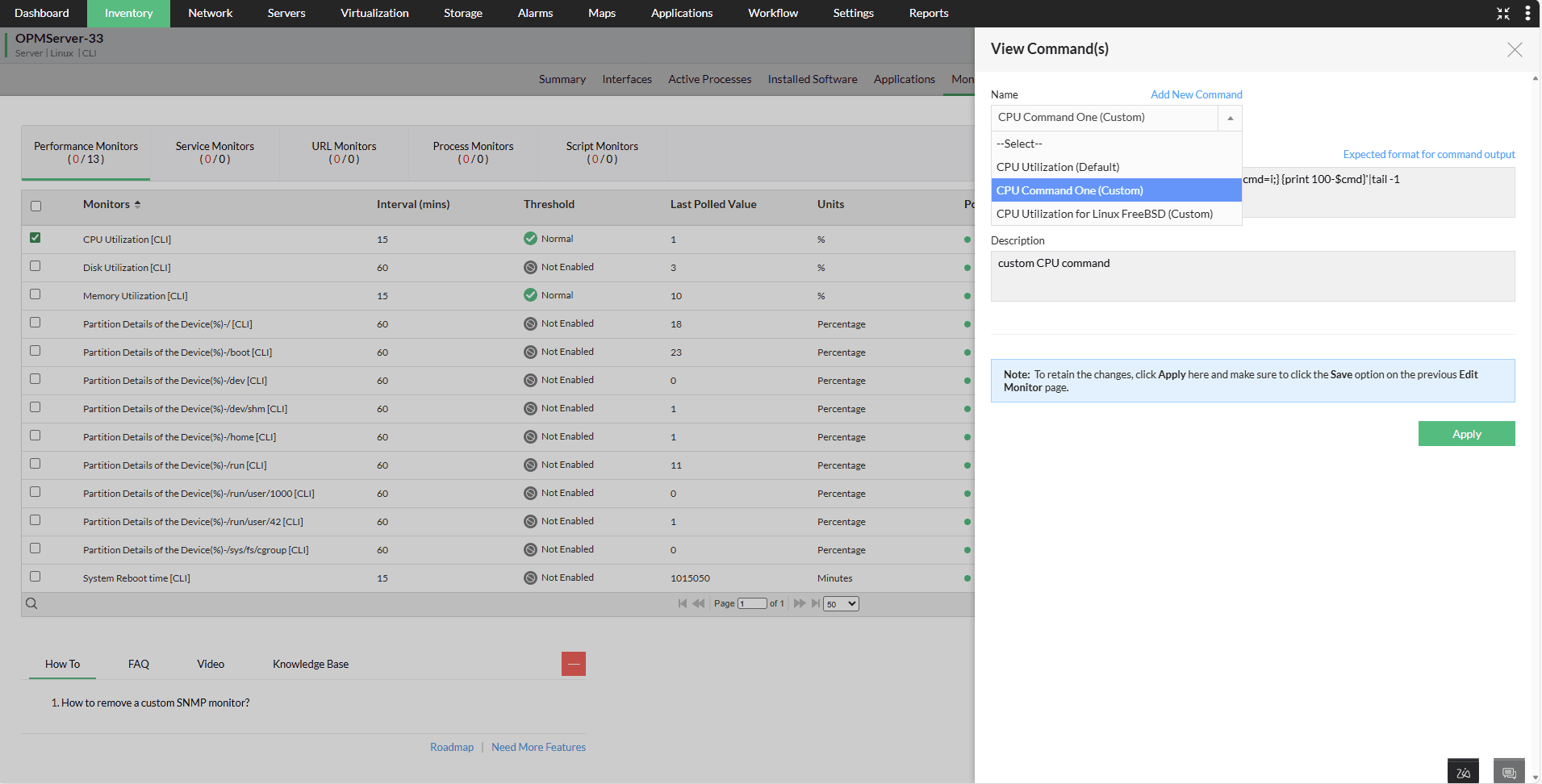
- Click "View Commands" to view the list of commands.
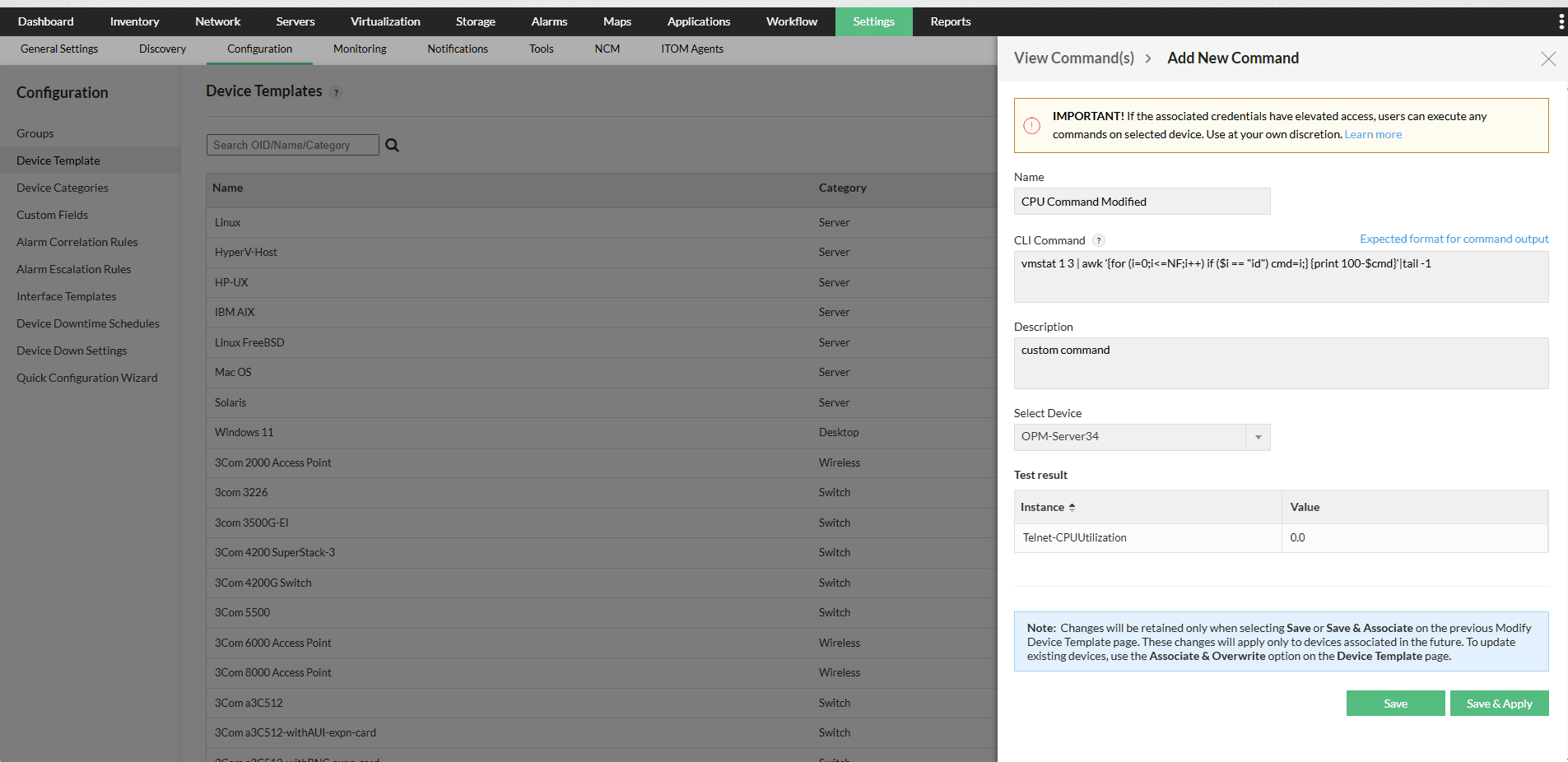
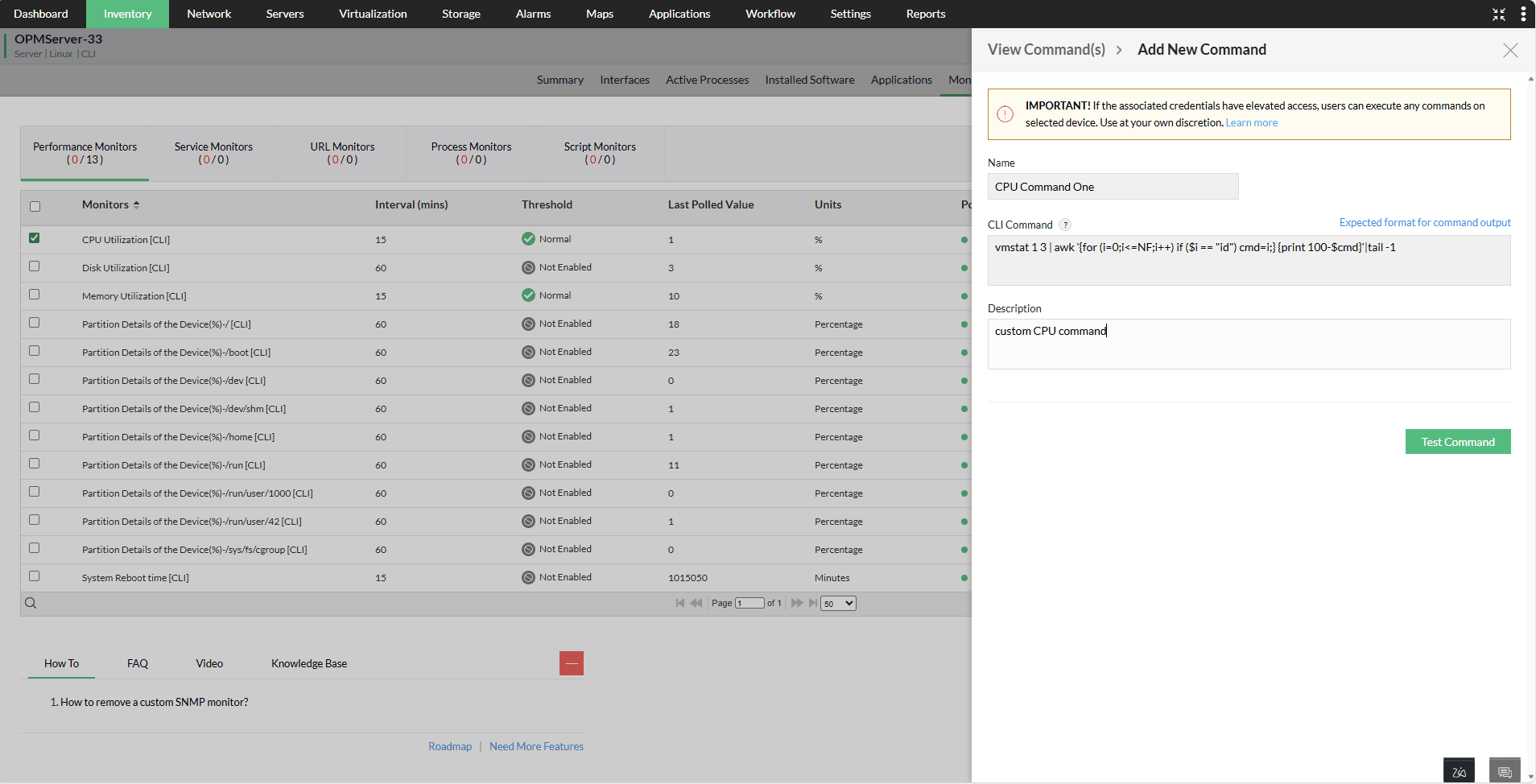
- If the needed command is not listed, click "Add New Command".
- Verify that the new command returns the output format as described in the Command Format Guide.
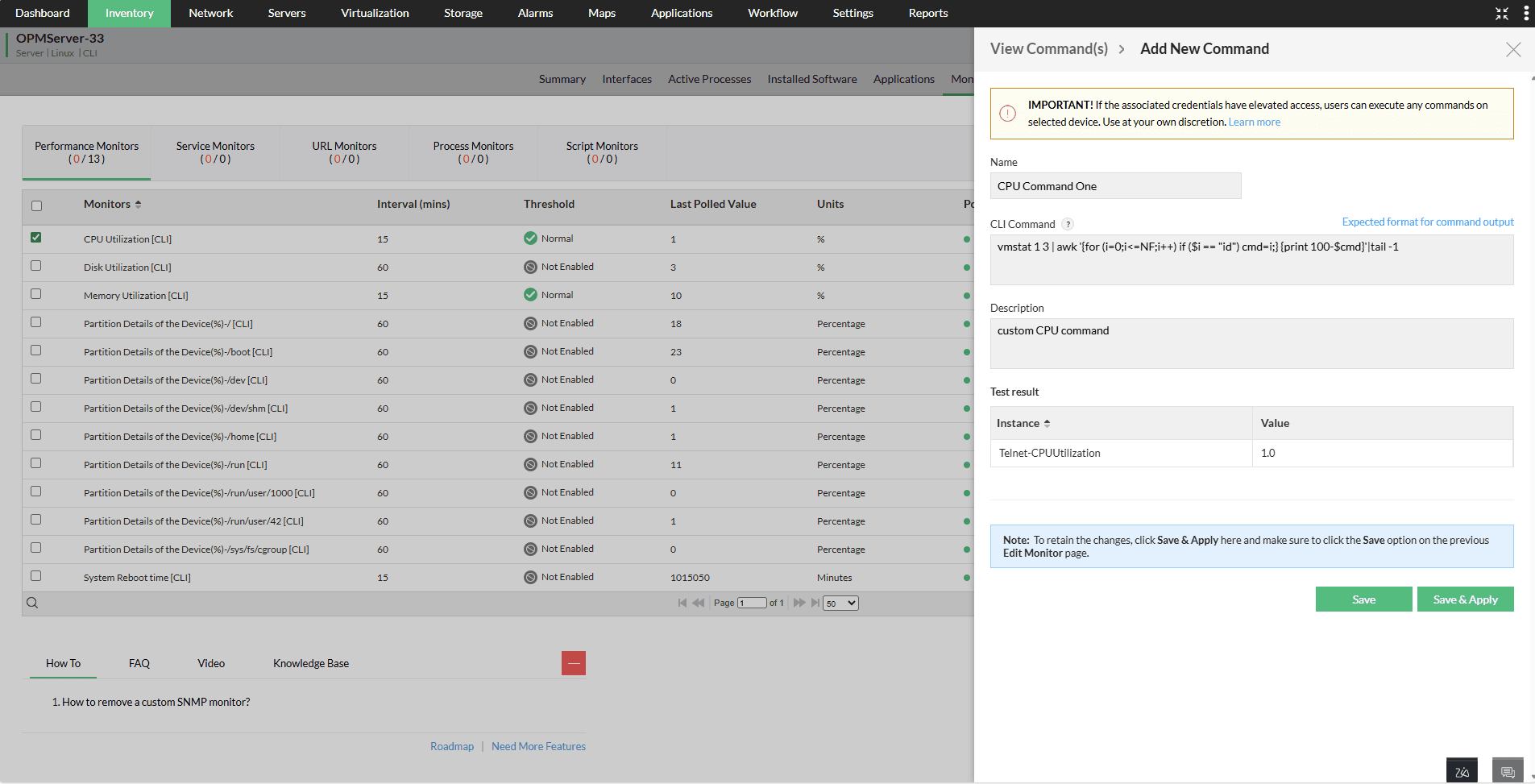
- Use the "Test Command" option to validate it.
- Click "Save" to add it to the list, or "Save & Apply" to apply immediately.
- Clicking Save will only save the new command and add it to the list of available commands. It will not be applied to the monitor automatically. To use the saved command, select it from the list and click Apply.
- Click "OK" on the Edit Monitor page to save your changes.
- Finally, save the device template to apply all monitor configurations.
Note:
- The configurations made will be applicable only for the future devices.
- To apply the configurations to the existing devices, you can associate the template to multiple devices in bulk by using "Associate & Overwrite" option.
From the Device Snapshot Page:
- Navigate to Inventory → Devices, then click on the device name to open its snapshot view.
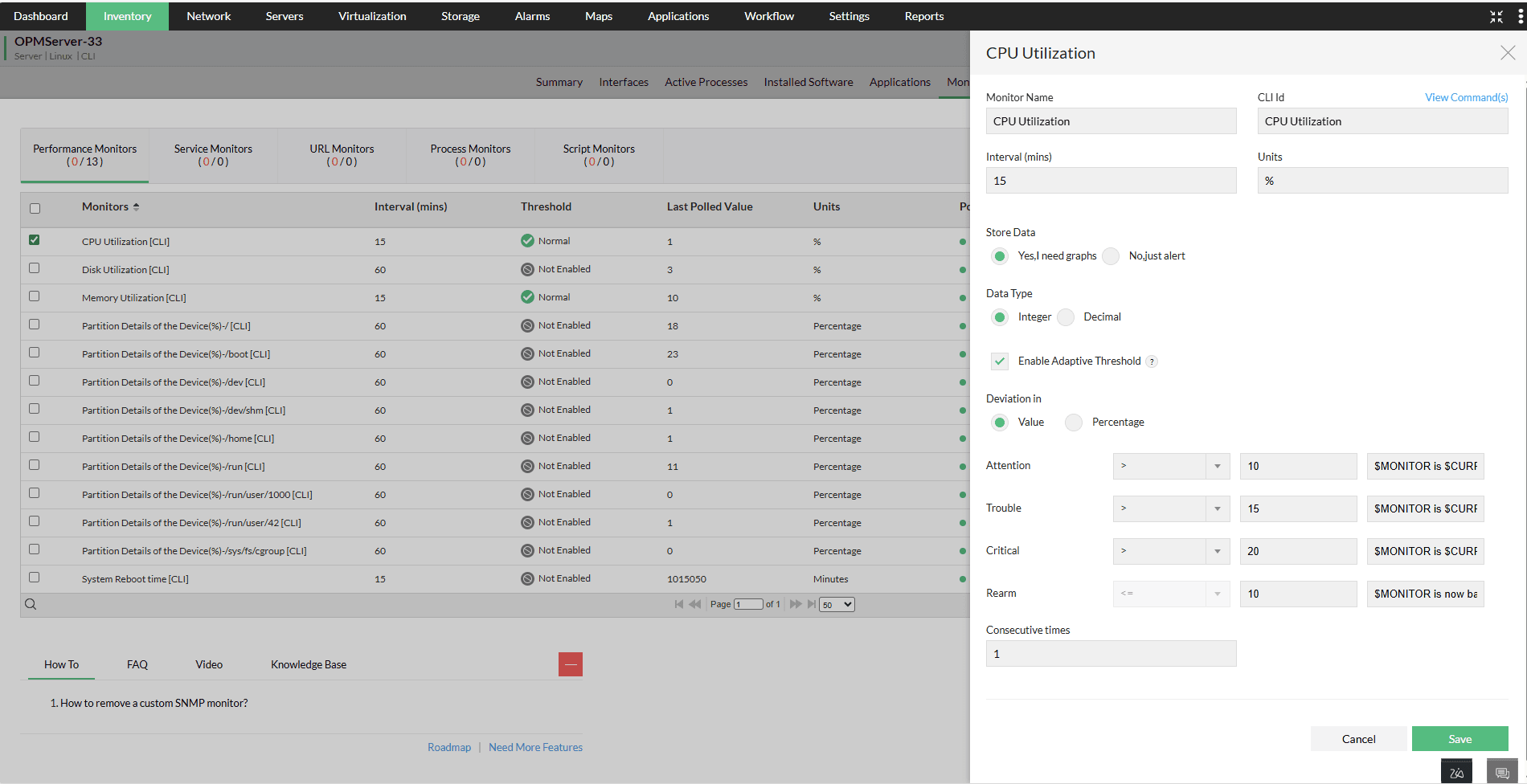
- In the Monitors section, locate the monitor you wish to update and click the Edit Monitor icon next to it.
- On the Edit Monitor page, find the "View Commands" option near the "CLI Id" field.
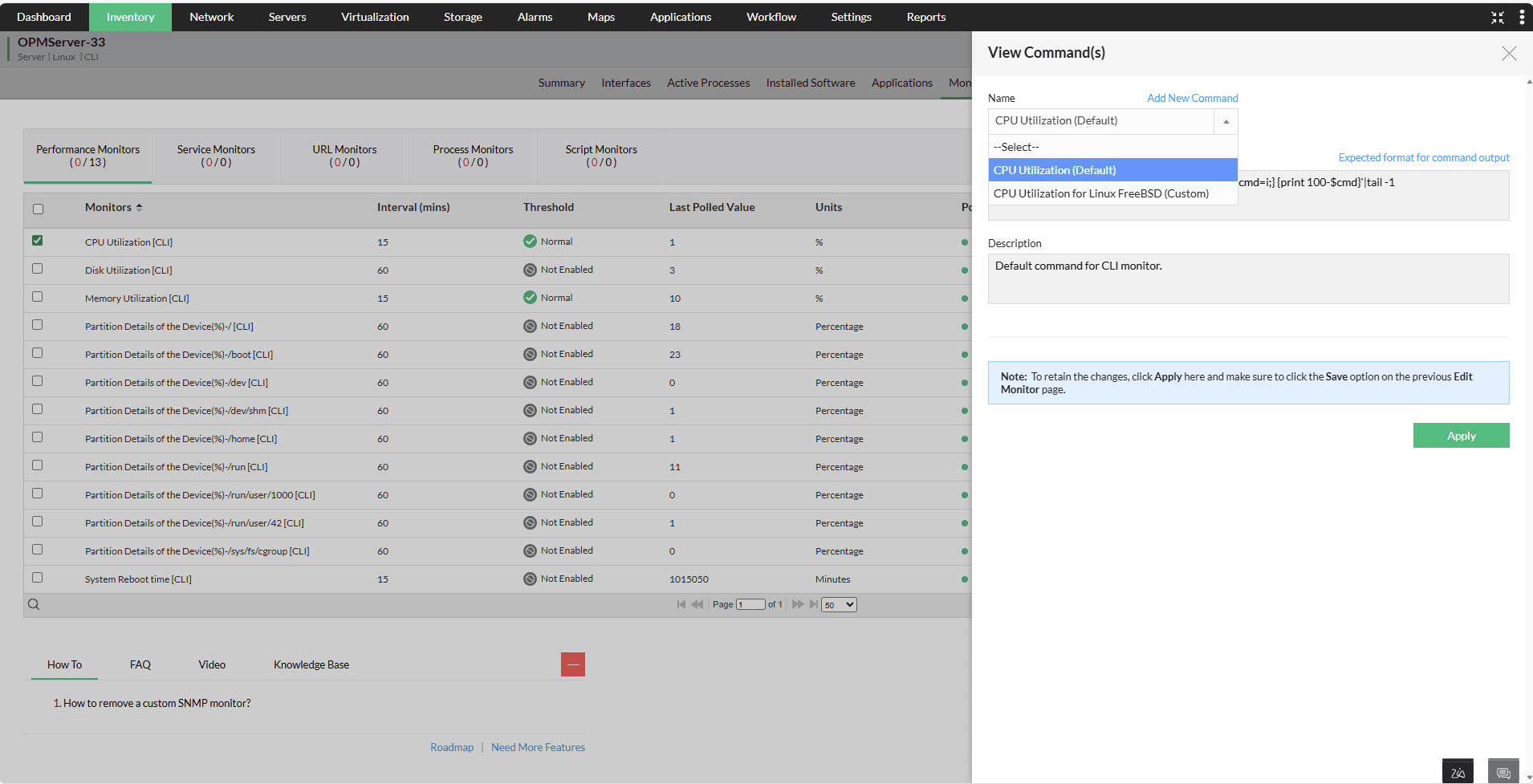
- Click "View Commands" to see the list of available commands for that monitor.
- If your desired command isn’t listed, click "Add New Command" above the command list.
- Verify that the new command returns the output format as described in the Command Format Guide.
- Use the "Test Command" option to validate it.
- Once validated, click "Save" to add it to the command list or "Save & Apply" to apply it immediately.
- Clicking Save will only save the new command and add it to the list of available commands. It will not be applied to the monitor automatically. To use the saved command, select it from the list and click Apply.
- Click Save on the Edit Monitor page to confirm and apply all command-related changes; modifications will not take effect until saved
Why This Enhancement Benefits You
This enhancement to the CLI Monitoring feature brings greater flexibility, control, and efficiency by allowing users to add, view, and apply custom commands directly from the UI. It streamlines workflows, reduces reliance on backend support, and enables faster troubleshooting with real-time command testing. By supporting device-specific customization and bulk application through templates, it improves monitoring accuracy, scalability, and consistency—ultimately empowering teams to manage network devices more effectively and with fewer errors.