Associating Custom CLI Monitors to Devices
Manage CLI Monitors in OpManager using these three main actions:
- Add a Custom CLI Monitor – Create monitors with specific commands tailored to your needs.
- Associate a Custom CLI Monitor – Link your custom monitors to devices or templates.
- Apply Commands on a CLI Monitor – Select and configure which commands should run during polling.
Once you've created custom CLI monitors using the available methods, you can associate them with CLI-based devices using any of the following three approaches:
1. From the Performance Monitors Page
- Navigate to Settings → Monitoring → Performance Monitors.
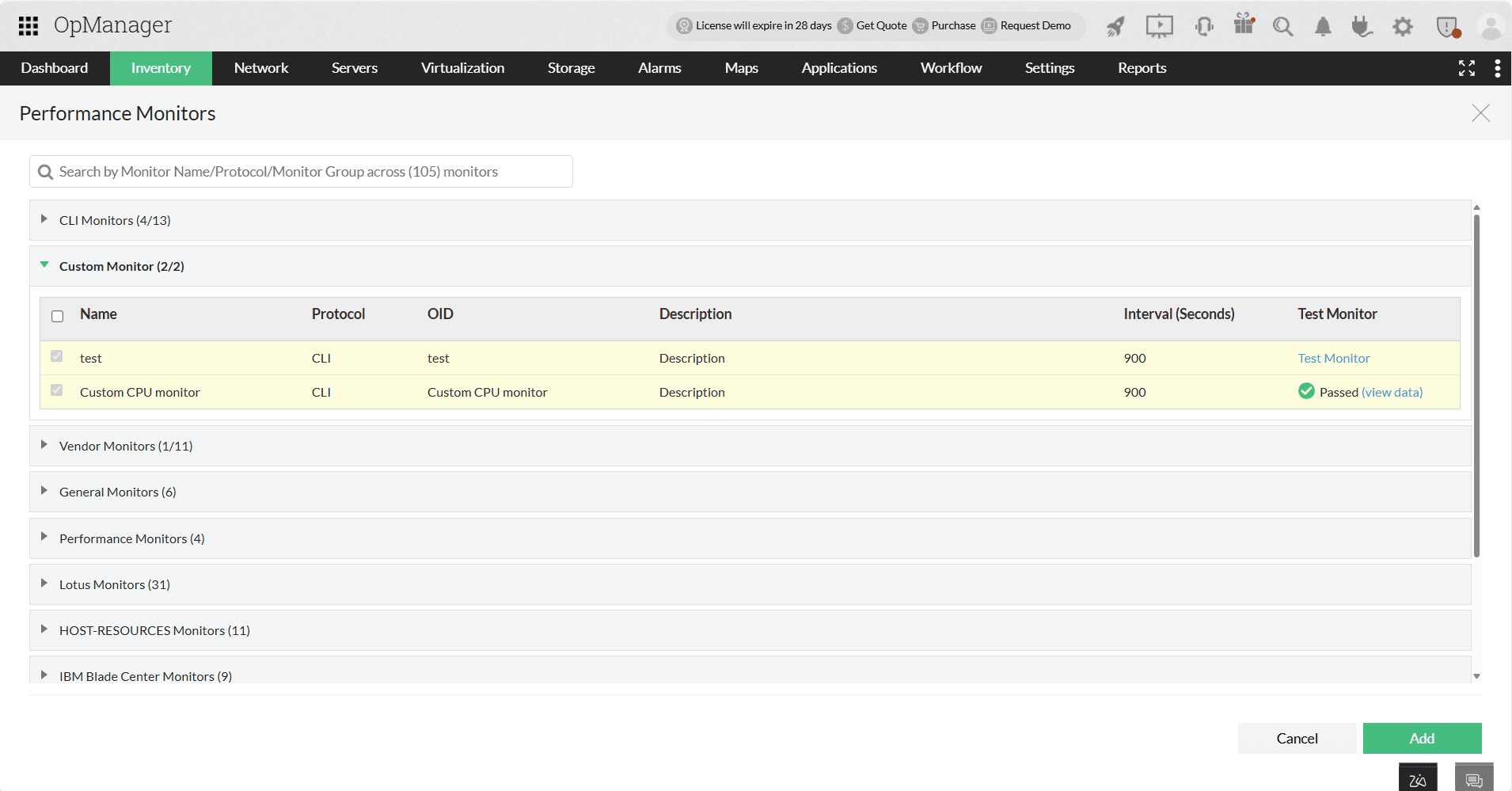
- Select the Custom Monitors category to view all available custom CLI monitors.
- Locate the monitor you wish to associate and click Associate.
- In the pop-up, choose the target devices and confirm the association.
2. From the Device Snapshot Page
- Go to Inventory → Devices and click on the device name to open its snapshot.
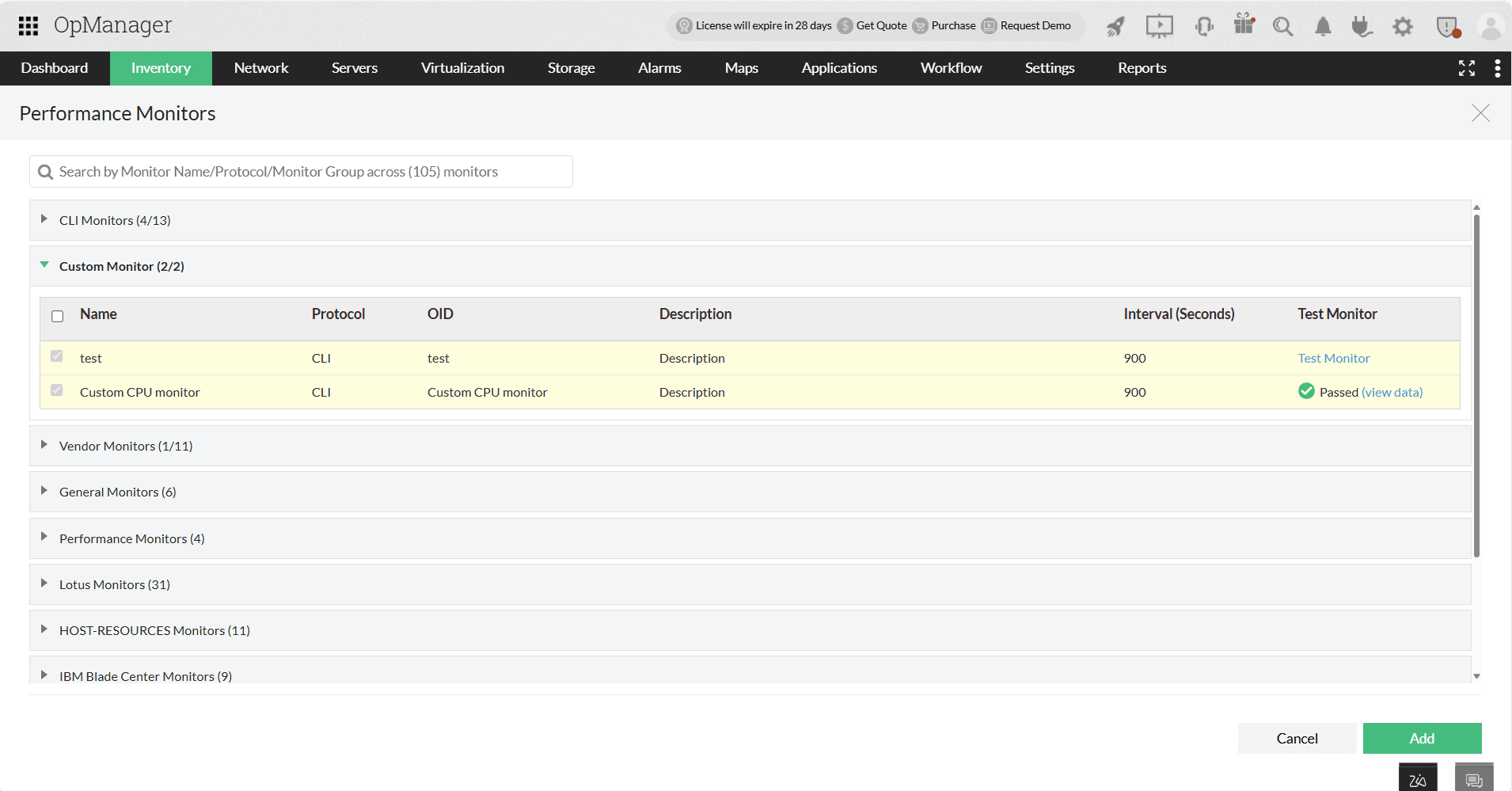
- Navigate to Monitors → Performance Monitors → Actions → Add Performance Monitor.
- Available custom monitors will appear under the Custom Monitors category.
- Choose the ones you'd like to add and click Add to associate them with the device.
3. From Device Templates
- Go to Settings → Configuration → Device Templates.
- Click on a CLI-based device template to open it.
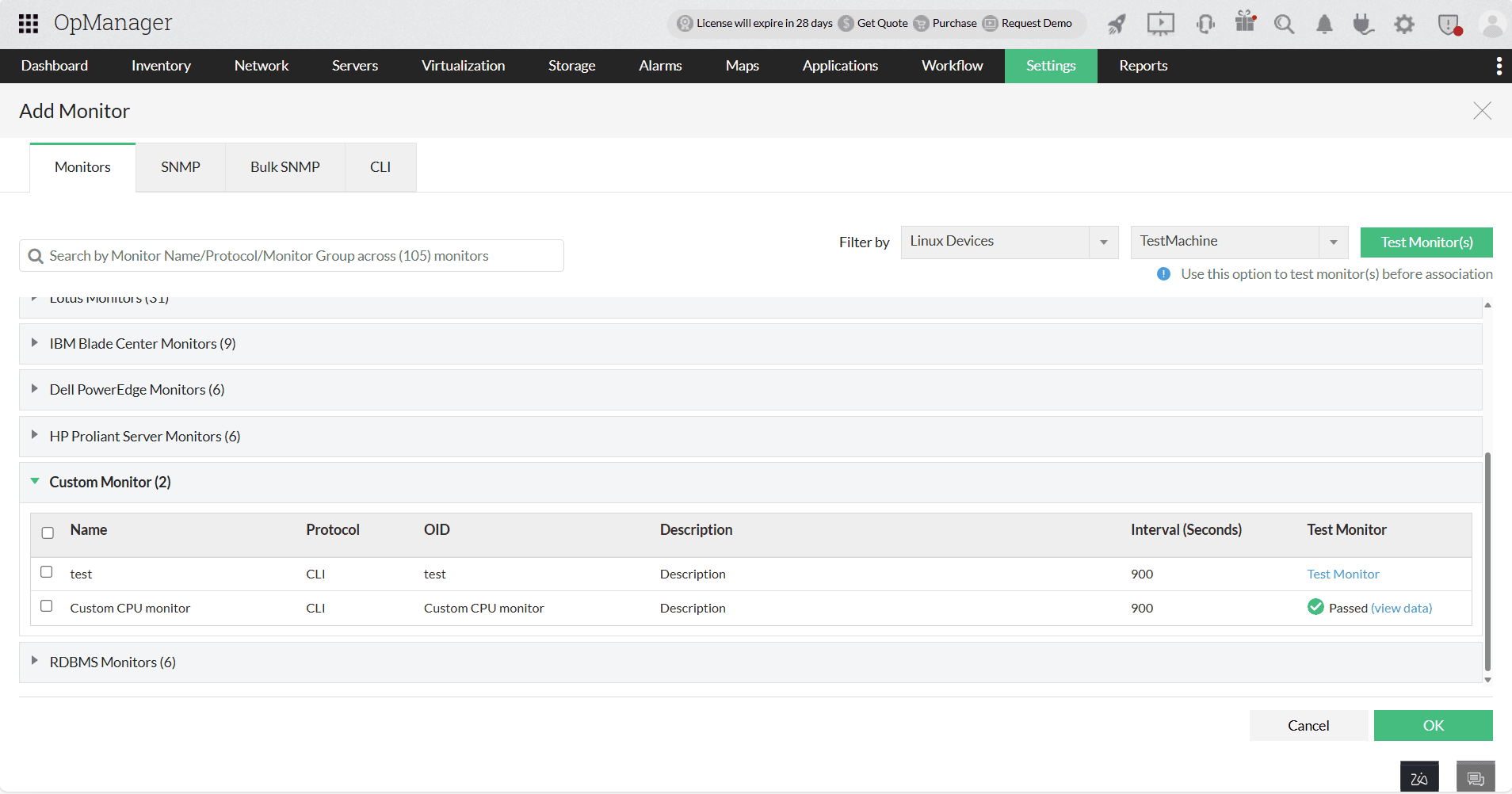
- In the Associated Monitors section, click Add, and select monitors from the list of categories.
- Under the Custom Monitors tab, choose the monitors you wish to associate.
- Click OK and then Save the template.
- You can associate this template with devices immediately or later using the Associate option.
Expected CLI Command Output Format
When defining a CLI command for custom monitoring, ensure the command returns output in either of the following formats:
- A single numerical value
- A series of instance–value pairs (where each instance has a corresponding numerical value)
Note: Only integer or decimal values are accepted in the output.
Example Commands for Associating Custom CLI Monitors to Devices
Example 1
Command:
vmstat 1 3 | awk '{for (i=0;i<=NF;i++) if ($i == "id") cmd=i;} {print 100-$cmd}'|tail -1Output:
29
Example 2
Command:
/bin/df -Pm | awk 'NR>1 {gsub(/%/,"",$5); print $6, $5}'Output:
/boot/efi    1.0
/snap/snap-store/1113    100.0
/snap/core18/2846        100.0
Things to remember :
- The CLI commands you configure will be executed on the specified device using the provided user credentials. If the credentials have elevated privileges, the user can execute any command on the device.
- Use caution when entering commands. Ensure you understand the implications before executing.
- If Two-Factor Authentication (TFA) is enabled, the user will be required to enter a one-time password (OTP) before executing a CLI command test.