Download Service Pack
- OpManager
- Applications Manager
- NetFlow Analyzer
- Network Configuration Manager
- Firewall Analyzer
- OpUtils
- OpManager
- Applications Manager
- NetFlow Analyzer
- Network Configuration Manager
- Firewall Analyzer
- OpUtils
OpManager - Build Number 12.9.137
Security Fixes:
- General: Previously, in certain scenarios the quick fix service pack integrity validation was bypassed during upload. This has now been fixed. (Reported by zenniskayy)
Issues Fixed:
- OpManager: Previously, the getLastCollectedValues API returned empty values in the data key for certain performance monitors in some cases. This issue has now been fixed.
- OpManager: Previously, in QCW -> Event Log Rules, removing devices from the selected list did not dissociate them. This issue has now been fixed.
- OpManager: From version 12.9.135, the User Community Discussions tab under the Support page failed to load. This issue has now been fixed.
- OpManager: Previously, while configuring Workflows, special characters in alarm message criteria were garbled. This issue has now been fixed.
- OpManager: Previously, in certain builds, during VMware discovery or inventory updates, devices already being monitored as physical servers were not correctly mapped as VMware hosts. This issue has now been fixed.
- OpManager: Previously, initiating VM monitoring for a device with an empty category caused an internal server error. This issue has now been fixed, and a proper error message is now displayed.
- OpManager: Previously, in certain scenarios from version 12.9.134, customers were unable to access the threshold configuration on the Interface Types page under Settings -> Configuration -> Interface Template. This issue has now been fixed.
Eligible Build Numbers: 12.9.000 and above.


* -SHA256 for the PPM: 5a2a77333d884dffd2601c21b5bc8fa68715bed4f007aea9dda67587c53b44f5
Read and accept the License Agreement before downloading this software.
Mobile app available on:


Steps to upgrade Service Pack:
| Current build | Upgrade to | SHA256 value |
|---|---|---|
| 12.9.000 and above | 12.9.137 | |
| 12.8.000 — 12.8.738 | 12.9.002 | |
| 12.7.000 — 12.7.317 | 12.8.004 | |
| 12.6.000 — 12.6.329 | 12.7.007 | |
| 12.5.000 - 12.5.664 | 12.6.007 | |
| 12.4.000 - 12.4.196 | 12.5.012 |
Need help upgrading? Refer to the Upgrade Manager help page for detailed instructions.
Applications Manager - Build Number 182001
Upgrade to the latest PPM with feature enhancements and recent bug fixes.

* -SHA256 for the PPM: ff387f5df0998ba4f6dc69a97755d11b79ef03cd82cfc78ea7ffd4df6adf9310
* - This pack can be updated directly by users with Build No. 170000 & above.
* - For older versions, visit this page.
Read and accept the License Agreement before downloading this software.
Steps to update service pack:
- Shut down Applications Manager as you normally do.
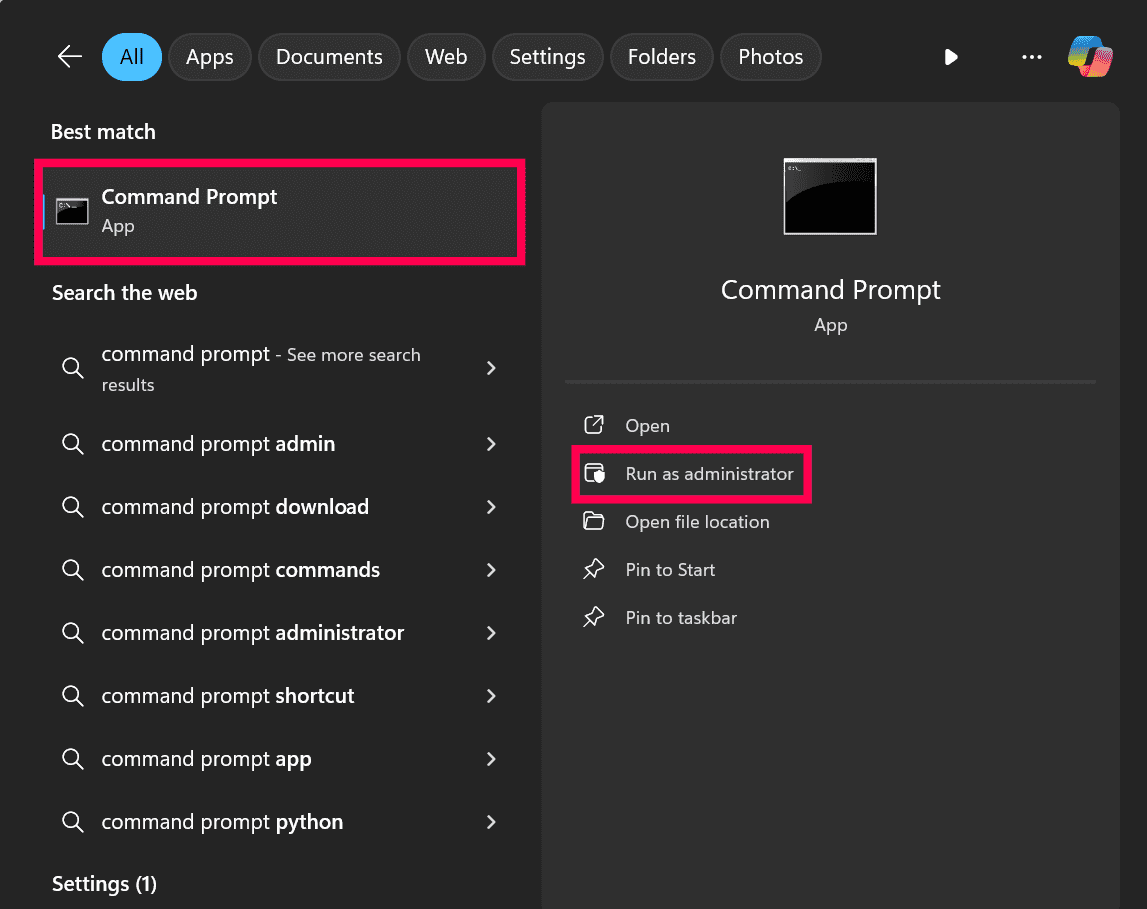
- Start command prompt as an administrator. View screenshot
- Via command prompt, execute the shutdownApplicationsManager.bat -force command (shutdownApplicationsManager.sh -force for Linux) from the 'Applications Manager Home' folder.
- As a best practice, take complete backup of 'Applications Manager Home' directory. SQL backend users should connect to SQL Management Studio & backup the AMDB database as well. click here. to know how to backup SQL database.
- Run the updateManager.bat script (updateManager.sh -c for Linux) under the 'Applications Manager Home/bin' folder which invokes the Update Manager tool.
- Browse and select the Service pack file (.ppm) saved in your computer.
- You might be asked to import the ManageEngine public key certificate (ppmsigner_publickey.crt) file during the upgrade process. If asked, download the certificate file, then browse and select the downloaded file to proceed further.Note: This is a one-time process done to verify the integrity of the service pack (.ppm) file.
- Click Install to initiate the upgrade process.
- Once you see the "Installed" message on your screen, click Finish to complete the installation.
- Start Applications Manager Server.
Note: To rollback to the old version, rename the existing 'Applications Manager Home' directory and restore the complete backup copy of this directory. SQL backend users should connect to SQL Management Studio & restore the AMDB database backup as well. Click here to know how to restore the SQL database backup.
NetFlow Analyzer - Build Number 12.9.137
Eligible Build Numbers: 12.9.000 and above.

* -SHA256 for the PPM: 5a2a77333d884dffd2601c21b5bc8fa68715bed4f007aea9dda67587c53b44f5
Read and accept the License Agreement before downloading this software.
Mobile app available on:
Steps to upgrade Service Pack:
| Current build | Upgrade to | SHA256 value |
|---|---|---|
| 12.9.000 and above | 12.9.137 | |
| 12.8.000 — 12.8.738 | 12.9.002 | |
| 12.7.000 — 12.7.317 | 12.8.004 | |
| 12.6.000 — 12.6.329 | 12.7.007 | |
| 12.5.000 - 12.5.664 | 12.6.007 | |
| 12.4.000 - 12.4.196 | 12.5.012 |
Need help upgrading? Refer to the Upgrade Manager help page for detailed instructions.
Network Configuration Manager - Build Number 12.9.137
Eligible Build Numbers: 12.9.000 and above.

* -SHA256 for the PPM: 5a2a77333d884dffd2601c21b5bc8fa68715bed4f007aea9dda67587c53b44f5
Read and accept the License Agreement before downloading this software.
Mobile app available on:
Steps to upgrade Service Pack:
| Current build | Upgrade to | SHA256 value |
|---|---|---|
| 12.9.000 and above | 12.9.137 | |
| 12.8.000 — 12.8.738 | 12.9.002 | |
| 12.7.000 — 12.7.317 | 12.8.004 | |
| 12.6.000 — 12.6.329 | 12.7.007 | |
| 12.5.000 - 12.5.664 | 12.6.007 | |
| 12.4.000 - 12.4.196 | 12.5.012 |
Need help upgrading? Refer to the Upgrade Manager help page for detailed instructions.
Firewall Analyzer - Build Number 12.9.137
Eligible Build Numbers: 12.9.000 and above.

* -SHA256 for the PPM: 5a2a77333d884dffd2601c21b5bc8fa68715bed4f007aea9dda67587c53b44f5
Read and accept the License Agreement before downloading this software.
Steps to upgrade Service Pack:
| Current build | Upgrade to | SHA256 value |
|---|---|---|
| 12.9.000 and above | 12.9.137 | |
| 12.8.000 — 12.8.738 | 12.9.002 | |
| 12.7.000 — 12.7.317 | 12.8.004 | |
| 12.6.000 — 12.6.329 | 12.7.007 | |
| 12.5.000 - 12.5.664 | 12.6.007 | |
| 12.4.000 - 12.4.196 | 12.5.012 |
Need help upgrading? Refer to the Upgrade Manager help page for detailed instructions.
OpUtils - Build Number 12.9.137
Eligible Build Numbers: 12.9.000 and above.

* -SHA256 for the PPM: 5a2a77333d884dffd2601c21b5bc8fa68715bed4f007aea9dda67587c53b44f5
Read and accept the License Agreement before downloading this software.
Steps to upgrade Service Pack:
| Current build | Upgrade to | SHA256 value |
|---|---|---|
| 12.9.000 and above | 12.9.137 | |
| 12.8.000 — 12.8.738 | 12.9.002 | |
| 12.7.000 — 12.7.317 | 12.8.004 | |
| 12.6.000 — 12.6.329 | 12.7.007 | |
| 12.5.000 - 12.5.664 | 12.6.007 | |
| 12.4.000 - 12.4.196 | 12.5.012 |
Need help upgrading? Refer to the Upgrade Manager help page for detailed instructions.