Virtual machines are easy to create, but they are often forgotten after a project ends. Over time, unused VMs continue to consume storage, backups, licenses, and administrative effort even though they no longer provide business value.
Finding and removing these "zombie" VMs helps reduce infrastructure costs, improve resource utilization, and keep your Hyper-V environment easier to manage.
What is a zombie VM?
A zombie VM is a virtual machine that still exists but is no longer being used. It may still be powered on, powered off, or sitting idle without serving any active workload.
Common examples include:
- Test and development VMs that were never removed.
- Temporary project VMs left behind after a deployment.
- Old application servers that have already been replaced.
- Orphaned virtual machines with no owner.
- VMs that remain powered on but receive little or no activity.
These virtual machines often go unnoticed because they do not generate alerts or obvious performance issues.
What is Hyper-V VM sprawl?
VM sprawl happens when virtual machines are created faster than they are managed or removed. As the number of VMs grows, it becomes harder to track which ones are still needed.
Signs of VM sprawl include:
- Large numbers of inactive virtual machines.
- Unknown VM owners.
- Duplicate test environments.
- Virtual machines that have not changed for long periods.
- Increasing storage use without business growth.
Without regular reviews, VM sprawl can quickly reduce the efficiency of your Hyper-V environment.
There's no universal cutoff, but a practical framework: flag any VM showing very low activity across all four metrics (CPU, memory, disk, network) for 30 or more consecutive days as a review candidate. If ownership cannot be confirmed within that review, treat it as a decommission candidate after 60 days. Adjust these windows based on your environment - a DR standby VM may legitimately be idle for months.
How to detect zombie VMs
Zombie VMs rarely announce themselves. Instead, you need to look for patterns that show a virtual machine is no longer being used. Besides wasting infrastructure resources, forgotten VMs can also become a security risk if they continue running with outdated operating systems, missing patches, or unused user accounts.
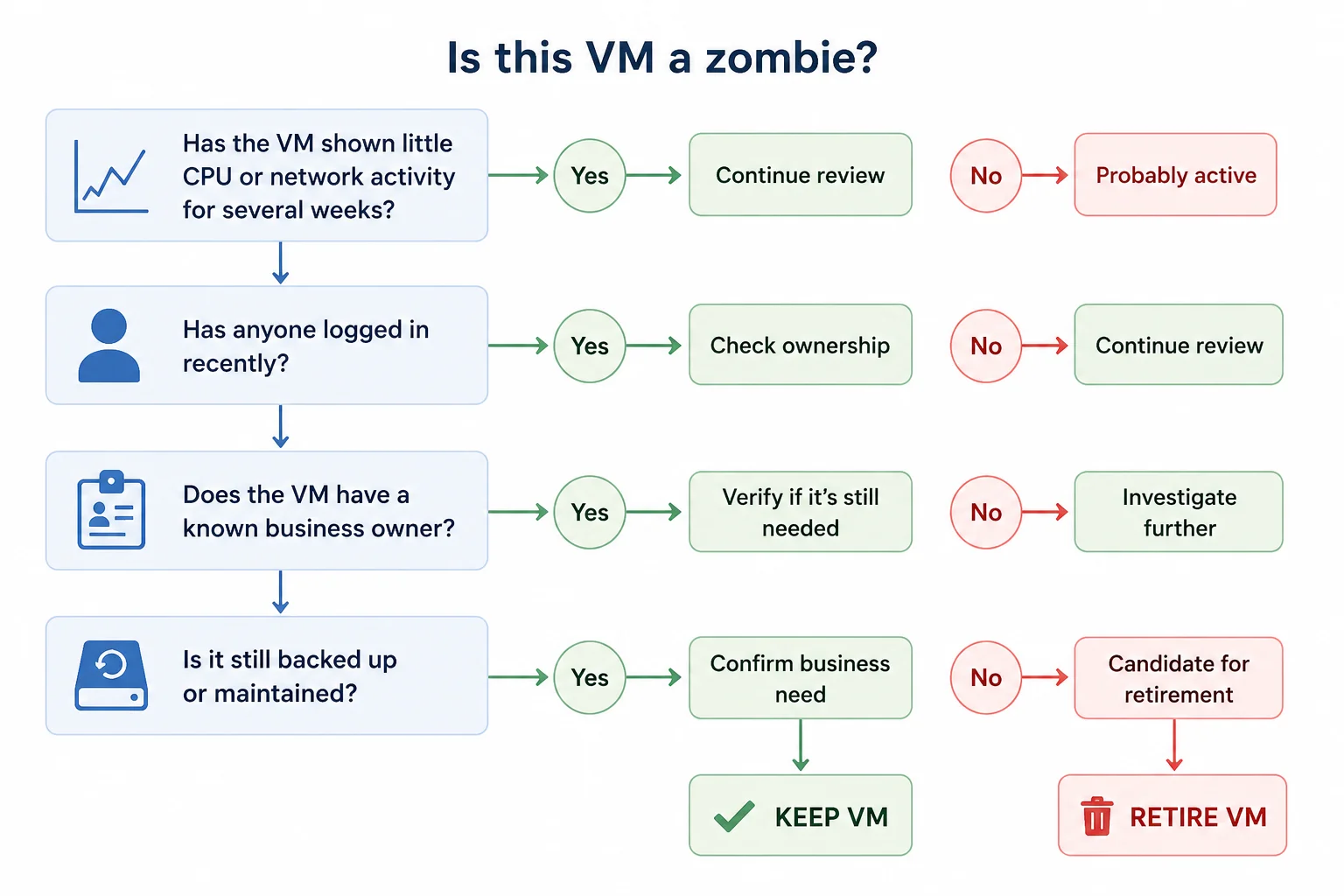
Look for low resource activity
A VM that consistently reports very low CPU, memory, disk, and network usage may no longer be serving an active workload.
Look for virtual machines that show:
- Very low CPU utilization over several weeks.
- Little or no network traffic.
- Minimal disk activity.
- Stable memory usage with no workload changes.
One quiet day does not make a VM a zombie. Look for long-term inactivity before drawing conclusions.
Check login and activity history
A VM may still be powered on even though nobody has logged into it for months. Inactive systems that are no longer maintained can become security risks because they may miss operating system updates and security patches.
Review information such as:
- Last user login.
- Last system reboot.
- Last application activity.
- Last configuration change.
If a virtual machine has shown no meaningful activity for a long period, it may be a candidate for review.
Review VM ownership
Many zombie VMs remain in the environment because no one knows who owns them. Without a clear owner, routine tasks such as patching, backups, and security reviews are often overlooked.
Review each VM and confirm:
- Business owner.
- Application owner.
- Purpose of the VM.
- Current project or department.
If ownership cannot be confirmed, investigate the VM before allowing it to continue consuming resources.
Compare allocated resources with actual usage
Some virtual machines reserve far more CPU, memory, and storage than they actually use. This is known as VM oversizing or overprovisioning. While these VMs may still be active, they reduce the amount of resources available for other workloads and can increase infrastructure costs.
Compare:
- Allocated CPU vs. actual CPU usage.
- Assigned memory vs. memory demand.
- Provisioned storage vs. used storage.
Large differences often indicate that a VM should be right-sized. Reclaiming unused CPU, memory, or storage improves host utilization and delays the need for additional hardware.
Tip: Not every underutilized VM is a zombie. Some may support low-traffic business applications or disaster recovery workloads. Always confirm the VM's purpose before reducing resources or removing it.
Why zombie VMs are a security risk
Zombie VMs don't just waste CPU, memory, and storage. They can also become security risks because they are often forgotten and rarely maintained. An unused VM that remains powered on may still be connected to the network, joined to the domain, and running services that nobody is monitoring.
Unpatched attack surface
A zombie VM may still be running an older version of Windows Server or an application that no longer receives regular updates. If it remains accessible over the network, attackers may exploit known vulnerabilities that have never been patched.
Because these VMs are often forgotten, security teams may not notice suspicious activity until much later.
Domain-joined credential exposure
Many zombie VMs remain joined to Active Directory even after they stop serving a business purpose. This means the computer account is still active and can become another entry point into the environment.
Before retiring a VM, remove it from the domain and disable or delete its Active Directory computer account as part of the decommissioning process.
Unused services still running
A forgotten virtual machine may continue running services such as RDP, WinRM, SMB, or IIS even though nobody is actively using it.
If the VM is no longer monitored, failed login attempts, suspicious connections, or configuration changes may go unnoticed.
Larger backup and recovery scope
Zombie VMs often remain part of scheduled backup jobs. This increases backup storage requirements, extends backup windows, and adds unnecessary systems to disaster recovery plans.
Removing unused VMs from backup policies helps reduce storage costs and simplifies recovery during an incident.
The hidden cost of VM sprawl
Zombie VMs consume more than CPU and memory. They also increase operational costs across the entire infrastructure.
| Area | Impact of zombie VMs |
|---|---|
| Storage | Unused virtual disks continue to consume storage capacity. |
| Backup | Backup jobs take longer and require more storage. |
| Licensing | Some software and operating systems may continue to require licenses. |
| Administration | More virtual machines increase monitoring and maintenance effort. |
| Capacity planning | Unused VMs make it harder to understand actual resource demand. |
Removing unused VMs helps reduce these costs and makes future capacity planning more accurate.
Best practices to prevent VM sprawl
VM sprawl is easier to prevent than to clean up.
Follow these best practices:
- Control VM creation by requiring approvals or following a standard provisioning process. This helps prevent unnecessary or duplicate virtual machines.
- Assign an owner to every virtual machine.
- Remove temporary test VMs after projects end.
- Set expiration dates for development and test environments.
- Review idle virtual machines before adding new infrastructure.
- Use automated reports to identify inactive or underutilized workloads.
Regular reviews help keep your Hyper-V environment clean and efficient.
How to safely retire a zombie VM
Deleting a virtual machine immediately can lead to unexpected service disruptions if the VM is still being used. Follow a structured retirement process to confirm that the workload is no longer required before permanently removing it.
| Step | What to do | Why it matters |
|---|---|---|
| 1. Power off the VM | Shut down the VM and monitor for any unexpected issues before deleting it. | Confirms that no users or applications still depend on the VM. |
| 2. Remove it from backup jobs | Exclude the VM from backup schedules after confirming it is no longer needed. | Reduces backup time, storage use, and recovery complexity. |
| 3. Remove it from monitoring | Remove the VM from monitoring tools and alert policies. | Prevents unnecessary alerts and keeps dashboards accurate. |
| 4. Remove DNS and Active Directory entries | Delete DNS records and disable or remove the Active Directory computer account if the VM is domain joined. | Eliminates stale records and reduces security risks. |
| 5. Take a final snapshot or archive | Create a snapshot or archive the VM if your retention policy requires it. | Provides a rollback option if the VM must be restored. |
| 6. Document the retirement | Record when the VM was retired, who approved it, and why. | Maintains an audit trail and prevents future confusion. |
Following a consistent retirement process helps reduce infrastructure costs while ensuring that no business-critical workload is removed accidentally.
Detect zombie VMs automatically with ManageEngine OpManager
Checking every virtual machine manually becomes difficult as the environment grows. Automated monitoring helps identify inactive workloads without performing time-consuming audits.
ManageEngine OpManager helps administrators:
- Automatically discover Hyper-V hosts and virtual machines.
- Identify VMs with consistently low CPU, memory, disk, and network activity.
- Generate reports that highlight idle and underutilized virtual machines.
- Track resource usage trends over time instead of relying on one-time snapshots.
- Monitor both physical infrastructure and virtual machines from a single console.
This helps IT teams find zombie VMs faster, reduce VM sprawl, and reclaim valuable infrastructure resources.
FAQs
What is a zombie VM?
A zombie VM is a virtual machine that still exists but no longer serves an active workload. It may be idle, orphaned, or left behind after testing or a completed project.
How can I identify unused Hyper-V virtual machines?
Why is VM sprawl a problem?
How often should I review Hyper-V virtual machines?

By Ajay Sharma S
Solutions Marketer, ManageEngine