Change AD password policy
- Log in to the domain controller using an account with administrative privileges.
- Click Start, search for the Group Policy Management Console, and open it.
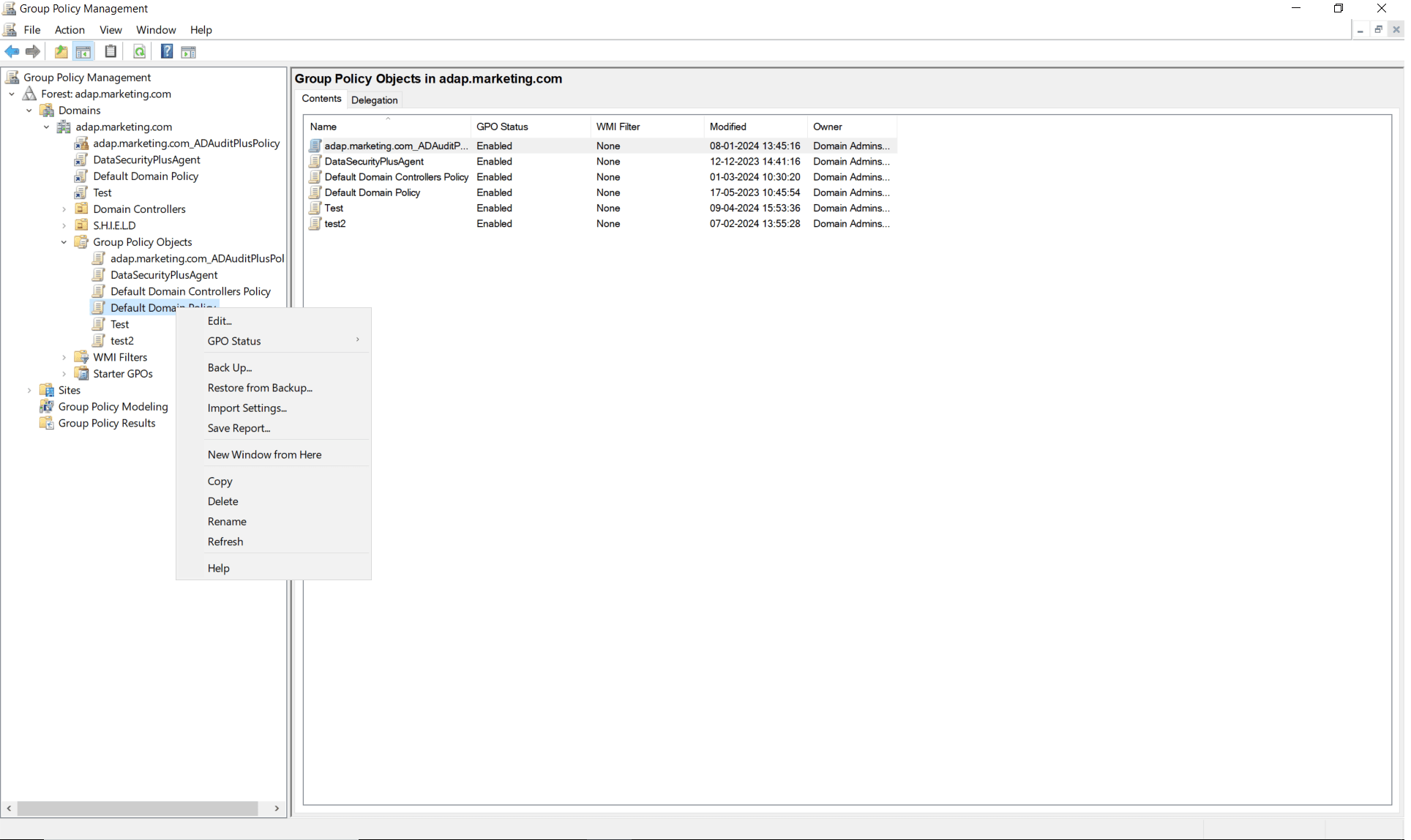
- On the left pane, navigate to Forest > Domains, select your domain name, and click Group Policy Objects.
- Right-click Default Domain Policy (or any other policy that is linked to the root domain) and select Edit.
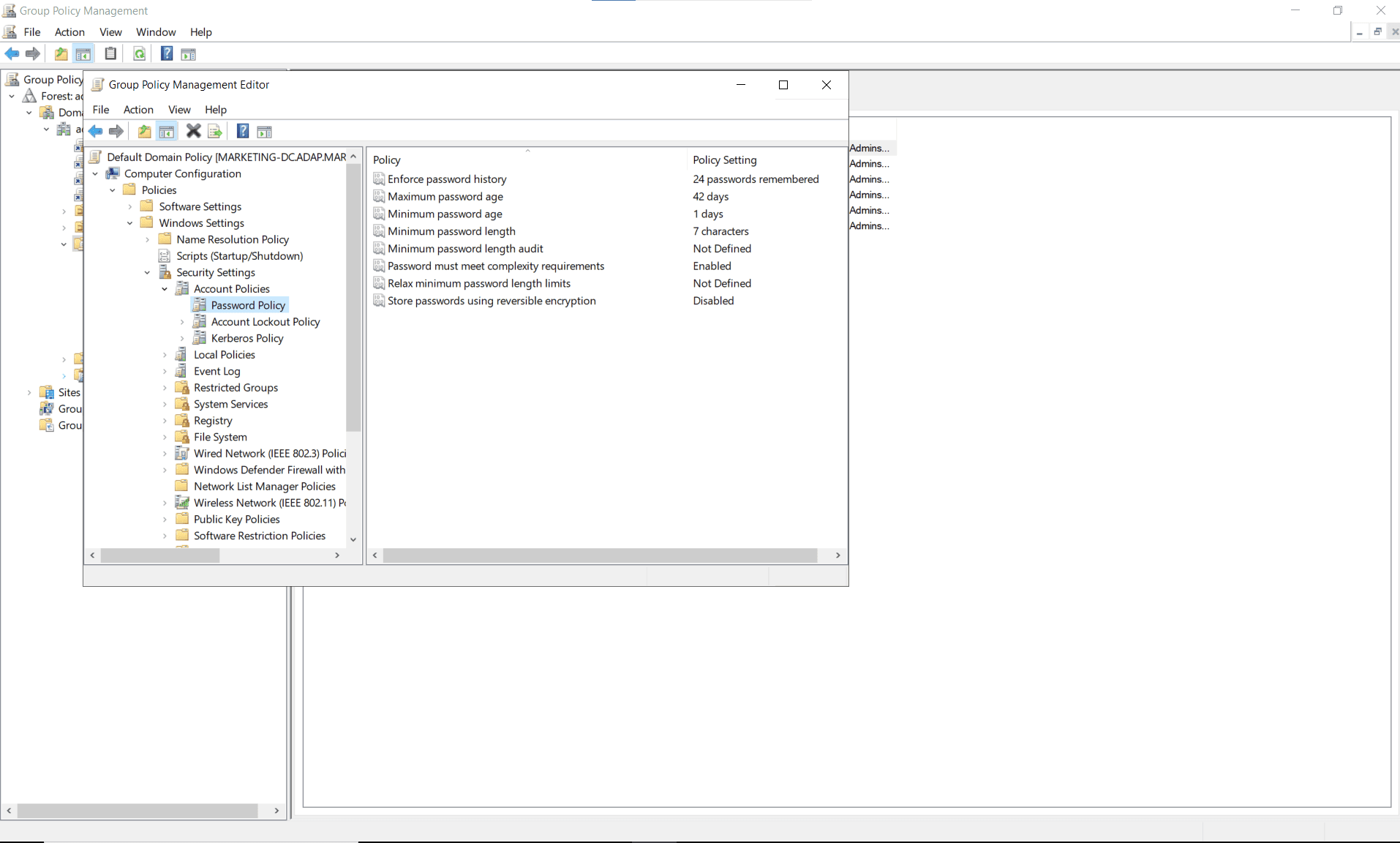
- In the Group Policy Management Editor, navigate to Computer Configuration > Policies > Windows Settings > Security Settings > Account Policies > Password Policy.
- Modify the password settings according to your organization's requirements. You can edit the following settings:
- Enforce password history: Determines the number of unique new passwords that must be associated with a user account before an old password can be reused
- Maximum password age: Determines the period of time (in days) that a password can be used before the system requires the user to change it
- Minimum password age: Determines the period of time (in days) that a password must be used before the user can change it
- Minimum password length: Determines the least number of characters that can make up a password for a user account
- Minimum password length audit: Generates audit reports when users attempt to create passwords that do not meet the minimum password length requirement
- Password must meet complexity requirements: Determines whether passwords must meet a series of strong password guidelines
- Relax minimum password length limits: Allows organizations to exceed the legacy minimum password length limit of 14 in order to require users to create longer passwords
- Store passwords using reversible encryption: Provides support for applications that use protocols requiring the user's password for authentication; storing encrypted passwords in a reversible way means they can be decrypted
- Close the Group Policy Management Editor after making the changes.
- The new AD password policy will be applied automatically during the next Group Policy refresh, which happens every 90 minutes by default.
- To apply the changes immediately, open Command Prompt and run the following command: gpupdate /force
- Test the new password policy using a test account to ensure it works as expected .
Create a fine-grained password policy
In addition to these default password policies, AD also provides a fine-grained password policy feature to define password and lockout policies for different sets of users in a domain. This way, you can create and manage multiple password policies within a single domain. Below is a step-by-step guide to creating a fine-grained password policy.
- Open Server Manager and navigate to Tools > Active Directory Administrative Center.
- Navigate to your domain from the left tree. If your domain is not listed, click Manage > Add Navigation Nodes and add your domain.
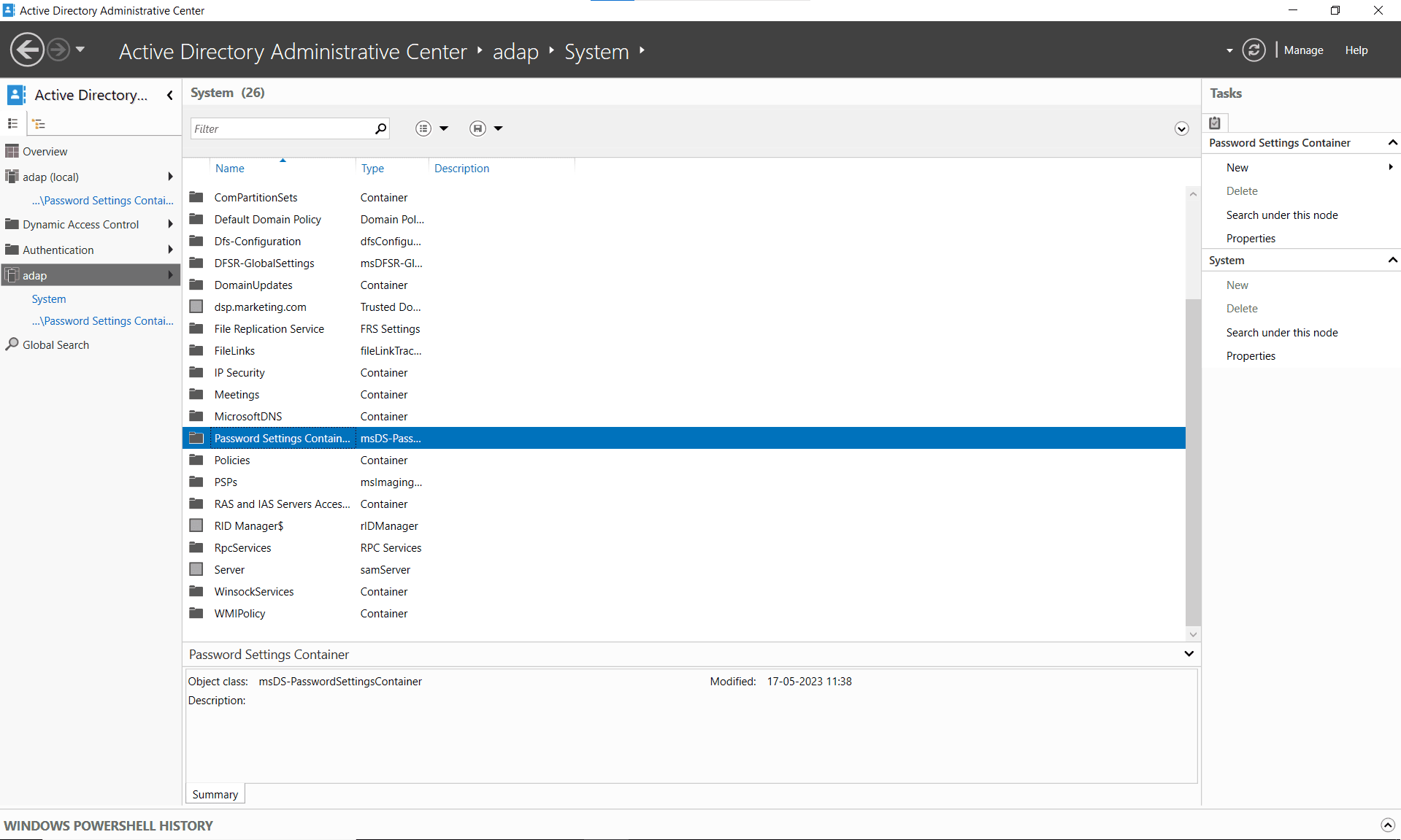
- Select System > Password Settings Container.
- On the right pane, click New > Password Settings. This will open the Create Password Settings window. Each policy is saved as a password settings object (PSO) in the Password Settings Container.
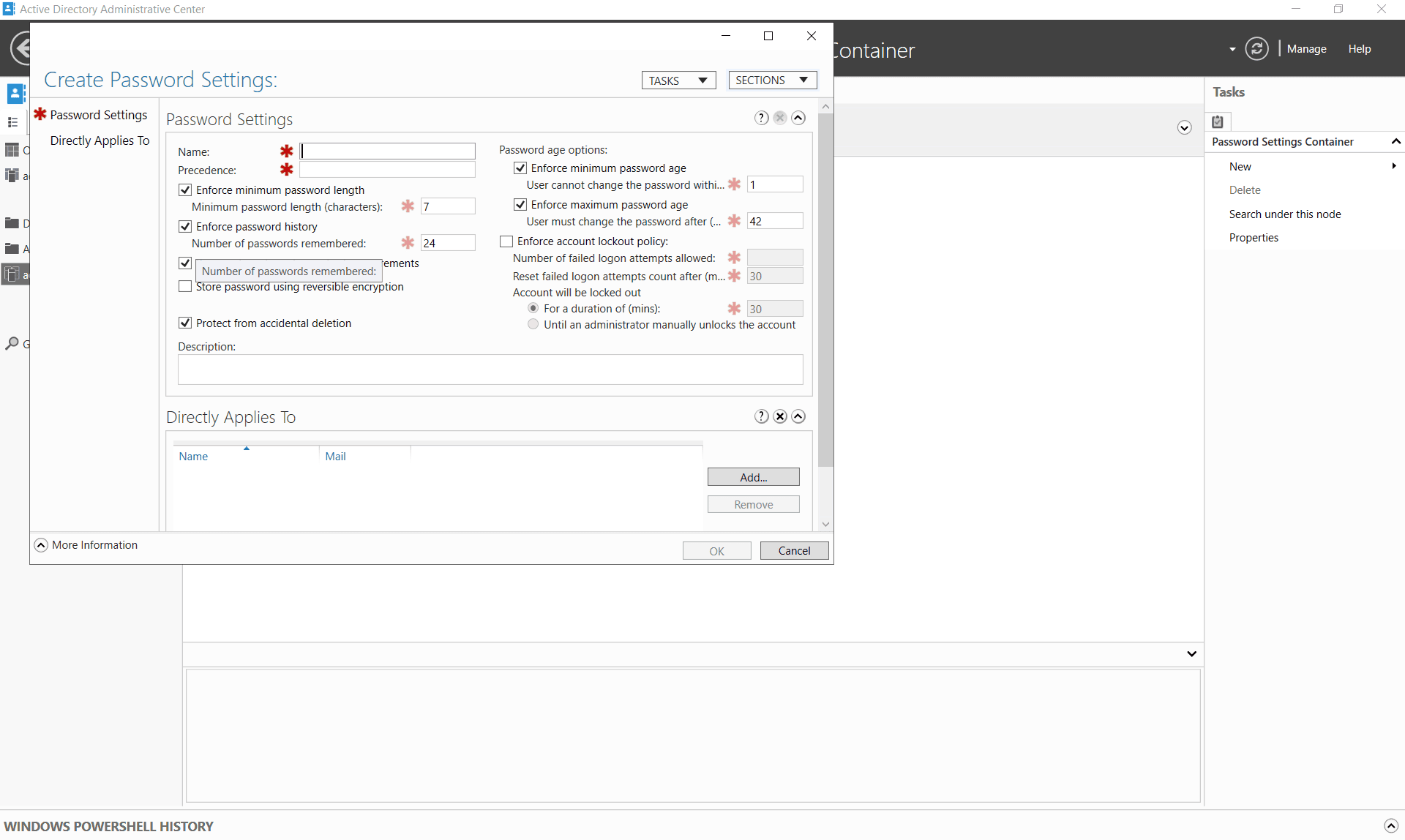
- Provide a Name and set the Precedence value. Lower values have higher precedence, meaning if multiple PSOs apply to a user, the one with the lowest precedence value takes effect.
- Modify the password settings according to your organization's requirements. You can edit the following settings:
- Enforce minimum password length
- Enforce password history
- Password must meet complexity requirements
- Store password using reversible encryption
- Enforce minimum password age
- Enforce maximum password age
- Enforce account lockout policy
- Specify the users or groups to which this policy will apply by clicking Add under Directly Applies To.
- Search for and select the appropriate users or groups and click OK.
- Click OK to save the PSO.
- To modify the PSO, double-click it, make the necessary changes, and click OK. The password policy will now go into effect.