Introducing ADAudit Plus' Attack Surface Analyzer—Detect 25+ AD attacks and identify risky Azure configurations. Learn more×
 
Support
 
Phone Get Quote
 
Support
 
US: +1 888 720 9500
US: +1 888 791 1189
Intl: +1 925 924 9500
Aus: +1 800 631 268
UK: 0800 028 6590
CN: +86 400 660 8680

Direct Inward Dialing: +1 408 916 9892


How to change file permissions in Windows

Start your free trial

A free, fully functional, 30-day trial

File and folder permissions determine who can view, edit, delete, or execute a file or folder. By modifying permissions, you can control access for specific users or groups, helping prevent unauthorized changes or accidental deletions. This is particularly useful in shared environments, such as workplaces or multi-user systems, where managing permissions ensures data integrity and privacy.

The steps below show how to change file permissions in Windows 10 and 11.
Modifying file permissions in Windows

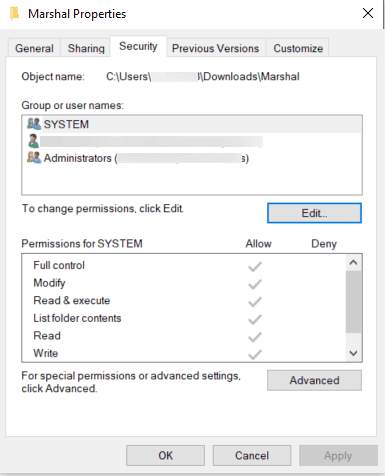
  1. Go to the file or folder that you want to edit the permissions for.
  2. Right-click it and select Properties.
  3. Go to the Security tab. Here, you’ll see a list of users or groups with their current permissions.
Modifying file permissions in Windows
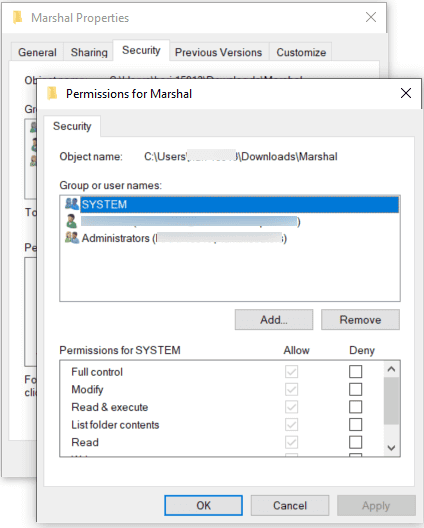
  1. Click the Edit button to open the Permissions window.
  2. Select the user or group you want to modify permissions for.
    • If the user or group isn’t listed, click Add. Type the user or group name in the field and click Check Names > OK.
    • If you want to prevent the existing user or group from accessing the file or folder, click Remove.
  3. After selecting the user, check the boxes for the permissions you want to grant or deny under the Permissions section.
    • Full control: Allows complete access, including read, write, execute, and delete permissions
    • Modify: Allows reading, editing, and deleting the file or folder but not changing permissions
    • Read & execute: Allows viewing the file or folder and running applications
    • List folder contents: Allows viewing the file or folder name but no access
    • Read: Allows access to the file or folder but no edits
    • Write: Allows editing data but no deletions
  4. Use the Allow or Deny check boxes as needed.
Modifying file permissions in Windows
  1. Click Apply to save the changes, then click OK to close the Permissions window.
  2. Back in the Properties window, click Advanced to view and edit advanced permission settings. You can:
    • Change the ownership of the file or folder to another user or group.
    • Edit the advanced file or folder permissions and set conditional access.
    • View the effective permissions for the user, group, or device.
    • Set auditing conditions for file or folder permission changes.
  3. Review the updated permissions under the Security tab, then click OK to exit.

If you are in an enterprise environment, file permissions are often changed since multiple users or systems need to access shared resources. Administrators may need to modify permissions to grant or restrict access, address security vulnerabilities, or adapt to organizational changes. However, improper changes can lead to unauthorized access, data breaches, or an unintentional loss of access. Auditing these changes is crucial for tracking who modified permissions, when, and why.

With ADAudit Plus, you can keep complete track of file and folder permission changes; get details about who, when, and where; and track the new and old values of the ACL with detailed attributes. You can also automate periodic reporting of this data and investigate if certain permission changes are malicious and need to be addressed.

See ADAudit Plus in action

A free, fully functional, 30-day trial

 

ADAudit Plus Trusted By