

Everything seems secure. Your domain controllers (DCs) are monitored, Group Policies are enforced, and privileged accounts are tightly controlled. But there's one overlooked password that can quietly open the door to a complete takeover. The Directory Services Restore Mode (DSRM) password. If compromised, it gives attackers offline control over a domain controller. Let us examine how this attack works and how you can defend against it.
First of all... What is DSRM?
In AD environments, DSRM is a special boot mode used for repairing or recovering a domain controller. DSRM has its own local Administrator account and password, stored separately from domain credentials.
This account can be accessed even when AD is offline, making it essential for recovery but also a potential backdoor for attackers. If compromised, it provides full control over the DC.
Uncovering the tactics of DSRM password change
Attackers typically follow these steps to perform a DSRM password change attack:
Gaining a foothold on the network
The attacker compromises a workstation, often through phishing, malicious attachments, or exploiting an unpatched vulnerability, to establish an initial presence in the environment.
Moving laterally to a domain controller
Using stolen credentials, pass-the-hash, or exploiting admin misconfigurations, the attacker moves from the compromised workstation to a domain controller, gaining administrative or system-level access.
Changing the DSRM password
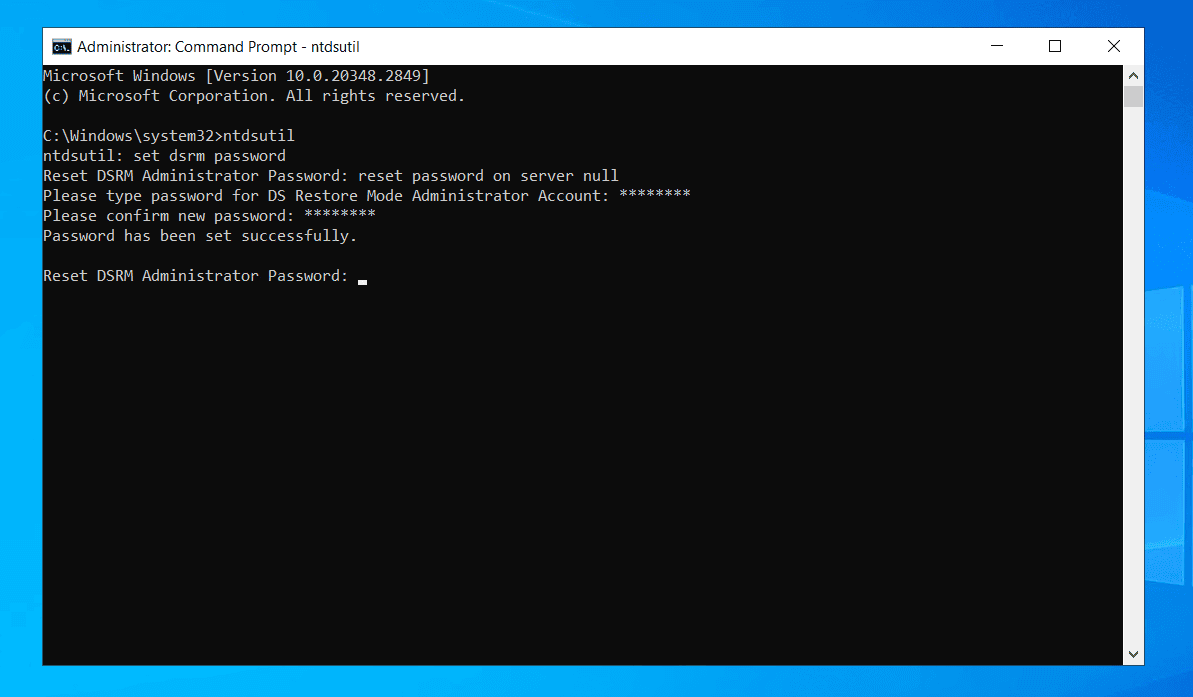
On the DC, the attacker resets the DSRM password using tools like ntdsutil or PowerShell. This prepares them to log in during DSRM mode, bypassing normal domain authentication and monitoring. Here's how:
- Open Command Prompt as Administrator
- Run ntdsutil
ntdsutil
- Switch to DSRM password mode by typing:
set dsrm password
- Run reset password on server null (local) or specify a remote server:
reset password on server null
- When prompted, enter and confirm the new DSRM password.
- Exit NTDSUTIL by typing:
quit
Booting into DSRM mode and disabling defenses
The DC is restarted in DSRM mode, isolating it from AD. The attacker then disables endpoint detection and security monitoring tools without interference.
Stealing the NTDS.dit database
With full offline control, the attacker copies the NTDS.dit file and SYSTEM registry hive. These contain all domain account password hashes, which can be cracked offline for long-term persistence and further compromise.
Why this attack is dangerous
Several factors make this attack uniquely dangerous and difficult to defend against:
- Bypasses domain protections: The DSRM account is a local administrator account on each DC, separate from domain user accounts and groups, so attackers do not need to modify domain memberships or accounts to gain control.
- Leaves few traces: Most standard AD monitoring tools do not track DSRM usage or related activities unless explicitly configured to do so, making DSRM-based attacks stealthy.
- Grants full control: Access to the DSRM account provides SYSTEM-level privileges on the DC, enabling full control over the machine and its AD database.
- Hard to detect: Because DSRM logins occur outside normal AD service operation (often offline mode), they bypass usual AD login and security event monitoring.
Best practices to prevent DSRM password abuse
Even though DSRM is a built-in feature, it should never be left unmanaged. Here's how to reduce your risk:
- Set a strong, unique DSRM password on each DC : Avoid default or reused passwords. Set a strong, random password per DC and store them securely using a password manager.
- Regularly rotate DSRM passwords : Manually or through automation (for example, PowerShell and LAPS extension), change DSRM passwords on a scheduled basis to prevent long-term exploitation.
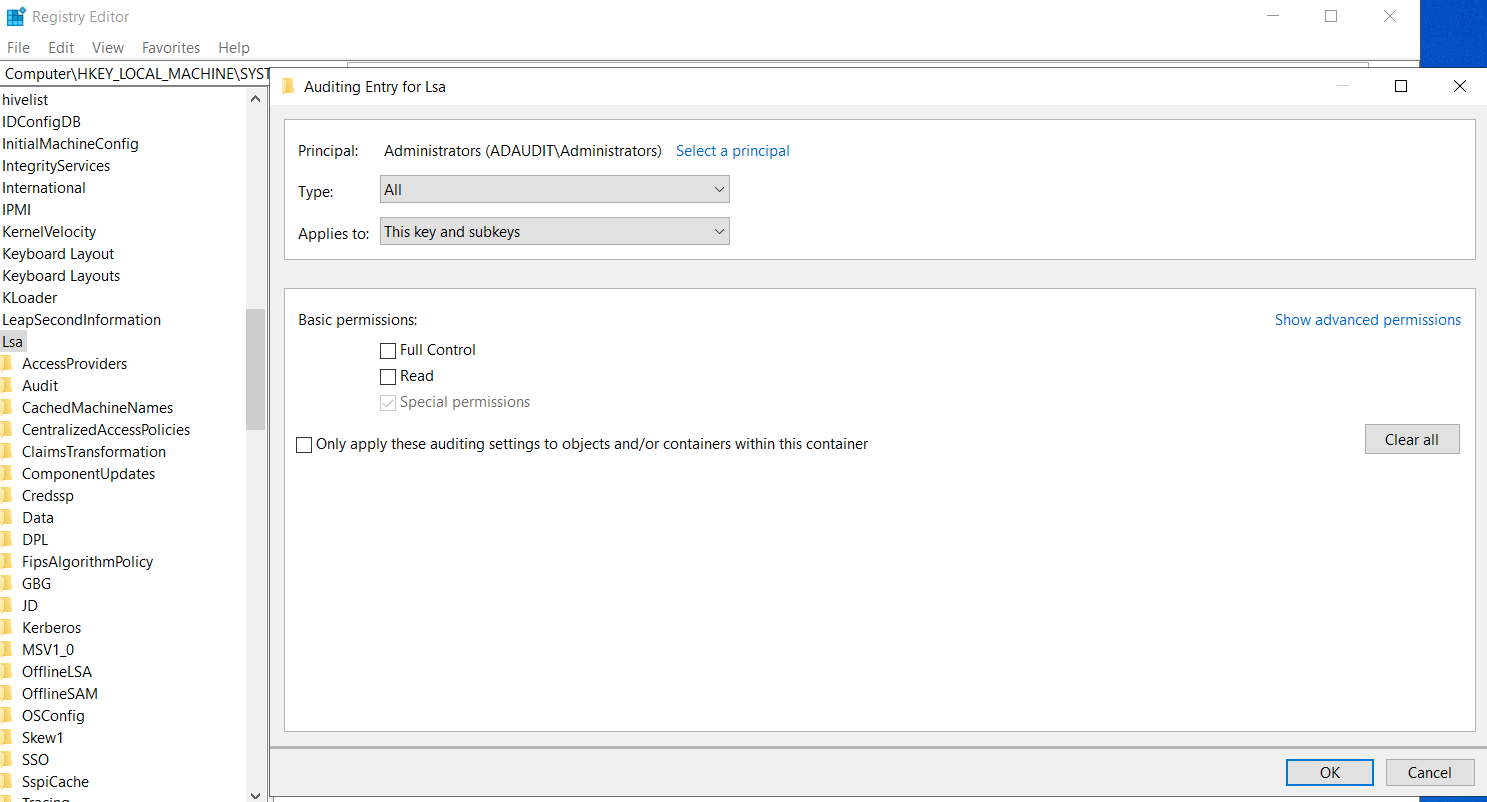
- Monitor registry changes : Changing the DSRM password updates the DSRMAdminPassword registry key. Auditing this key is useful for detecting unauthorized password changes.
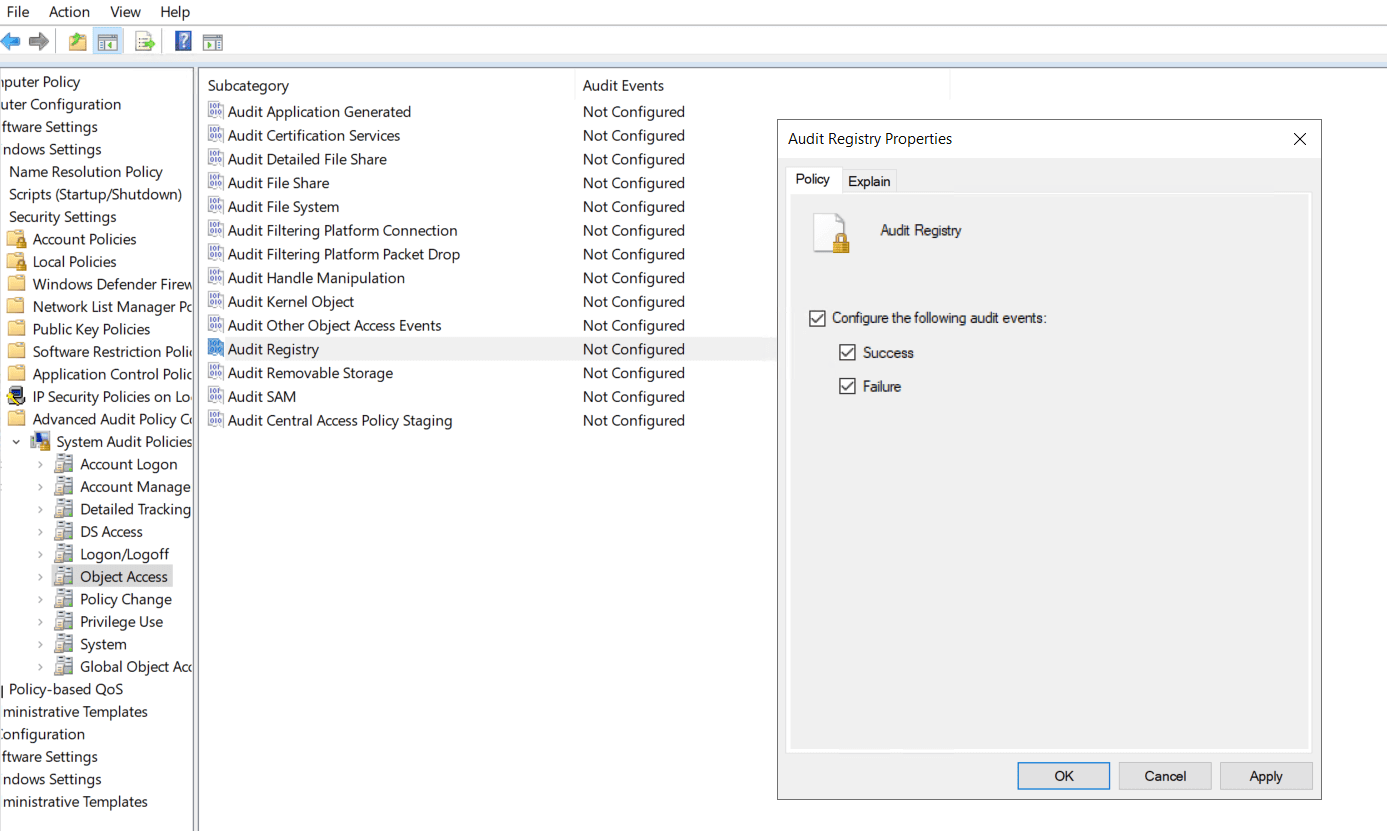
To track these changes, first enable the Audit Registry policy:
- Open Local Security Policy (secpol.msc)
- Go to:
Computer Configuration → Windows Settings → Security Settings → Advanced Audit Policy Configuration → Object Access → Audit Registry
-
Enable Success and Failure.
-
Run the following command in Command Prompt as Administrator to apply the changes:
gpupdate /force
-
Set auditing on the specific registry key path to log any modification by running:
HKEY_LOCAL_MACHINE\System\CurrentControlSet\Control\Lsa\DSRMAdminLogonBehavior
-
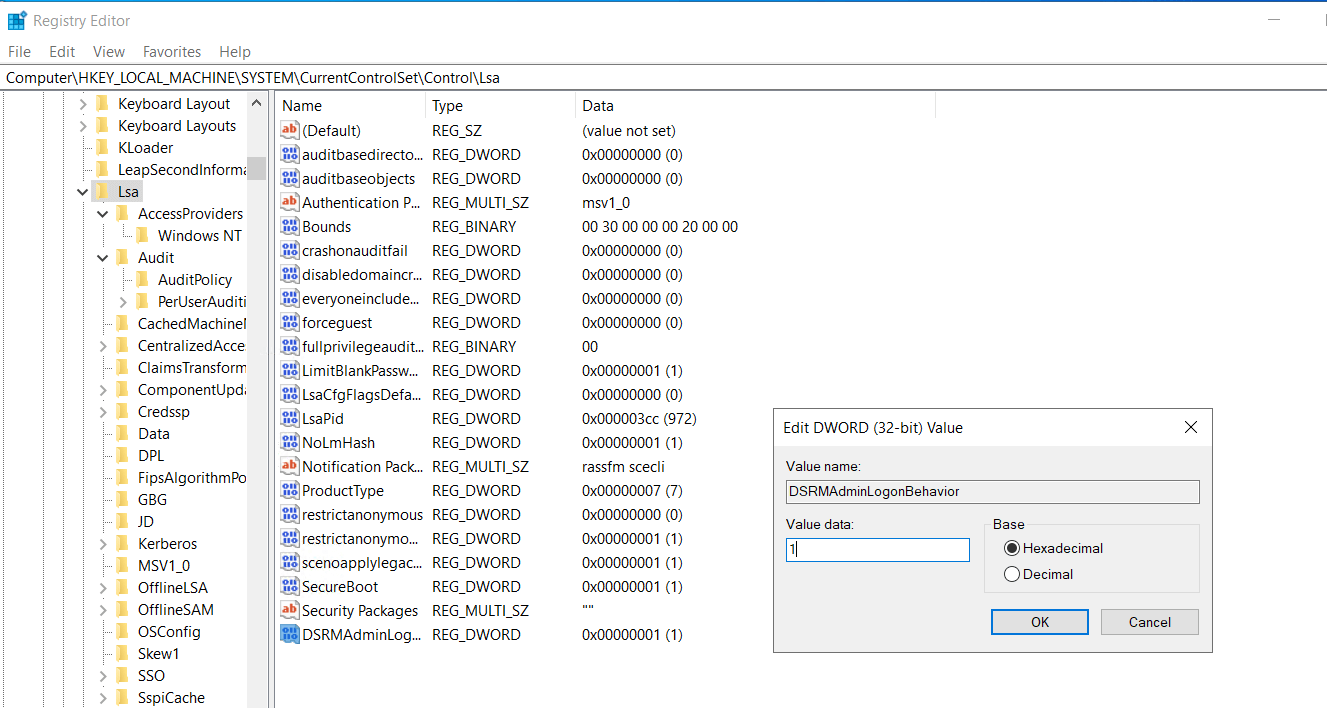
Disable DSRM logon when not needed: You can configure the DSRMAdminLogonBehavior registry value to restrict DSRM logins:
0 - Never allow (default)
1 - Allow only in DSRM mode
2 - Allow even in normal mode (not recommended)
Ensure it's set to 1.
-
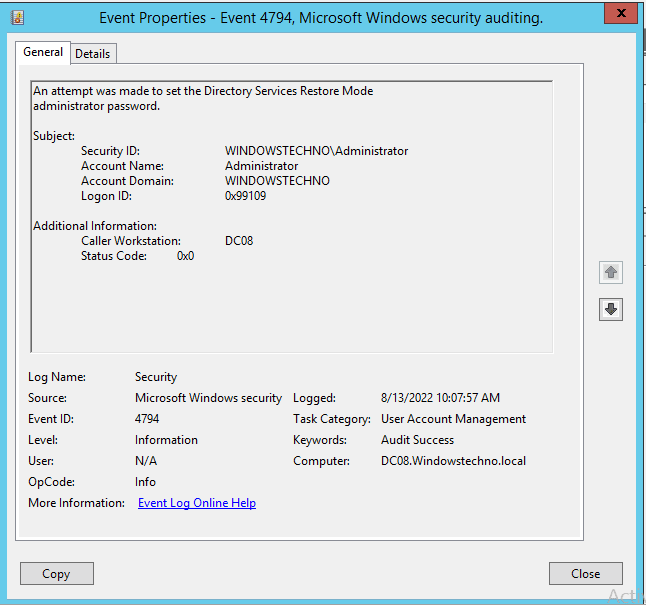
Monitor Event ID 4794: Event ID 4794 is logged when the AD database is backed up. Unusual occurrences could indicate an attempt to copy or exfiltrate the NTDS.dit file.
- Use jump servers for DC access: Limit direct access to domain controllers. Require all administrative tasks to go through controlled, monitored jump servers.
-
Patch and harden your DCs: Prevent attackers from gaining initial access by:
- Keeping DCs fully patched
- Removing unnecessary local users
- Enforcing least privilege
Detecting DSRM Abuse with ADAudit Plus
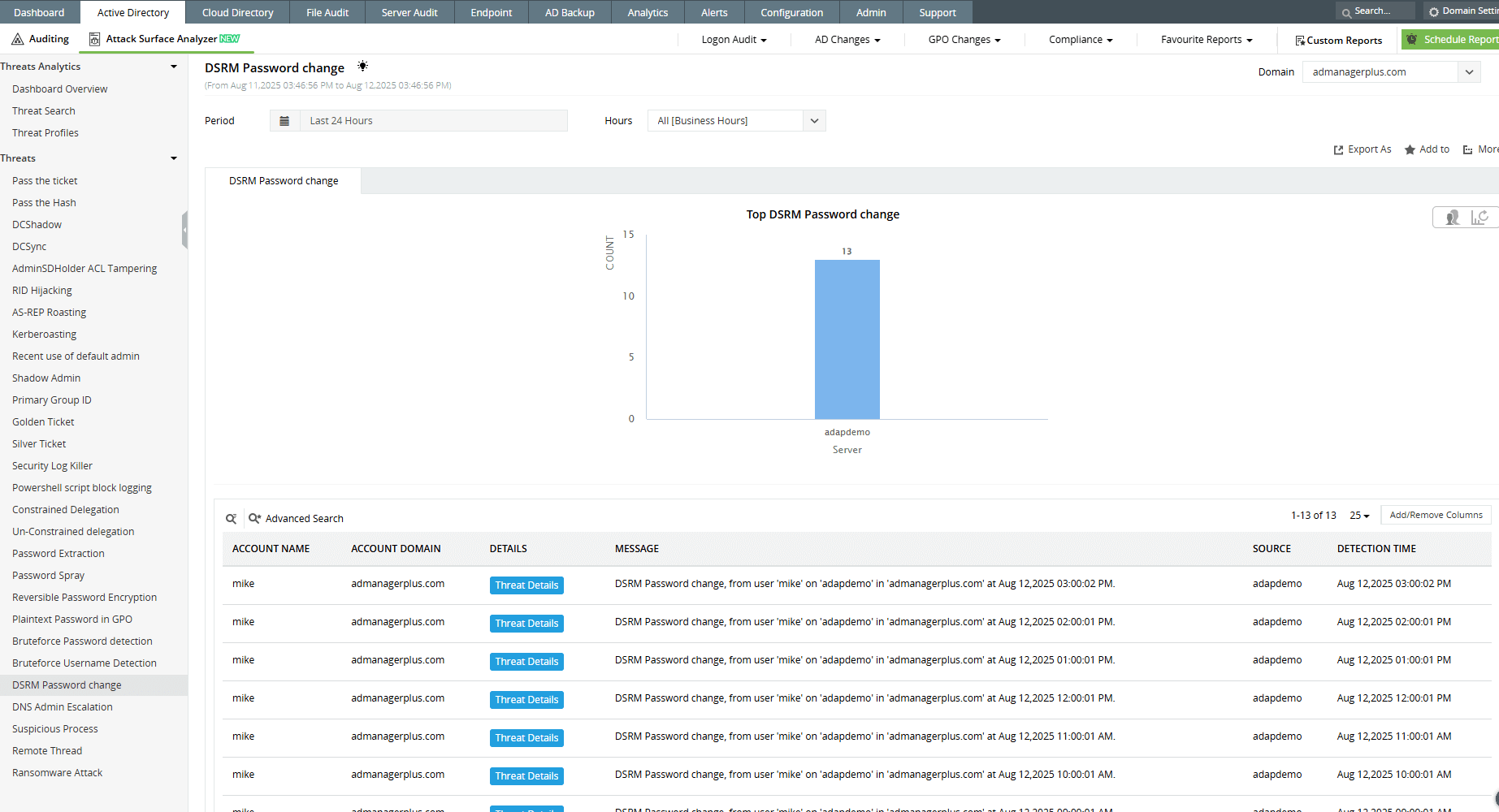
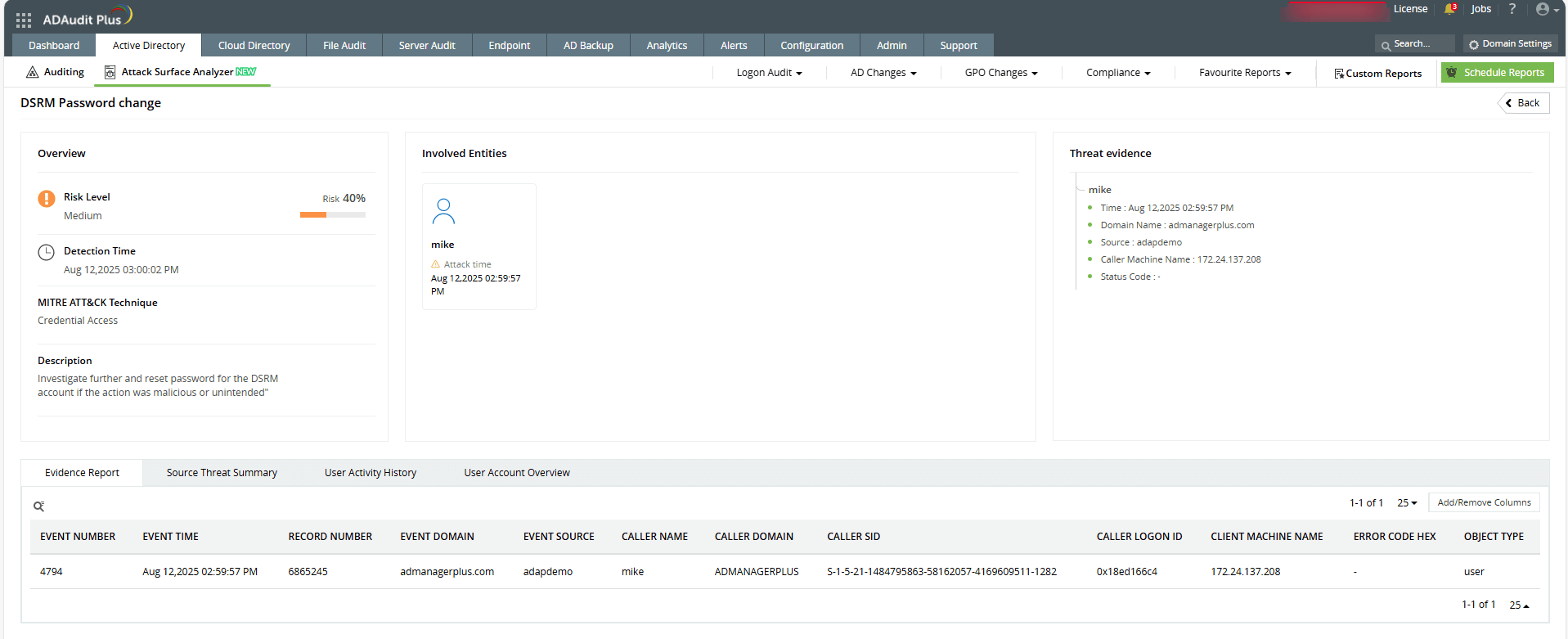
ADAudit Plus continuously monitors critical changes on domain controllers, including offline access risks tied to the DSRM account. It flags suspicious activity related to DSRM usage and surfaces it through real-time alerts and detailed reports.
With Attack Surface Analyzer, ADAudit Plus instantly notifies you of potential DSRM password resets or unauthorized access attempts, helping you detect and respond to offline compromise attempts before they need to be escalated.
-
Track DSRM Administrator password resets instantly
-
Understand the what, when, and how of DSRM password changes
Start protecting your on-premises and cloud AD resources with ADAudit Plus
Detect over 25 different AD attacks and identify potential misconfigurations within your Azure, GCP, and AWS cloud environments with the Attack Surface Analyzer.
See the Attack Surface Analyzer in actionWe're thrilled to be recognized as a Gartner Peer Insights Customers' Choice for Security Incident & Event Management (SIEM) for the fourth year in a row.









