Direct Inward Dialing: +1 408 916 9892
Network Policy Server was created by Microsoft as a component of Windows Server. NPS was introduced to behave as a RADIUS server to authenticate users against Active Directory. With NPS, users are allowed to authenticate into a network from various access points such as VPN or WiFi. Most network equipment have an affinity for the RADIUS protocol, so NPS when acting within an AD environment, accepts user credentials via the RADIUS protocol and checks it against the credentials in Active Directory. There's a huge advantage to be mined here since this setup allows non-Windows based equipment to authenticate into the domain.
If you're looking to setup and configure your NPS, be sure to check out our post on "How to track Radius Logon Failures" This is a step-by-step guide to help you add an NPS role to your Windows Server. This post on the other hand, is designed to help you enable NPS audits and to give you a quick summary on what events you should monitor for NPS. This is a part of our ongoing series on Audit Policy recommendations and you can check out other posts from this series to quickly brush up on audit policy settings.
In the command prompt, you can enable auditing with the following command
auditpol /set /subcategory:"Network Policy Server" /success:enable /failure:enableThis command enables auditing for NPS.
These events can be viewed from the Event Viewer. You can use the 'Filter Current Log' option to search for these events.
While Event Viewer is a great tool to use we suggest you leverage some of the advanced capabilities that solutions like ADAudit Plus have to offer.
ADAudit Plus is a comprehensive solution that simplifies AD auditing and reporting. It is a one-stop platform that brings together intuitive user interface, pre-configured reports, and advanced filter options make it easy for you to track changes to your network, and detect threats immediately. You get a fully equipped dashboard that gives you a holistic view of the various systems in your network. This way you can correlate events across the network and spot suspicious behavior.
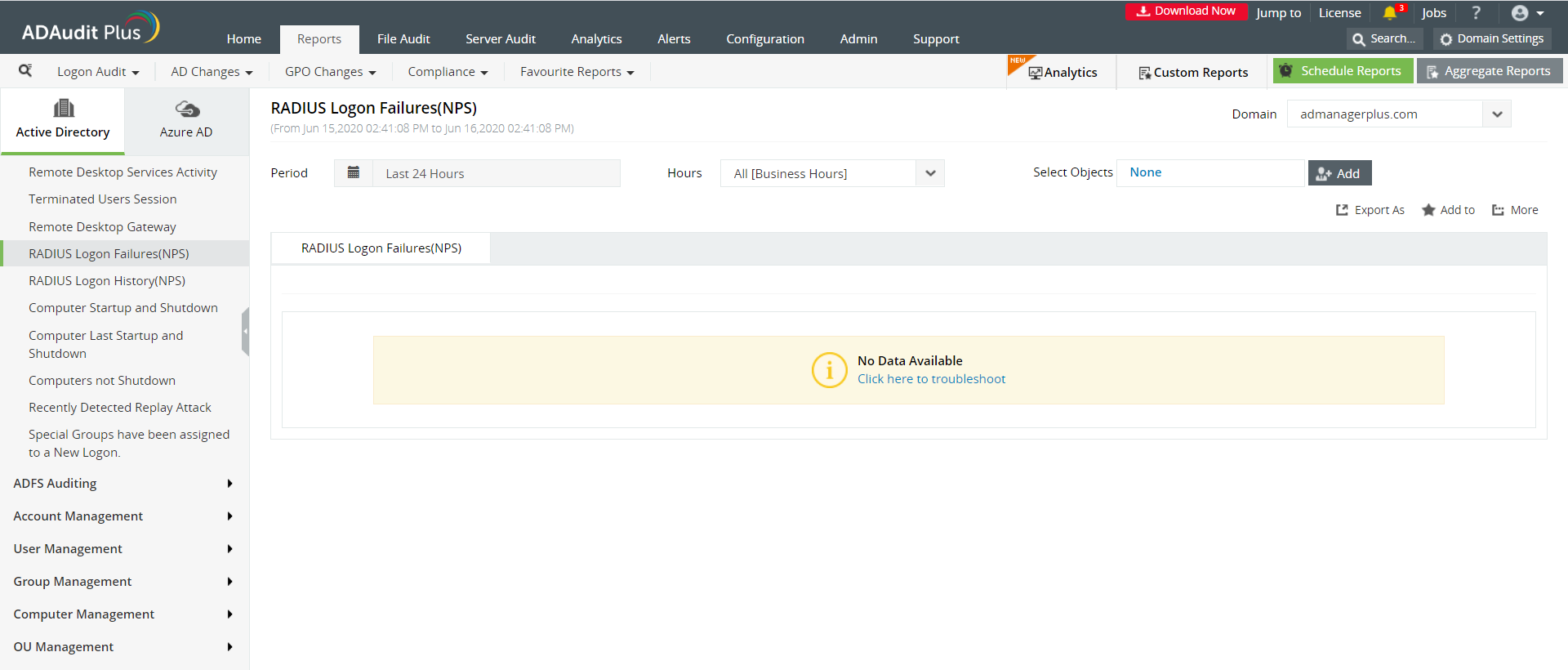
With ADAudit Plus, you can view all your RADIUS logons from an easy-to-use dashboard.

ADAudit Plus is a real-time, web-based Windows Active Directory (AD) change reporting software that audits, reports and alerts on Active Directory, Windows servers and workstations, and NAS storage devices to meet the demands of security, and compliance requirements. You can track AD management changes, processes, folder modifications, permissions changes, and more with 200+ reports and real-time alerts. You can also get out-of-the-box reports for compliance mandates such as the HIPAA. To learn more, visit https://www.manageengine.com/active-directory-audit/.
Try ADAudit Plus login monitoring tool to audit, track, and respond to malicious login and logoff actions instantaneously.
Try ADAudit Plus for free
 Free Edition










