Every system in an organization's network generates log files of some type. Managing and monitoring these log data is crucial to spotting issues that occur within the network. The logs serve as a preliminary source of forensic evidence in case of a mishap. Besides this, monitoring logs also helps fulfill compliance requirements. Active Directory (AD) being the identity access management and governance platform in most enterprises, needs to be monitored on a regular basis. The events that occur in an AD environment (Windows platform) are classified and logged under three main categories,
- Application logs.
- System logs.
- Security logs.
Security logs include details about events like user account logons and logoffs, modifications to privileged groups, creating, deleting or modifying scheduled tasks, etc. These logs are one of the first forensic evidences to be inspected in the event of a mishap to create a timeline and trace attack path. Consistently monitoring security events and analyzing logs can help network administrators gain insights about potential attacks that threaten the organization's IT infrastructure and improve the security posture.
Following are some of the important security events that need to be monitored:
- User Logon events
Monitoring user logon events is important to determine which users were active at any given time. In the event of a breach, being able to identify specific users who were accessing network resources can be a great place to begin investigation. Below are some of the Windows event log IDs related to user logon events:
- Logon Failures – Event ID 4771.
- Successful logons – Event ID 4624.
- Failures due to bad passwords – Event ID 4625.
- User Attribute Changes
It is important to keep a check on changes made to user attributes. Unauthorized changes made to user properties could be a precursor to account compromise or insider attacks. Below are some of the event IDs associated with critical change events:
- User changed password – Event ID 4723.
- User account was changed - Event ID 4738.
- Account Lockout events
Solving employees' account lockout issues is one of the everyday tasks performed by IT administrators. Auditing account lockout events can help in identifying the reason for lockouts and help in swiftly resolving the issue. Below are some of the event IDs associated with account lockout events:
- User Account Locked out – Event ID 4740.
- User Account Unlocked – Event ID 4767.
- Group Management events
Tracking Active Directory group membership changes is crucial to identify unauthorized access to resources, and privilege escalations. Malicious changes made to groups can disrupt the functioning of an organization as users might lose access to resources that they require to work efficiently. Below are some of the event IDs associated with critical group change events:
- User Added to Privileged Group – Event ID 4728, 4732, 4756.
- Member added to a group – Event ID 4728, 4732, 4756, 4761, 4746, 475.1
- Member removed from group – Event ID 4729, 4733, 4757, 4762, 4747, 4752.
- Group Policy Object Changes
Group Policy Object (GPO) provides an integrated platform for configuring and managing user settings, applications and operating systems in an Active Directory environment. Keeping a close eye on critical policy changes like changes to account lockout policy and password policy is essential to detect and respond to malicious activities instantly. Below are some of the event IDs associated with critical GPO change events:
- 5136 – Group Policy changes.
- 5137 – Creation of GPOs.
- 5141 – GPO deletions.
- Privileged User Activities
Monitoring privileged users' activities may enable an organization to protect critical assets, spot anomalous activities and mitigate both external and insider threats.Below are some of the event IDs associated with critical privileged user activity events:
- Directory service object was modified - Event ID 5236.
- Attempt to reset an account password - Event ID 4724.
View events using Windows Event Viewer
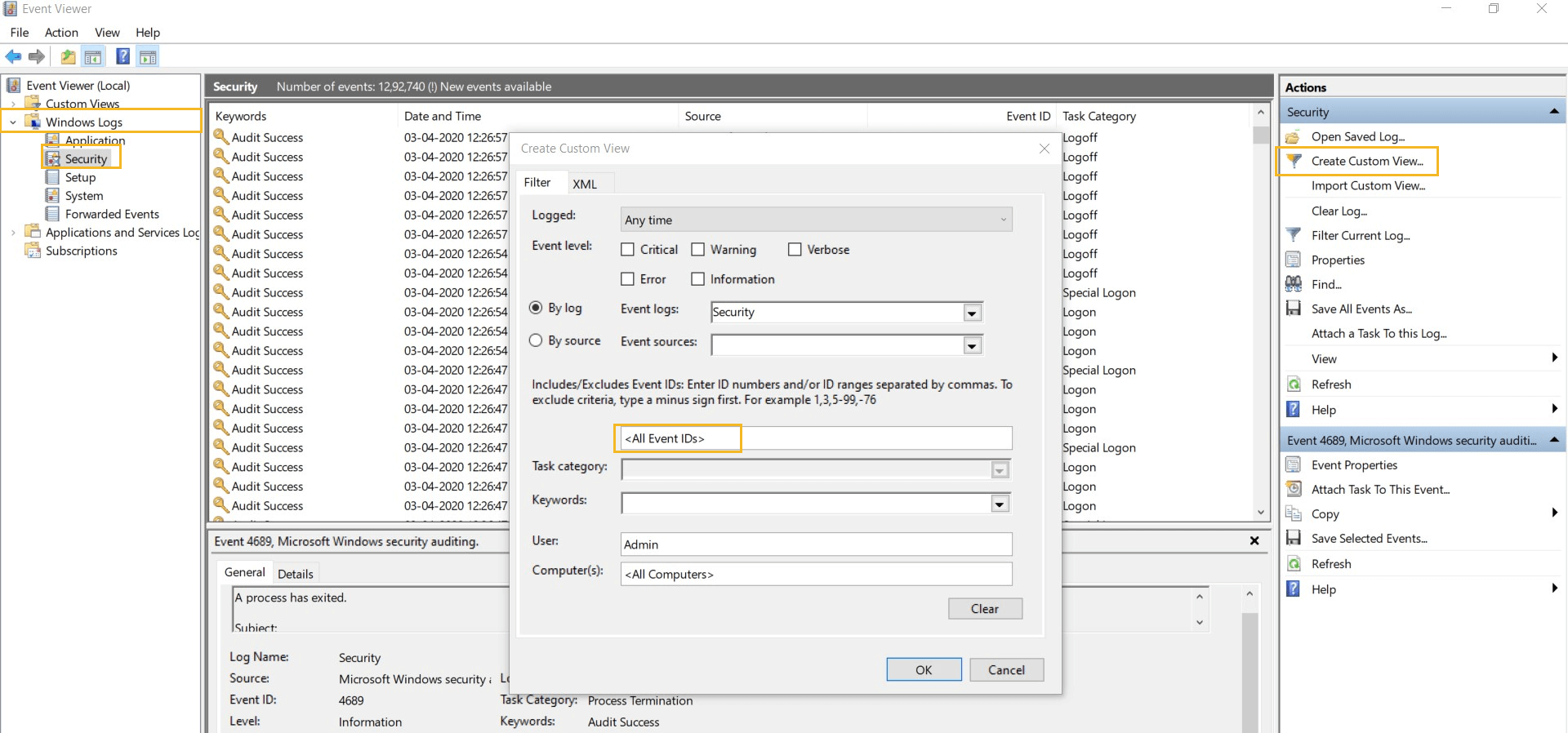
After enabling auditing, you can use Event Viewer to see the logs and investigate events by following the below mentioned steps:
- Click on Start ➔ Administrative Tools ➔ Event Viewer
- Click Windows Logs and select Security. You will see all the events logged in security logs.
- Search the desired Event Id using Find option or create a custom view to find the event logs you are looking for.
Simplify Windows security auditing and reporting with ADAudit Plus.
Windows, being the predominant platform in most enterprise networks, the security logs generated by these are voluminous. Going through each recorded security event manually to identify anomalous activities is practically impossible. ADAudit Plus, a real-time AD auditing solution can help you collect, process and generate reports which provide up-to-date information on all the critical events that take place in your AD environment. Along with the predefined reports, it also has real-time alerting capabilities. You can set up custom alerts to receive notifications via SMS or e-mail or even to execute batch files when the conditions defined by you are fulfilled.
Steps to Audit Windows security events with ADAudit Plus
Once ADAudit Plus is installed, it can automatically configure critical audit policies required for Active Directory auditing. To enable automatic configuration: Log in to the ADAudit Plus web console → Domain Settings → Audit Policy: Configure.
Windows security events can be monitored by following the steps below:
- Login to the ADAudit Plus web console.
- Select the required Domain from the dropdown list.z
User Logon events
- Go to the Reports tab.
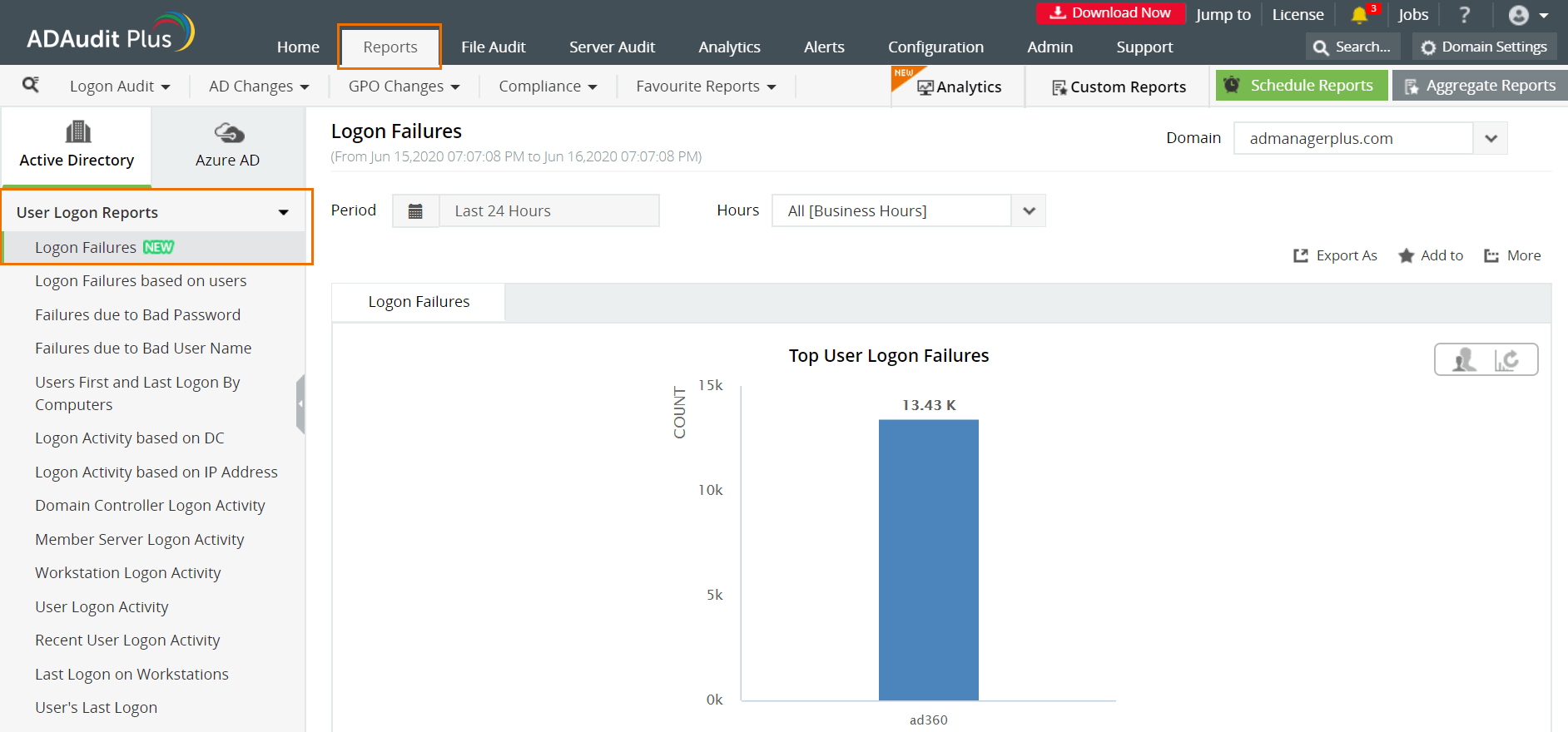
- Navigate to User Logon Reports.
- Select the desired report from the ones listed under User Logon Reports.
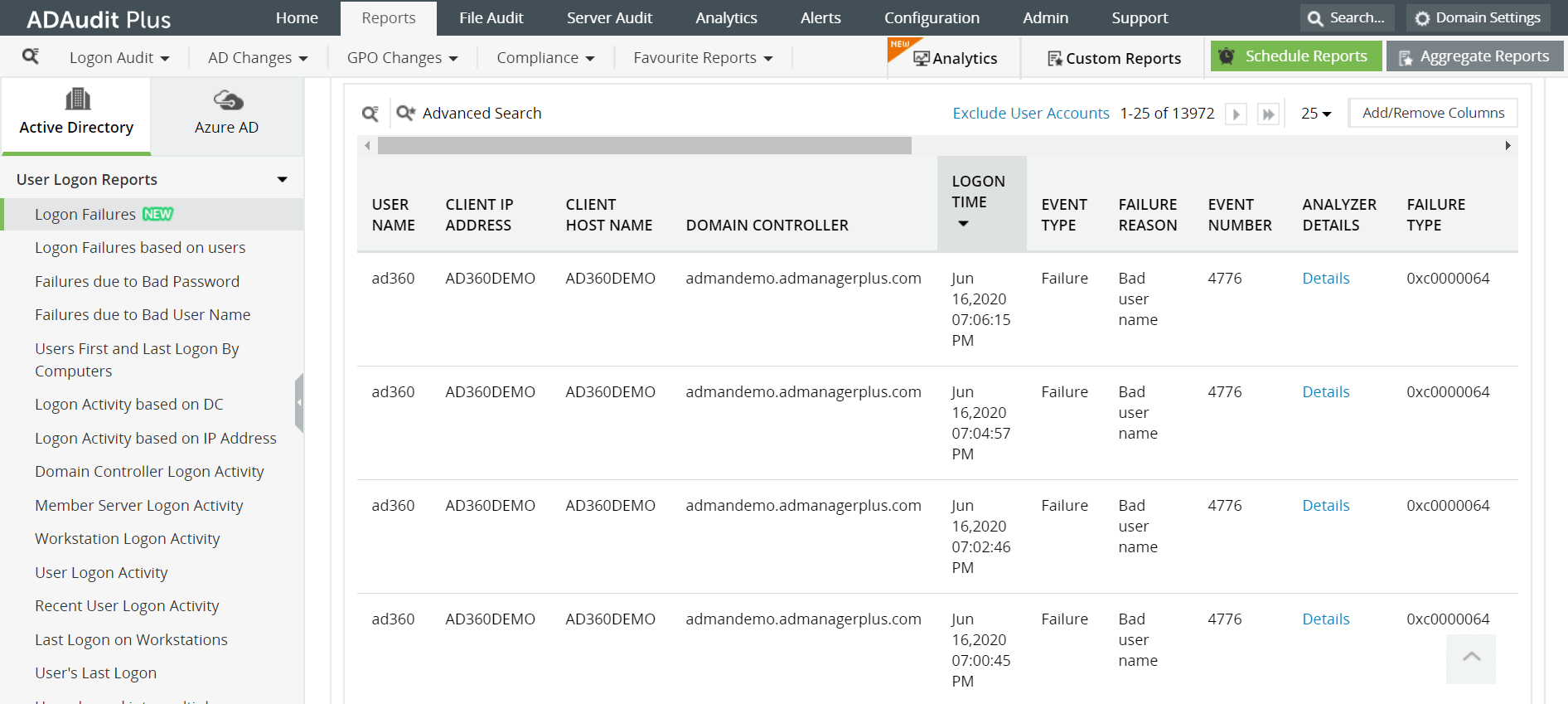
Logon Failure - This report provides a list of unsuccessful logons by users along with details like when the logon was attempted, type of failure and reason for failure.
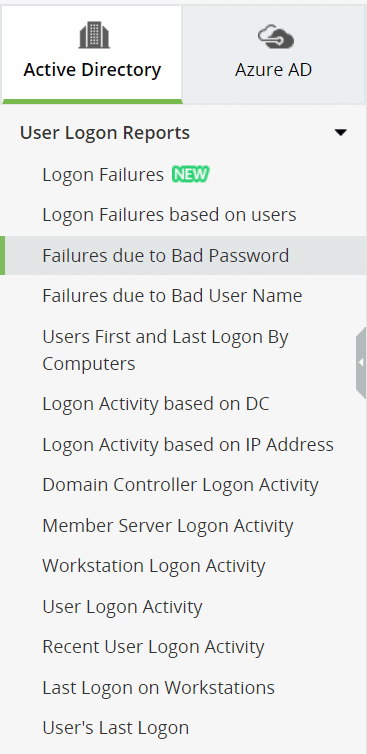
Similarly, predefined logon reports classified based on users, domain controllers, workstations or IP addresses can also be found under the User logon Reports section. The screenshot below displays the list of all user logon reports available on ADAudit Plus.
User Attribute changes
- Go to the Reports tab.
- Navigate to User Management.
- Select the desired report from the ones listed under User Management.
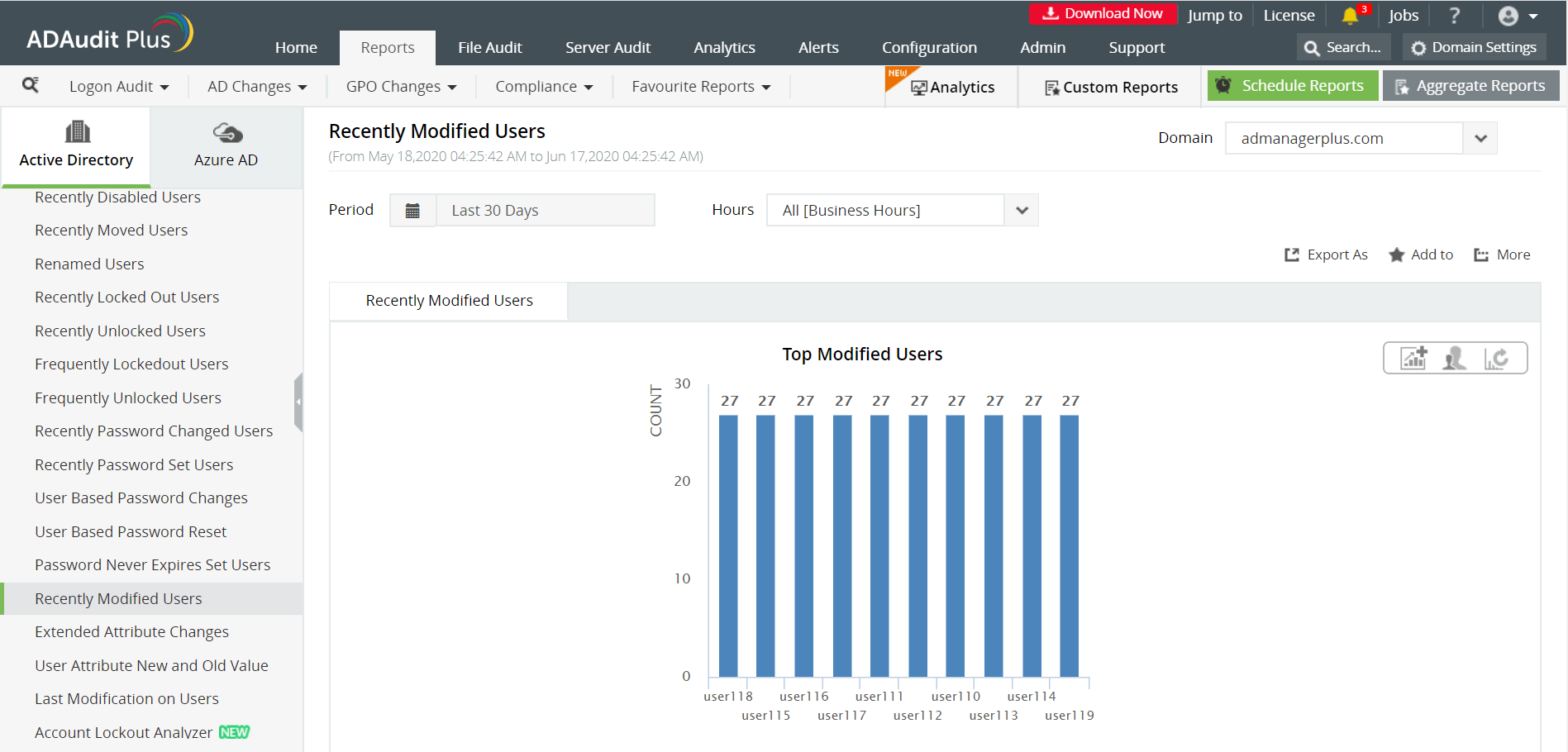
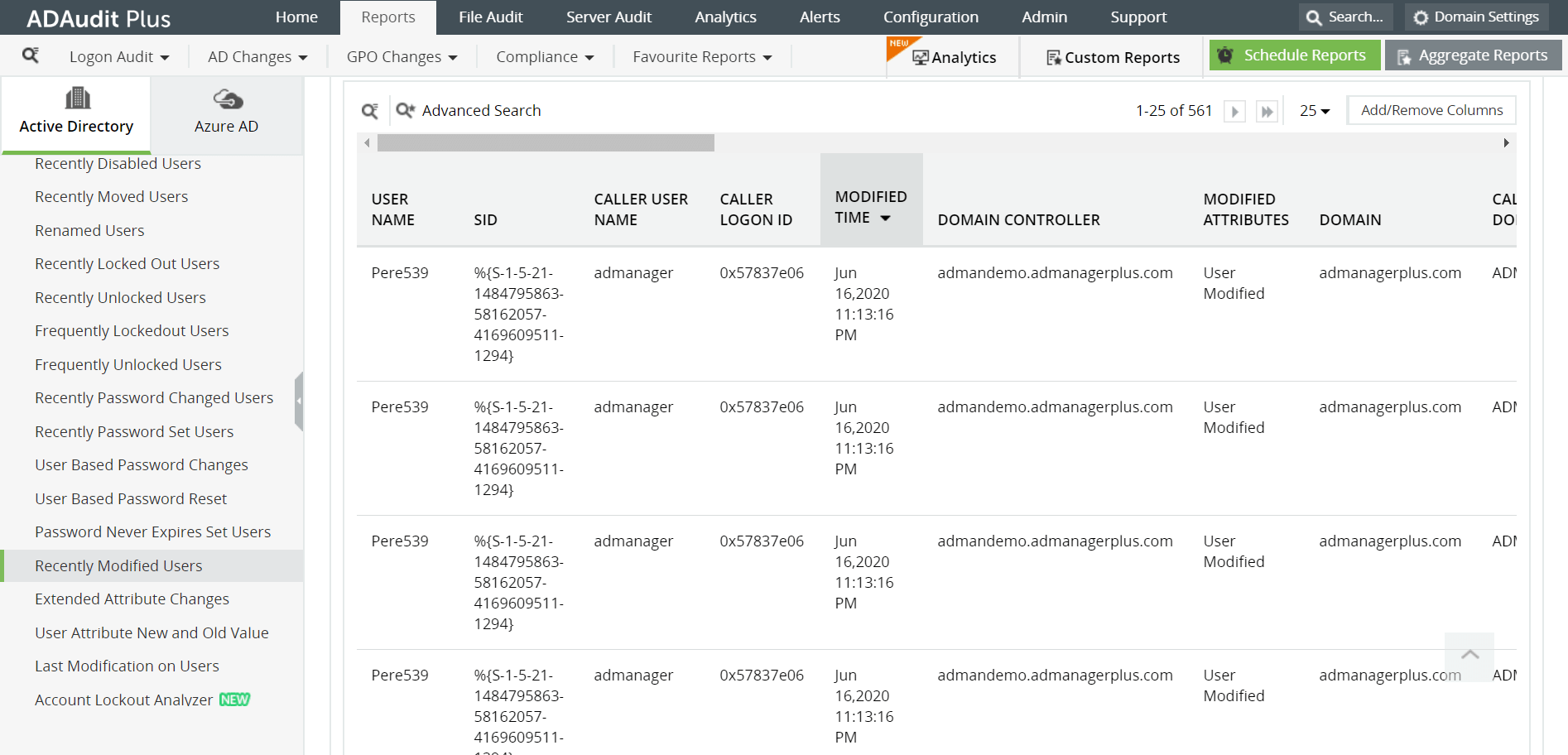
Some of the reports provided by ADAudit Plus to monitor attribute changes are:
- Recently Password Changed Users - This provides a list of all users whose passwords have been modified recently.
- Recently Modified Users - This report helps in identifying the users whose attributes have been modified.
- User Attribute New and Old Value - It enables system administrators to get a concise picture of all the user attributes that have been altered, along with the previous and new values.
User Lockout events
- Go to the Reports tab.
- Navigate to User Management.
- Select the desired report from the ones listed under User Management.
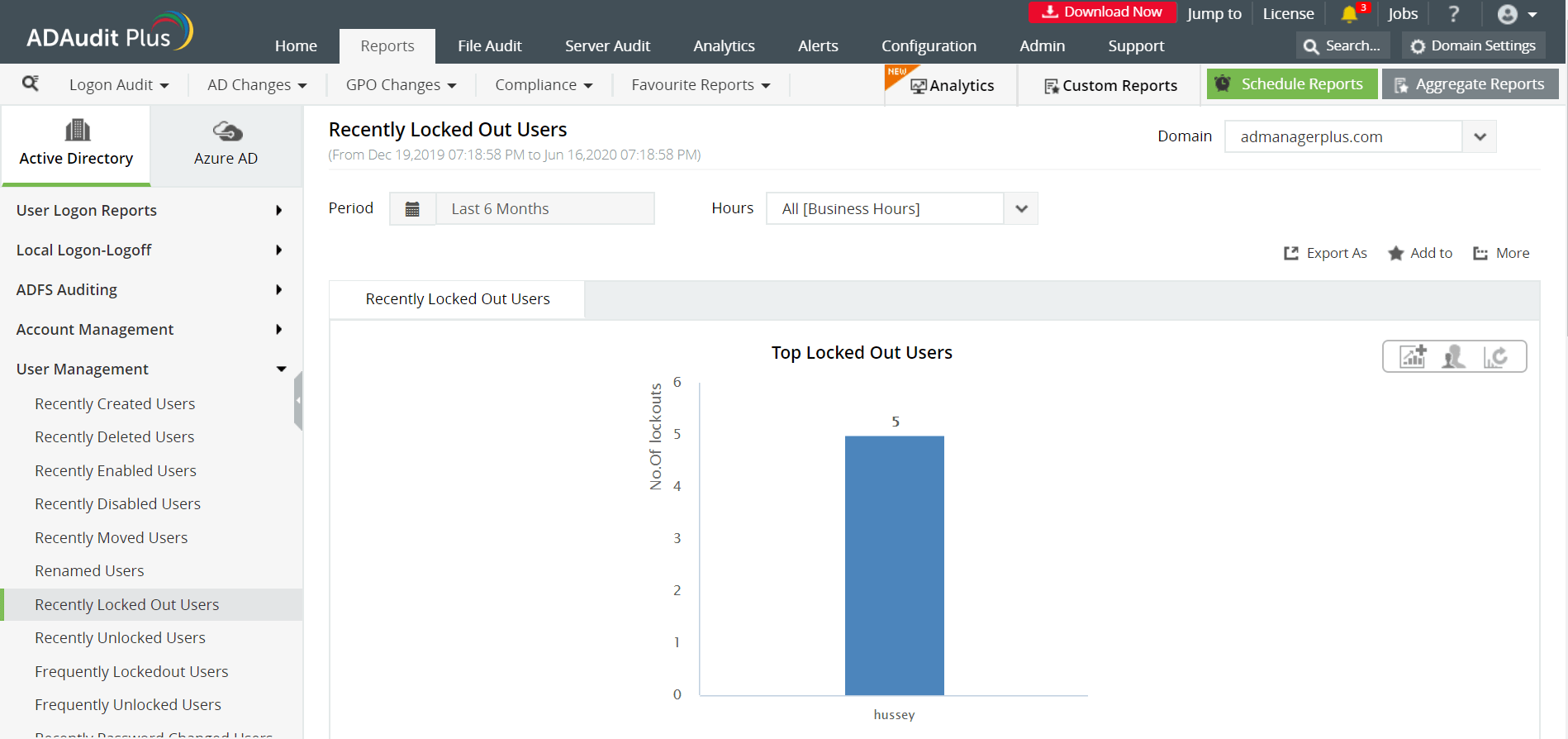
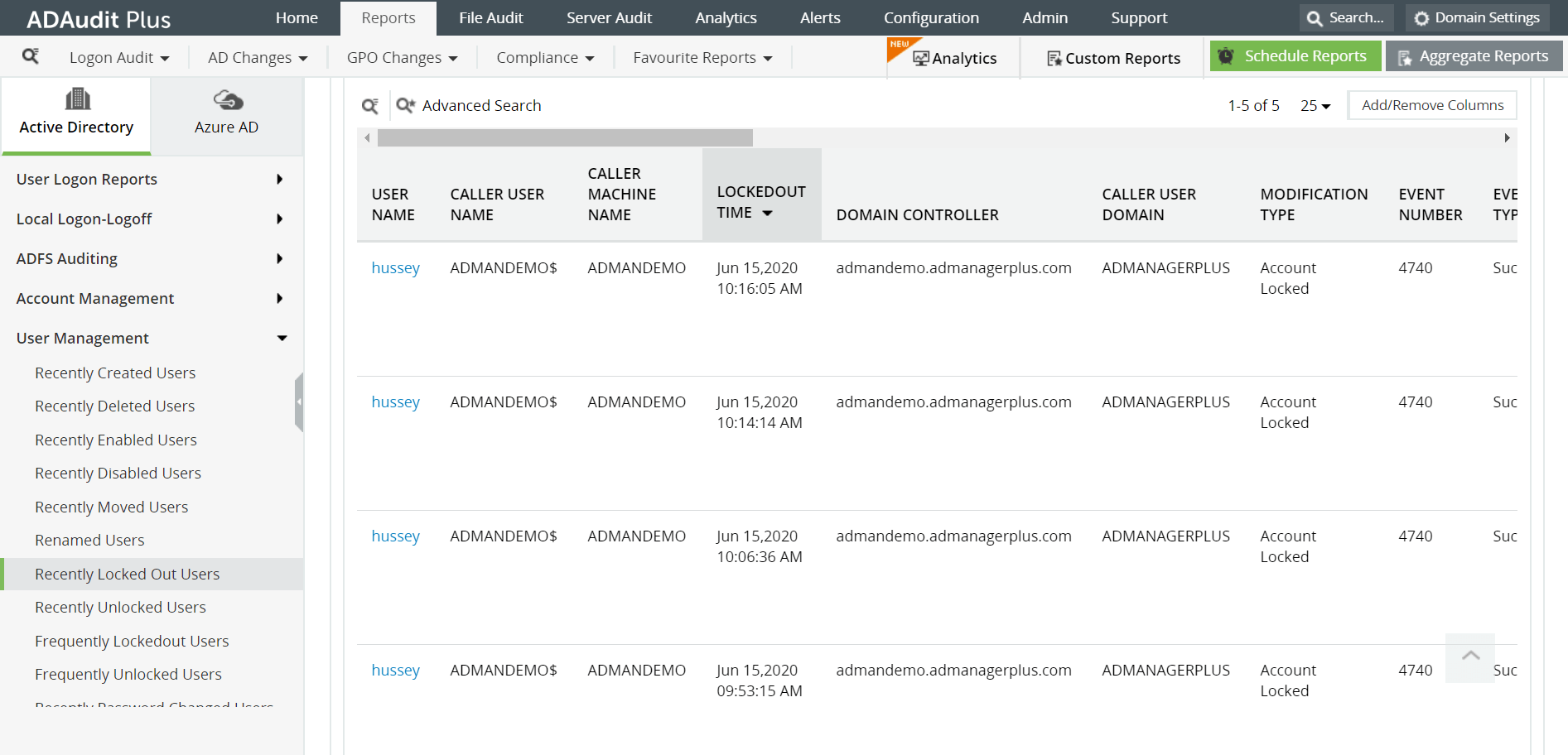
Some of the reports provided by ADAudit Plus to monitor account lockouts are:
- Recently Locked Out Users / Recently Unlocked Users - Provides a list of all users who have recently been locked out from or unlocked their workstation respectively. These report helps IT administrators in solving users' account lockout issues.
- Frequently Locked Out Users - This report provides a consolidated list of all the users who are locked out of their workstations frequently along with the number of times they have been locked out.
Group Management events
- Go to the Reports tab.
- Navigate to Group Management.
- Select the desired report from the ones listed under Group Management.
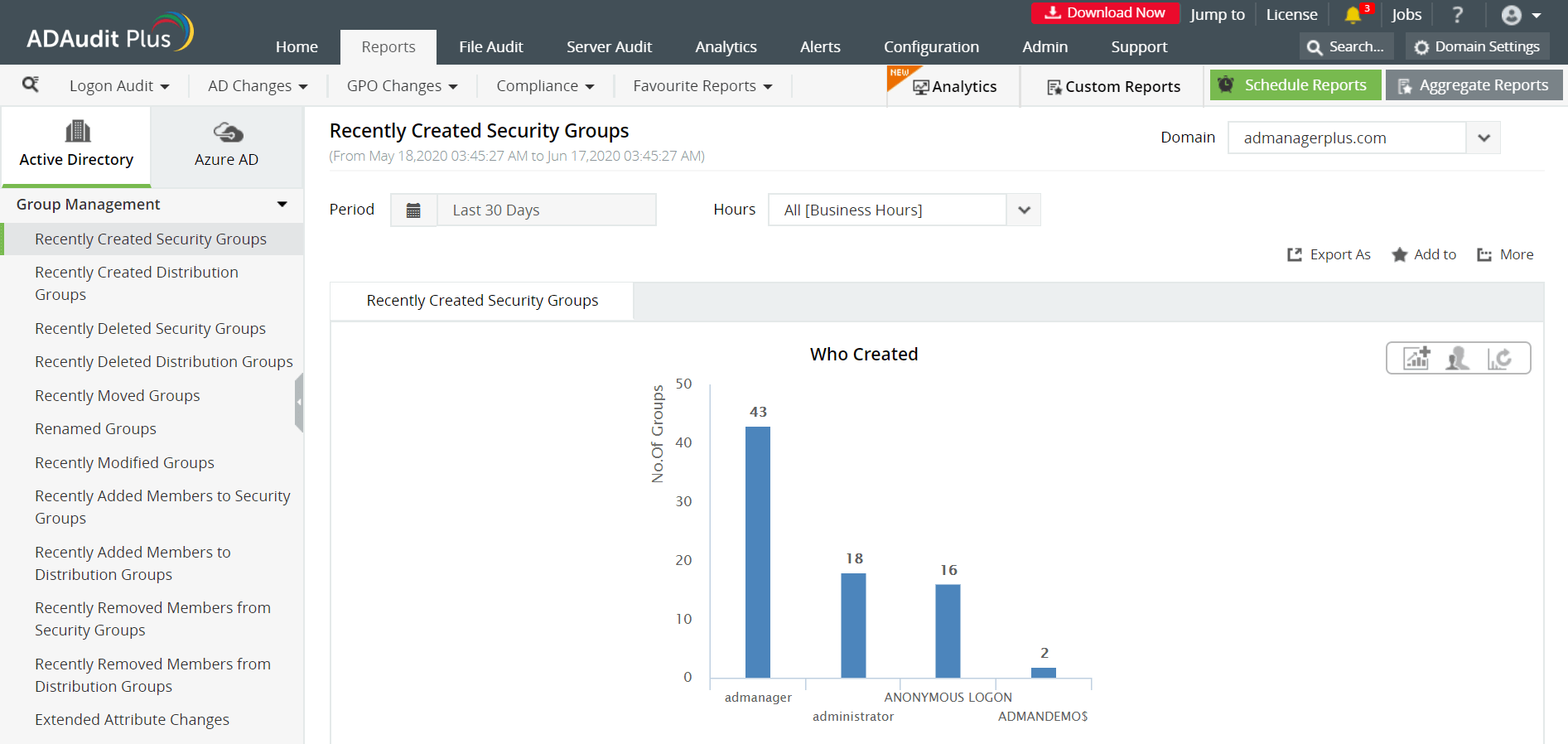
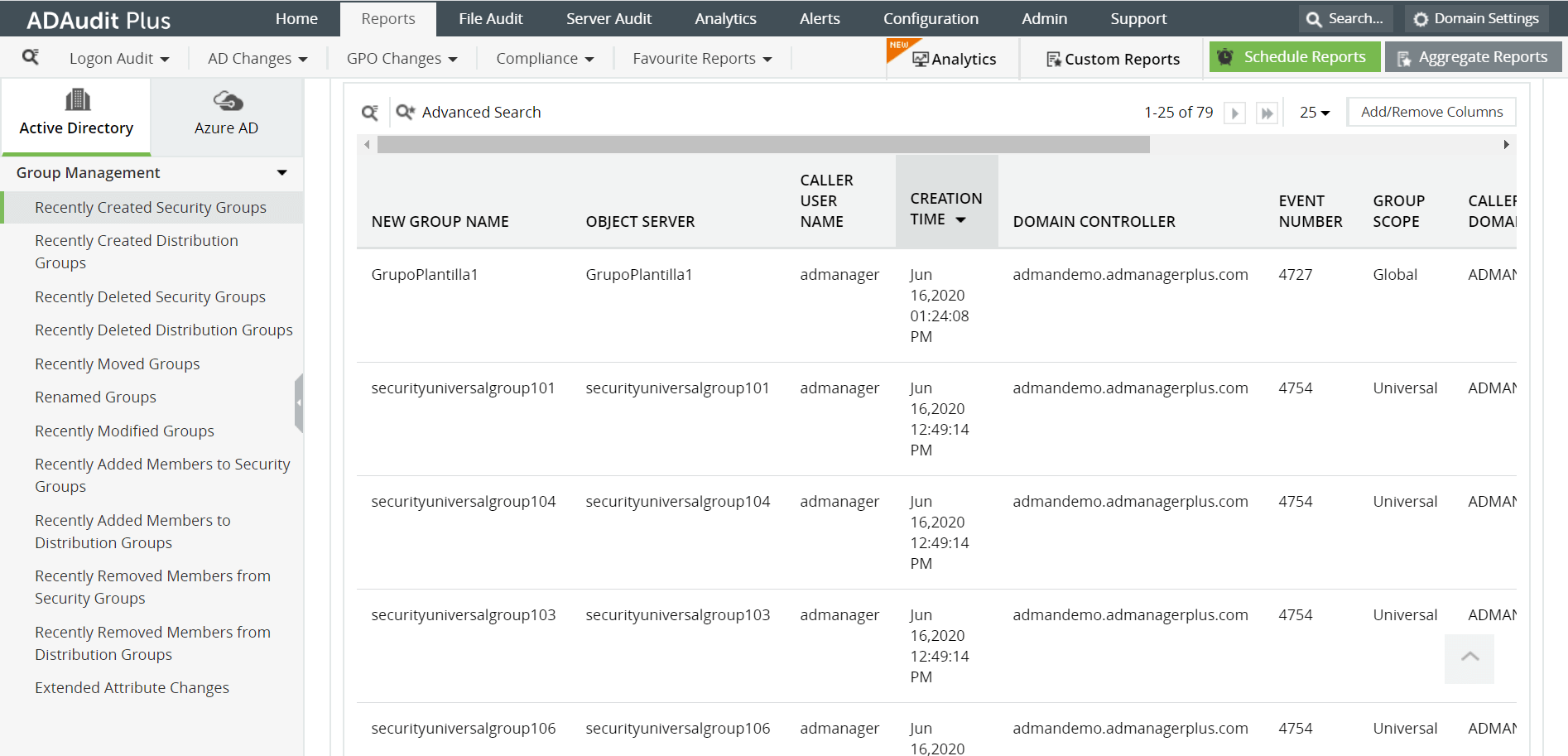
Some of the reports provided by ADAudit Plus to monitor group management are:
- Recently Created / Deleted Security Groups - These reports provide a list of all the security groups that have been created or deleted recently, along with the time of creation or deletion, the user who performed the action, group scope etc.
- Recently Created / Deleted Distribution Groups - These reports provide a list of all the distribution groups that have been created or deleted recently.
- Recently Added Members to Security / Distribution Groups - Members who have been added to a security or distribution group, by whom, and when can be found in these reports.
Group Policy Object Changes
- Go to the Reports tab.
- Navigate to GPO Management.
- Select the desired report from the ones listed under GPO Management.
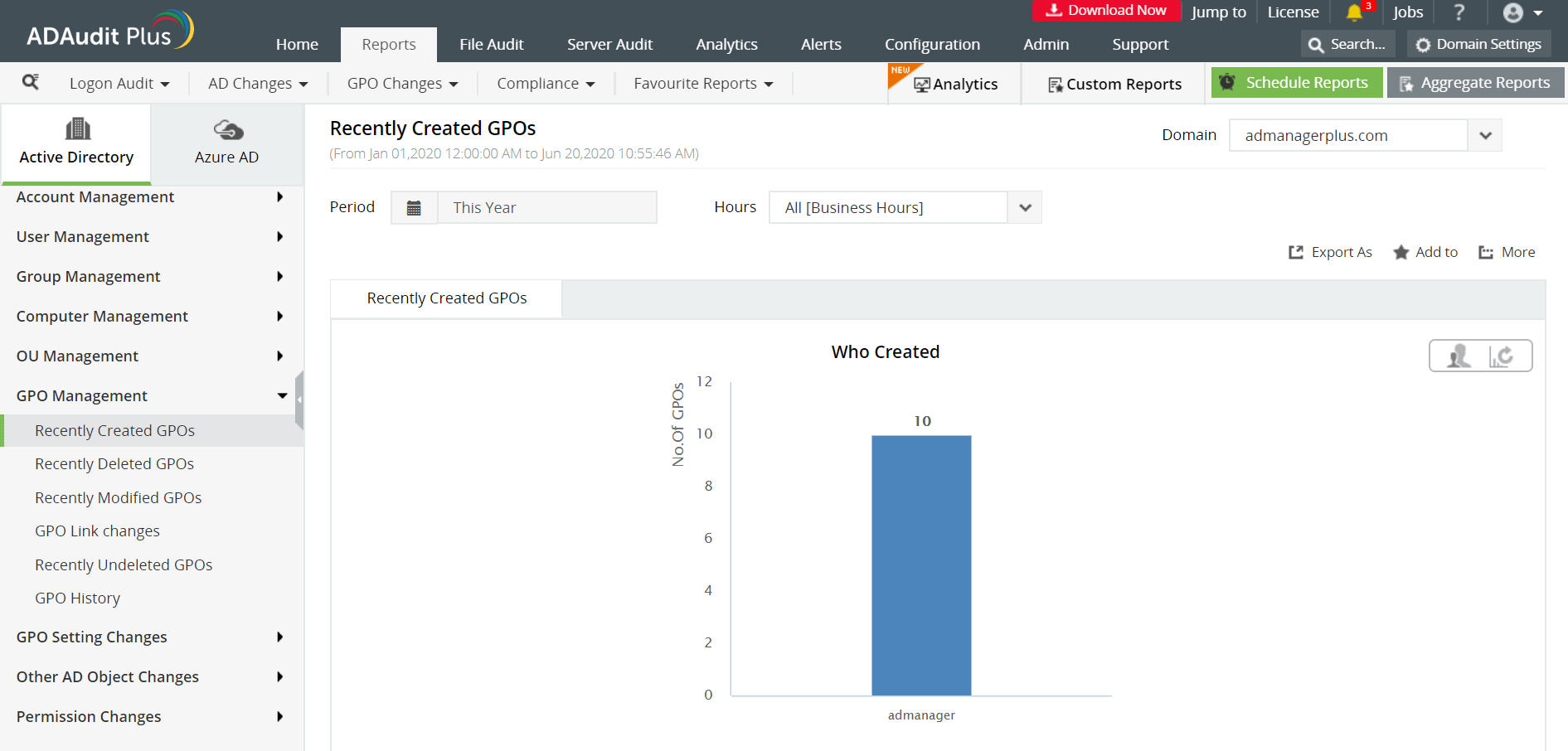
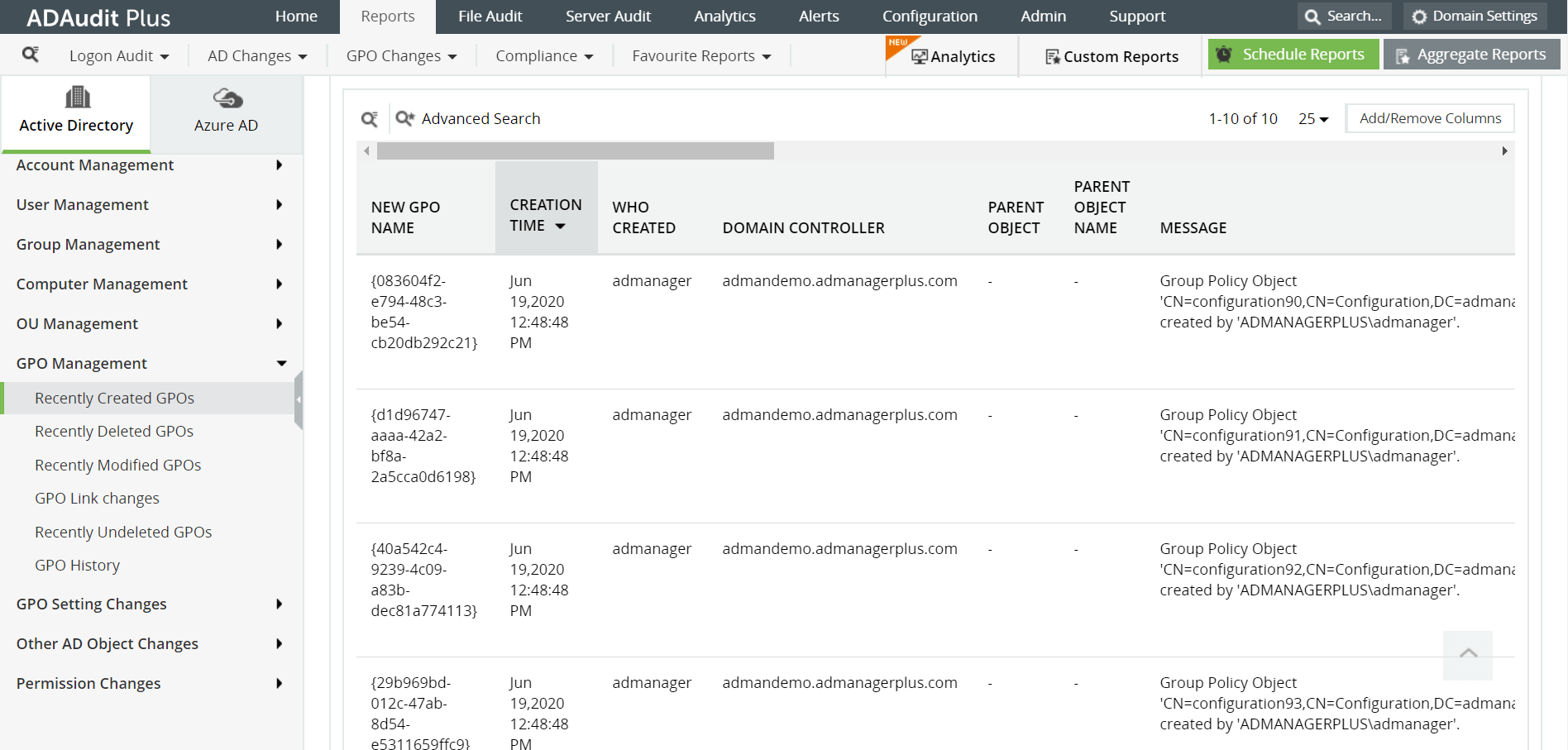
Some of the reports provided by ADAudit Plus to monitor Group Policy changes are:
- Recently Created GPOs / Recently Deleted GPOs - Provides a list of all the group policy objects that were recently created or deleted.
- Recently Modified GPOs - This report displays all the GPOs that were recently modified along with the time of modification, the user who made the change and a brief description of the change.
- GPO History - All the activities that have been performed on the group policy objects can be found in this report.
Privileged User activities
- Go to the Reports tab.
- Navigate to Account Management.
- Select Administrative User Actions.
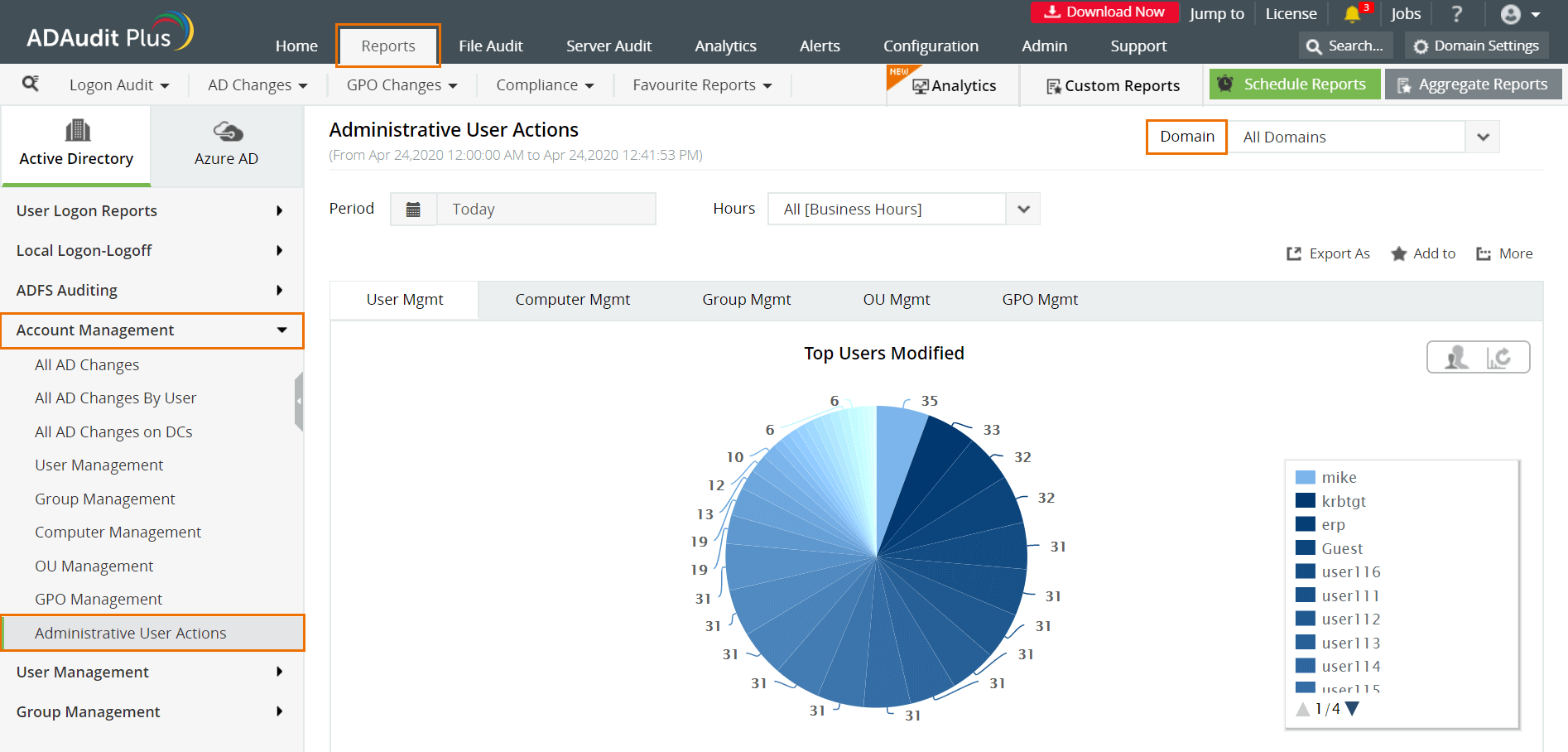
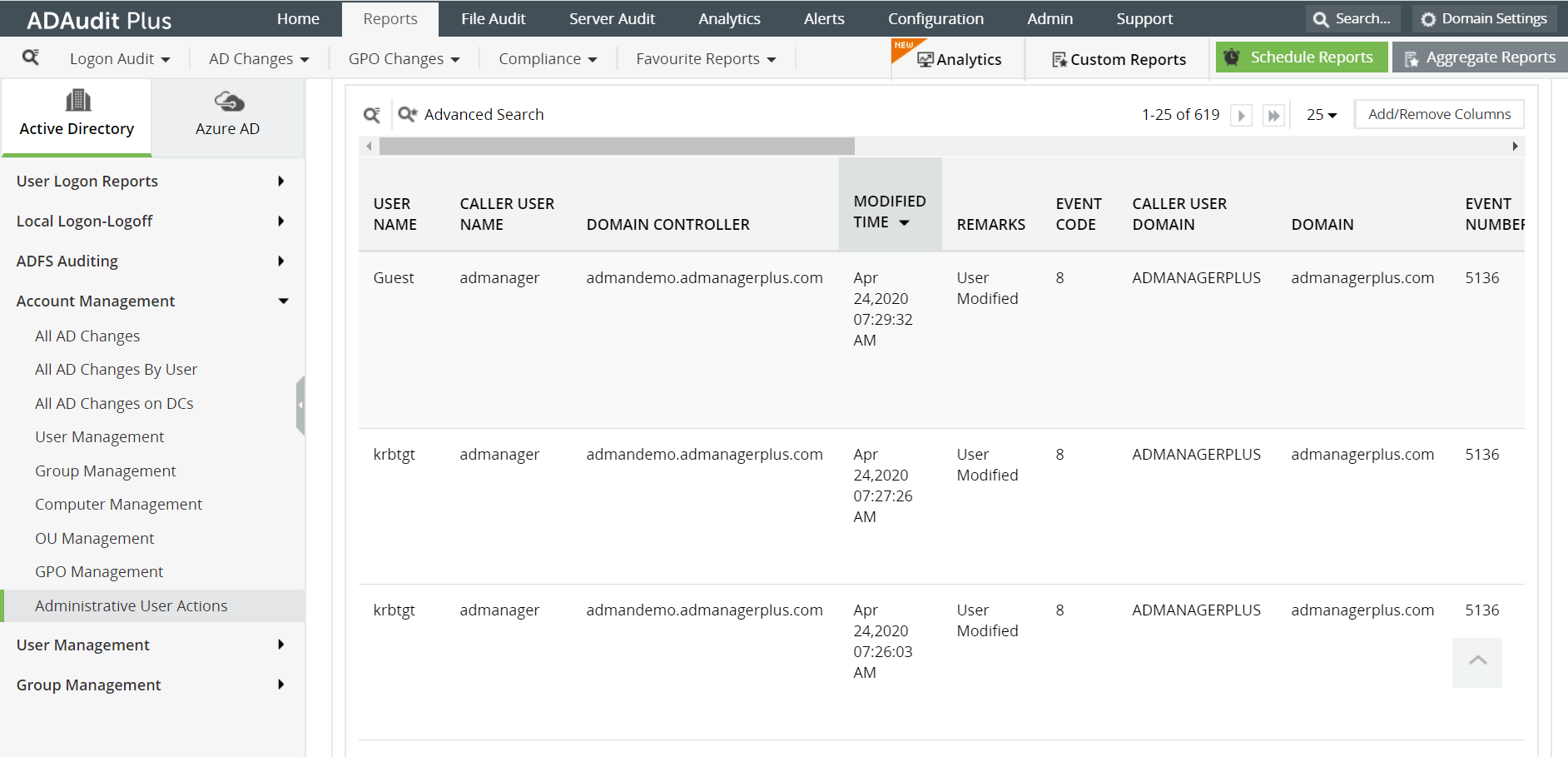
The following are some of the details you can get in this report:
- User Name of the privileged account that made the changes
- The time when the changes were made
- The computer or server in which the changes were made from
- The description of the changes made
About ADAudit Plus
ADAudit Plus is a real-time, web-based Windows Active Directory (AD) change reporting software that audits, reports and alerts on Active Directory, Windows servers and workstations, and NAS storage devices to meet the demands of security, and compliance requirements. You can track AD changes, processes, folder modifications, permissions changes, and more with 200+ reports and real-time alerts. You can also get out-of-the-box reports for compliance mandates such as the HIPAA. To learn more, visit https://www.manageengine.com/active-directory-audit/.
 Free Edition










