

Azure AD Sync was the service that kept on-premises Active Directory and Azure Active Directory (now Microsoft Entra ID) in sync. It ran on a Windows server inside your network and pushed user accounts, groups, and attribute changes to the cloud on a scheduled basis. The product was later renamed Azure AD Connect and then, in July 2023, renamed again to Microsoft Entra Connect. The sync engine it runs is now called Microsoft Entra Connect Sync.
- What Azure AD Sync is
- How to force a sync
- How to check sync status
- Connecting to Entra ID with PowerShell
- ADAudit Plus
- FAQ
If you search for 'Azure AD sync PowerShell,' you will find two overlapping topics that most guides mix together. One is about forcing the synchronization service to run immediately. The other is about managing users and groups in Azure AD using PowerShell. They use different modules, different cmdlets, and have very different statuses in 2026. This guide covers both clearly.
What is Azure AD Sync?
Azure AD Sync was the service, and the tool, that kept on-premises Active Directory and Azure Active Directory in sync. You installed it on a Windows server inside your network, configured it to connect to your AD domain and your Azure AD tenant, and it ran a background sync process on a defined schedule, pushing user accounts, groups, and attribute changes to the cloud.
The product went through several name changes. The original tool was called DirSync, then Azure AD Sync (version 1.x), then Azure AD Connect (version 2.x), and , following Microsoft's July 2023 rebrand of its identity portfolio , it is now called Microsoft Entra Connect. The underlying sync engine is called Microsoft Entra Connect Sync.
If you are still running scripts or documentation that references Azure AD Sync, they refer to the same product. Nothing about how the sync service works changed with the rename. Only the terminology
DirSync and Azure AD Sync v1 are retired
All Azure AD Connect 1.x versions were retired on October 1, 2023. If you are running a 1.x installation, synchronization has already stopped. You must upgrade to Microsoft Entra Connect 2.x (minimum version 2.5.79.0) or migrate to Microsoft Entra Cloud Sync.
Two PowerShell modules: know the difference
Before running any commands, you need to understand which module you are using. There are two completely separate PowerShell modules associated with Azure AD and Entra ID, and they have very different statuses right now.
| Module | What it does | Current status |
|---|---|---|
| ADSync | Manages the Entra Connect sync service on the sync server. Used to force syncs, check the schedule, and manage sync cycles. | Active: ships with Microsoft Entra Connect. Not affected by the AzureAD/MSOnline retirement. Run on the Entra Connect server only. |
| AzureAD / MSOnline | Managed users, groups, licenses, and tenant settings in Azure AD / Entra ID. Used for Get-AzureADUser, Set-MsolUser, and similar tenant management tasks. | Retired. MSOnline stopped working May 2025. AzureAD module stopped working mid-October 2025. Scripts using these modules will fail. |
| Microsoft Graph PowerShell SDK | The replacement for AzureAD and MSOnline. Manages all Entra ID resources through the Microsoft Graph API. Uses Mg- prefixed cmdlets. | Current: install and use for all new scripts. Get-MgUser replaces Get-AzureADUser. |
| Microsoft Entra PowerShell | A new module in preview that is over 98% compatible with the AzureAD module. Allows near-drop-in migration with Enable-EntraAzureADAlias. | Preview: simplifies migration from AzureAD scripts. |
Which module does forcing a sync use?
Start-ADSyncSyncCycle comes from the ADSync module, which is part of Entra Connect itself. It has nothing to do with the retired AzureAD or MSOnline modules. If your scripts are failing after the module retirements, check whether they use Get-AzureADUser, Get-MsolUser, or similar cmdlets , those are the ones that need replacing, not the sync-forcing commands.
How to force an Azure AD sync (Entra Connect sync) using PowerShell
Use this when you have made a change in Active Directory: created a user, updated an attribute, changed group membership , and need it to appear in Entra ID immediately without waiting for the next scheduled 30-minute cycle.
Prerequisites
- You must run these commands on the server where Microsoft Entra Connect is installed, or remotely target that server using Invoke-Command.
- The ADSync module is automatically available on the Entra Connect server. No separate installation is needed.
- You need local administrator rights on the Entra Connect server, or the ADSyncAdmins group membership.
Step 1: Check the current sync schedule
Before forcing a sync, confirm the scheduler is enabled and see when the next cycle is due:
Get-ADSyncScheduler
The output shows the next sync time, the current policy type (Delta or Initial), and whether the scheduler is enabled. If SyncCycleEnabled is False, the scheduler has been disabled , enable it before proceeding.
Step 2: Force a delta sync
A delta sync processes only the changes since the last cycle. This is the command you will use in almost every case:
Start-ADSyncSyncCycle -PolicyType Delta
A successful run returns Result : Success. If a sync is already in progress, you will see the error Sync is already running. Wait for the current cycle to complete and try again. Delta syncs typically finish within a few minutes for most environments.
Step 3: Force a full sync (when needed)
A full sync reprocesses every object in scope (users, groups, contacts, devices) regardless of whether they have changed. You only need this after making configuration changes to Entra Connect, such as adding a new OU to the sync scope or changing attribute filtering rules.
Start-ADSyncSyncCycle -PolicyType Initial
Full syncs are expensive
A full sync processes all objects in your AD scope and takes significantly longer than a delta sync. In large environments this can take 30 minutes or more. Do not run full syncs routinely , delta syncs handle everyday changes. Run a full sync only after Entra Connect configuration changes.
How to check sync status with PowerShell
To see the last sync time and whether it completed successfully, use:
# Check last sync time and result on the Entra Connect server
Get-ADSyncConnectorRunStatus

# Or view the full connector run history
Get-ADSyncRunStepResult | Select-Object -First 10 | Format-Table -AutoSize
You can also check sync status from the Entra admin center without touching the server. Go to Microsoft Entra ID > Microsoft Entra Connect > Connect Health. This shows the last sync time, sync status, and any sync errors without requiring server access.
To check sync status remotely from any machine connected to your tenant, use the Microsoft Graph PowerShell SDK:
# Connect to Microsoft Graph
Connect-MgGraph -Scopes 'Directory.Read.All'

# Get the tenant's last directory sync time
Get-MgOrganization | Select-Object -ExpandProperty OnPremisesLastSyncDateTime
How to change the Azure AD sync schedule
The default sync cycle runs every 30 minutes. You can change this using Set-ADSyncScheduler. The minimum interval is 30 minutes , you cannot set a shorter cycle. The maximum interval is seven days.
# Change to hourly sync
Set-ADSyncScheduler -CustomizedSyncCycleInterval 01:00:00

# Change to every four hours
Set-ADSyncScheduler -CustomizedSyncCycleInterval 04:00:00

# Revert to default 30-minute cycle
Set-ADSyncScheduler -CustomizedSyncCycleInterval 00:30:00

# Temporarily disable the scheduler (for maintenance)
Set-ADSyncScheduler -SyncCycleEnabled $false

# Re-enable the scheduler
Set-ADSyncScheduler -SyncCycleEnabled $true
After changing the schedule, run a delta sync to apply the new interval. Password hash synchronization runs on its own two-minute cycle and is not affected by the CustomizedSyncCycleInterval setting.
How to force a sync remotely
If you need to trigger a sync without logging on to the Entra Connect server directly, use Invoke-Command with PowerShell remoting. The target server must have WinRM enabled.
# Replace EntraConnectServer with your server's hostname or IP
Invoke-Command -ComputerName EntraConnectServer -ScriptBlock {
    Import-Module ADSync
    Start-ADSyncSyncCycle -PolicyType Delta
}
If you want to also verify the result remotely:
Invoke-Command -ComputerName EntraConnectServer -ScriptBlock {
    Import-Module ADSync
    $result = Start-ADSyncSyncCycle -PolicyType Delta
    Write-Output "Sync result: $($result.Result)"
}
How to install the Microsoft Graph PowerShell module
The AzureAD and MSOnline modules are retired. For any PowerShell work that involves managing users, groups, licenses, roles, or Entra ID settings , as opposed to triggering sync cycles , you need the Microsoft Graph PowerShell SDK.
Prerequisites
- PowerShell 5.1 or later on Windows, or PowerShell 7+ for cross-platform use. PowerShell 7 is recommended for new scripts.
- Internet access from the machine where you are installing the module.
- Administrator rights on the local machine, or use -Scope CurrentUser to install for your profile only.
Step 1: Install the module
# Install for all users (requires administrator)
Install-Module Microsoft.Graph -Scope AllUsers

# Install for current user only (no administrator required)
Install-Module Microsoft.Graph -Scope CurrentUser

# If prompted about an untrusted repository, type Y to confirm
# If an older version is already installed, add -Force to overwrite
Install-Module Microsoft.Graph -Scope CurrentUser -Force
Step 2: Verify the installation
Get-InstalledModule Microsoft.Graph | Select-Object Name, Version
Step 3: Connect to Microsoft Entra ID
# Connect interactively -- a browser window opens for authentication
Connect-MgGraph -Scopes 'User.Read.All', 'Group.Read.All'

# Connect with specific tenant (useful in multi-tenant environments)
Connect-MgGraph -TenantId 'your-tenant-id' -Scopes 'User.Read.All'

# Verify the connection
Get-MgContext
Get-MgContext shows the authenticated account, tenant ID, and the permission scopes granted. Always request the minimum scopes your script needs , the Microsoft Graph module uses granular, per-operation permissions rather than the broad access the old AzureAD module requested by default.
Common AzureAD cmdlet replacements for Microsoft Graph PowerShell
If you have existing scripts that use the retired AzureAD or MSOnline modules, the table below shows the equivalent Microsoft Graph PowerShell cmdlets for the most common operations.
| Task | Old cmdlet (retired) | Microsoft Graph replacement |
|---|---|---|
| Get a user | Get-AzureADUser / Get-MsolUser | Get-MgUser |
| Create a user | New-AzureADUser / New-MsolUser | New-MgUser |
| Update a user | Set-AzureADUser / Set-MsolUser | Update-MgUser |
| Delete a user | Remove-AzureADUser / Remove-MsolUser | Remove-MgUser |
| Get all users | Get-AzureADUser -All $true | Get-MgUser -All |
| Get a group | Get-AzureADGroup | Get-MgGroup |
| Get group members | Get-AzureADGroupMember | Get-MgGroupMember |
| Add user to group | Add-AzureADGroupMember | New-MgGroupMember |
| Assign role to user | Add-AzureADDirectoryRoleMember | New-MgDirectoryRoleMember |
| Get sign-in logs | Get-AzureADAuditSignInLogs | Get-MgAuditLogSignIn |
| Get directory sync status | Get-MsolCompanyInformation | Get-MgOrganization |
| Reset user password | Set-AzureADUserPassword | Update-MgUser (with passwordProfile) |
Migration shortcut: Microsoft Entra PowerShell
If migrating a large number of AzureAD scripts is time-consuming, Microsoft Entra PowerShell (in preview) offers over 98% compatibility with the AzureAD module. Install it with Install-Module Microsoft.Entra and run Enable-EntraAzureADAlias to make existing AzureAD cmdlets work through the Entra module without rewriting them. This is not a permanent solution , migrate to Graph PowerShell for long-term scripts , but it can bridge the gap.
Security risks in Azure AD Sync and PowerShell environments
The sync service and the PowerShell access layer are both high-value targets. Changes to either can have immediate and wide-reaching effects on identity security.
Unauthorized sync scope changes via PowerShell
The Set-ADSyncRule and related cmdlets can modify which OUs and attributes are included in the sync scope. An attacker or misconfigured admin who widens the scope can introduce previously unsynced accounts, including service accounts or privileged accounts, into Entra ID, where they become accessible to cloud authentication. Narrowing the scope can remove users from Entra ID, cutting off cloud access for affected accounts.
Sync service account used for DCSync
The AD DS Connector account that Entra Connect uses holds Replicate Directory Changes and Replicate Directory Changes All permissions on Active Directory. Any process, or attacker, that gains access to this account's credentials can perform a DCSync attack against your domain, extracting every password hash in Active Directory without touching a domain controller interactively. This is one of the highest-impact credential theft paths in hybrid environments.
Retired module scripts still running in automation
Scripts using the retired AzureAD or MSOnline modules will fail silently or produce errors in automated pipelines. If those scripts were handling provisioning, deprovisioning, or license assignment, the failure means users may retain access they should have lost, or new users may not be provisioned correctly. Audit your automation catalog for use of legacy modules now.
Overprivileged Microsoft Graph connections
The Microsoft Graph PowerShell SDK requires explicit permission scopes at connection time. Admins who connect with Directory.ReadWrite.All or similar broad scopes to avoid permission errors leave sessions that can read and modify any directory object. Scope creep in Graph PowerShell scripts is a common misconfiguration in environments that migrated quickly from the permissive old AzureAD module.
ManageEngine ADAudit Plus monitors Entra Connect configuration changes, tracks ADSync service account activity in your on-premises AD, and alerts your security team in real time when sync scope, authentication method, or PowerShell-based directory changes occur , before those changes propagate to cloud-dependent systems.
Monitoring Azure AD Sync and Entra Connect with ADAudit Plus
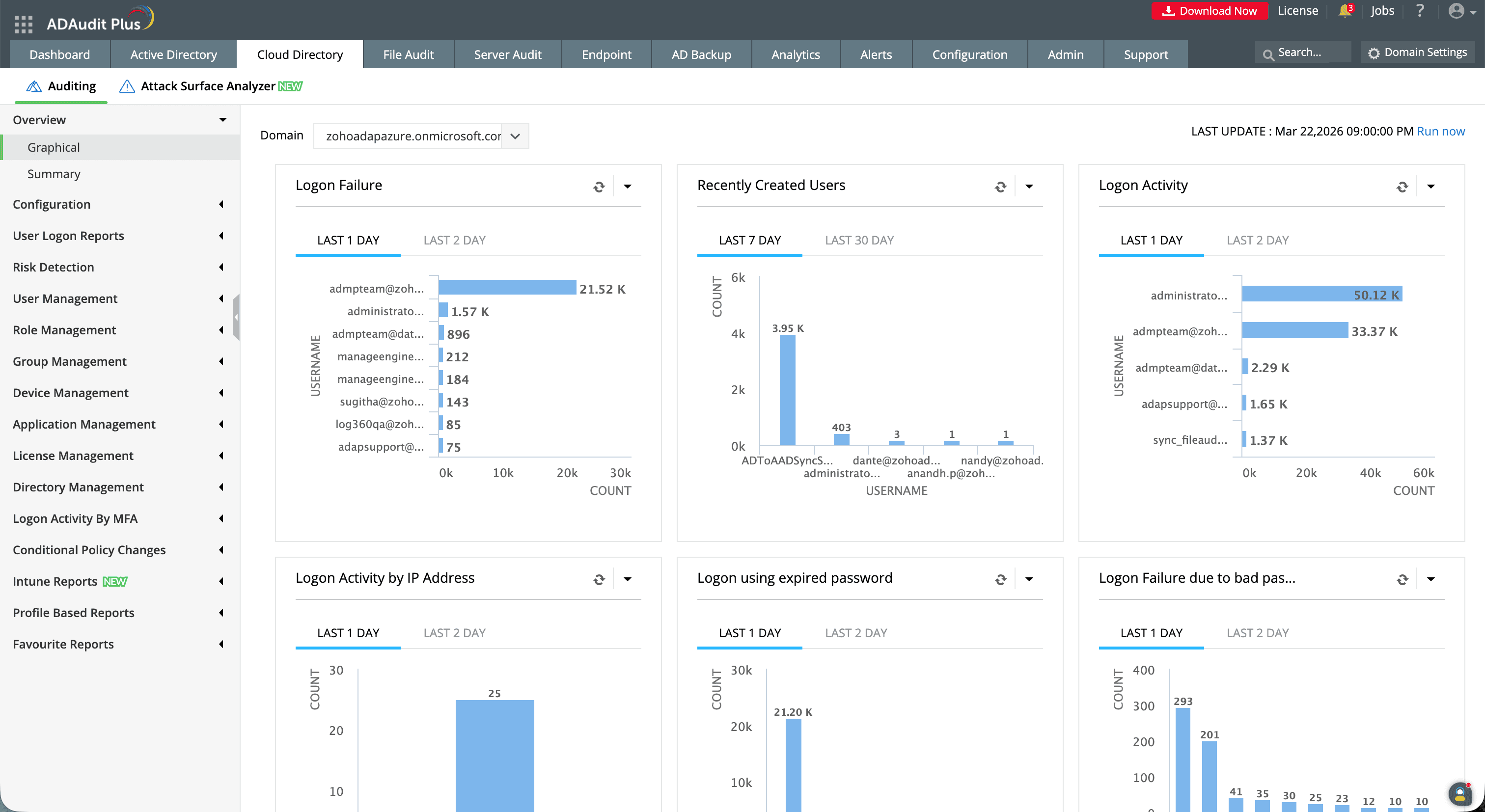
Entra Connect changes (sync scope modifications, authentication method switches, service account activity) sit at the intersection of on-premises AD and cloud identity. Native monitoring treats them as separate: the AD security event log captures on-premises changes; the Entra admin center captures cloud-side audit events. Neither provides a unified view with real-time alerting.
What ADAudit Plus monitors
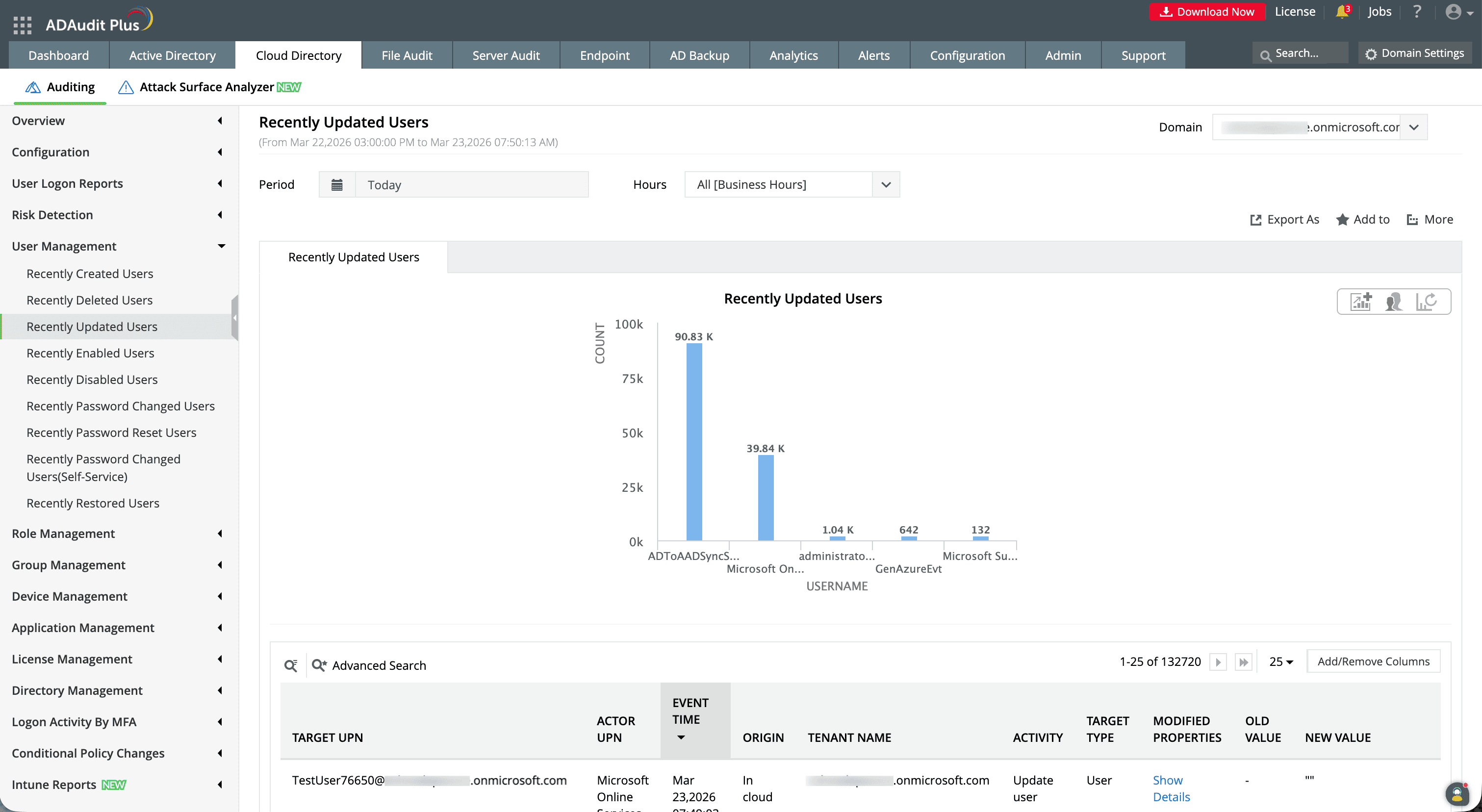
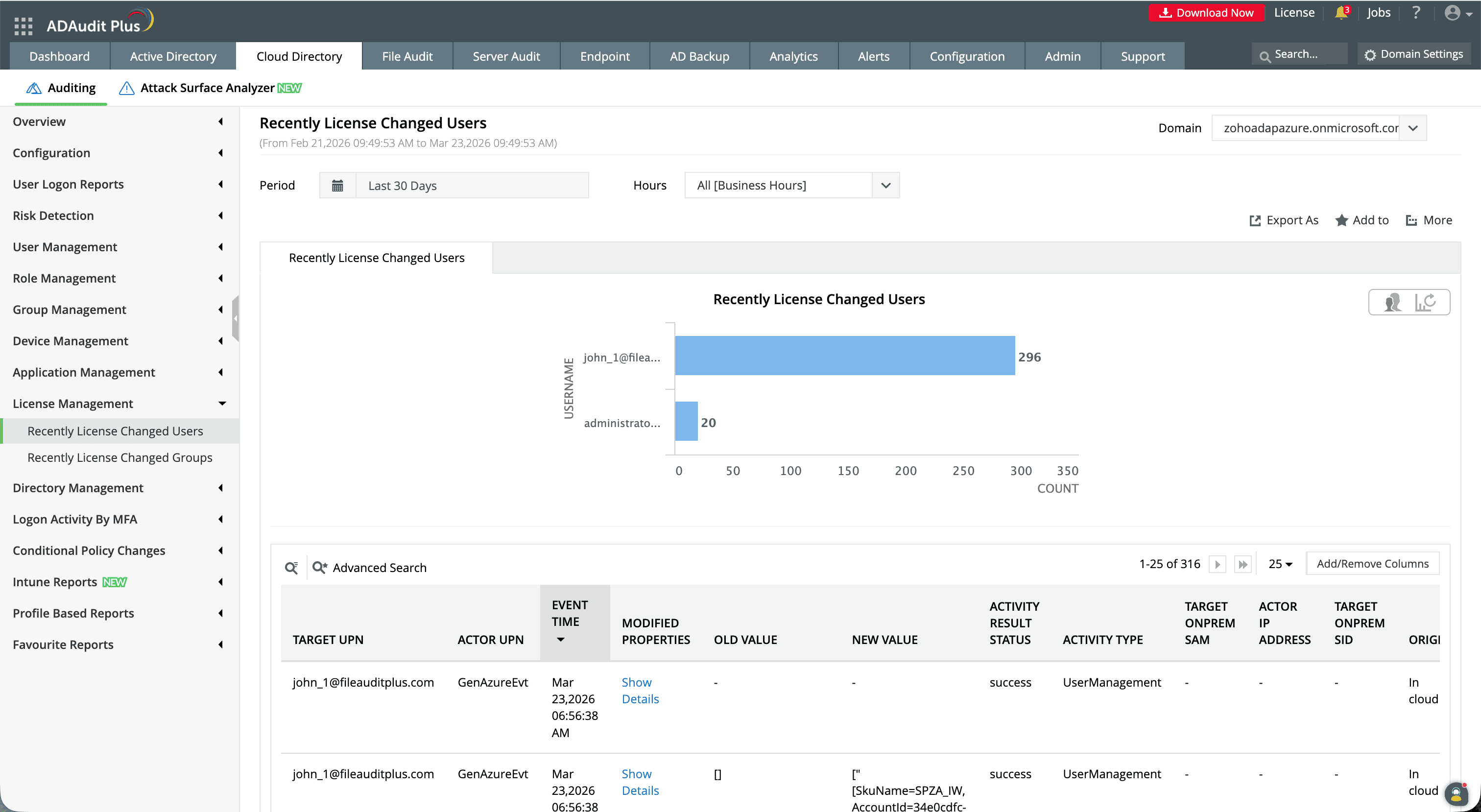
- Entra Connect configuration changes (sync scope changes, OU filter modifications, sign-in method switches, attribute rule changes
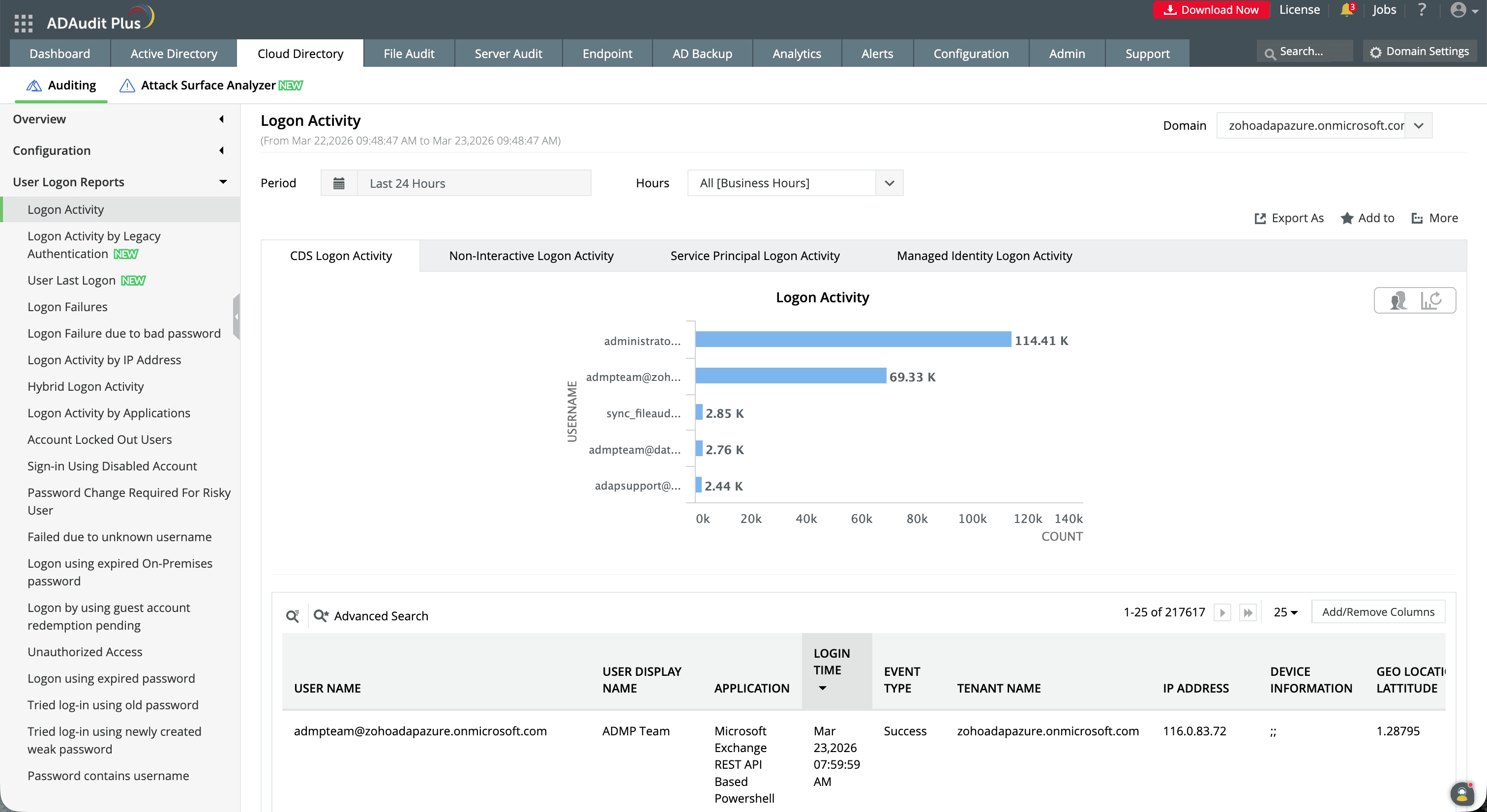
- ADSync service account activity, including replication-permission operations that could indicate a DCSync attempt
- On-premises AD changes that feed sync, including user creation, attribute updates, and group membership changes, with timestamps for correlation against sync cycle results
- Entra ID hybrid identity audit events, including sync errors, object deletions triggered by scope changes, and export failures
- PowerShell-based directory changes, including user provisioning or deprovisioning operations executed via Graph PowerShell
-
-
-
-
ADAudit Plus vs native monitoring
| Capability | Native options | ADAudit Plus |
|---|---|---|
| Real-time sync config alerts | No alerts; manual admin center review | Immediate email and SMS alerts on configuration changes |
| ADSync account monitoring | AD security event log (manual filtering required) | Pre-built reports for replication-permission account activity and DCSync risk indicators |
| On-premises + cloud correlation | Separate AD event log and Entra audit log | Unified report correlating on-premises changes with cloud sync outcomes |
| Log retention | Entra ID audit log: 30 days (free) to 2 years (P1/P2); AD logs depend on local configuration | Configurable long-term archive beyond Microsoft retention limits |
| Compliance reporting | No pre-built compliance reports | Out-of-the-box reports for SOX, HIPAA, PCI DSS, GDPR, FISMA, GLBA |
Audit every sync and identity change in your hybrid environment
Try ADAudit Plus free for 30 days. No credit card required.
Frequently asked questions
The current name is Microsoft Entra Connect. The sync service it runs is called Microsoft Entra Connect Sync. The July 2023 rename was part of Microsoft's broader rebranding of its identity platform , Azure Active Directory became Microsoft Entra ID, and Azure AD Connect became Microsoft Entra Connect. The product's functionality did not change.
They are different versions of the same product. Azure AD Sync was the 1.x version of the tool. Azure AD Connect (version 2.x) replaced it with improvements to installation, filtering, and health monitoring. Both synced on-premises Active Directory to Azure AD. Azure AD Sync (1.x) was retired on October 1, 2023 and no longer works. Azure AD Connect (now called Microsoft Entra Connect) is the current 2.x product and remains fully supported.
By default, the sync cycle runs every 30 minutes and processes only the changes since the last cycle (a delta sync). Password hash synchronization runs on a separate two-minute cycle. You can change the 30-minute interval using Set-ADSyncScheduler but cannot set it below 30 minutes. You can force an immediate sync at any time by running Start-ADSyncSyncCycle -PolicyType Delta on the Entra Connect server.
Run the following command on the server where Microsoft Entra Connect is installed:
Start-ADSyncSyncCycle -PolicyType Delta
This triggers an immediate delta sync, it processes changes since the last cycle and typically completes within a few minutes. No additional module installation is needed. If you need to run a full sync after making configuration changes, use -PolicyType Initial instead.
No. The AzureAD PowerShell module was retired and stopped working in mid-October 2025. The MSOnline (MSOL) module was retired and stopped working by late May 2025. Scripts using these modules will fail with authentication or module errors.
The replacement is Microsoft Graph PowerShell SDK. Install it with Install-Module Microsoft.Graph and connect with Connect-MgGraph. The cmdlet prefix changes from AzureAD to Mg, for example, Get-AzureADUser becomes Get-MgUser. Microsoft Entra PowerShell (in preview) offers a compatibility layer for faster migration from AzureAD scripts.
Since the AzureAD module is retired, the current method uses Microsoft Graph PowerShell:
# Install the module (run once)
Install-Module Microsoft.Graph -Scope CurrentUser

# Connect -- a browser window opens for sign-in
Connect-MgGraph -Scopes 'User.Read.All'

# Verify the connection
Get-MgContext
Request only the permission scopes your script needs. For read-only user queries, User.Read.All is sufficient. For write operations, you will need User.ReadWrite.All or more specific scopes depending on what you are modifying.
Experience
ADAudit Plus for free
With ADAudit Plus, you can:
- Get full visibility into logons
- Monitor employee attendance
- Detect attacks like Kerberoasting
- Generate logon audit trails
- And much more









