Direct Inward Dialing: +1 408 916 9892
The Lightweight Directory Access Protocol (LDAP), introduced in the year 1993, is a core protocol that eventually paved the way for Microsoft's Active Directory and Open LDAP. It is an open and cross-platform protocol used to maintain distributed directory information in an organized and easy-to-access manner. LDAP also serves as a directory services authentication protocol by providing a common language that applications can use to communicate with servers of other directory services.
A LDAP connection timeout happens when the client loses connection to the LDAP server due to exceeding the time limits of InitRecvTimeout or MaxConnIdleTime parameters.
Default values of LDAP settings can be modified using ntdsutil.exe. Ntdsutil.exe is a command line tool that provides LDAP management facilities.
Simplify LDAP auditing and reporting with ADAudit Plus.
Fully functional 30-day trial
Monitoring LDAP servers is necessary to ensure service availability and performance. By tracking the LDAP queries processed, IT administrators can detect suspicious queries that may be used to perform reconnaissance on the Active Directory environment, and curb attacks. ADAudit Plus simplifies LDAP monitoring by offering predefined LDAP Auditing reports along with intuitive graphical representation of the same for the ease of comprehension.
Once ADAudit Plus has been installed, it can automatically configure audit policies required for LDAP auditing. To enable automatic configuration: Log in to the ADAudit Plus web console → Domain Settings → Audit Policy: Configure.
LDAP timeout can be monitored by following the below mentioned steps:
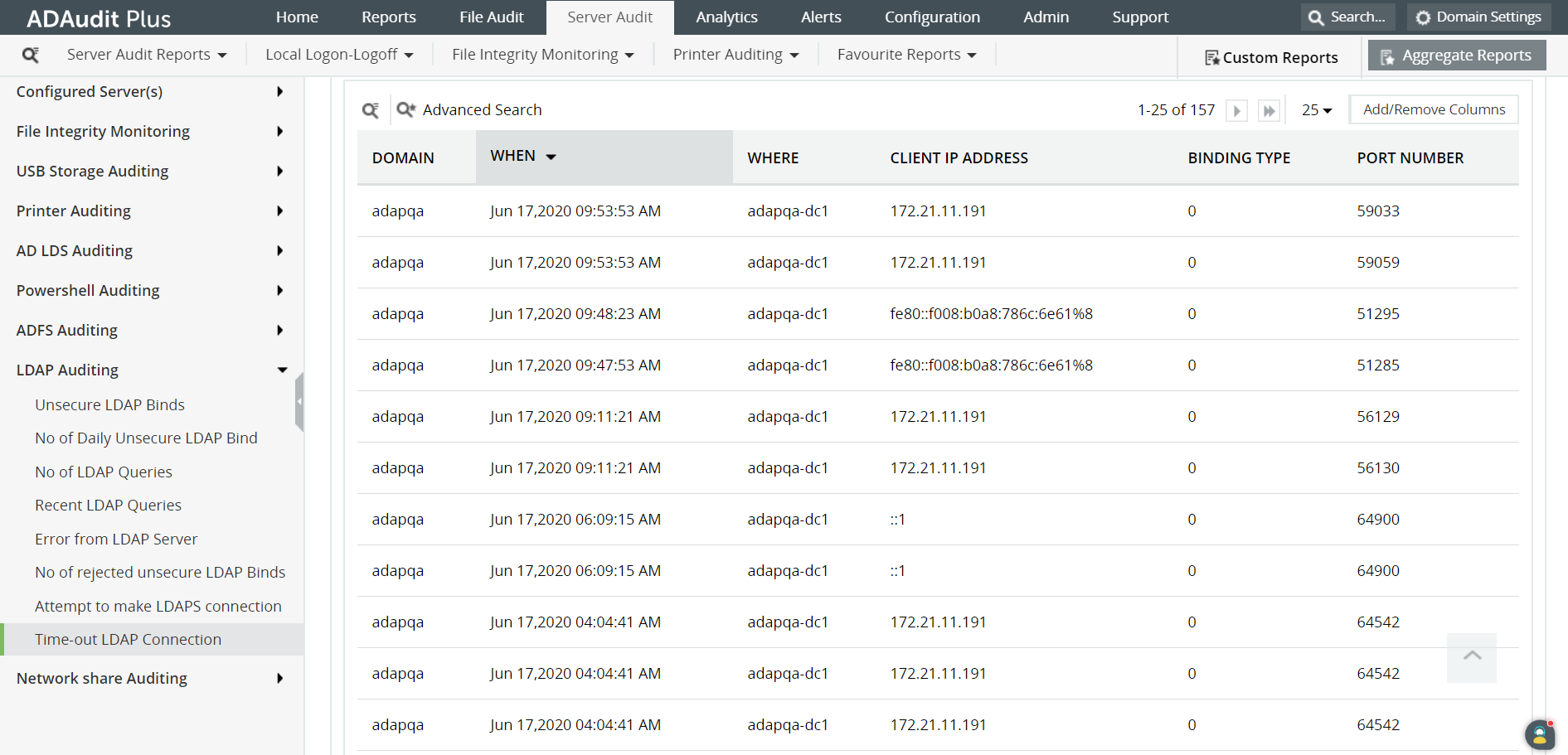 The following are some of the information that can be found in this report:
ADAudit Plus is a real-time, web-based Windows Active Directory (AD) change reporting software that audits, and reports Active Directory, Windows servers and workstations, and NAS storage devices to meet the demands of security, and compliance requirements. It comes bundled with more than 200 predefined reports that make AD auditing easier. The solution also sends real-time alerts for critical events and helps you to secure your network from threats and boosts your IT security posture. Check out the capabilities of ADAudit Plus here.
Try ADAudit Plus login monitoring tool to audit, track, and respond to malicious login and logoff actions instantaneously.
Try ADAudit Plus for free Free Edition










