Support
 
Phone Live Chat
 
Support
 
US: +1 888 720 9500
US: +1 800 443 6694
Intl: +1 925 924 9500
Aus: +1 800 631 268
UK: 0800 028 6590
CN: +86 400 660 8680

Direct Inward Dialing: +1 408 916 9393


Knowledge Base

How to copy user attributes in Active Directory

Creating new user accounts in Active Directory can be a time-consuming task, especially when you need to configure numerous Active Directory user properties for each user. This article explains how to copy an Active Directory user using ADManager Plus, ensuring consistency and reducing manual effort.
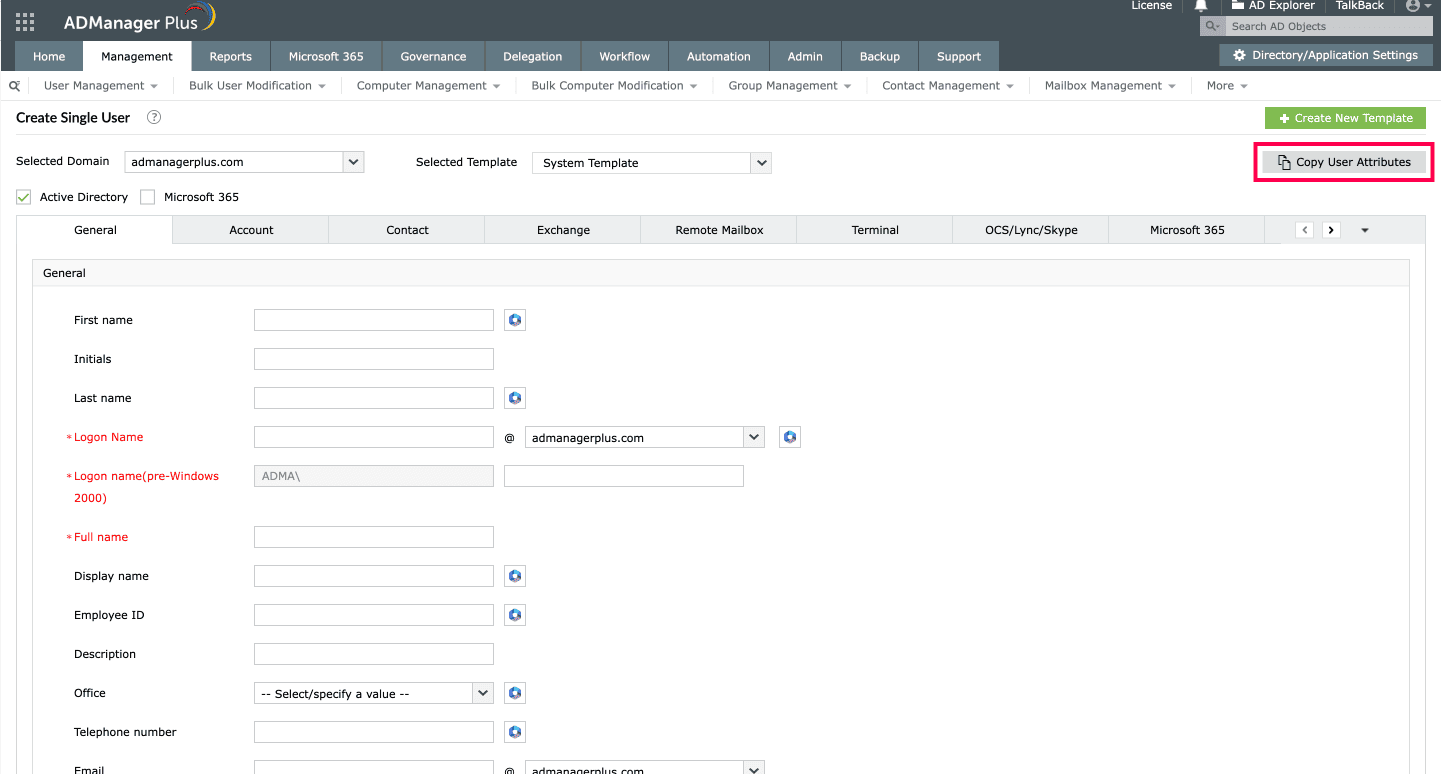
Steps to create a new user by copying an existing user's attributes

  1. Log in to ADManager Plus.
  2. Navigate to Management > User Management > User Creation > Create Single User.
  3. In the user creation layout, click Copy User Attributes.
  4. In the pop-up window, browse through the user accounts and select the user whose attributes you want to copy.
  5. Choose attributes to copy:
    • To copy all attributes, simply select the user and click Copy.
    • To copy specific attributes, click on the Select Attributes icon next to the user's display name. From the Attributes to Copy drop-down menu, choose the attributes you need from categories like General, Contacts, and more.
  6. Click Apply.
  7. The selected attributes will be automatically populated in the fields for the new user. You can modify any of the fields if necessary.
  8. Click Create to create a new user account.

    Copying existing Active Directory users' properties during user creation in ADManager Plus.

Copying attributes in user creation templates

For even greater efficiency, especially when creating multiple users with similar attributes, you can use the User Creation Templates available in ADManager Plus. ADManager Plus also lets you create templates by copying attributes from existing users:
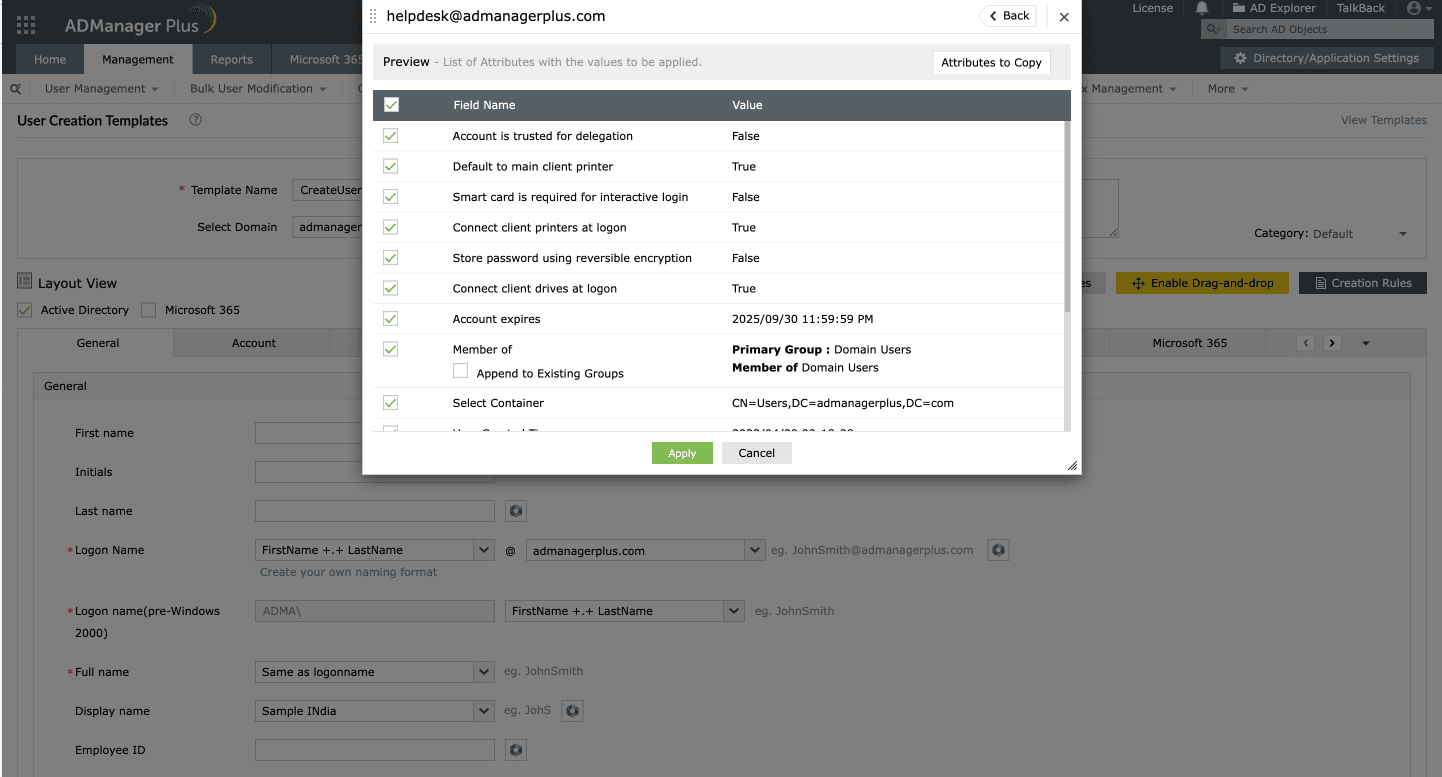
  1. Log in to ADManager Plus.
  2. Navigate to Management > User Management > User Templates > User Creation Templates.
  3. Click on + Create New Template in the top-right corner.
  4. Provide a suitable name, description, and select the domain where you will be using this template.
  5. Click the Copy User Attributes button.
  6. In the pop-up window, browse and select the user account you want to copy attributes from. Similar to user creation, you can either copy all attributes or select specific ones.
  7. Click Apply to populate the template with the selected attributes.
  8. Click Save Template to save your new template for future use.

    Copying existing AD users' properties to easily create User Creation Templates in ADManager Plus.

The Copy User Attributes option can also be used to modify users and within user modification templates, further simplifying your Active Directory management tasks. By leveraging this, you can ensure consistency across user accounts, reduce manual errors, and significantly speed up the Active Directory user management process.


Select a language to translate the contents of this web page:

Need further assistance?

Fill this form, and we'll contact you rightaway.

Request Support

  •  
  • *
     
  • *
     
  • *
     
  • By submitting you agree to processing of personal data according to the Privacy Policy.

"Thank you for submitting your request.

Our technical support team will get in touch with you at the earliest."

ADManager Plus Trusted By

The one-stop solution to Active Directory Management and Reporting
Email Download Link email-download-top












