Direct Inward Dialing: +1 408 916 9393
A Distributed File System (DFS) namespace is a logical view of shared folders hosted on multiple servers and presented to users as a single hierarchical structure. It allows administrators to organize shared folders across different servers into a unified namespace, making it easier for users to access shared resources without needing to know the physical locations of the files.
A stand-alone namespace operates with just one host server separate from AD. It stores its configuration data within the registry of the host server. Such namespaces are commonly used in environments where only a single server is necessary.
A domain-based namespace extends across multiple servers and can be hosted on several domain controllers. It utilizes AD to store namespace information, providing redundancy and scalability. Such namespaces are often used in environments that demand higher availability.
Defining permissions for a DFS namespace involves specifying access rights for users and groups to manage folder access within the namespace, ensuring proper security and data integrity. This process ensures that only authorized individuals can read, write, modify, or delete files within designated folders.
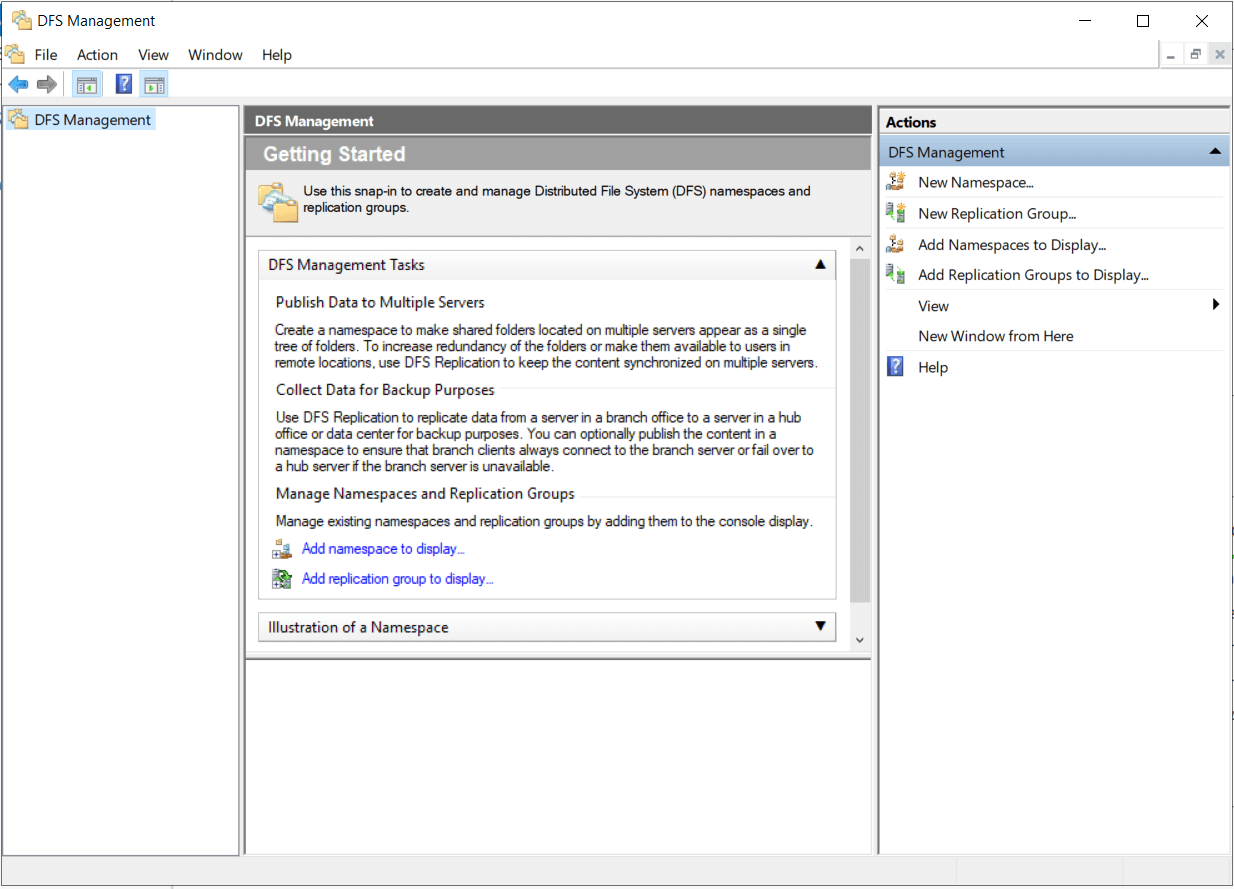
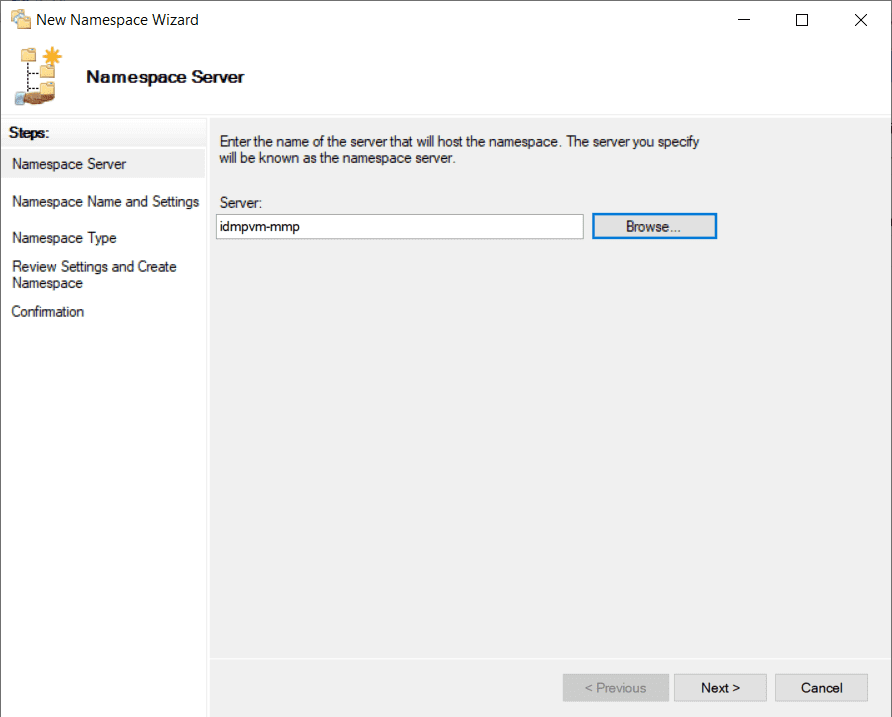
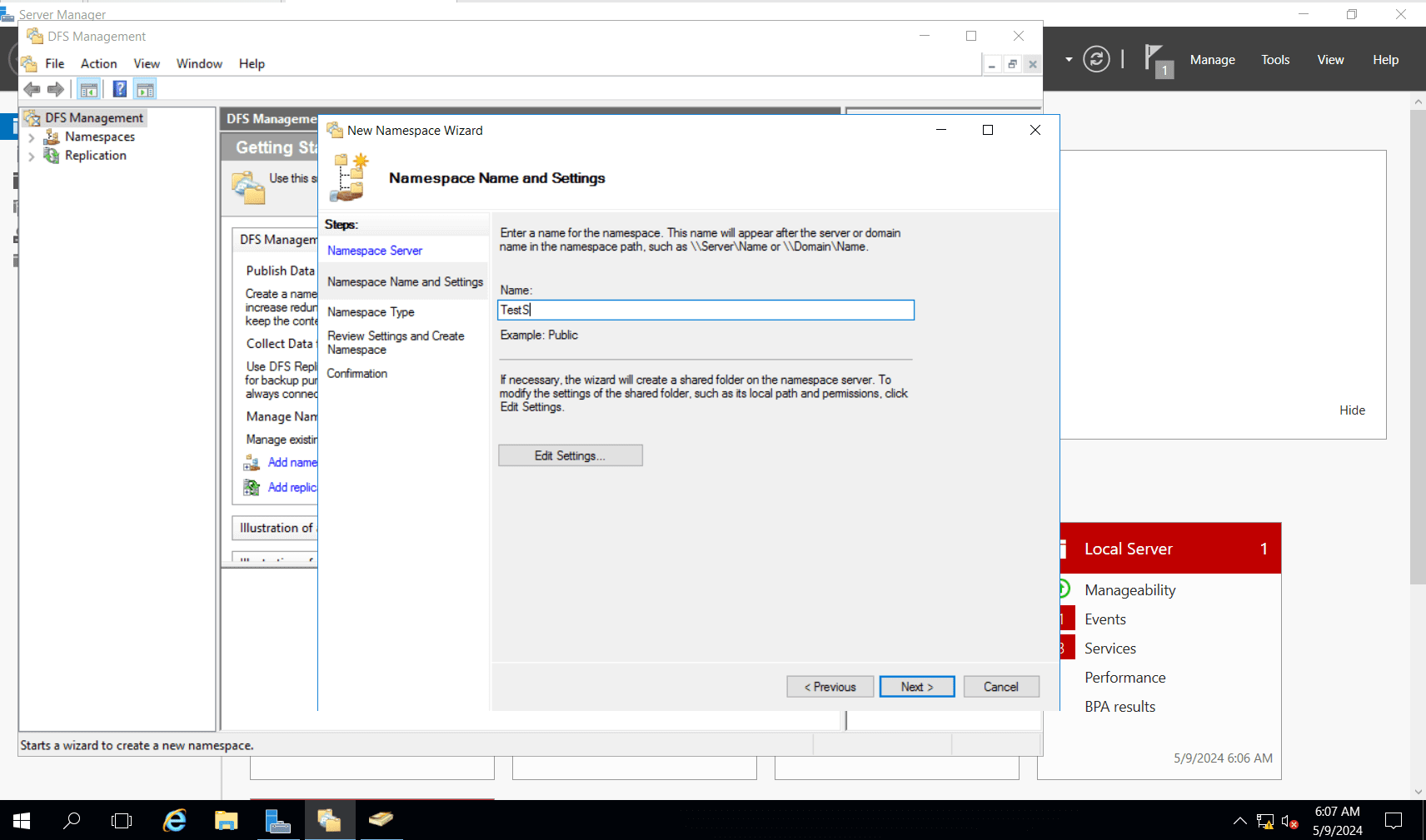
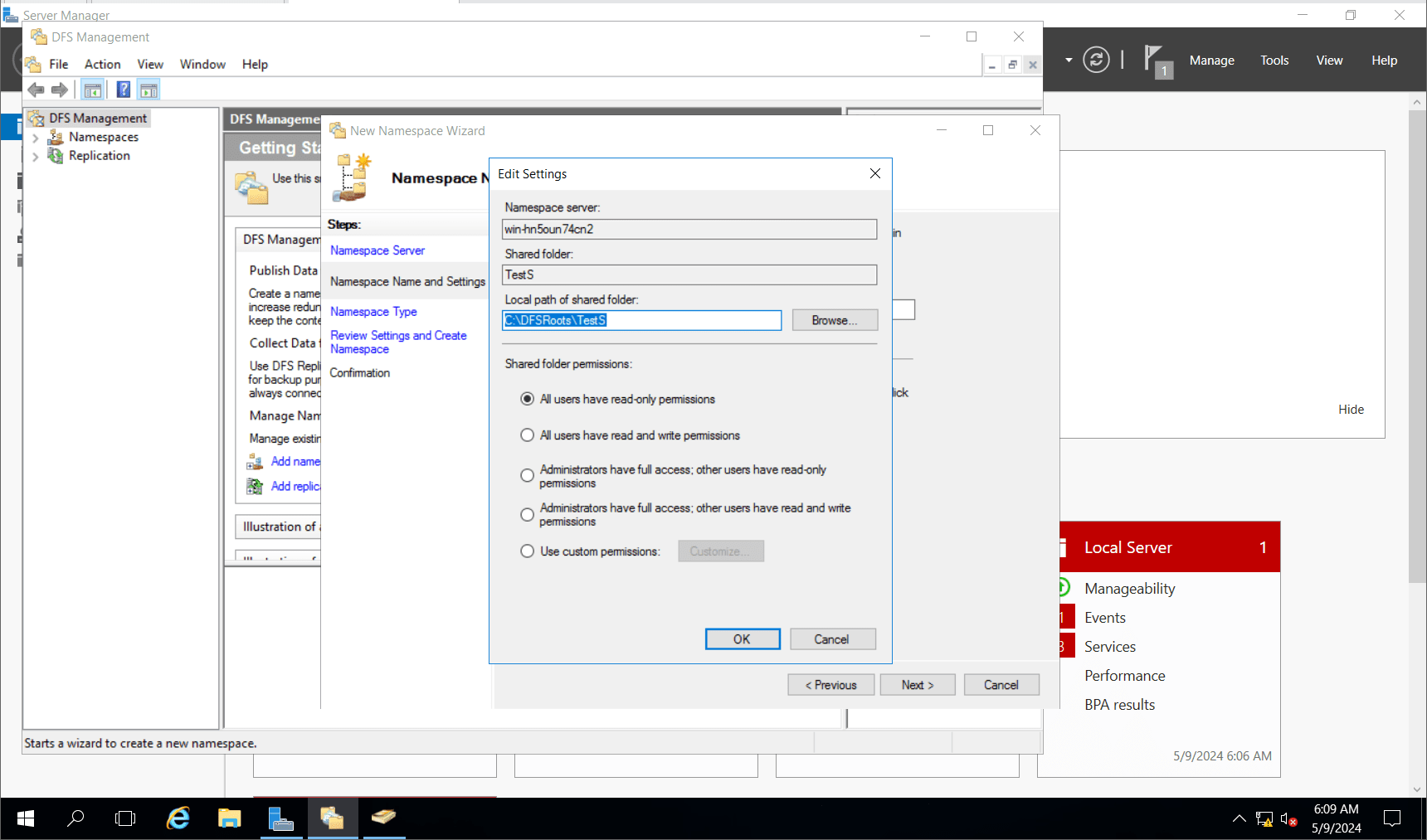
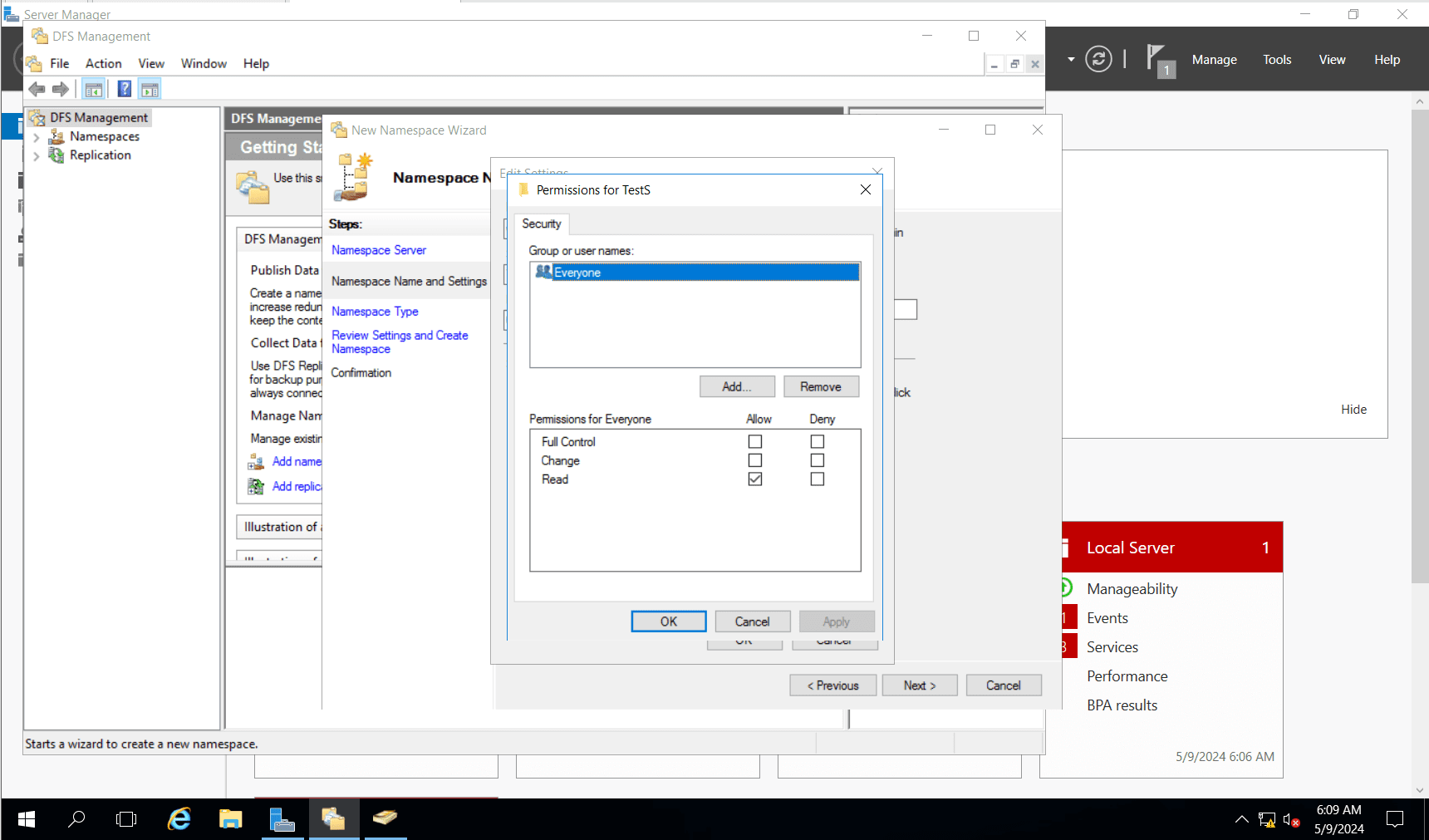
To learn more about DFS configuration, click here.
ADManager Plus offers a centralized platform for the seamless management of DFS namespaces, simplifying the administration process by providing all the necessary tools on a single interface. This integrated approach allows administrators to efficiently oversee the entire DFS namespace infrastructure, which includes modifying and revoking permissions for users as needed.
With ADManager Plus, administrators can easily adjust access rights, ensuring that users have appropriate permissions to access shared resources while maintaining security and compliance standards across the DFS namespace environment.
Select a language to translate the contents of this web page:
Fill this form, and we'll contact you rightaway.
Our technical support team will get in touch with you at the earliest."














