Active Directory permissions and how to effectively manage them
Active Directory (AD) permissions often look more complicated than they really are. If you're an IT admin trying to understand which users can access what, how access flows across OUs, and how to keep permissions clean and predictable, you're not alone. AD permissions sit at the heart of identity and access management, and getting them right matters for both security and day-to-day operations in your organization.
Here's a clear, simple walkthrough of how permissions work, how security groups help, how inheritance shapes access, and how AD delegation helps you grant permissions and stay in control.
What are AD permissions?
Every object in AD has a small rulebook attached to it that decides who can read, modify, delete, or control that object. These rulebooks are called access control lists (ACLs).
Inside each ACL are entries called access control entries (ACEs). Each ACE states:
Who the permission applies to.
What that user or group is allowed (or not allowed) to do.
Here are a few examples:
A help desk group can reset user passwords.
A desktop team can join computers to the domain.
HR admins can modify only HR-related users.
Every AD object checks its ACL before allowing an action. Understand this, and permissions start to make sense.
Why use security groups for AD permissions?
New AD admins often assign permissions directly to user accounts because it feels quick and easy, but these permissions become hard to manage as people switch teams or leave. While users change, groups don’t. That’s why AD is designed for group-based access. As the admin, you give permissions to a group, add users to it, and access stays consistent without you needing to dig through object-level entries.
To make this work well, you need the right kind of security groups, and only they provide access control (distribution groups don't). AD provides three scopes for security groups, and each one plays a different role in access design.
Global groups are for collecting users within the same domain, such as your finance team or HR staff.
Domain Local groups are for assigning permissions to resources like HR_Folder_Readers or Workstation_Admins.
Universal groups work best in multi-domain or multi-site environments.
Most clean AD environments follow the AGDLP structure:
User → Global group → Domain Local group → Permissions on the resource
This keeps AD security group permissions predictable, scalable, and easy to audit.
Types of permissions in AD
Now that we have set the foundation of AD permissions, let’s look at the types of permissions that IT admins work with every day.
Permission type | What it controls | Examples | Where you configure it in AD |
OU-level permissions | Actions allowed inside a specific OU |
| In ADUC, right-click OU > Properties > Security tab |
Object-level permissions | Access to a specific user, group, or computer object |
| ADUC > Object > Properties > Security tab |
Access to files and folders using NTFS and share permissions | Read, Modify, Full Control (NTFS + Share combined) | File Explorer > Folder > Properties > Security / Sharing tabs | |
Special permissions | Fine-grained or advanced control |
| ADUC > Object > Security >Advanced |
AD permissions vs. AD user rights
There is one more distinction every admin needs to be clear about before working with access: The difference between permissions and user rights. Many troubleshooting issues come from mixing these two concepts, so it helps to keep them separate from the start.
Permissions control what you can do to AD objects. User rights (privileges) control what you can do on a device or domain.
Examples of user rights include:
Log on locally
Shut down system
Join a workstation to the domain
Log on as a service
Permissions are viewed under the Security tab of objects in ADUC, while user rights are configured and reviewed under Group Policy (Computer Configuration > Windows Settings > Security Settings > Local Policies > User Rights Assignment).
How permissions inherit in AD
Permissions in AD aren’t isolated. They flow downward from parent OUs to child OUs and the objects inside them. This is called inheritance. When you assign permissions to a top-level OU, all nested OUs and objects receive those permissions automatically unless something stops that flow.
This is why users sometimes have access you never explicitly assigned. Understanding this helps prevent access creep and even reduces the chance of unintentional privilege escalation.
If you want to stop inherited permissions, you can disable inheritance on an object. You can do this by opening the object’s Properties, selecting the Security tab > Advanced, and choosing to disable inheritance. When you do this, you can either convert the inherited permissions into explicit ones or remove them entirely.
Disabling inheritance should be used sparingly because it creates exceptions in your structure, but it is useful when you need tight control over sensitive accounts or OUs.
How to manage permissions in AD
You can manage permissions in AD using the following:
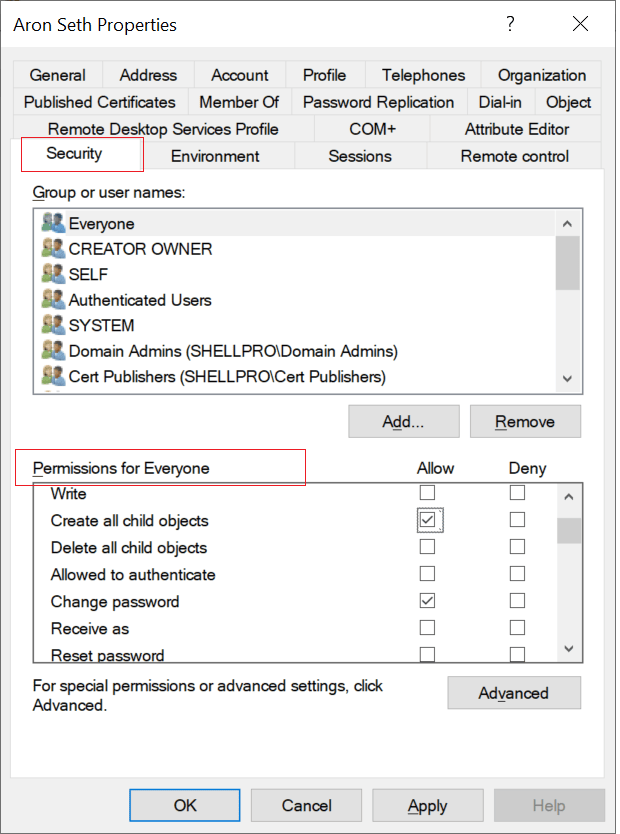
How to view and edit permissions in ADUC
Open Active Directory Users and Computers (ADUC).
Select View from the top menu.
Enable Advanced Features.
Right-click the object you want to inspect and choose Properties.
Go to the Security tab to see its permissions.
Click Add to choose the user or group you want to assign permissions to.
Select the required permissions (e.g., Read, Write, Reset Password, Create Computer Objects).
Click Advanced if you need fine-grained or special permissions.
Click Apply, then OK to save changes.
How to view or update permissions using PowerShell
PowerShell gives you visibility and control at scale. It helps when managing multiple OUs, setting consistent permissions, or automating routine tasks.
To view permissions:
(Get-Acl "AD:OU=Sales,DC=contoso,DC=com").Access
To delegate permissions:
$OU = "OU=Workstations,DC=example,DC=com"
$User = "example\UserA"
$acl = Get-ACL "AD:$OU"
$rule = New-Object System.DirectoryServices.ActiveDirectoryAccessRule `
(New-Object System.Security.Principal.NTAccount($User),
"CreateChild, WriteProperty",
"Allow",
[GUID]"bf967a86-0de6-11d0-a285-00aa003049e2")
$acl.AddAccessRule($rule)
Set-ACL -Path "AD:$OU" -AclObject $acl
How to manage permissions in ADAC
Open Active Directory Administrative Center (ADAC).
Navigate to the desired container or object.
Right-click the object and select Properties.
Scroll to the bottom and click View advanced features if the security tab is not visible.
Go to the Security tab > Advanced.
Select Add, pick a user or group, and assign permissions.
Save changes, and optionally apply inheritance to child objects.
Click OK > Apply > OK.
How to assign security permissions using Group Policy Management Console (GPMC)
This method is useful for folder access, and registry/security settings via policies.
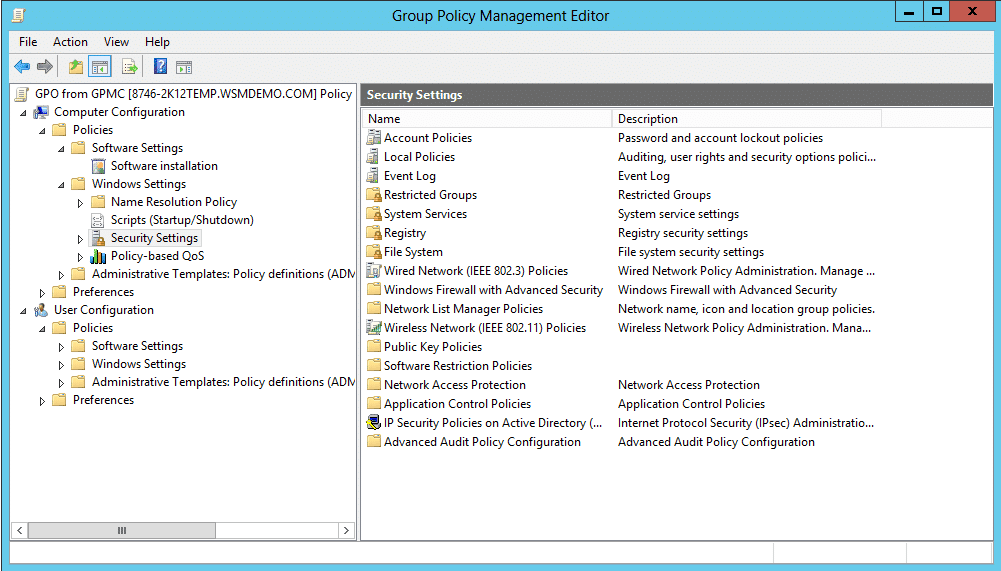
Open Group Policy Management Console (GPMC).
Right-click the target domain or OU.
Select Create a GPO in this domain and link it here...
Open the GPO > Computer Configuration or User Configuration.
Navigate to Policies > Windows Settings > Security Settings.
Use File System to assign folder ACLs and Registry to configure specific registry ACLs.
Define the required permissions and click OK to save.
On client machines, run gpupdate /force or wait for policy refresh.
How to assign permissions using icals
Open Command Prompt as an Administrator and run the following command:
icacls "C:\Path\To\Folder" /grant Domain\Group:(R)
icacls "C:\Path\To\Folder" /grant Domain\Group:(M)
icacls "C:\Path\To\Folder" /grant Domain\Group:(OI)(CI)(M)
icacls "C:\Path\To\Folder" /save C:\backup_acl.txt /t
icacls "C:\" /restore C:\backup_acl.txt
Best practices for managing AD permissions
Keeping AD permissions predictable and secure comes down to a few core habits. These practices help avoid clutter, reduce access risks, and keep your directory easier to manage as it grows.
1. Delegate only what’s needed
Give teams the exact permissions they require, such as resetting passwords or joining computers, without granting full admin rights.
2. Use groups for shared folder access
Apply NTFS and share permissions to domain local groups and add global groups as members. Avoid giving folder permissions directly to users.
Review membership in groups like Domain Admins and Enterprise Admins often. Add users only when necessary.
4. Audit user access regularly
Scheduled reviews help catch inherited access, nested groups, stale accounts, and deny entries that complicate troubleshooting.
5. Avoid direct permissions on individual accounts
Grant access through groups. Direct permissions are easy to forget and hard to audit.
6. Use templates for user provisioning
Predefined templates help create consistent accounts with correct permissions and group memberships.
7. Monitor for privilege creep
Check if users retain permissions they no longer need due to role changes or nested groups.
8. Track permission changes
Watch for changes to privileged groups, folder access, inheritance, and OU-level permissions.
9. Automate AD wherever possible
Automation helps with provisioning, offboarding, periodic access reviews, and cleanup of stale permissions.
10. Follow compliance-driven access reviews
Standards like NIST CSF, SOX, HIPAA, and the GDPR expect organizations to regularly review who has access to sensitive data and justify why. Keeping AD permissions structured and documented makes these audits faster and reduces the risk of compliance violations.
How to simplify AD permissions management using ADManager Plus
AD permissions are manageable, but keeping them clean over time requires structure, consistency, and visibility. This is where ADManager Plus helps bring order, clarity, and consistency. Instead of jumping between ADUC, PowerShell, file servers, and spreadsheets, you get a single console that handles everything end to end.
Groups define access. Templates keep them consistent. You can enforce naming patterns, scopes, default members, and pre-filled attributes that prevent permission sprawl.
Provisioning and deprovisioning with templates
Manual user creation often leads to inconsistent permissions and missing attributes. With customizable templates, every new user gets the right:
Group memberships.
Attributes.
OU placement.
Restrictions.
Deprovisioning also becomes cleaner, ensuring access is fully removed when someone leaves.
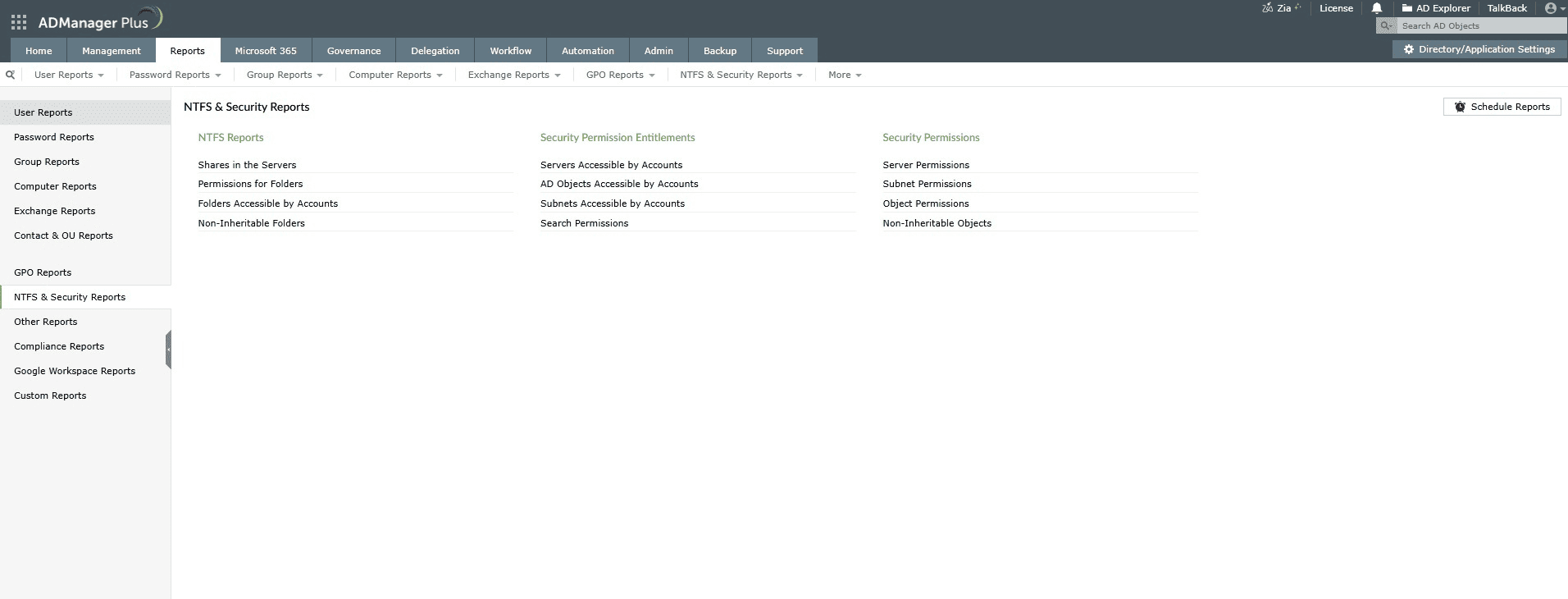
Comprehensive permission reports
ADManager Plus offers more than 200 prebuilt reports covering nested group membership, login activity, and compliance-ready audit reports.
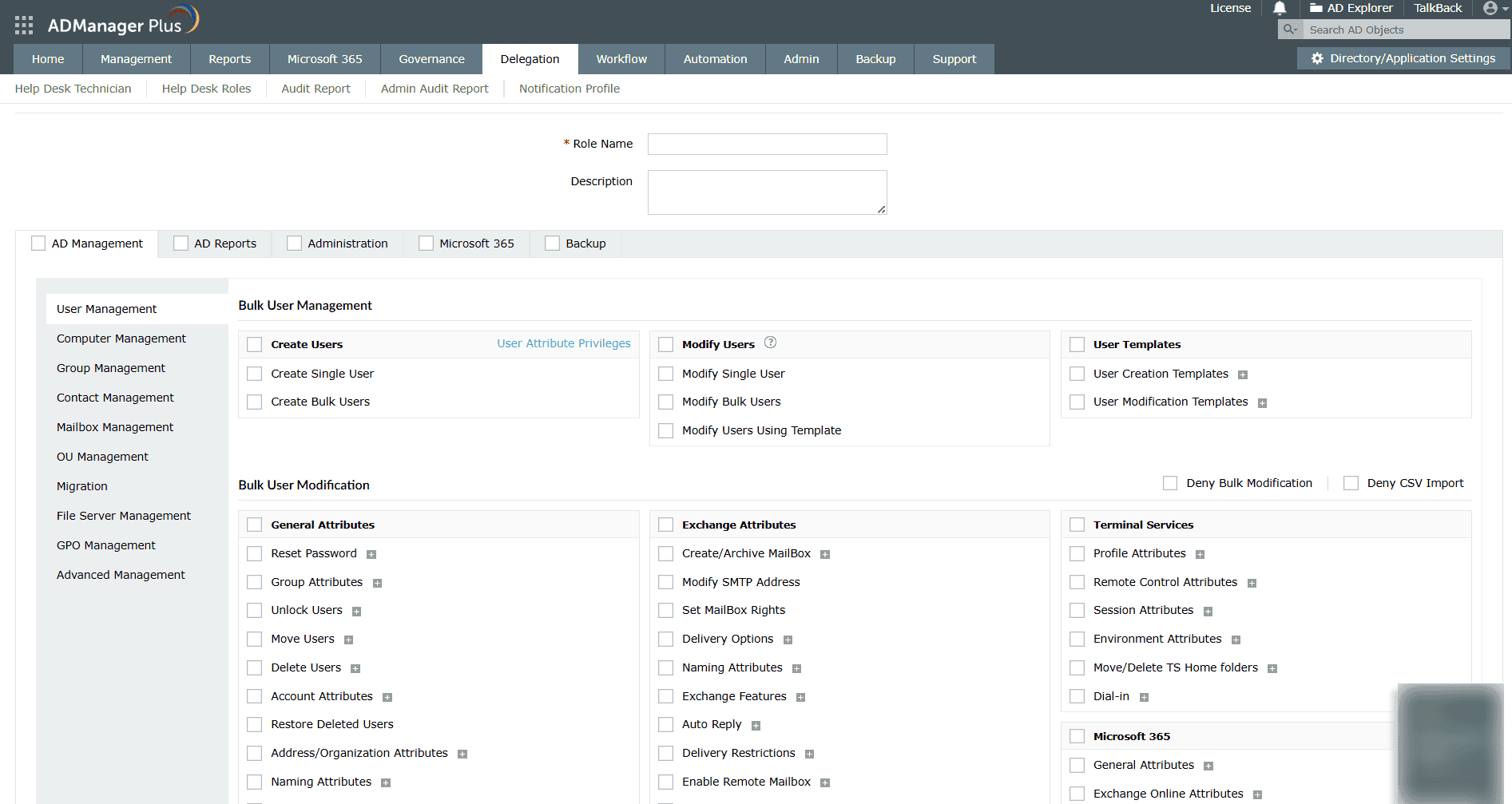
Granular role-based delegation
ADManager Plus lets you delegate permissions at the OU, user, or group level without giving broad admin rights and keeps everything transparent by allowing you to view and audit all delegated permissions in one place. This keeps access predictable and easy to control as teams grow.
Regular access reviews are a compliance requirement. ADManager Plus schedules them automatically, sends them to managers, and tracks approvals or revocations.
ADManager Plus removes the strain of manual updates by automating routine AD operations and routing sensitive actions through approval workflows, helping you avoid permission drift and maintain clean, reliable AD governance.
When someone moves departments, old access often lingers, causing privilege creep. ADManager Plus fixes this by responding to events, like a department change in HRMS or an updated attribute in AD, and automatically removing outdated group memberships, assigning the correct new ones, and updating their access across systems.
ADManager Plus highlights privileged accounts and unusual permission patterns so you can spot weak points early.
NTFS and share permissions are notoriously hard to manage manually. ADManager Plus simplifies this with:
Effective permissions reports.
Bulk permission updates.
Folder permission cloning.
Access revocation.
File server audits.
FAQ
What is the difference between Full Control and Modify permissions?
Full Control includes all permissions in Modify, but with two extras: users can change permissions (i.e., edit ACLs) and take ownership of files or folders. Modify permissions covers everyday actions like read, write, delete, and run files, but it doesn’t allow altering permissions or ownership. Because of that, Modify is safer for regular users, while Full Control should be limited to admins to reduce security exposure.
Example: If a team member needs to update documents in a shared project folder, the Modify permission is enough; they can open, edit, save, and delete files. But if they had Full Control permissions, they could also change who else gets access or even make themselves the owner of the folder, even locking others out.
How can I restore default AD permissions?
Resetting permissions with PowerShell usually involves pulling the default DACL from the object’s schema definition and app lying it back to the user, group, or computer account. Scripts built around Reset-ADPermission or similar logic fetch the schema’s default SDDL string, then reapply it using Set-Acl or ActiveDirectory module cmdlets. This restores the object’s original permissions and can also reset ownership to Domain Admins if needed. Relying on scripts is safer than manual fixes, since it ensures consistent, accurate resets across multiple objects.
How do I handle cross-domain permissions?
Use the AGDLP approach: Build role-based global groups inside each domain, place those global groups into a domain-local group in the resource domain, then assign permissions to that domain-local group. This setup lets users from different domains access shared folders or other resources securely without exposing individual accounts. If a resource needs both read and write access, create separate global groups for each level and nest them into the appropriate domain-local groups.
Manage AD permissions with ease using ADManager Plus
The difference between security groups and distribution groups is that security groups come with security identifiers (SIDs), which let you assign permissions to resources like files, folders, and user rights. They can also be mail-enabled if you want them to double as distribution lists. Distribution groups, on the other hand, don’t have SIDs, so they can only be used for sending emails through Exchange and can’t be used for granting access to any domain resource. In short, use security groups when you need access control and distribution groups when you only need communication.
How to troubleshoot inheritance issues
Check if inheritance is blocked on the object (Properties > Security > Advanced and uncheck Disable inheritance if set). Verify parent object permissions propagate correctly and apply domain-wide hotfixes if DCs show delegation or inheritance issues, especially on PDC emulator. Use the Effective Access tools in ADUC to confirm flow and repadmin /replsummary for replication health.
Note:
The Security tab won’t appear in ADUC unless Advanced Features is turned on. To enable it, open ADUC, go to View, and select Advanced Features. Once that’s done, you’ll see the Security tab in the properties of users, computers, and other objects, allowing you to manage permissions normally.