User State Migration Tool (USMT) for Windows
User State Migration Tool (USMT) is a command line software developed for Windows to migrate user files and settings between computers.According to Microsoft, "USMT captures user accounts, user files, operating system settings, and application settings, and then migrates them to a new Windows installation."
Migrating to a new Operating System without a Windows profile migration tool can be a hassle, especially when users have numerous User Accounts and a substantial amount of personalized data and configurations in their computer.
Moving all the the different users created in your computer can be done seamlessly with ManageEngine OS Deployer's User Profile Migration. Our USMT tool offers a variety of options to customize your image and incorporate the computer specific settings to automate the User profile migration process.
Why should you use USMT?
Using user state migration tool while upgrading or migrating OS, poses the following benefits:
Reduce time and effort
Imaging, deploying and, maintaining OS in a network estate without a Windows profile migration tool can make you sweat out. USMT comes handy and effectively reduces the time required to execute your OS migration plan.
Ensure productivity
USMT (User profile migration tool) can effectively reduce the time taken to customize the user profiles in individual PCs and get that done all at once. This way, your end users need not wait long to get used to the upgraded OS.
Slash-down the help desk tickets
Is resolving the help desk tickets post OS deployment your greatest nightmare? With Windows user state migration tool (USMT), you will not receive recurring tickets on missing files, folders and user accounts. user profile migration tool ensures completely seamless migration experience.
How OS Deployer enables Windows user profile migration?
User Profile Migration allows you to move the User Accounts along with the data and configurations that are personalized for each user, while upgrading your Operating System. A Windows user profile migration tool lets you migrate OS settings, applications, and Access Control Lists (ACLs) associated with each User Account. The user profile migration tool will enable the user to migrate the access permissions, preferences, security settings and configurations to the target computer unique to User Profiles. This will help in saving time and improving productivity.
Note: Windows user profile migration tool cannot assist in downgrading to earlier versions of Windows OS.
When would you need to migrate Windows user profiles?
You will need a comprehensive user state migration tool for Windows profile migration in the following scenarios:
- To migrate your data to the newly purchased computers in your enterprise.
- To upgrade existing computers with outdated OS without losing the user data.
What does User Data Migration actually migrate?
Our Windows profile migration tool will help you with migrating the following data:
Folders from User Profiles: My Documents, My Video, My Music, My Pictures, desktop files, Start menu, Quick Launch settings, and Favorites are the folders that will be migrated using the USMT tool.
File Types: .accdb, .ch3, .csv, .dif, .doc*, .dot*, .dqy, .iqy, .mcw, .mdb*, .mpp, .one*, .oqy, .or6, .pot*, .ppa, .pps*, .ppt*, .pre, .pst, .pub, .qdf, .qel, .qph, .qsd, .rqy, .rtf, .scd, .sh3, .slk, .txt, .vl*, .vsd, .wk*, .wpd, .wps, .wq1, .wri, .xl*, .xla, .xlb, .xls* are the file types supported by our user profile migration tool.
Note: The asterisk (*) stands for zero or more characters.
Operating System Components: USMT migrates operating-system components to a destination computer from computers running Windows 7 and Windows 8 to perform user profile migration. For example, Accessibility settings, Group membership, Fonts, Keyboard and Mouse settings, Phone and Modem options, Taskbar settings etc,.
How to download User Profile Migration Tool (USMT)?
Our user migration tool requires the latest version of Windows ADK toolkit to perform user profile migration. The tool can be automatically downloaded and after downloading the latest version of Windows ADK tool, ensure you have enabled the following,
- Deployment tools
- Windows pre-installation environment (WinPE tool)
- User State Migration tool
Once the user state migration tool is downloaded, OS Deployer will use the profile migration tool to migrate Windows 10 profile or any other profiles required. The Windows ADK along with the Windows profile migration tool can also be manually downloaded and utilized depending on your requirements.
How to backup user profiles using OS Deployer
Let us now discuss how to backup user profiles using our user state migration tool
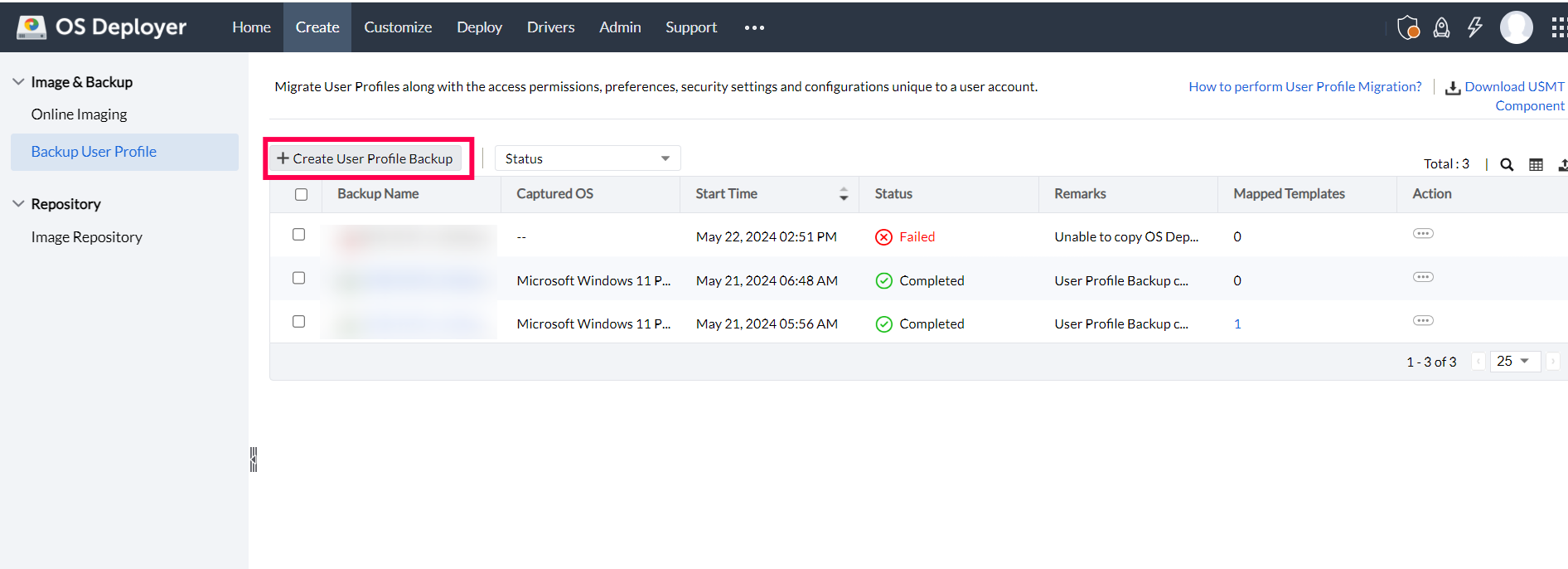
- Navigate to Create tab -> Image & Backup -> Backup User Profile -> Create User Profile Backup.
- Select the required remote office and add the computer. You can configure the domain and add the computer details.
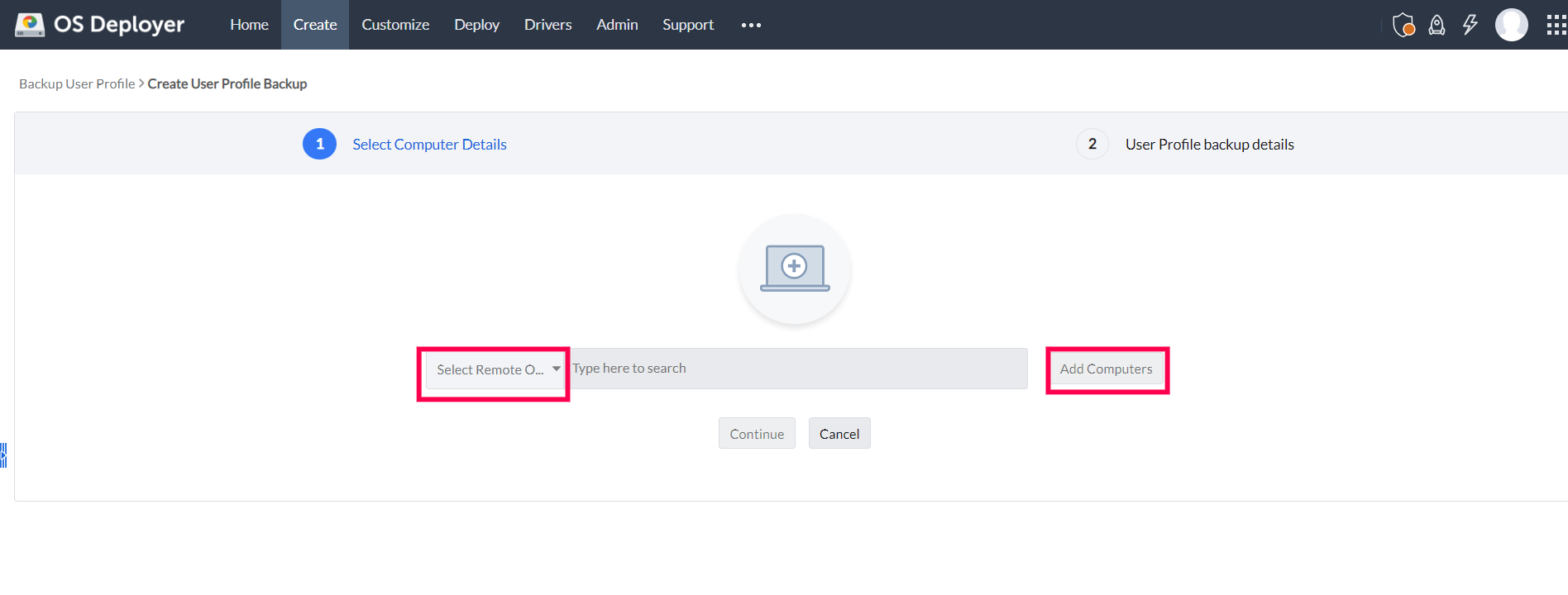
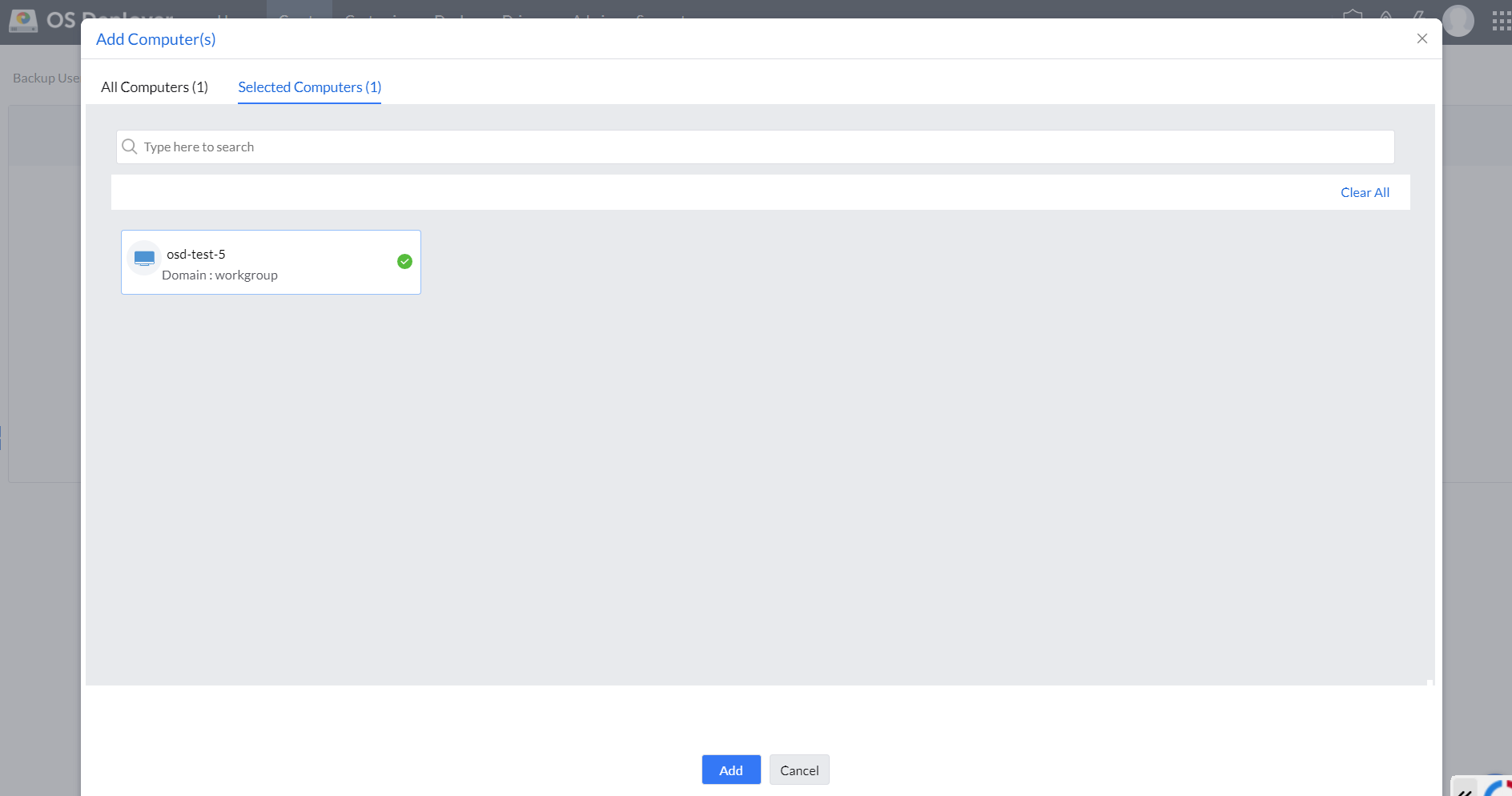
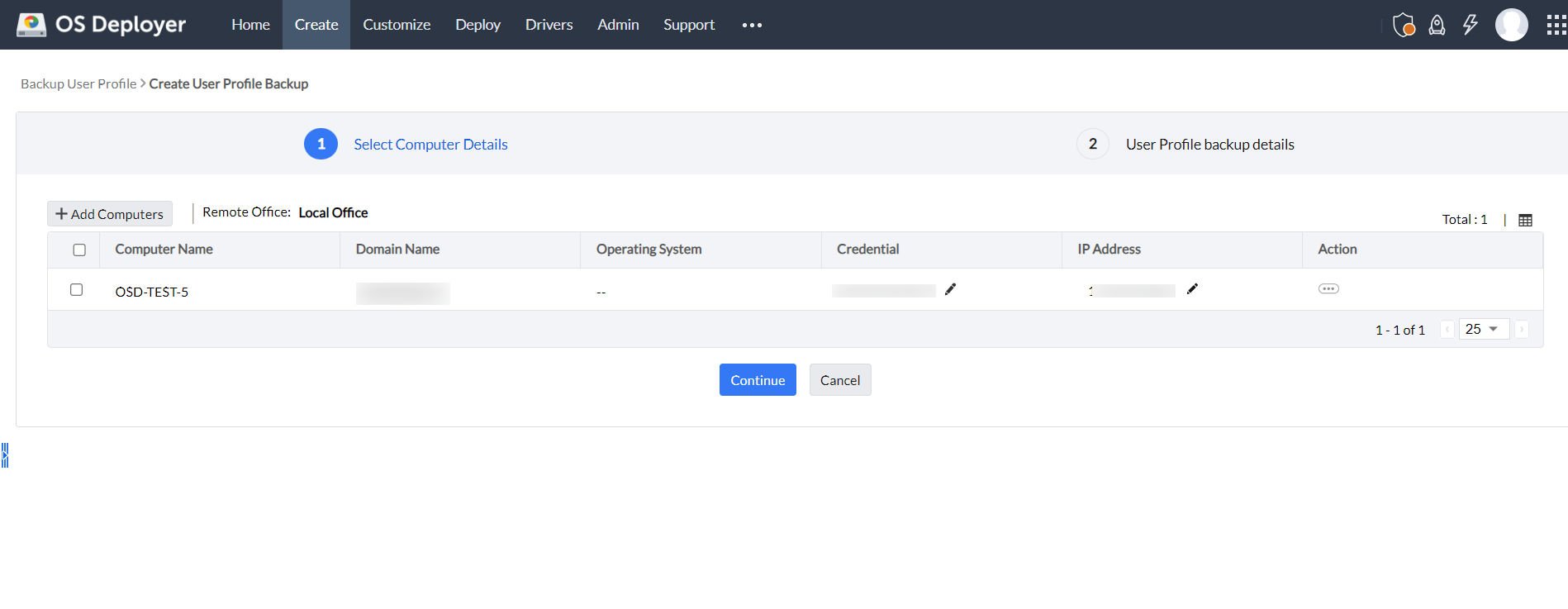
- Once the computer is successfully added, you can now proceed to backup the user accounts and select the image repository where the user profile has to be backed up.
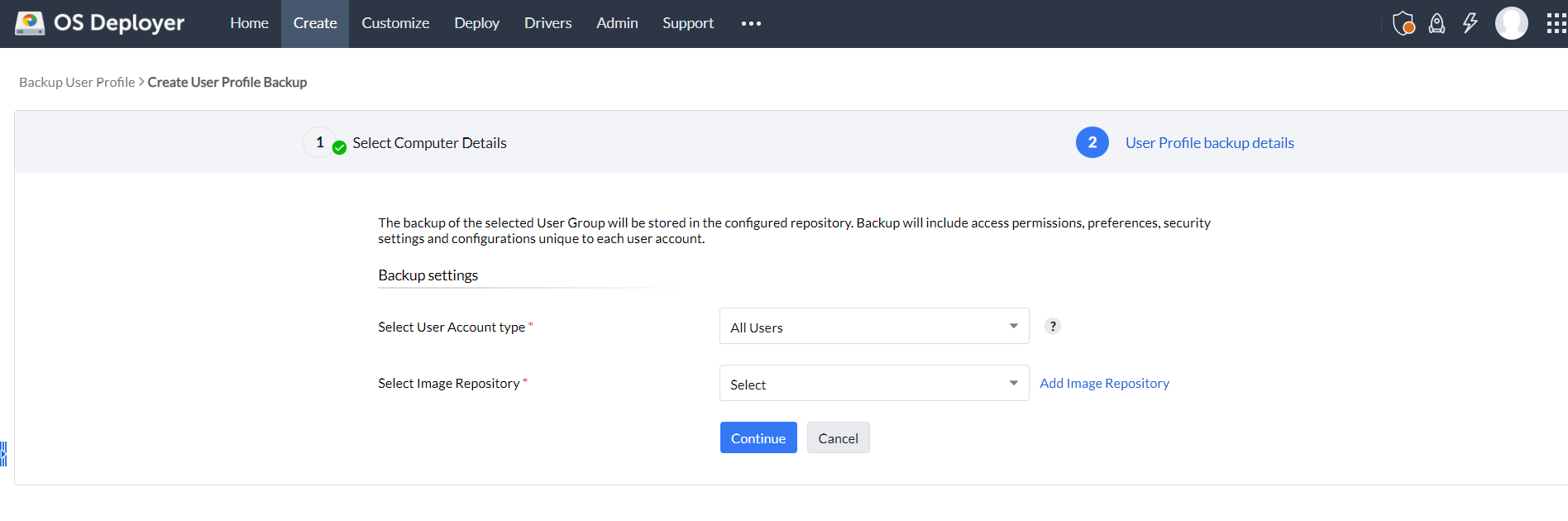
For a more detailed explanation on how to backup user profile using our user state migration tool, kindly refer the section given below.
How to migrate user profiles on Windows 11?
Windows used to have a free tool to migrate your personal data, systems settings, and user profiles from one PC to another till its Windows 8.1 version. It was called Easy Transfer, but Windows stopped supporting it from Windows 10. Without the user state migration tool, you can manually migrate all relevant user profiles.
However, this can prove tiresome and can also lead to numerous errors proving the importance of a Windows profile migration tool. You can download our Windows user profile migration tool and automate the migration process by backing up your user profiles.
How to back-up and restore Windows user profiles using OS Deployer
Read the step-by-step instructions to be followed while migrating user profiles using OS Deployer.
Operating systems supported for backup and data restoration
For backup:
- Windows 7
- Windows 8
- Windows 10
- Windows 11
For restoration:
- Windows 10
- Windows 11
Need more help?
If you still have concerns in configuring user profile back-up, avail a free personalized technical demo at your convenience.
Follow this link to download our user state migration tool.