Notification Settings
Overview
The Notification Settings tab controls which events trigger email and SMS notifications from ManageEngine ADSelfService Plus to administrators and end users. It is the third tab on the Mail / SMS Server Settings page, under Admin > Product Settings > Mail / SMS Settings, and applies to both Active Directory and Microsoft Entra ID modes. The options are grouped into Mail Notification and SMS Notification.
Prerequisites
Notifications depend on the servers that send them:
- The mail server must be configured on the Mail Settings tab before email notifications can be sent, and the SMS server on the SMS Settings tab before SMS notifications can be sent.
- Until both are configured, the page shows the message The mail and SMS servers must be configured to enable notification settings with a Configure now link.
- You are signed in to the ADSelfService Plus admin portal with administrator privileges.
Configuration instructions
Opening the Notification Settings tab
- Log in to the ADSelfService Plus admin portal with administrator privileges.
- Navigate to Admin > Product Settings > Mail / SMS Settings.
- Click the Notification Settings tab.
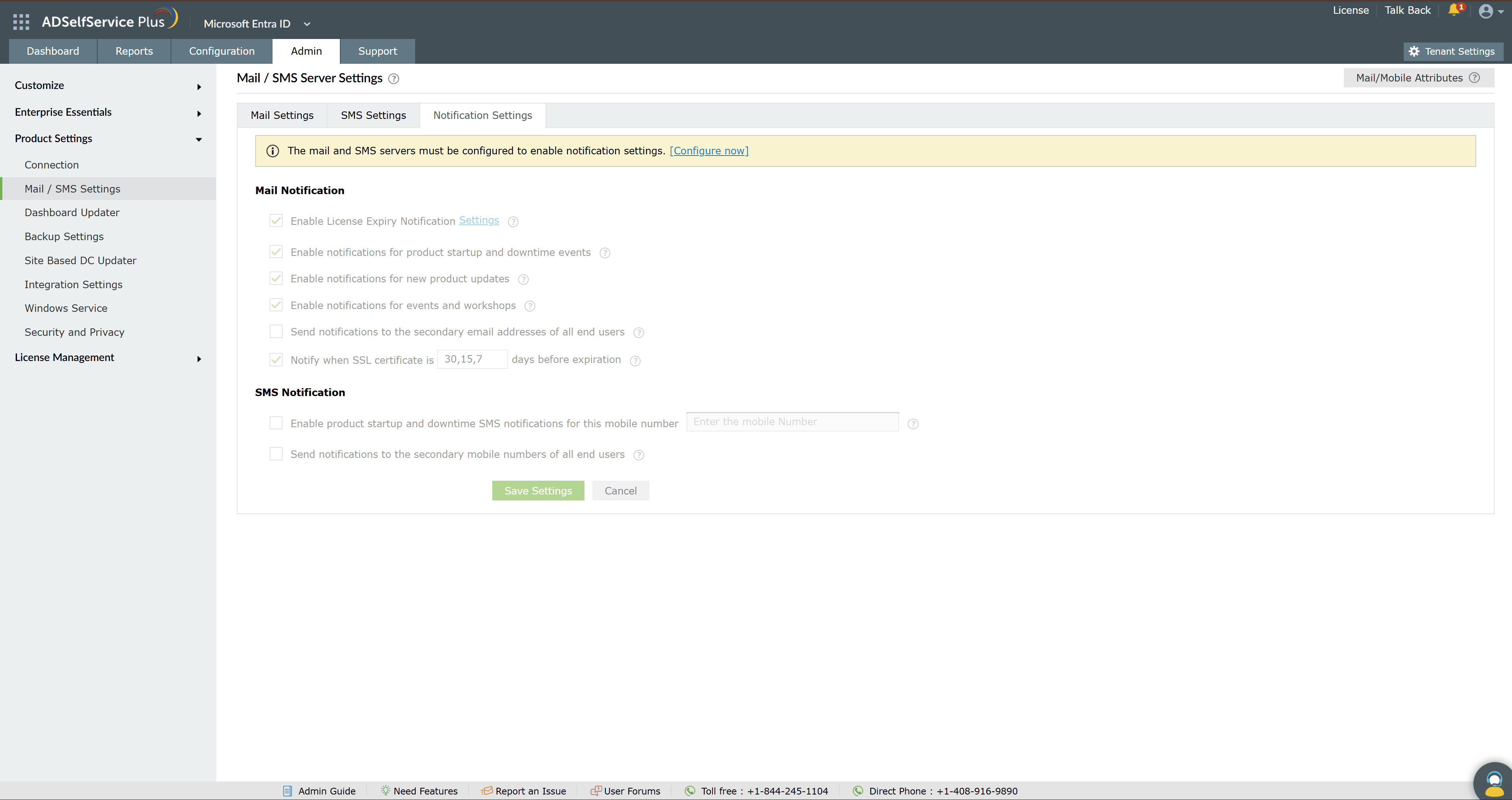
Mail notifications
Under Mail Notification, select the events that should trigger an email:
- Enable License Expiry Notification - alerts administrators by email about the ADSelfService Plus license. Click the Settings link to set the thresholds: the number of days before the license expires, the number of available licenses remaining, and when a license has expired.
- Enable notifications for product startup and downtime events - sends an email when the server goes down or starts up.
- Enable notifications for new product updates - sends email alerts about the latest feature updates.
- Enable notifications for events and workshops - sends email alerts about events and workshops conducted by ManageEngine.
- Send notifications to the secondary email addresses of all end users - when enabled, users receive alerts on both their primary and secondary email addresses.
- Notify when SSL certificate is n days before expiration - sends an email reminder ahead of the SSL certificate's expiry. Enter the number of days in the field.
SMS notifications
Under SMS Notification, select the events that should trigger an SMS:
- Enable product startup and downtime SMS notifications for this mobile number - sends an SMS when the server goes down. Enter the recipient's number in the text box.
- Send notifications to the secondary mobile numbers of all end users - when enabled, users receive alerts on both their primary and secondary mobile numbers.
After selecting the notifications you want, click Save Settings.
Tips
- Enable license expiration notifications to avoid a service interruption caused by a sudden license expiry.
- Configure both email and SMS notifications for critical events so an alert reaches you immediately and you can act promptly.
- Enable product update notifications to stay informed about new features and security patches.
- Keep recipient email addresses and mobile numbers current, and review these settings periodically so critical alerts are not missed.