Send enrollment notification via email, SMS, or push
The enrollment notification feature lets administrators send email, SMS, and push notifications to unenrolled users, prompting them to enroll with ADSelfService Plus. Notifications can be sent immediately to a specified set of users or scheduled to go out automatically at a set frequency, ensuring unenrolled users are regularly reminded without manual intervention.
How it works
Administrators compose a notification — choosing the recipient scope, notification type, and message content — and either send it immediately or hand it off to a scheduler. For scheduled notifications, ADSelfService Plus automatically identifies unenrolled users within the specified domains or policies at the configured frequency and dispatches the notification to them.
Prerequisite: You must have administrator-level access to the ADSelfService Plus portal to send or schedule enrollment notifications.
Sending an enrollment notification
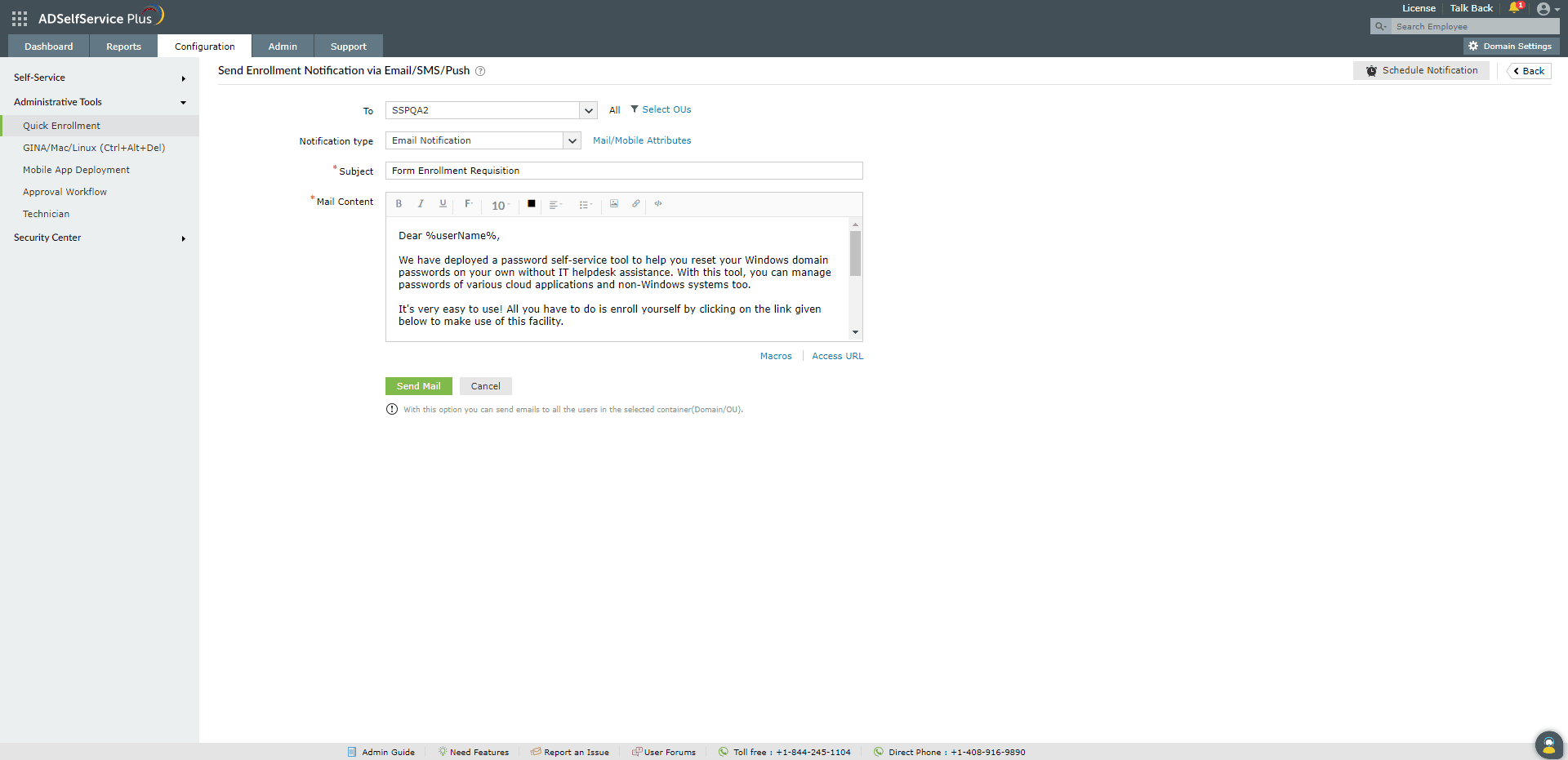
- Log in to the ADSelfService Plus admin portal and navigate to Configuration > Administrative Tools > Quick Enrollment.
- Click Enrollment Notification via Email/SMS/Push.
- In the To field, specify the recipients for the notification:
- Select Domain Names to send notifications to all users in the selected domain(s).
- Select Policies to send notifications to all users under the selected policies. You can also narrow the scope to specific OUs within the domain.
- Select Manual to enter specific user email addresses manually.
- Select the Notification Type — Email, SMS, or Push Notification.
- Enter the Subject and message content for the notification.
- Click Send Notification Now to dispatch the notification immediately.
Note:
- When using the Manual option in the To field, only the %userName% and %accessURL% macros are supported in the notification email. Any other macros will appear as plain text.
- Push notification content (Subject + Message combined) must not exceed 185 characters. Content exceeding this limit will be automatically shortened.
- Approximate push notification character limits for non-English languages: Japanese and Chinese: 60; Arabic and Russian: 95; French, Swedish, and Polish: 178; Spanish, German, and Italian: 185.
Scheduling enrollment notifications
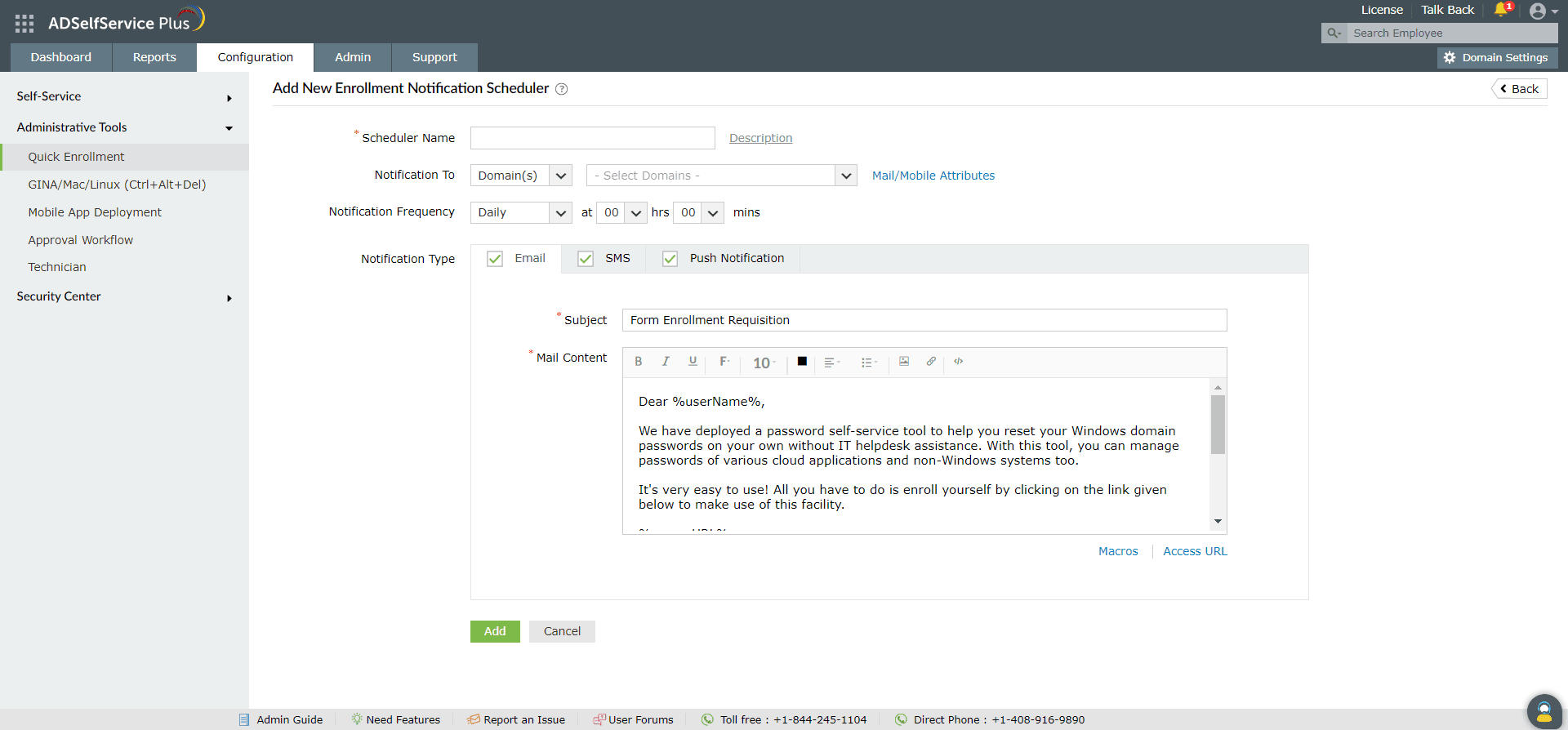
- Log in to the ADSelfService Plus admin portal and navigate to Configuration > Administrative Tools > Quick Enrollment.
- Click Enrollment Notification via Email/SMS/Push.
- Click Schedule Notification in the top-right corner of the page.
- Enter a Scheduler Name.
- In the Notification To field, select Domains or Policies and select the specific domains or policies for which notifications are to be sent.
- Set the time and select the Notification Frequency — Daily, Weekly, Monthly, or Hourly.
- Under Notification Type, select the notification method(s) — Email, SMS, and/or Push Notification.
- Enter the Subject and message content for each selected notification type.
- Click Add.
Entra ID admin guide: https://www.manageengine.com/products/self-service-password/help/admin-guide/EntraID/Deployment/Password-Self-Service-Deployment.html
Send enrollment notification via email or push
The enrollment notification feature lets administrators send email and push notifications to unenrolled users, prompting them to enroll with ADSelfService Plus. Notifications can be sent immediately to a specified set of users or scheduled to go out automatically at a set frequency, ensuring unenrolled users are regularly reminded without manual intervention.