How do I change my password?
ADSelfService Plus allows you to securely change your password while ensuring that it complies with your organization's password policy. Whether you need to update your password periodically or replace an existing password with a new one, you can do so using the available self-service options. Password changes are validated against the password policy configured by your organization.
You can change your password using any of the following methods:
- Change user account password: Change your account password from the ADSelfService Plus User Portal while ensuring that it complies with your organization's password policy.
- Change your account password using a mobile device: Use the ADSelfService Plus mobile app or a supported mobile browser to change your password from anywhere.
- Change enterprise application passwords: Change passwords for linked enterprise application accounts, such as Microsoft 365, Google Workspace, and Salesforce, and synchronize password changes across connected accounts if configured by your administrator.
Change user account password
- Log in to the ADSelfService Plus user portal, and go to the Change Password tab.
- Enter your existing account password in the Old Password field.
- Provide a New Password, and re-enter it in the Confirm New Password field. Make sure your new password meets the complexity requirements.
- Click Change Password.
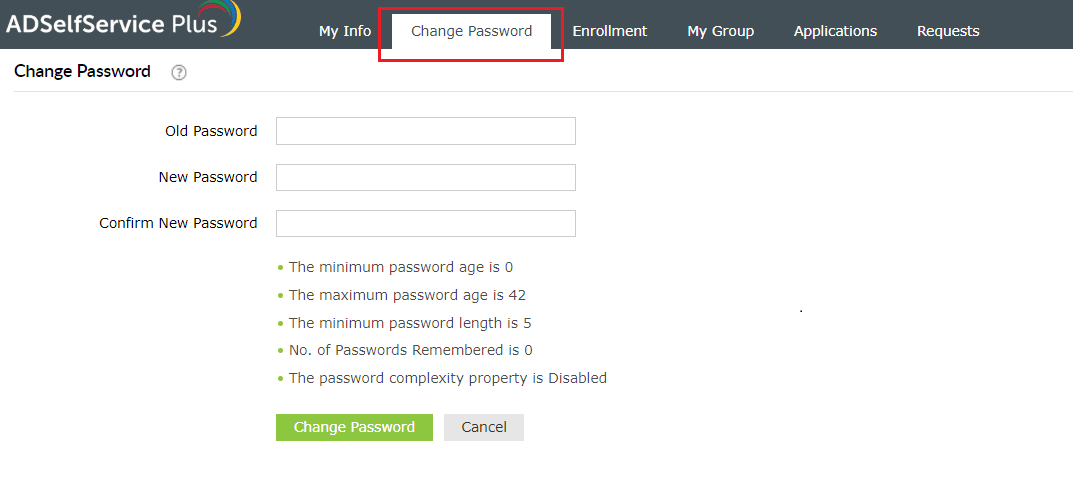
Fig 1: Changing your password from the Change Password tab.
Change your account password using a mobile device
ADSelfService Plus allows you to change your password via an Android and iOS mobile device.
- Open the ADSelfService Plus mobile app.
- Tap Login.
- Enter your Username and Password. Select a directory from the drop-down menu, and tap Login. If your administrator chose to hide the directory field, you can simply move on to the next step.
- The Change Password screen will open. Enter your old password and a new password in the respective fields. Retype the new password in the Confirm Password field as well.
- Tap Change.
Change enterprise application passwords
- To change enterprise application passwords, including those for Microsoft 365, Google Workspace, and Salesforce, simply select the targeted account on the Change Password page.
- You can also synchronize the user account password change across all connected enterprise applications. Click here to learn more.
Note: Only your admin decides which users can access this feature.
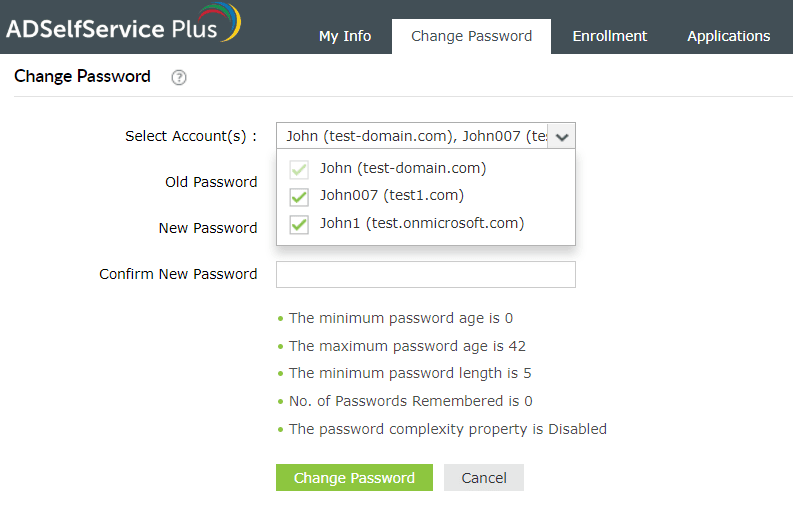
Fig 2: Changing passwords for linked enterprise application accounts.