

How to unsync a SharePoint folder from OneDrive and File Explorer
On this page
When a SharePoint Online document library is synced to your computer, it appears in File Explorer through Microsoft OneDrive. This creates a two-way sync relationship where changes made locally affect the cloud copy and vice versa. While this improves offline access and collaboration, it also introduces risk: deleting or modifying files on your computer immediately applies the same change in SharePoint, which can lead to accidental mass deletions if users attempt to clean up local storage. In large document libraries, a single mistaken delete action can remove thousands of files across the organization.
Unsyncing the library breaks this live connection, removing the folder from your device while keeping the original content safely stored in SharePoint. This is especially important before deleting local copies, decommissioning a device, or troubleshooting sync issues, as it prevents unintended data loss while preserving access through the web.
- SharePoint Online
- Windows PowerShell
Method 1: Unsync SharePoint folder from browser
SharePoint Online initiates sync from the browser, but stopping sync is performed through the OneDrive sync client on your device. This safely disconnects the library from your device without affecting files stored in SharePoint.
Prerequisites
- You have at least Read permissions on the SharePoint site and document library.
- The library is currently synced to your device.
- The OneDrive sync client is installed and running.
Steps
- Sign in to SharePoint Online and open the site.
- Navigate to the document library that is currently synced.
- Click Sync on the command bar (this opens OneDrive sync dialog or setting).
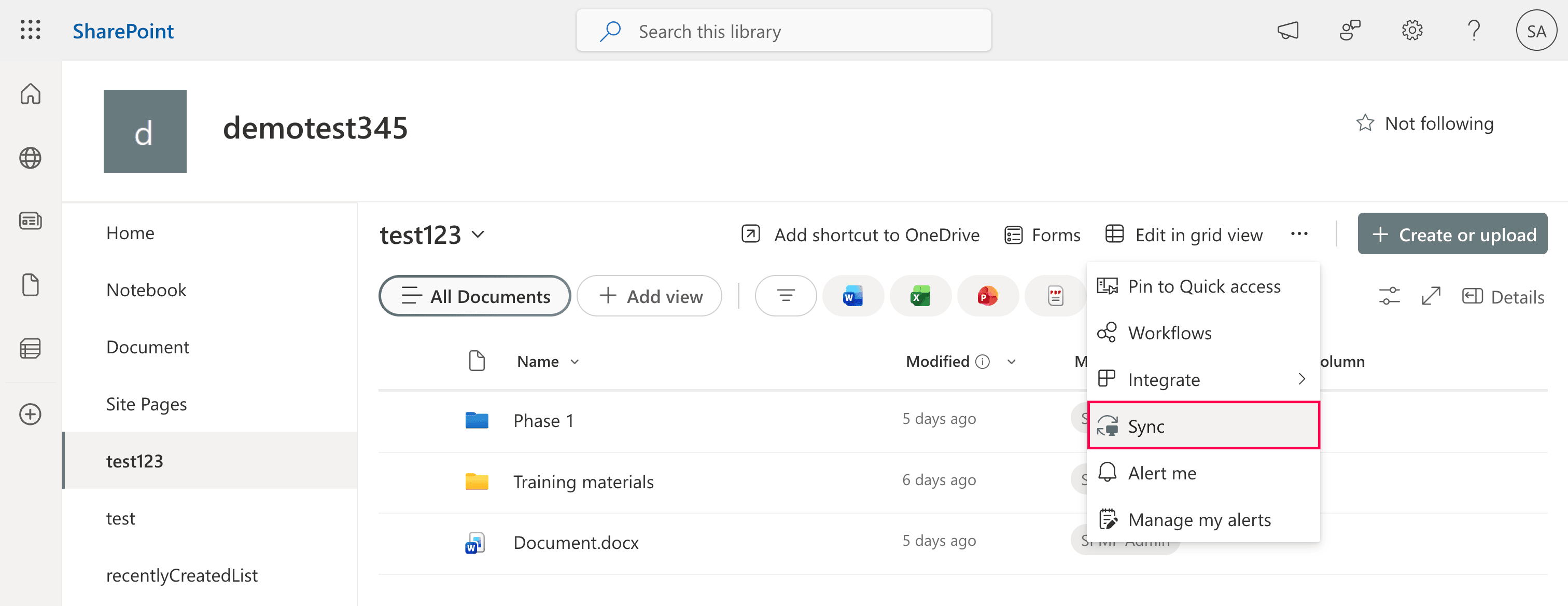
- In the OneDrive window, select Stop sync for the library.
- Confirm when prompted.

The library will be removed from File Explorer but will remain intact in SharePoint Online.
Alternate method using OneDrive settings
- Click the OneDrive cloud icon
 in the Windows notification area (system tray).
 - In the pop-up that appears, select More > Settings.
- Go to the Account tab.
- Locate the SharePoint folder or library you wish to remove and click Stop sync.
- Click Stop sync again in the confirmation pop-up.
Limitations to consider
- Stops sync for the entire library, not individual folders
- Files remain on your device unless manually removed
- Does not affect sync on other users’ devices
- Requires the OneDrive client to be installed
Method 2: Remove local synced folder using PowerShell
PowerShell can be used to manually clear local cached data. However, this is a cleanup step, not a replacement for unlsyncing the library.
Do not use this method until you have stopped sync via the OneDrive Settings menu. Deleting the local folder while the library is still technically linked will result in permanent data loss in the cloud once OneDrive restarts, as it will sync the deletions to SharePoint.
Prerequisites
Before using PowerShell, ensure that:
- You have local administrative rights on the device.
- The library has been unsynced via the OneDrive GUI or Registry before deleting the folder.
- You have a backup of any files that were not fully synced to the cloud.
Stop the OneDrive sync client
This command kills the OneDrive process to ensure no files are in use or actively syncing while you modify the local directory.
Stop-Process -Name OneDrive -Force
Remove the local synced folder
Using $env:USERPROFILE is the best practice as it automatically identifies the correct user path, avoiding errors caused by hardcoded usernames.
Remove-Item "$env:USERPROFILE\CompanyName\LibraryName" -Recurse -Force
Restart OneDrive (optional)
Once the folder is removed and the library is confirmed unlinked, you can safely restart the sync client.
Start-Process "$env:LOCALAPPDATA\Microsoft\OneDrive\OneDrive.exe"
Supported parameters
The following parameters can be used when unsyncing SharePoint folders:
| Parameter | Description |
|---|---|
| -Name | Process name to stop (e.g., OneDrive) |
| -Force | Terminates the process immediately |
| -Recurse | Deletes all subfolders and files |
| -Path | Specifies the local folder path |
Limitations to consider
- Does not fully disconnect the library from OneDrive sync.
- Files deleted via Remove-Item bypass the Recycle Bin. An incorrect path may permanently delete unintended local files.
- Requires device-level administrative access.
How to simplify SharePoint folder management
Stopping sync manually works for individual users, but organizations need centralized visibility and control across multiple users and devices. ManageEngine SharePoint Manager Plus enables administrators to manage SharePoint content directly without relying on local sync.
Auditing and activity tracking
Track who accessed, modified, shared, or deleted SharePoint folders and files, along with timestamps and locations. Monitor risky behaviors such as large downloads or mass file changes that often occur through synced libraries.
Reporting and visibility
Generate comprehensive reports on folder storage consumption, sharing status, and user and group access across your SharePoint environments. Export reports in multiple formats like CSV, PDF, XLSX, and HTML.
Permissions management at scale
Grant, revoke, copy, or audit permissions on folders, libraries, and sites in bulk. Quickly identify users with excessive or unique access and enforce least-privilege without complex scripts
Seamless migrations
Move or copy folders, files, permissions, and structures across sites or tenants while preserving hierarchy and metadata. Perform large-scale cleanup or reorganization by scheduling tasks and reducing manual effort.
Reduce dependence on local sync
Access, manage, and report on SharePoint data directly from the server side, minimizing the need for users to sync large libraries. Reduce device storage usage, sync errors, and the risk of accidental deletions caused by two-way synchronization.
Important tips
Unsync before deleting locally
Deleting a synced folder from File Explorer removes it from SharePoint as well due to two-way sync.
Unsync removes only the connection, not the data
Files remain in SharePoint Online and can still be accessed through the browser.
Keep a backup for critical content
If the folder contains important files, ensure a backup exists (Recycle Bin, version history, or separate copy) before making large changes to synced data.
Frequently asked questions
No. Unsyncing only removes the connection. All files remain safely stored in SharePoint Online.
Because of two-way sync, local deletions immediately remove the cloud version, which can cause accidental data loss.
No, Sync works at the document library level, not individual folders. To stop syncing a specific folder, you must stop sync for the entire library.
Files that were downloaded for offline use typically remain on your device as regular local files. They no longer sync with SharePoint, so changes made locally will not affect the cloud copy.
Go to the document library in SharePoint Online and click Sync again. This reconnects the library to the Microsoft OneDrive and restores it in File Explorer. View the detailed steps
Possible reasons include another library still being synced, auto-sync policies configured by your organization, or the OneDrive client continuing to run in the background. Verify sync settings and ensure the correct library was disconnected.

