How to sync SharePoint to File Explorer and OneDrive
On this page
Syncing SharePoint allows users to access SharePoint Libraries directly from their desktop through File Explorer, enabling offline work, faster file access, and seamless collaboration. When you sync a library, files are stored locally using OneDrive and automatically updated in SharePoint when changes are made. Understanding how syncing works, including limitations like permissions, conflicts, and path length restrictions, helps prevent common SharePoint sync issues and ensures a smooth experience.
SharePoint sync vs. Add shortcut to OneDrive
SharePoint offers two methods to sync libraries and folders to your local device, each serving a distinct purpose for how you manage and access your files.
- Sync: Connects the library directly to your device using the OneDrive client, creating a dedicated folder in File Explorer.
Best for: Teams that need full offline access, frequent file editing from desktop apps, or a traditional file-server-like experience.
- Add shortcut to OneDrive: Places the library inside your personal OneDrive view, allowing access alongside personal files without creating a separate top-level folder.
Best for: Users who want quick access within OneDrive across devices, prefer a unified file view, or only need occasional access without managing another local folder.
The steps in this guide focus specifically on the Sync method, which creates a local File Explorer connection to SharePoint libraries.
- SharePoint Online
- Windows PowerShell
Method 1: Sync document library using the browser UI
SharePoint Online allows users to sync document libraries directly to their computer using the built-in Sync button, making it easy to work with files from the desktop without manual downloads.
Prerequisites
- You must have Read permission or higher on the SharePoint site or library
- The Microsoft OneDrive desktop app must be installed and signed in
- Sync must be allowed by your organization’s policies
Steps
- Sign in to SharePoint Online.
- Navigate to the site containing the document library.
- Open the document library and click the Sync button on the toolbar.
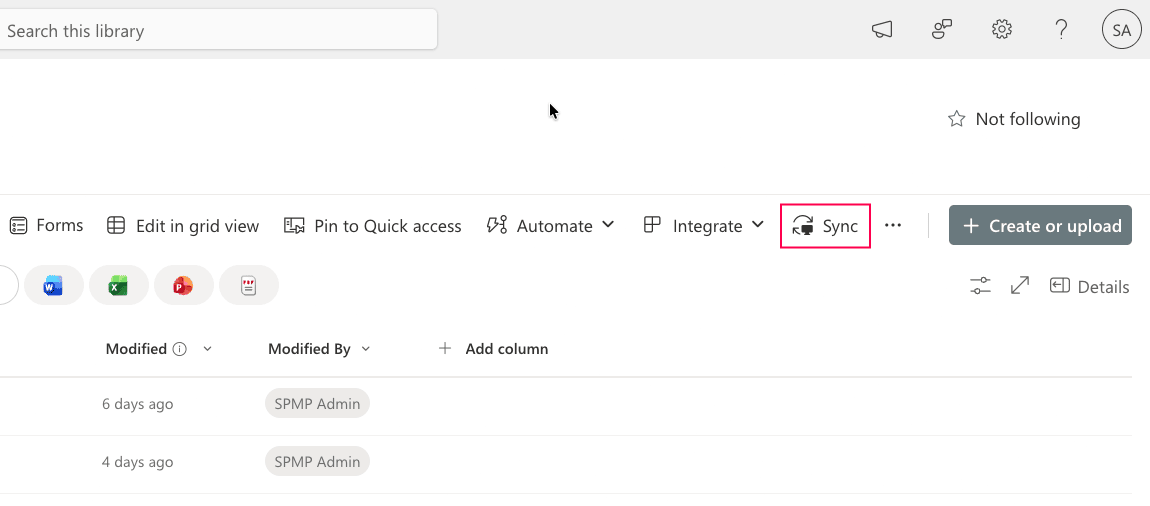
- If prompted, allow the site to open the OneDrive app.
- The library will now appear in File Explorer under your organization name.

Note: Files will appear immediately and download automatically when opened, depending on Files On-Demand settings.
Limitations to consider
- Sync is done per library and not entire sites
- Large libraries may take time to index and sync
- Sync conflicts can occur if multiple users edit offline
- Path length limits and special characters may block sync
Method 2: Sync a document library using PowerShell
PowerShell can trigger the OneDrive sync client to automatically map a SharePoint library to a user's File Explorer.
Prerequisites
Before using PowerShell, ensure that:
- The OneDrive Sync App (OneDrive.exe) is installed and signed in.
- You have Read permission or higher to the SharePoint library you wish to sync.
- You have retrieved the SiteID, WebID, and ListID for the target library.
Automating the sync process for a document library
This script uses the odopen:// URI scheme to pass library metadata directly to the OneDrive client, initiating the sync.
# Define library identifiers
$TenantName = "yourtenant"
$SiteID = "{00000000-0000-0000-0000-000000000000}"
$WebID = "{00000000-0000-0000-0000-000000000000}"
$ListID = "{00000000-0000-0000-0000-000000000000}"
$WebURL = "https://$TenantName.sharepoint.com/sites/ProjectSite"
$UserEmail = "user@domain.com"
$WebTitle = "Project Documents"
# Construct the sync command string
$syncString = "odopen://sync/?siteId=$SiteID&webId=$WebID&webUrl=$WebURL&listId=$ListID&userEmail=$UserEmail&webTitle=$WebTitle"
# Execute the sync via the local OneDrive process
Start-Process $syncString
Syncing multiple libraries in bulk
For onboarding new employees,you may want to map several departmental libraries at once. You can loop through a CSV or an array to trigger multiple odopen:// commands in sequence.
# Define a list of libraries to sync
$Libraries = @(
    @{ Title = "Finance";  ListID = "{00000000-...}"; WebURL = "https://tenant.sharepoint.com/sites/Finance" },
    @{ Title = "HR_Docs";  ListID = "{00000000-...}"; WebURL = "https://tenant.sharepoint.com/sites/HR" }
)
$UserEmail = "user@domain.com"
$SiteID = "{Your-Site-Collection-ID}"
$WebID = "{Your-Web-ID}"
foreach ($Lib in $Libraries) {
    $syncString = "odopen://sync/?siteId=$SiteID&webId=$WebID&webUrl=$($Lib.WebURL)&listId=$($Lib.ListID)&userEmail=$UserEmail&webTitle=$($Lib.Title)"
    Start-Process $syncString
    Start-Sleep -Seconds 2 # Brief pause to allow OneDrive to process each request
}
Supported parameters
The following parameters are required within the odopen:// string to successfully map a library:
| Parameter | Description |
|---|---|
| siteId | The unique GUID for the SharePoint site collection. |
| webId | The unique GUID for the specific sub-site (web) containing the library. |
| listId | The unique GUID for the specific document library to be synced. |
| webUrl | The full HTTPS URL of the SharePoint site. |
| userEmail | The email address of the authenticated user performing the sync. |
| webTitle | The display name that will appear for the folder in File Explorer. |
Limitations to consider
- The script relies on the odopen:// protocol being correctly registered on the local OS.
- The OneDrive client must be running; if the user is not signed in, the process will pause at a login prompt.
- Performance may degrade when syncing a library that contains more than 300,000 files or folders.
How to secure synced SharePoint libraries
When users sync libraries to their devices, the underlying content still resides in SharePoint. Managing permissions, sharing, and activity at the source is essential to prevent unauthorized access and data exposure. ManageEngine SharePoint Manager Plus provides centralized visibility and control over SharePoint content that may be synced to user devices.
Permissions and access reporting
Identify who has access to document libraries, detect excessive or unique permissions, and ensure that only authorized users can sync sensitive content.
Audit SharePoint file activities
Track uploads, edits, deletions, downloads, and sharing actions within SharePoint libraries with precise timestamps. Archive audit logs for investigations and compliance requirements.
Smooth SharePoint migrations
Move sites, libraries, and files to different SharePoint environments while preserving structure, metadata, permissions, and versions.
Bulk permission management
Manage user and group access to libraries at scale, instantly controlling who can sync sensitive data. Also configure alerts to get notified of privilege escalations.
Best practices
Use Files On-Demand
Enable Files On-Demand so files appear in File Explorer without consuming disk space until opened. This is especially useful when syncing large libraries or working on devices with limited storage.
Avoid deep folder structures
Extremely nested folders and long file paths can exceed Windows limits, preventing files from syncing correctly. Simplifying folder structures improves reliability.
Sync only what is needed
Instead of syncing all site libraries, select specific ones that are relevant to your work. Large or unnecessary syncs can slow down performance and increase the risk of sensitive data being stored on unmanaged devices.
FAQs
Sync creates a local copy of a SharePoint library on your computer using the OneDrive client, enabling offline access and automatic updates between local and cloud versions.
Possible reasons include:
- Sync may be disabled by organizational policies
- An unsupported or restricted browser is being used
- Library settings or size may block syncing
- Insufficient permissions (Edit or higher required)
- Microsoft OneDrive is not installed or signed in
Direct syncing to traditional file servers is not supported. Libraries sync to individual user devices, not shared server storage.
SharePoint's sync feature works at the library level, so an individual SharePoint folder or document can't be synced on its own. To work around this, you can either move the content into a dedicated library and sync that, or use the Add shortcut to OneDrive option to access a specific folder directly from your OneDrive.

