How to manage SharePoint document library permissions
Last updated on:In this page
Managing SharePoint permissions for a document library ensures that the right users have the appropriate level of access. In SharePoint, document libraries inherit permissions from their parent site by default. By effectively managing permissions, admins can restrict access to sensitive content, control external access, and maintain governance standards.
How inheritance works in document libraries
The permission hierarchy in SharePoint follows site > document library > folder > file. When a library is created, it automatically inherits permissions from the SharePoint site. This means:
- Users who have access to the site also have access to the library.
- Changes made at the site level apply to the library.
- The library follows the site’s permission structure unless inheritance is broken.
When inheritance is broken at the library level, the library receives its own unique permissions, stops reflecting site-level changes, and requires separate access management.
This guide provides different ways to manage document library permissions through the SharePoint Online browser interface, PowerShell, and third-party tools like SharePoint Manager Plus.
- SharePoint Online
- Windows PowerShell
- SharePoint Manager Plus
Method 1: SharePoint Online browser interface
SharePoint Online helps admins directly manage permissions through the browser interface, ideal for users who need to review, modify, or restrict access without using scripts. Ensure you have either the Site Owner permission, Full Control permission level, or the SharePoint Administrator role.
- Go to the site containing the document library.
- Open the document library.
- Click the Settings icon and select Library settings > More library settings.
- Under Permissions and Management, select Permissions for this document library.
- To modify inheritance:
- Click Stop Inheriting Permissions to create unique permissions (this option is only visible if the document library is currently inheriting permissions from its parent).
- Click Delete unique permissions to remove unique permissions.
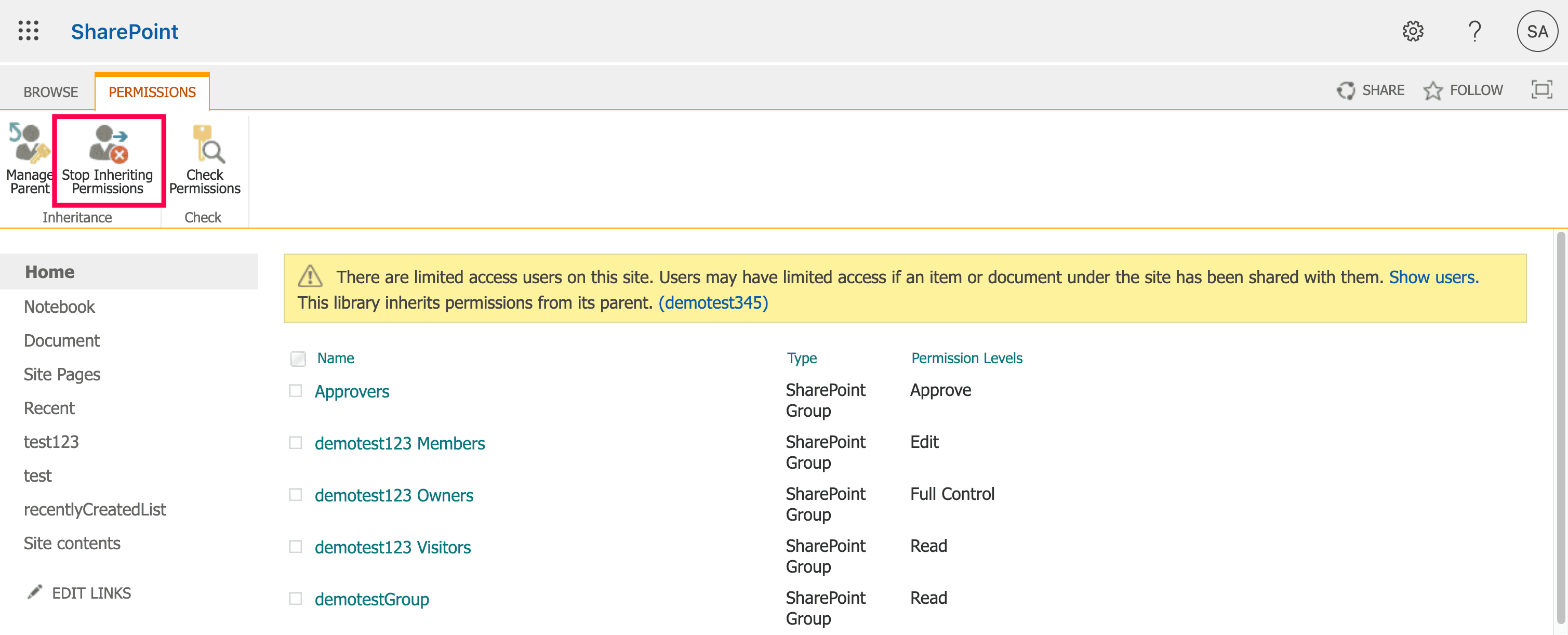
Once inheritance is broken, you can perform Grant and Modify operations from the PERMISSIONS tab:
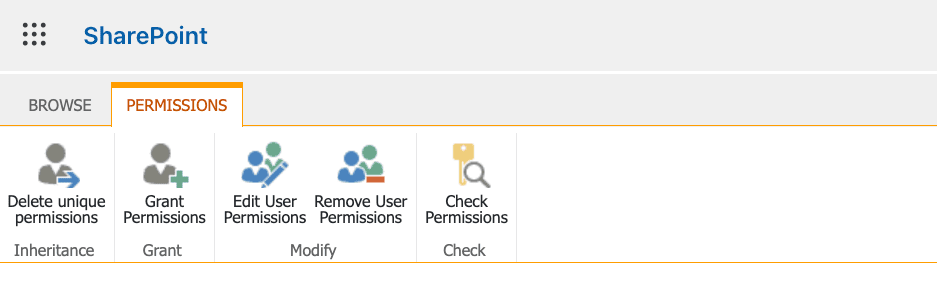


Steps to grant permissions
- Click Grant Permissions. In the pop-up that appears, enter the user or group name you would like to grant permissions to.
- Click SHOW OPTIONS and select your desired permission level from the drop-down.
- Click Share.
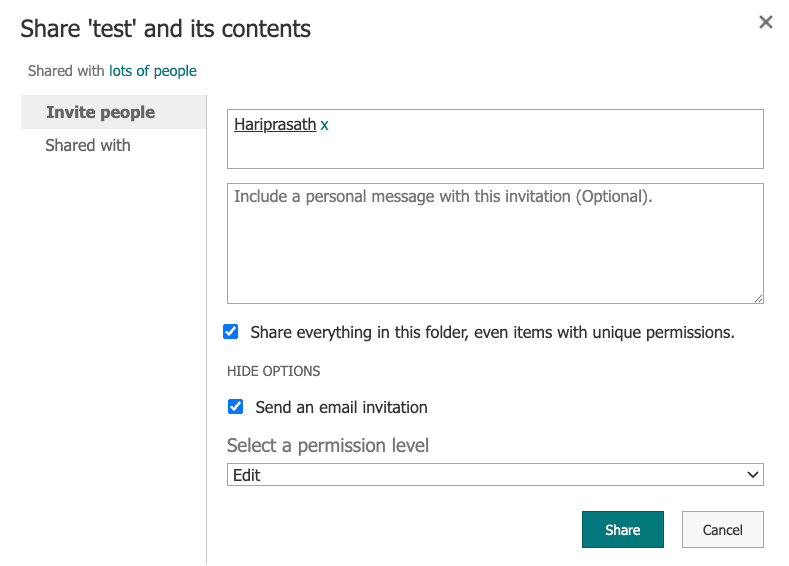

Steps to remove permissions
- On the permissions page, select the check box next to the name of the user or group whose permissions you'd like to remove.
- Select Remove User Permissions from the PERMISSIONS tab and confirm the action.
Steps to edit permissions
- On the permissions page, select the check box next to the name of the user or group whose permissions you'd like to edit.
- Select Edit User Permissions from the PERMISSIONS tab.
- On the Edit Permissions page, use the check boxes to add or remove permissions, then click OK.
Method 2: Windows PowerShell
PowerShell is ideal when you need to manage document library permissions programmatically and in bulk.
Prerequisites
- Before using PowerShell, ensure that:
- You have SharePoint Administrator or Global Administrator rights.
- The PnP.PowerShell module is installed.
- Install and connect to SharePoint Online using the script below.
Install-Module PnP.PowerShell -Scope CurrentUser
Connect-PnPOnline -Url https://tenant.sharepoint.com/sites/ProjectSite -Interactive
Break inheritance on a document library
This command stops the document library from inheriting permissions from its parent site and creates unique permissions for it. The -CopyRoleAssignments parameter ensures existing site permissions are copied to the library before inheritance is broken.
Set-PnPList -Identity "HR Documents" -BreakRoleInheritance -CopyRoleAssignments
Grant permissions to a group
This assigns the Contribute permission level to a SharePoint group for the selected document library.
Add-PnPListRoleAssignment -List "HR Documents" `
                    -Principal "HR Team" `
                    -RoleDefinition "Contribute"
Remove permissions
This removes the assigned permissions for the specified user or group from the document library, immediately revoking their access unless granted elsewhere.
Remove-PnPListRoleAssignment -List "HR Documents" `
                    -Principal "Old User"
Get libraries with unique permissions
This retrieves all document libraries within the site that have broken inheritance and use unique permissions, helping administrators identify and manage permission sprawl.
Get-PnPList | Where-Object {$_.HasUniqueRoleAssignments -eq $true}
Supported parameters
The following parameters can be used to manage document library permissions:
| Parameter | Description |
|---|---|
| -Identity | Defines the name or URL of the library. |
| -BreakRoleInheritance | Stops inheriting permissions. |
| -CopyRoleAssignments | Copies existing site permissions. |
| -Principal | Defines the user or group name. |
| -RoleDefinition | Defines the permission level (Read, Edit, Contribute, etc.). |
| -Connection | Uses an existing connection. |
| -WhatIf | Shows what would happen without applying changes. |
| -Confirm | Prompts for confirmation. |
Method 3: SharePoint Manager Plus
Managing document library permissions individually in the browser or through scripts can be time-consuming, especially in large or hybrid environments. SharePoint Manager Plus provides centralized, bulk permission management across SharePoint sites and libraries.
Steps to manage document library permissions using SharePoint Manager Plus:
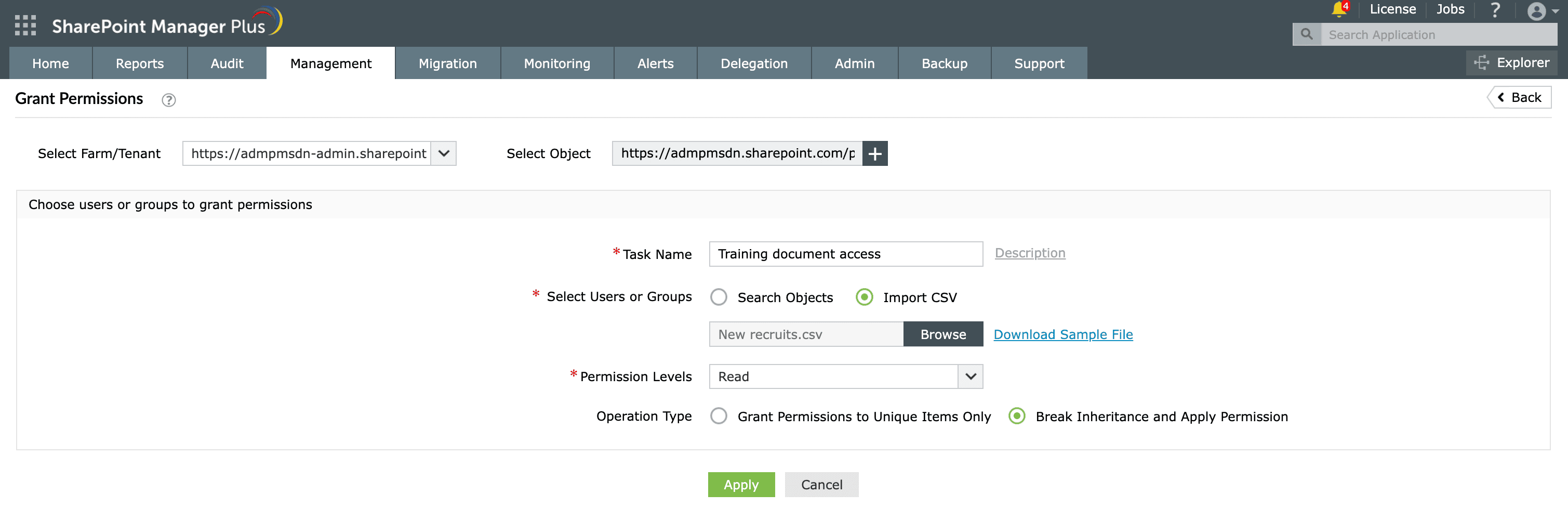
- Navigate to the Management tab. Under Permission Management - Granular, choose if you want to grant, remove, or copy permissions.
- Select the tenant, then use Select Object to choose the document library. Expand the tree as needed.
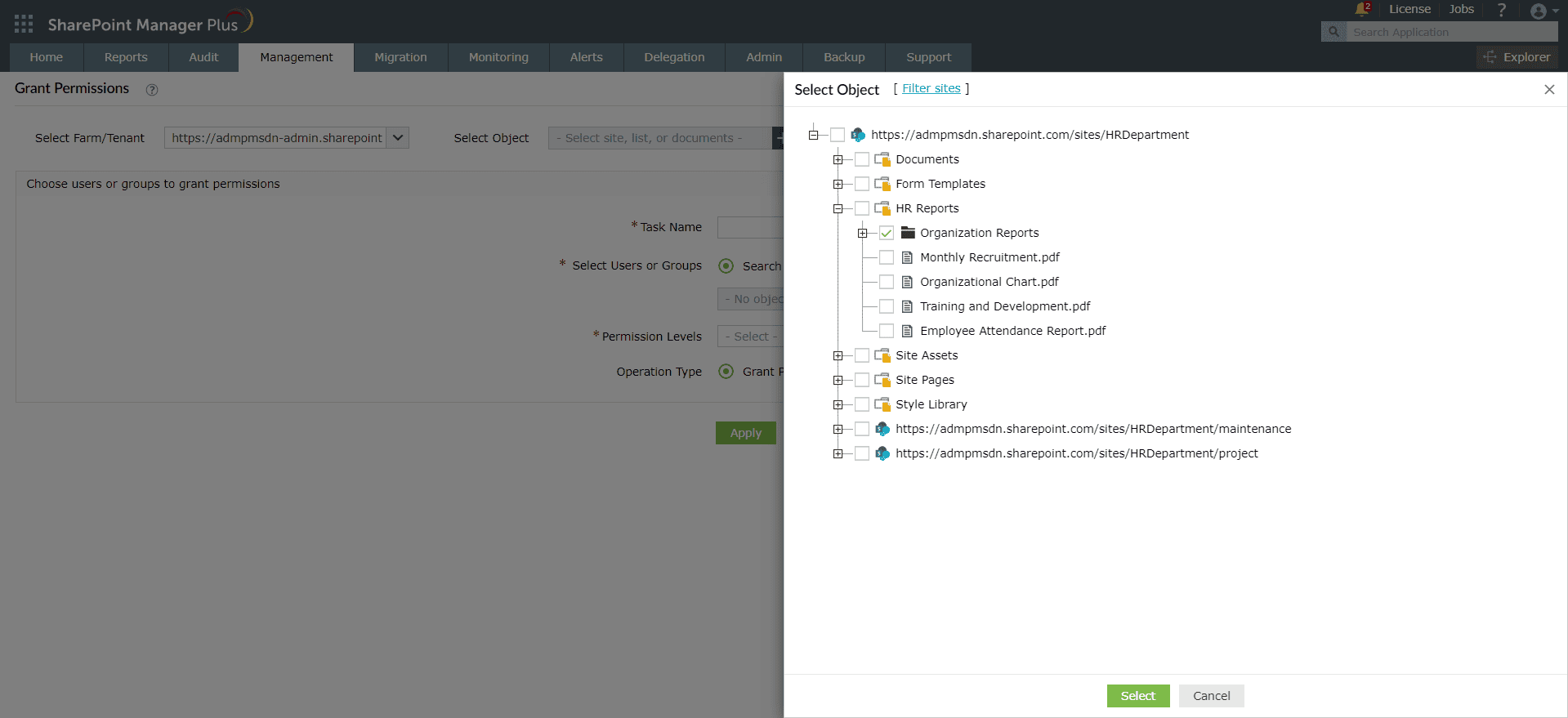
- Click the add icon to select the users or groups you want to grant access to. To add multiple users in bulk, use Import CSV to upload a list.Note:
When copying or moving permissions, use the Source User/Group and Destination User/Group fields instead.
- Use the Permission Levels drop-down to assign the required permission level for the document library.
- In the Operation Type field, specify whether to break inheritance, then click Apply.


Simplify document library permission management today
SharePoint Manager Plus simplifies permission governance with centralized visibility, bulk controls, and detailed reporting—all from a single web-based console.
Bulk permission management
Grant, remove, or copy document library permissions for multiple users at scale in a single operation. Use CSV imports to add users in bulk and eliminate repetitive manual updates.
Detect and fix broken inheritance
Quickly identify document libraries with unique permissions and standardize access where necessary to reduce permission sprawl and security risks.
Permission change auditing
Track permission modifications with detailed logs that show who made the change, what was modified, and when it occurred—supporting compliance and investigations.
Scheduled permission reporting
Automate reports on document library access and export them in CSV, PDF, XLSX, or HTML formats for audits and governance reviews.
Best practices to manage SharePoint library permissions
Follow these best practices to ensure consistent structure, improved usability, and long-term scalability across your SharePoint environment:
Review permission inheritance carefully
Before breaking permission inheritance, evaluate whether the document library truly requires unique settings. Excessive unique permissions increase administrative overhead and make access control harder to manage across sites.
Control permissions at the right level
Understand the hierarchy: library permissions > folder permissions > file permissions. Assigning permissions at the folder or file level should be done sparingly, as deeply nested, unique permissions can lead to confusion and security gaps.
Follow the principle of least privilege
Use appropriate permission levels (Read, Contribute, Edit, or Full Control) and grant users only what they need. Avoid giving Full Control unless absolutely necessary.
Monitor sharing access regularly
Review sharing access, including external users and anonymous links, to prevent unintended exposure of sensitive files. External sharing should align with organizational governance policies.
Use groups instead of direct user assignments
Assign permissions to SharePoint groups rather than individual users wherever possible. This simplifies management and reduces errors during employee onboarding or offboarding.
Frequently asked questions
Permission inheritance means a document library automatically adopts the access settings of its parent site. If inheritance is broken, the library uses unique permissions and must be managed independently.
Unique permissions occur when inheritance is broken. The library no longer follows site-level changes and library permissions must be managed separately.
You can review sharing access through the library's permission settings or by using SharePoint Manager Plus' permission reports.
Permission levels define what users can do, such as Read, Contribute, Edit, or Full Control. Selecting the correct level ensures least privilege. Learn more about SharePoint permission levels.
To give access to a SharePoint document folder, select the folder, click the Share button or three-dot ellipsis, and choose Manage Access. Enter the names or emails of users, set permissions to Can edit or Can view, and click Send.
Third-party tools like SharePoint Manager Plus offer a centralized interface with a hierarchy tree, enabling you to quickly grant folder access to users at scale.
Open the document library and go to Settings > Library settings. From there, you can modify the library name, versioning settings, permissions, metadata columns, and more.
Go to Settings > Library settings > Permissions for this document library. Edit the assigned permission levels and grant users or groups the Read role instead of Contribute or Edit. This restricts users to viewing content without making changes.
Open the document library, select the file or folder, and click Manage access, or navigate to Library settings > Permissions for this document library.
However, these methods can get repetitive over time as they require checking items individually and navigating multiple pop-ups. See how native tools compare with SharePoint Manager Plus to check permissions.
You can share a document library by clicking Share and inviting users or generating a sharing link. Access can be limited to view-only or editing rights, depending on the selected permission level and your organization's sharing policies.

