How to give access to a specific folder in SharePoint
On this page
A SharePoint folder inside a document library allows teams to organize files and collaborate securely. Sometimes, admins would like to grant access to a specific folder without exposing the entire library. This is commonly done by assigning unique permissions to that folder.
If you're an admin wondering how to give access to a SharePoint folder or how to grant access to SharePoint folder permissions, there are many ways to do it. You can use the native SharePoint Online browser interface, automate the process with PowerShell, or manage permissions centrally using SharePoint Manager Plus.
- SharePoint Online
- Windows PowerShell
- SharePoint Manager Plus
Method 1: How to give access to a SharePoint folder using SharePoint Online (browser UI)
Prerequisites
Before you give access to a specific folder in SharePoint, ensure that you have the necessary permissions to manage access for the folder or its parent document library.
You must have one of the following permissions:
- Site owner
- Full Control permissions on the SharePoint site or document library.
Steps
- Sign in to SharePoint Online.
- Navigate to the site that contains the document library.
- Open the document library and locate the folder or subfolder you want to share.
- Select the folder and click Share from the toolbar at the top of the page, or select the ellipses
 button next to the file name, open Manage access, and choose Share.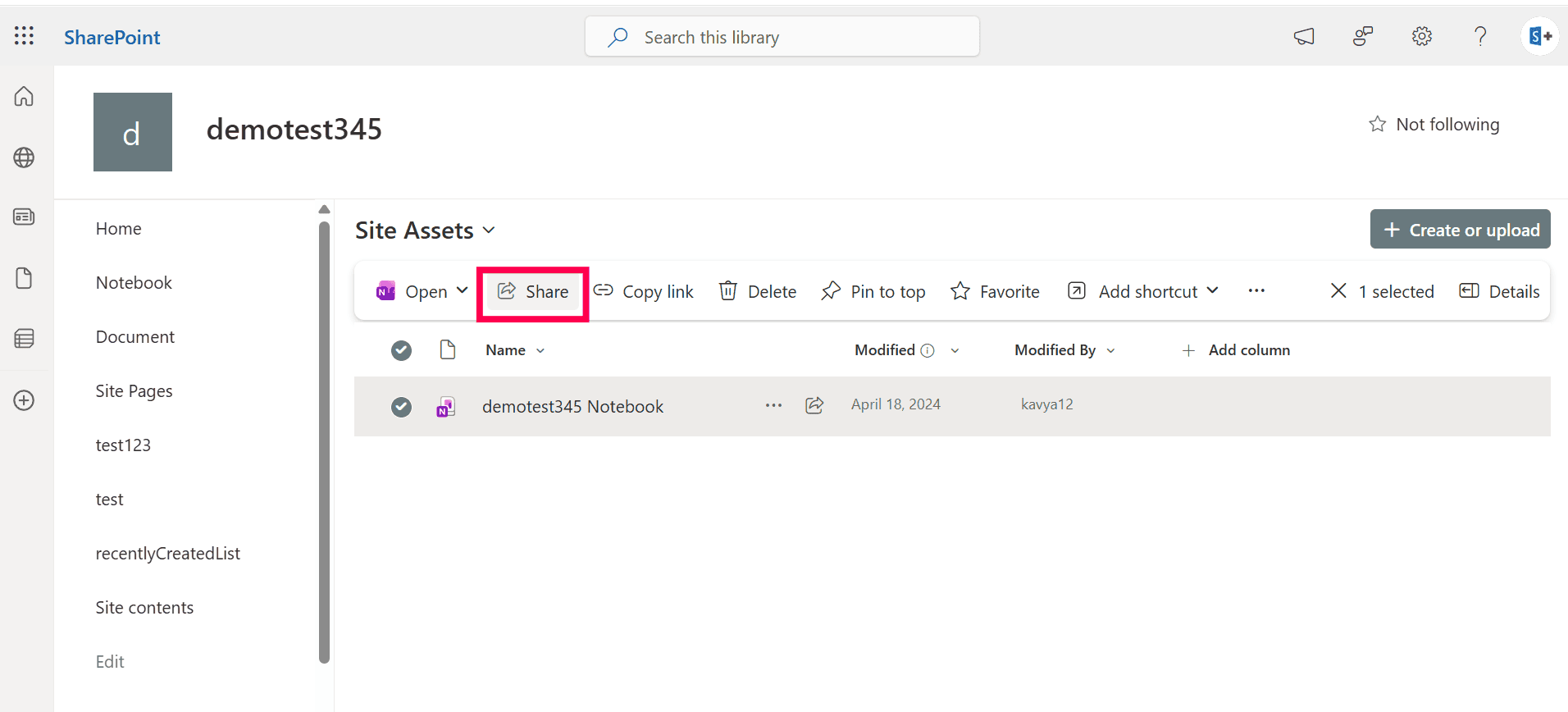
The Share dialog box will appear with where you can specify the users.
- Enter the name or email address of the users or groups you'd like to grant folder access to.
- Select the appropriate permission level:
- Can view
- Can edit
- Select whether the access should be limited to internal users or allowed for external users.
- Click Send or Copy link to complete the sharing process.
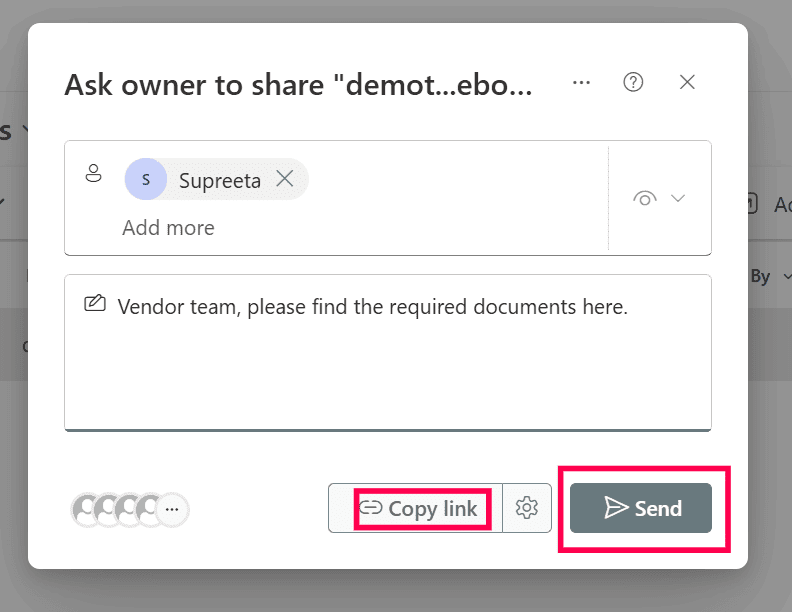
When permissions are assigned directly to a folder, SharePoint may break permission inheritance from the parent document library, creating unique permissions for that folder.


Limitations to consider
- Managing permissions folder by folder can become hard in large environments.
- Microsoft documents a support limit of 50,000 unique permissions per individual list or library, with 5,000 unique permissions per list or library recommended as the general limit for optimal performance.
- Admins may struggle to track SharePoint folder access permissions across multiple sites.
- Native tools provide limited reporting on who has access to which folders or files.
Method 2: How to grant access to a SharePoint folder using PowerShell
PowerShell is useful when admins need to automate permission management or grant access to folders across multiple sites.
Prerequisites
- Before using PowerShell, ensure that:
- You have SharePoint Administrator or Global Administrator rights.
- The PnP.PowerShell module is installed.
- Install and connect to SharePoint Online using the script below:
Install-Module PnP.PowerShell -Scope CurrentUser
Connect-PnPOnline -Url https://tenant.sharepoint.com/sites/ProjectSite -Interactive
Grant access to a specific SharePoint folder
Use the following command to grant permissions to a folder inside a document library.
Set-PnPFolderPermission `
-List "Documents" `
-Identity "Project Files" `
-User "user@domain.com" `
-AddRole "Edit"
Supported parameters
The following parameters can be used while giving access to a specific folder in SharePoint.
| Parameter | Description |
|---|---|
| -List | Specifies the document library name |
| -Identity | Defines the folder or subfolder path |
| -User | Specifies the user email |
| -AddRole | Assigns permission role |
Method 3: How to grant access to a SharePoint folder using SharePoint Manager Plus
While native tools allow manual configuration, SharePoint Manager Plus simplifies SharePoint permission management with a centralized graphical interface, allowing admins to manage folder access in a script-free manner.
Steps to grant access to a SharePoint folder using SharePoint Manager Plus:
- Sign in to SharePoint Manager Plus.
- Navigate to the Management tab.
- Under Permission Management - Granular, select Grant Permissions - Granular.
- Select the farm or tenant using the drop-down menu.
- Select the specific folder you'd like to grant access to by clicking the
 icon next to the Select Object field. Keep clicking the icon to view the items under an object.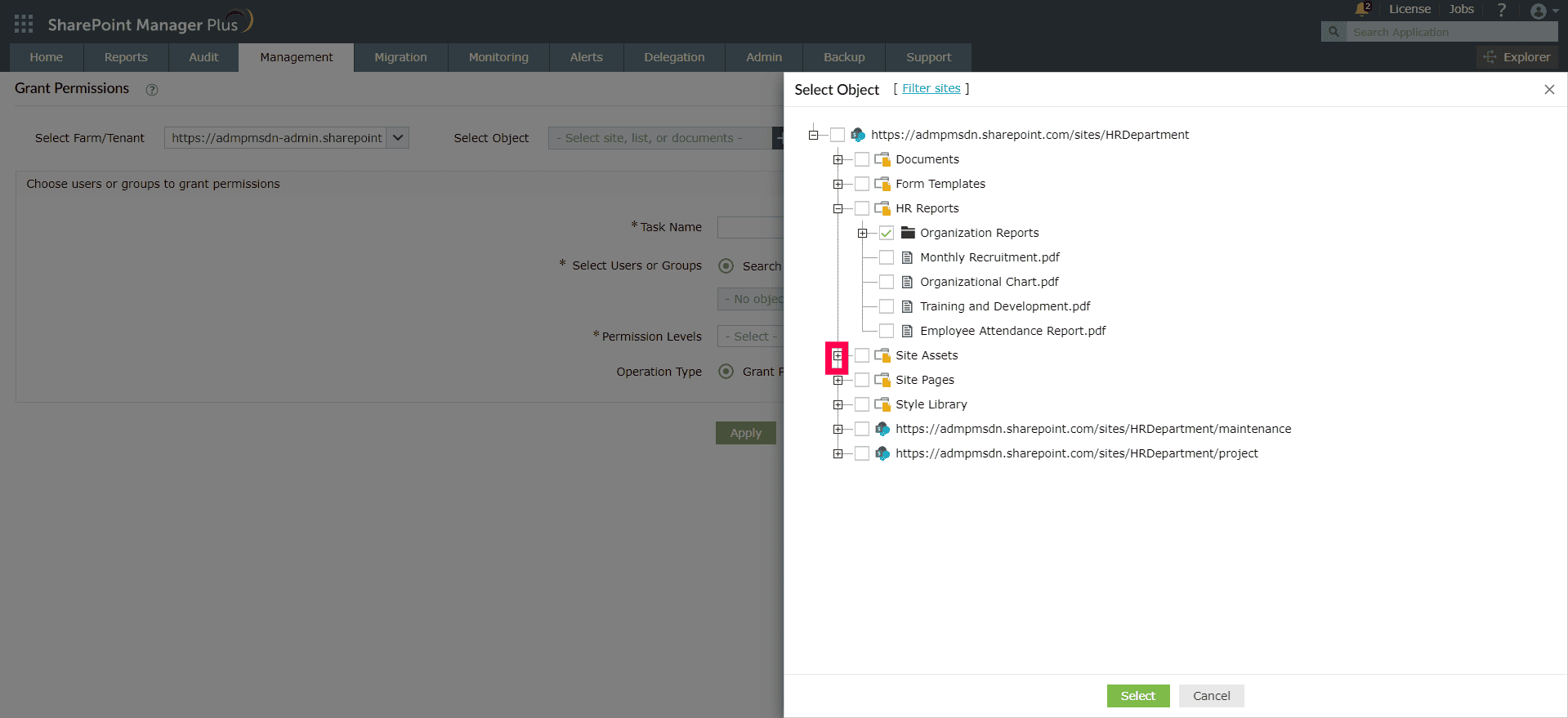
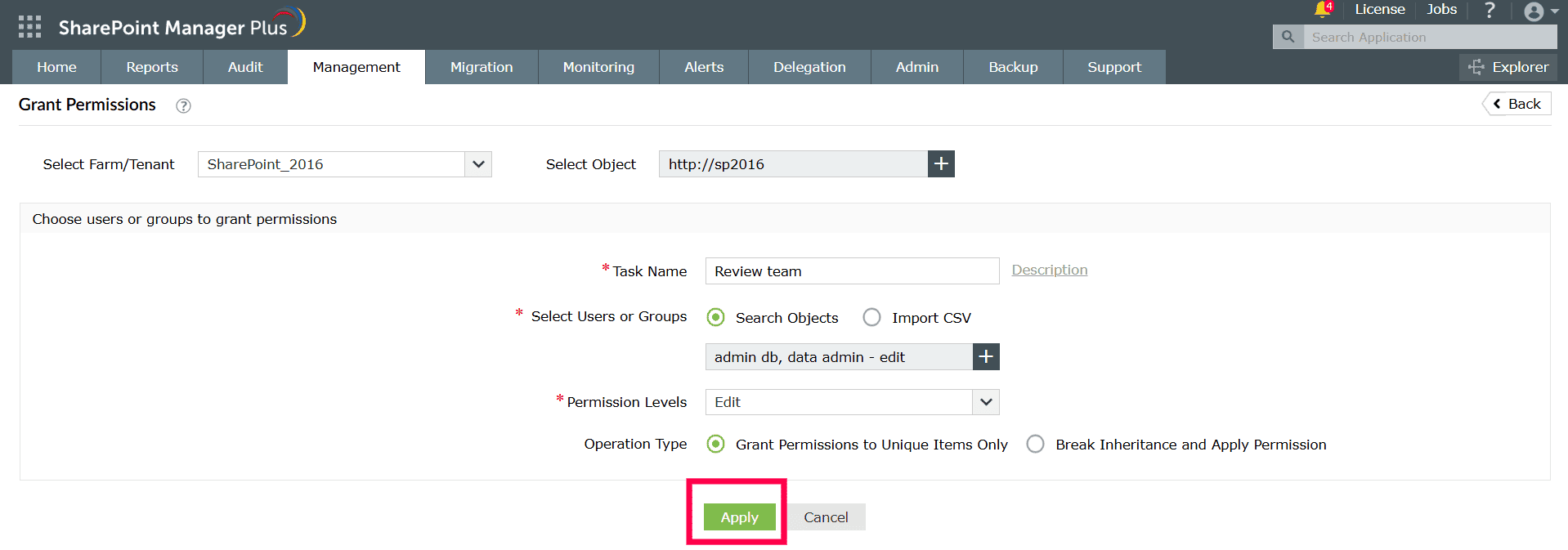
- Select the users or groups you want to grant access to by using the Search Objects option, then click the icon to include them. To select and upload a list of users or groups in bulk, use the Import CSV option.
- Use the Permission Levels drop-down to assign the required permission level for that folder.
- In the Operation Type field, choose if you'd like to break inheritance or not while granting access, then click Apply.


Simplify SharePoint management today
SharePoint Manager Plus simplifies permission governance with centralized visibility, bulk controls, and detailed reporting—all from a single console.
Bulk permission management
Grant, remove, or copy permissions for multiple users at scale in a single operation. Use CSV imports to add users in bulk and eliminate repetitive manual updates.
Detect and fix broken inheritance
Quickly identify document libraries with unique permissions and standardize access where necessary to reduce permission sprawl and security risks.
Permission change auditing
Track permission modifications with detailed logs that show who made the change, what was modified, and when it occurred—supporting compliance and investigations.
Scheduled permission reporting
Automate reports on document library access and export them in CSV, PDF, XLSX, or HTML formats for audits and governance reviews.
Best practices to manage SharePoint folder permissions
Understand permission inheritance
Folders typically inherit permissions from the parent document library. If you want a folder to have different access settings, you must break inheritance and create unique permissions.
Review internal and external access
When granting access through the Share dialog box, check whether the user is internal or external. Organizations may have policies controlling external sharing in Microsoft 365.
Avoid excessive unique permissions
Too many folders with unique permissions can make it difficult to manage access and audit security later.
Audit folder access regularly
Before duplicating lists across multiple production sites using PowerShell, validate your script on a test site to confirm columns, views, and data copy correctly.
FAQs
In SharePoint Online, unique permissions occur when a folder, file, or item stops inheriting permissions from its parent document library or site. This allows admins to grant access to a specific SharePoint folder or restrict access to selected users or groups. Unique permissions are commonly used when sensitive files inside a library must be accessible only to certain users. Managing these permissions carefully helps maintain secure SharePoint folder access permissions.
In SharePoint Online, the four main folder permissions are:
- Full Control: Complete administrative control, including permission management.
- Edit: Allows users to add, modify, and delete files or folders.
- Contribute: Allows users to add and edit files but limits certain structural changes.
- Read: Allows users to view files and folders without making changes.
To view who has access to a folder in SharePoint Online, open the document library, locate and right-click the folder, then select Manage access. This displays the users, groups, and sharing links that currently have access to the folder.
A shared drive is a centralized storage location where multiple users can access and manage files at the drive level. On the other hand, a shared folder is a specific folder inside a storage system or document library that has been shared with selected users. In SharePoint Online, admins mostly grant access to a SharePoint folder instead of the entire library to ensure more controlled SharePoint folder access permissions.
To remove access to a SharePoint folder in SharePoint Online, open the folder inside the document library, select the folder, select the ellipses button, then click Manage access. Locate the user or group whose access you want to remove, open the permission drop-down next to their name, and select Stop sharing. If the folder has unique permissions, removing the user immediately revokes their access to that specific folder. Admins can also manage or audit SharePoint folder access permissions across multiple sites using tools like SharePoint Manager Plus.

