Simplify Active Directory Cleanup Using ADManager Plus
Ad cleanup can sometimes be overlooked, but it is important to the success of ad campaign management.
Accounts reach a point where active directory cleanup is crucial for streamlining tasks and keeping records up to date.
Over time, users, computers, groups and GPOs become obsolete and need to be deleted.
ADManager Plus helps you trace all inactive, disabled, and account-expired users and computers in Active Directory.
To adhere to GDPR legislation and your organisation’s in-house policies for Active Directory housekeeping ADManager Plus can scrub away the unnecessary accounts by deleting them. Clean up Active Directory effectively and efficiently by automatically identifying stale accounts and disabling, enabling or moving accounts to quarantine them.
Besides enhancing the security and performance of Active Directory and its performance, ADManager Plus' automated AD cleanup also helps you save significant time by eliminating the need to use command line tools and PowerShell scripts.
Active Directory Cleanup Features
Some of the key ad cleanup tool features of ADManager Plus include:
- Find user or computer accounts not logged on within X number of days
- Find expired and unused Active Directory accounts
- Enable and disable, move, or delete inactive AD accounts, including users, computers, groups, contacts, and more.
- Fetch disabled accounts, last logon/logoff time, OS type, etc.
- Export report to CSV, XLS, HTML, PDF and CSVDE
Finding Stale Accounts On Your Network
ADManager Plus helps you detect and remove inactive AD accounts by allowing you to generate reports and perform management actions such as deleting, disabling, or moving them to a different OU, right from these reports.
From within these reports, you can manage dormant or stale accounts in bulk, delete, disable, or move them to another OU.
How The Active Directory Cleanup Tool Works
Move, disable, or delete dormant or stale user or computer accounts
A reliable Active Directory infrastructure should always ensure that the existing accounts are enabled and obsolete accounts are disabled or deleted, for optimum productivity and security. Active Directory user account status is very speculative as it is subjected to numerous password policies and other limitations; so in a small organisation administrator can manually check the account status and eventually modify them. But for medium and large organisations, a tool which can detect the status of user and computer accounts and delete, disable, or move them subsequently is preferable.
ADManager Plus, with its built-in delete, disable, and move features, helps administrators maintain the status of Active Directory accounts up to date. Clean up your Active Directory by deleting stale accounts or managing single or multiple accounts with the disable or move feature by selecting them from any one of the user or computer reports such as inactive users, account-expired users, inactive computers, and more.
Administrators can generate reports on inactive users or computers along with reports on disabled or expired accounts, and manage them from the reports themselves. For example, they can delete the users or computers, or move them to a different OU.
How it works


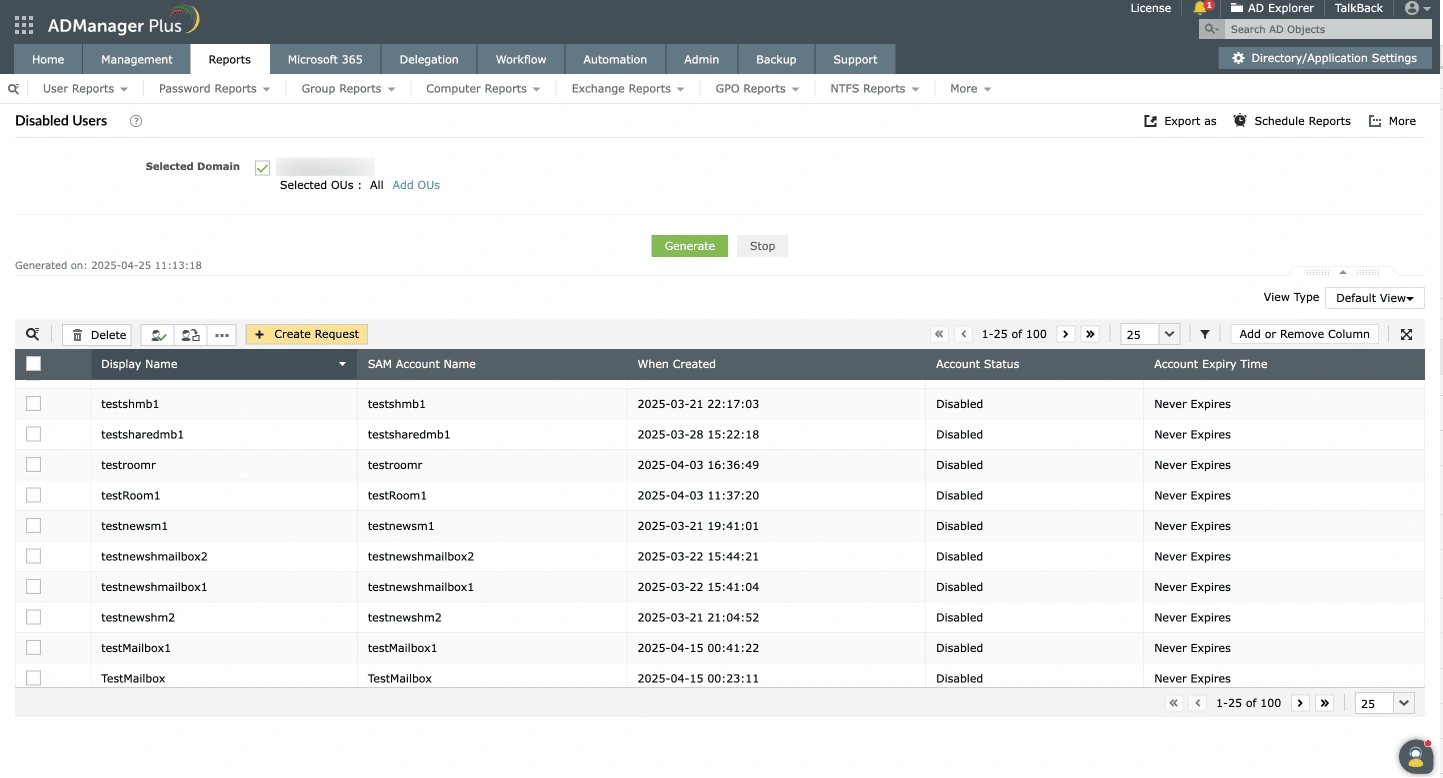
Disabled Accounts
With ADManager Plus, you can easily generate the list of user or computer accounts that are disabled. The userAccountControl attribute is used to locate the disabled users in the domain. You can manage these accounts easily by deleting them or moving the accounts to another OU. You can also delete, enable, or move multiple disabled accounts at the same time. See how to move user accounts.
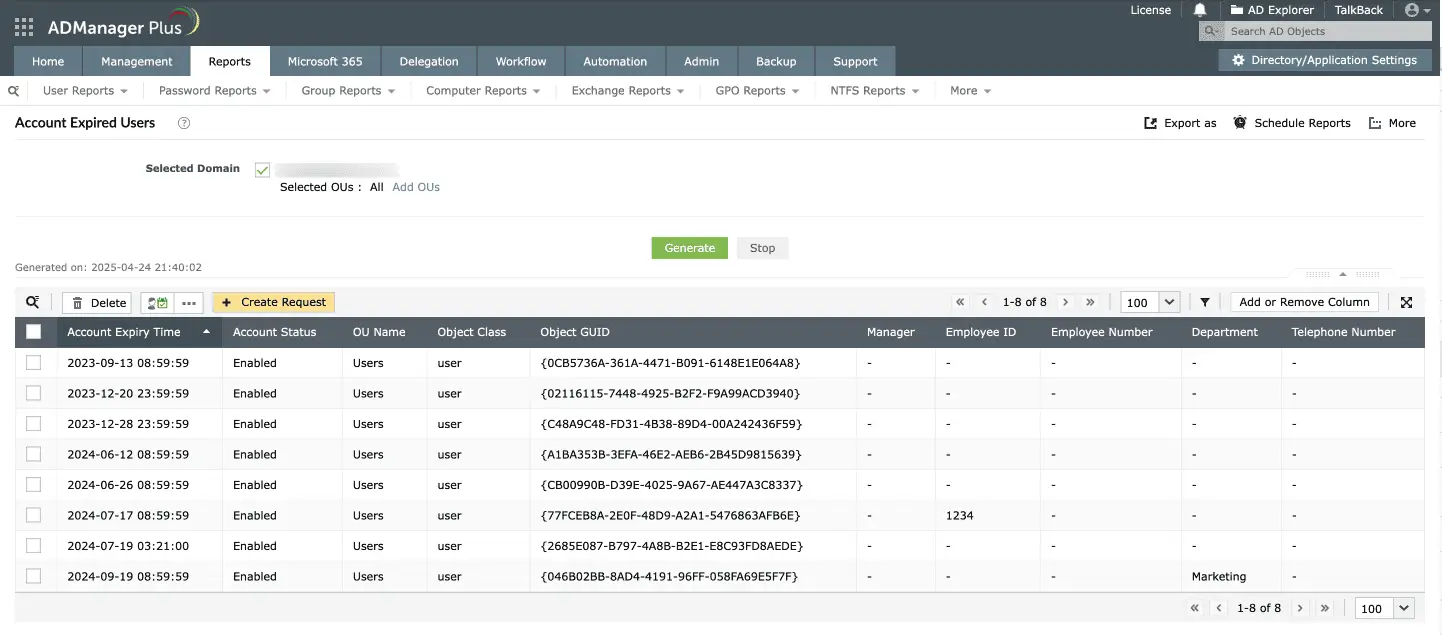
Account Expired Users
Active Directory user accounts that have gone obsolete for a long time might have expired without either the user or the administrator knowing about them. Writing a script to find expired accounts can be tedious. ADManager Plus report generator scans the Active Directory and gives you a list of all expired accounts. Right from the report, admins can proactively secure their network by deleting users, disabling users or moving expired users to another OU. You can also print and export account expired and other important reports like locked out users to XLS, CSV, PDF, HTML, and more.
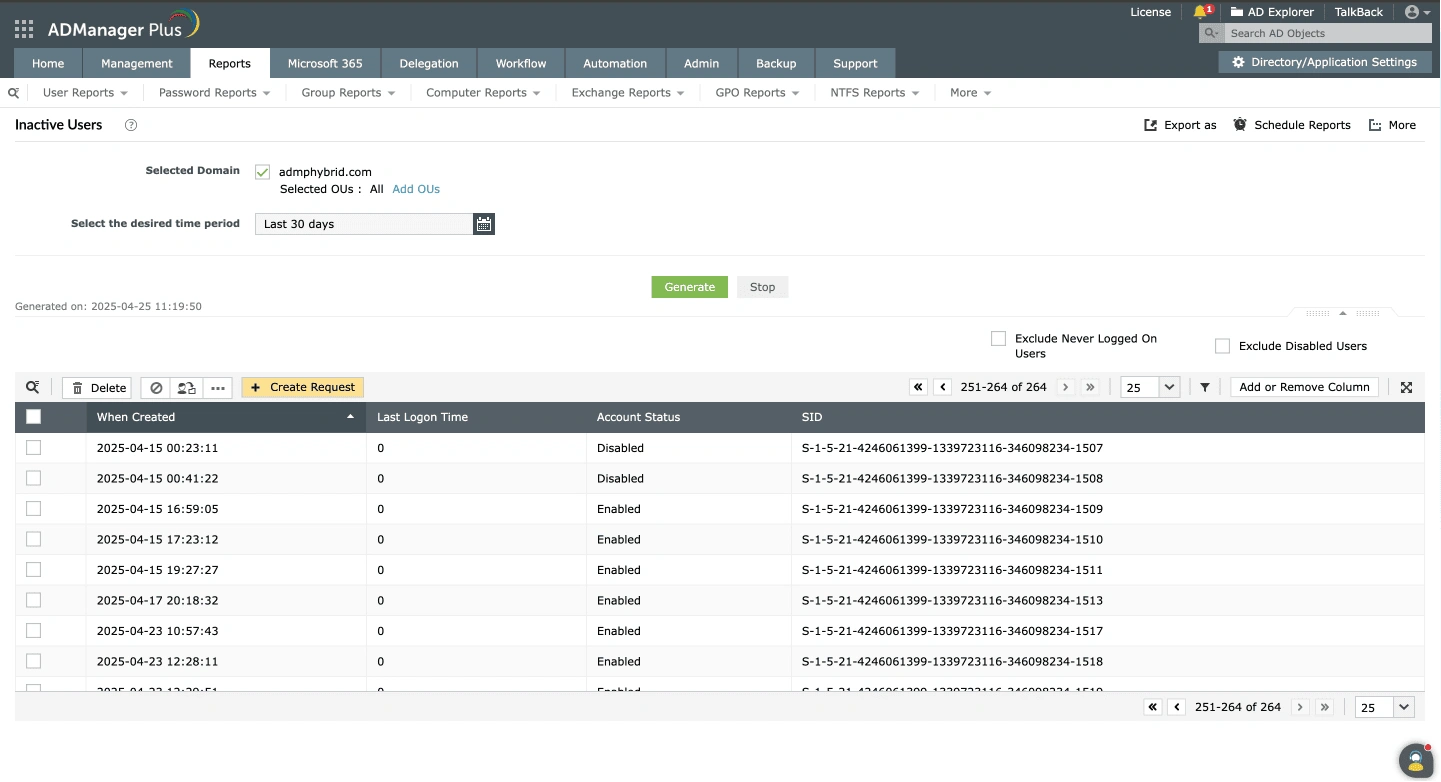
Inactive AD user accounts
Using ADManager Plus you can retrieve inactive AD user accounts, that is, accounts that have not been used to log in to the domain within the last 30, 60, or more days. Click here to learn how.
Active Directory groups clean up
AD users are added to and removed from AD groups from time to time, especially in a complex, dynamic Windows environment. Over a period, it might result in some groups that have no members. Such empty groups serve no practical purposes and simply add up to AD management burdens. Fortunately, the capabilities of ADManager Plus extend beyond identifying and deleting (or moving) just the user and computer objects. The Groups Without Members report queries the LDAP for all the groups within the selected domain(s), verifies their membership status, and locates all the empty groups (i.e., groups without any members) in a given domain and delete them right from the reports window.
Cleaning up Active Directory GPOs
In most AD environments, there are outdated GPOs. Cleaning up such GPOs is crucial to unclutter your Active Directory and keep it more organised and secure. So, if you are wondering how to clean up your Active Directory GPOs effectively, then ManageEngine ADManager Plus is your go-to tool. It is is loaded with the following GPO-related reports which have built-in options to clean up your GPOs right from the report.
- Disabled GPOs
- Unused GPOs
- Computer Settings Disabled GPOs
- User Settings Disabled GPOs
The Disabled GPOs report provides a list of all GPOs in which both the user and computer configuration settings have been disabled. You can generate a list of group policy objects that aren't being used from the Unused GPOs report. Similarly, the Computer Settings Disabled GPOs and User Settings Disabled GPOs reports enable you to list GPOs with the computer settings disabled and the user settings disabled respectively.
Automated AD cleanup
ADManager Plus also takes things up a notch and lets you automate or semi-automate your AD cleanup operations. You can configure multiple automation policies as needed. The key benefit of AD automation is that you can select from any of the predefined automation categories along with the objects that have to be managed automatically and also specify the desired execution time. For instance, you can configure an automation policy that lets you move all the inactive users in a domain to a separate OU once every X months, retain them there for Y days, and then delete those accounts.
Other extensive built-in Active Directory reports
Sarbanes-Oxley Act (SOX)
ADManager Plus provides out-of-the-box Active Directory reports that can be generated instantly and exported in various formats such as HTML, PDF, XLSX, and CSV.
If your organisation uses AD to deal with financial data in the network, you will have to meet the compliance requirements related to SOX. For more information on SOX and how ADManager Plus can be of great help in assisting your organisation to meet SOX compliance requirements, please refer to this article.
Featured links
FAQs
Follow these steps to find inactive users in AD using ADManager Plus.
- Launch ADManager Plus and log in with appropriate credentials.
- Go to the Reports tab and select Inactive Users under User Reports.
- Select the desired domain or organisational unit (OU) to search.
- Specify the preferred time duration for identifying inactive users.
- Click on Generate to get a list of inactive users.
Follow these steps to find inactive computers in AD using ADManager Plus.
- Launch ADManager Plus and log in with appropriate credentials.
- Go to the Reports tab and select Inactive Computers under Computer Reports.
- Select the desired domain or OU to search.
- Set the criteria for inactivity based on parameters such as Last Logon Time or Password Last Set Time.
- Specify the desired time period for inactive computers.
- Click on Generate to retrieve a list of inactive computers based on the specified criteria.
- Regularly review and remove inactive or unused user accounts.
- Disable or delete unnecessary security groups or distribution lists.
- Clean up outdated or unused Group Policy Objects.
- Audit and remove unnecessary user and computer objects.
- Ensure proper delegation and permission management.
- Implement strong password policies and regularly enforce password changes.
- Keep track of stale DNS records and remove them.
- Regularly review and update access control lists and file permissions.
- Perform regular backups and test restoration processes.
Other Features
Active Directory Management
Make your everyday Active Directory management tasks easy and light with ADManager Plus's AD Management features. Create, modify and delete users in a few clicks!
Bulk User Management
Fire a shotgun-shell of AD User Management Tasks in a Single Shot. Also use csv files to manage users. Effect bulk changes in the Active Directory, including configuring Exchange attributes.
Microsoft 365 Reports
Pre-defined O365 user-specific reports: all users & inactive users, license based reports: licensed / unlicensed users, license details, and group-based reports: distribution lists, security groups, etc.
Active Directory Delegation
Unload some of your workload without losing your hold. Secure & non-invasive helpdesk delegation and management from ADManager Plus! Delegate powers for technician on specific tasks in specific OUs.
Microsoft Exchange Management
Create and manage Exchange mailboxes and configure mailbox rights using ADManager Plus's Exchange Management system. Now with support for Microsoft Exchange 2010!!
Active Directory automation
A complete automation of AD critical tasks such as user provisioning, inactive-user clean up etc. Also lets you sequence and execute follow-up tasks and blends with workflow to offer a brilliant controlled-automation.
Need Features? Tell Us
If you want to see additional features implemented in ADManager Plus, we would love to hear. Click here to continue.