The following is a comparison between performing AD cleanup with Windows PowerShell and ADManager Plus, an AD management tool.
Screenshot
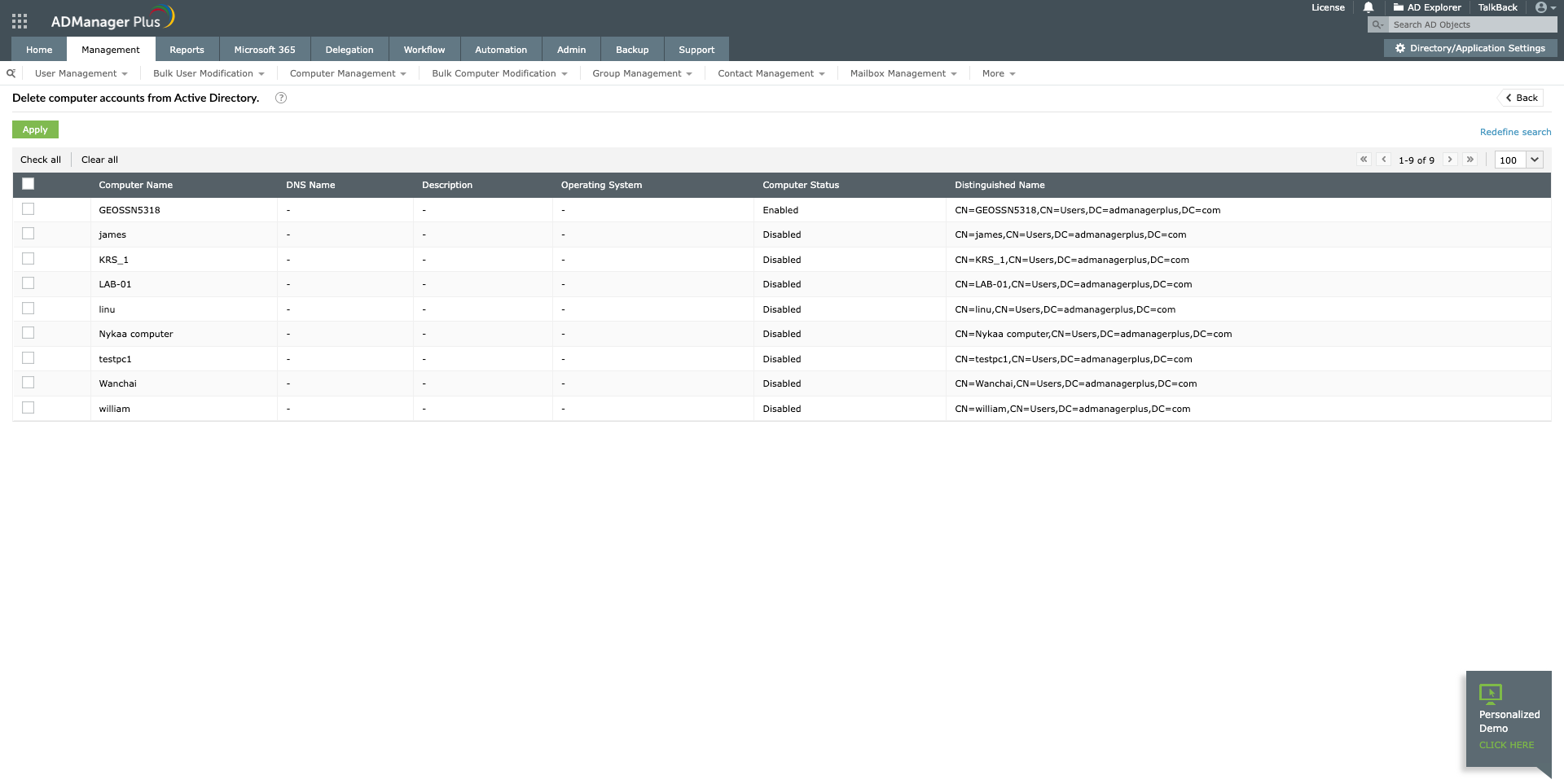
ADManager Plus can perform AD objects’ cleanup in bulk armed with just a CSV file from a simple and intuitively designed UI.
Automate and schedule the cleanup of stale accounts with ADManager Plus.
Get 30-day free trial.Your download should begin automatically in 15 seconds. If not, click here to download manually.
For AD User Management
For AD User Reporting
For GPO Management
For Password Management
For AD Group Management
For File Access Management
For AD Computer Management
For Office 365 Management
For Exchange Management
For Microsoft Graph PowerShell
Entra ID user management
Entra ID reporting
Entra ID group management and reporting
Entra ID domain management
Entra ID contact management and reporting
Other Entra ID tasks
For Azure AD PowerShell
Entra ID user management
Entra ID reporting
Entra ID group management
Entra ID group reporting
Entra ID domain management
Entra ID contact management and reporting
Other Entra ID tasks


