Disabling an Active Directory (AD) account is the standard way to cut off a user's access without erasing anything. The account object, its group memberships, and all its attributes stay intact but every authentication attempt is blocked from that moment on. It's the preferred move in most offboarding, security-incident, and extended-leave scenarios, as it is instant and fully reversible.
Disabling an account updates the userAccountControl attribute by setting the corresponding disable flag. The change can be made through the graphical console or with a simple command, and it works the same way for both user and computer accounts. This guide covers three ways to disable an AD account: Using Active Directory Users and Computers (ADUC), using the Disable-ADAccount PowerShell cmdlet, and using ADManager Plus, including how to do each at scale and automate the process.
When an AD account is disabled, the directory blocks any new authentication using that account, but nothing is removed. The object keeps its SID, group memberships, mailbox, home directory, and every attribute. Re-enabling it restores access exactly as it was. That reversibility is the whole point: disabling is a pause, not a deletion.
Administrators typically disable an account when:
A disabled account is blocked immediately and stays blocked until an admin re-enables it. An expired account (set via the accountExpires attribute) stays fully usable until a scheduled date, then blocks logon on its own. A deleted account is removed from the directory, recoverable only from the AD Recycle Bin or a backup within the tombstone window. Reach for disabling when you need an immediate, reversible block with no fixed end date.
Before you can disable an account, two things need to be in place—the right permissions and the right tools:
To confirm the AD PowerShell module is available, import it by running this command:
									Import-Module ActiveDirectory

									Get-Module -Name ActiveDirectory
The ActiveDirectory module's Disable-ADAccount cmdlet does the work. Its -Identity parameter accepts a sAMAccountName, distinguished name, SID, or GUID:
Disable-ADAccount -Identity "jsmith"
That single command disables the account immediately, blocking any further sign-ins. To review the change before committing, add the -WhatIf flag, which reports what would happen without applying it:
Disable-ADAccount -Identity "jsmith" -WhatIf
Confirm the result by reading the account's Enabled property using the Get-ADUser cmdlet, which returns False once the account is disabled:
Get-ADUser -Identity jsmith | Select-Object Name, Enabled
To list every disabled user in a container, useful for spot-checks and reporting, filter on the same property:
									Get-ADUser -Filter 'Enabled -eq $false' -SearchBase "OU=Employees,DC=corp,DC=com" |

									Select-Object Name, sAMAccountName
Computer objects are accounts too, and you disable them for decommissioned hardware, machines being re-imaged, or endpoints you want to isolate. The same Disable-ADAccount cmdlet works. Reference the computer by its name with a trailing $:
Disable-ADAccount -Identity "WKSTN-0421$"
When a whole team leaves or a department is restructured, disabling accounts one by one doesn't scale. Prepare a CSV with a single sAMAccountName column listing the accounts, then pipe it through Disable-ADAccount:
									Import-Csv "C:\temp\disable-list.csv" | ForEach-Object {

									Disable-ADAccount -Identity $_.sAMAccountName

									}
For safety on large batches, wrap the operation with error handling so one bad row doesn't halt the run, and do a dry run first with -WhatIf:
									Import-Csv "C:\temp\disable-list.csv" | ForEach-Object {

									try {

									Disable-ADAccount -Identity $_.sAMAccountName -ErrorAction Stop

									Write-Host "Disabled: $($_.sAMAccountName)"

									} catch {

									Write-Warning "Failed: $($_.sAMAccountName) - $($_.Exception.Message)"

									}

									}
Stale accounts that no one use are a standing security risk, so many organizations disable any account that hasn't authenticated within a specified period. The Search-ADAccount cmdlet finds them with its -AccountInactive switch and a -TimeSpan threshold, and you pipe the results straight into Disable-ADAccount:
									Search-ADAccount -AccountInactive -TimeSpan (New-TimeSpan -Days 90) -UsersOnly |

									Disable-ADAccount
This disables every user account that has been inactive for 90 days or more. Run it on a schedule with Task Scheduler to enforce the policy continuously. Note that a scheduled raw script has no approval step or audit trail, which is where a management tool earns its place.
The following parameters can be used for disabling tasks in PowerShell.
| Parameter | Description |
|---|---|
| -Identity | The account to disable, given as SamAccountName, distinguished name, SID, or GUID. |
| -WhatIf | Previews the action without applying it. |
| -Confirm | Prompts for confirmation before disabling. |
| -Server | Targets a specific DC. |
| -Credential | Runs the command as a different account. |
| -AuthType | Sets the authentication method (Negotiate or Basic). |
| -PassThru | Returns the account object after disabling it. |
The ADUC console is the quickest way to disable a single account through a graphical interface:
Tip: If the menu shows Enable Account instead of Disable Account, the account is already disabled. Enable View > Advanced Features to inspect the raw userAccountControl value in the Attribute Editor if you need to confirm the state.
ManageEngine ADManager Plus is a unified AD, Exchange, and Microsoft 365 management tool that disables accounts—one, many, or on a policy—from a point-and-click console, with no scripting and a full audit trail behind every action.
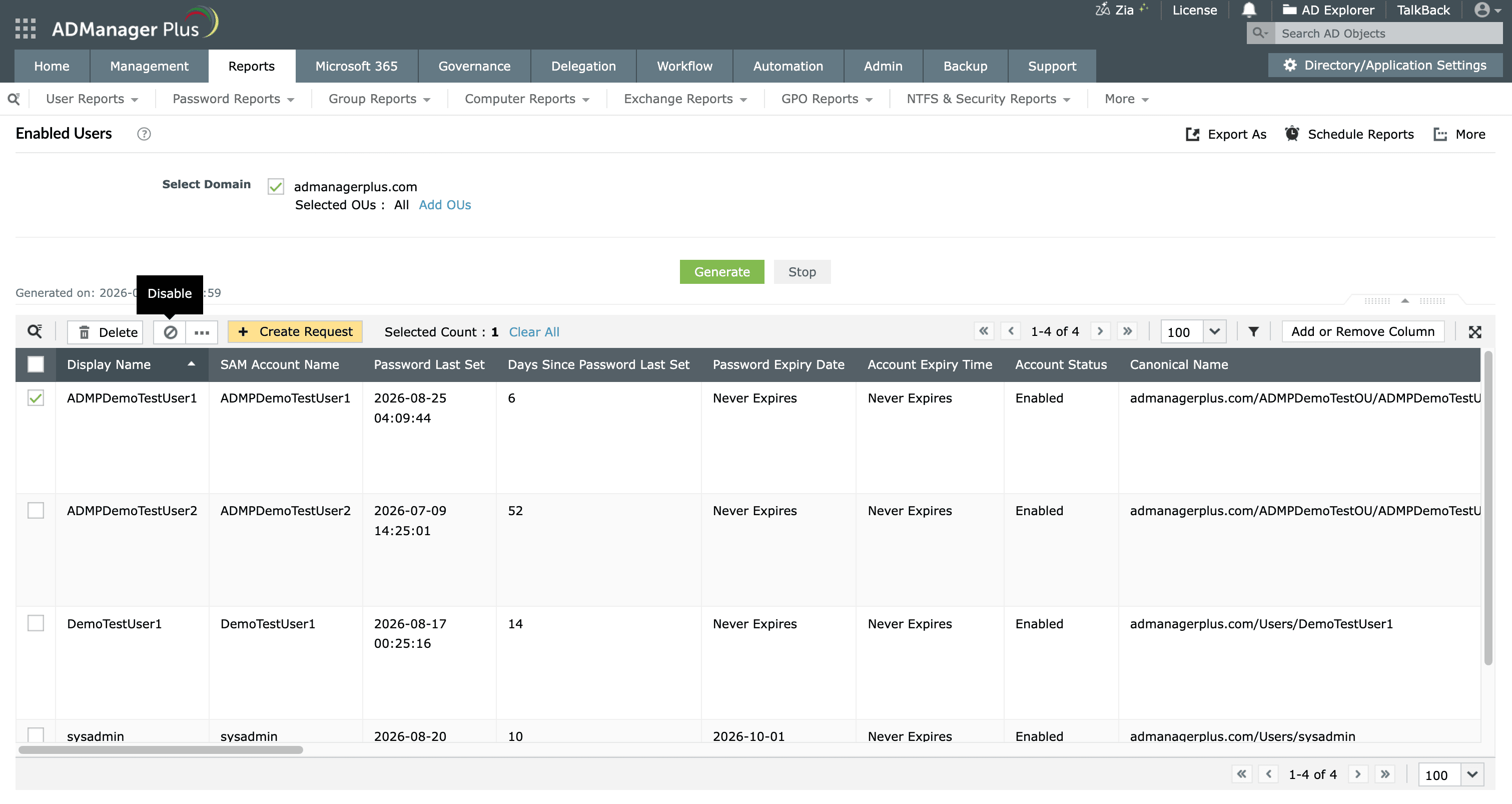
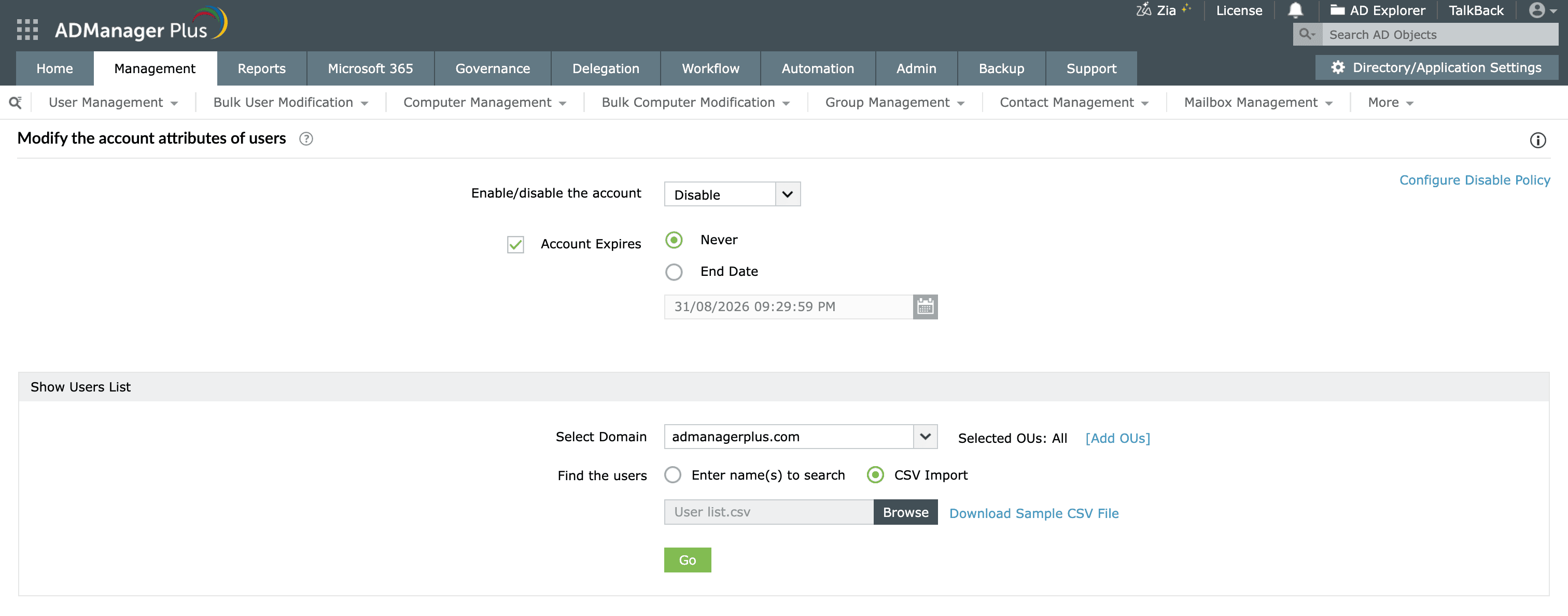
Rather than scheduling scripts, use ADManager Plus Automation to run an Inactive Users report on a recurring basis and disable the matches automatically.
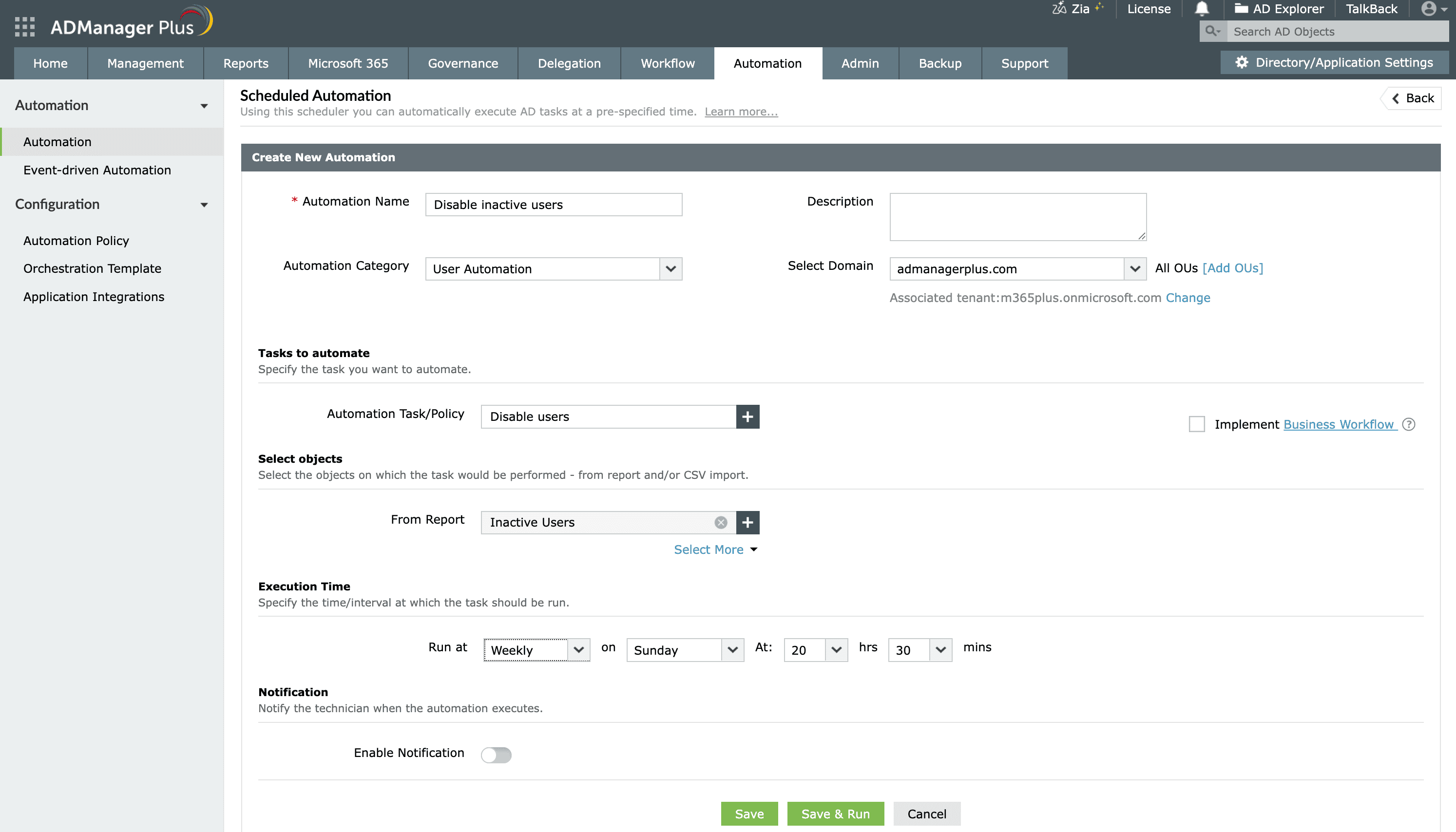
To take this further, chain the automation to a review-and-approve workflow so a manager signs off before the accounts are disabled, and associate notifications that alert the admin, the manager, and the user. The same automation can move or eventually delete the accounts as later stages of a joiner-mover-leaver (JML) process.
ADUC and PowerShell both help disable accounts, but they show their limits at scale:
ADManager Plus replaces scripts and one-off console edits with a single place to disable, track, and delegate account changes:
Disabling an account in AD sets a flag in the account's userAccountControl attribute that tells AD to reject every logon attempt for that account. The account object and all its data remain in the directory, so the block takes effect immediately and can be reversed at any time by re-enabling the account.
When an AD account is disabled, the user can no longer authenticate to the domain or access any resource that relies on AD credentials such as email, file shares, applications, and VPNs. Active sessions may persist until their tokens expire, but no new sign-ins succeed. Group memberships, mailboxes, and all attributes are preserved untouched.
| Disabled account | Expired account | |
|---|---|---|
| How it's triggered | Admin action (manual or scripted) | A date reached in accountExpires |
| When logon is blocked | Immediately | Only after the set expiration date |
| Reversal | Re-enable the account | Change or clear the expiration date |
| Typical use | Offboarding, incidents, leave | Contractors, interns, time-boxed access |
Both expired and disabled AD accounts block authentication while preserving the account; the difference is whether the block is immediate and manual or scheduled.
To disable a computer account, open ADUC, find the machine under the Computers container or its OU, right-click, and choose Disable Account. In PowerShell, run Disable-ADAccount -Identity "MACHINENAME$". Note the trailing $, which denotes a computer object.
Use Get-ADUser with a filter on the Enabled property to find all disabled accounts with PowerShell:
Get-ADUser -Filter 'Enabled -eq $false'
Add -SearchBase to limit the query to a specific OU, and pipe to Select-Object or Export-Csv to produce a report of disabled accounts.
No, disabling an account is not the same as deleting it. Disabling is reversible and keeps the account and all its data in place, while deleting removes the object from the directory. A deleted account can only be recovered from the AD Recycle Bin or a backup within the tombstone window, and re-created accounts get a new SID. It is a best practice to disable first and delete later once you're certain the account is no longer needed.

