Organizational units (OUs) are the containers that give Active Directory (AD) its shape. Administrators create OUs to organize departments, accommodate new devices, and reflect organizational changes. The reason OUs matter is because Group Policy and delegated permissions both attach at the OU level, so where an object lives decides what policy it receives and who can manage it.
This guide shows three ways to create an OU: Using Active Directory Users and Computers (ADUC), with the New-ADOrganizationalUnit cmdlet, and with ADManager Plus. It also covers the prerequisites, bulk creation from a CSV, and what to do once the OU exists.
An OU is a container in AD that holds users, computers, groups, and other OUs. Unlike the default containers such as Users and Computers, an OU can have Group Policy Objects (GPOs) linked directly to it and can have administrative control delegated over it. This makes OUs the primary building block for structuring a domain.
In practice, admins create OUs to:
Before creating an OU, make sure you have the right access and tools:
For the PowerShell method, import the module first by running the following command:
Import-Module ActiveDirectory
For single OU creation, ADUC offers a quick way:
Note: Nesting works the same way. Right-click the parent OU instead of the domain and repeat. If you prefer a newer interface, the Active Directory Administrative Center (dsac.exe) does the same job.
When you want something repeatable or scriptable, New-ADOrganizationalUnit creates an OU in a single line. Give it a name and add -Path, which is the distinguished name of the parent that will hold it:
New-ADOrganizationalUnit -Name "Sales" -Path "DC=corp,DC=com"
That puts a top-level Sales OU directly under corp.com. For a nested OU, point -Path at the parent OU's distinguished name:
New-ADOrganizationalUnit -Name "East" -Path "OU=Sales,DC=corp,DC=com"
You can fill in attributes in the same call, provide a description and the ManagedBy owner:
									New-ADOrganizationalUnit -Name "Sales" -Path "DC=corp,DC=com" `

									-Description "Sales department" -ManagedBy "CN=Jane Smith,OU=Staff,DC=corp,DC=com"
Note: New-ADOrganizationalUnit sets ProtectedFromAccidentalDeletion to $true by default. However, this means you can't move or delete the OU until you turn the flag off.
If you don't want it, add -ProtectedFromAccidentalDeletion $false.
Check that the OU is there, and grab its distinguished name (you'll need it for anything you create inside), with Get-ADOrganizationalUnit:
Get-ADOrganizationalUnit -Filter 'Name -eq "Sales"' | Select-Object Name, DistinguishedName
Add the OUs in a CSV with Name and Path columns, one row each, and run them through New-ADOrganizationalUnit:
									Import-Csv "C:\temp\ous.csv" | ForEach-Object {

									New-ADOrganizationalUnit -Name $_.Name -Path $_.Path

									}
Note that a parent OU has to exist before its children, so order the CSV top-down (or sort by path depth) before the loop runs, otherwise the child rows will fail.
A Microsoft Entra Domain Services (formerly Azure AD Domain Services) managed domain doesn't give you a DC to log into. Instead, you create custom OUs from a domain-joined management VM, using the same tools, ADUC or New-ADOrganizationalUnit, while signed in as a member of the AAD DC Administrators group. Microsoft owns the built-in AADDC Users and AADDC Computers OUs, but any custom OUs you create for your own objects are yours to manage.
The following parameters can be used while creating OUs in AD.
| Parameter | Description |
|---|---|
| -Name | The name of the new OU. |
| -Path | The distinguished name of the parent domain or OU where the OU is created. Defaults to the domain root if omitted. |
| -Description | A description for the OU. |
| -ManagedBy | The user or group designated as the OU's manager. |
| -ProtectedFromAccidentalDeletion | Whether the OU is protected from deletion. Defaults to $true. |
| -Server | The DC to run the command against. |
An empty OU doesn't do anything yet. Two things usually come next. First, link a Group Policy Object to it, which is how the OU's settings actually reach the users and computers inside. Second, put objects in it. To create a user straight into the new OU, pass the OU's distinguished name as -Path:
New-ADUser -Name "Mark Day" -Path "OU=Sales,DC=corp,DC=com" -Enabled $true
Objects that already exist can be moved in with Move-ADObject, or just dragged into place in ADUC.
ADManager Plus is a web-based tool for managing AD, Exchange, and Microsoft 365. It creates OUs (one or many) from a GUI, with no scripting and an audit trail behind every change.
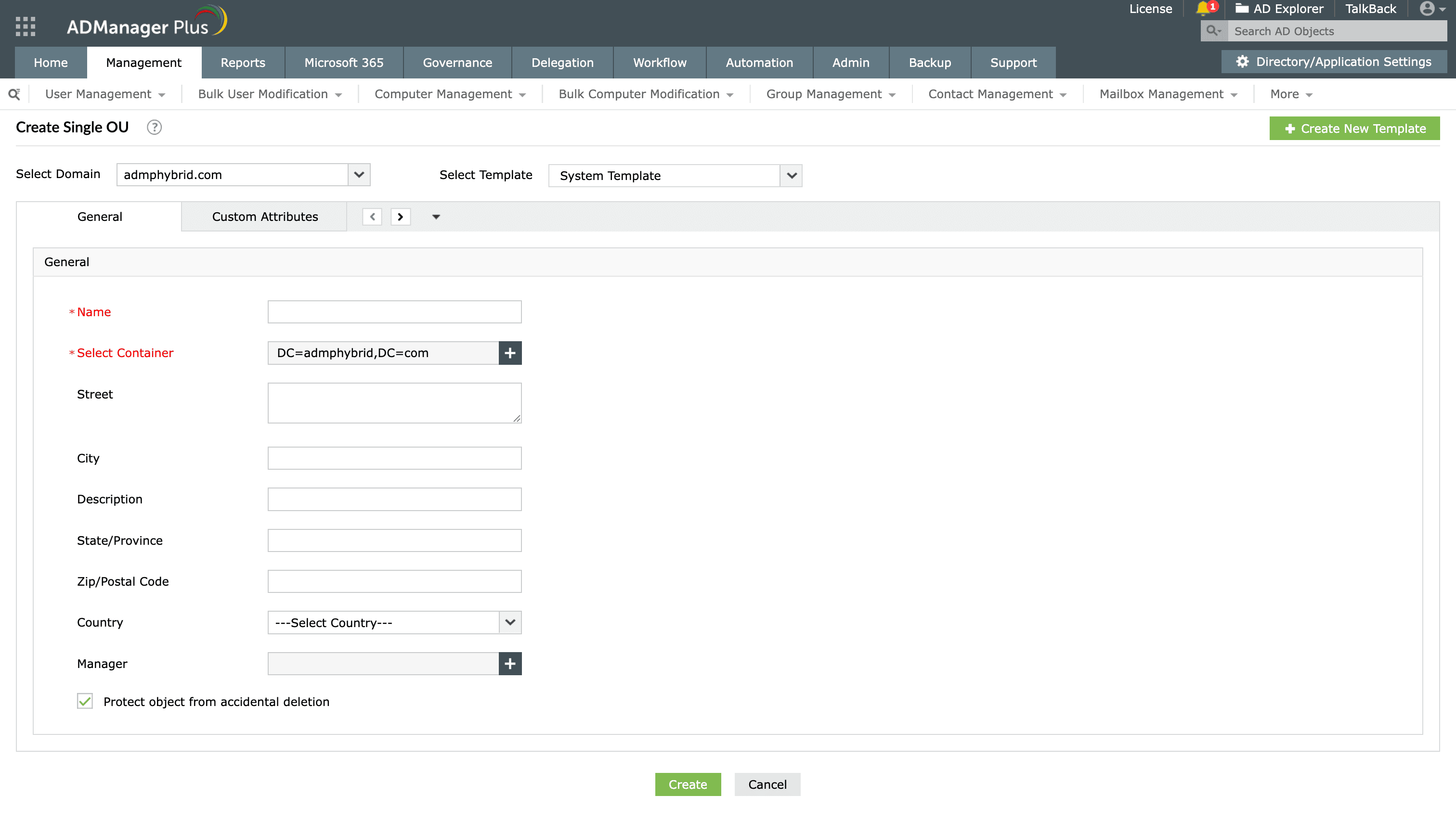
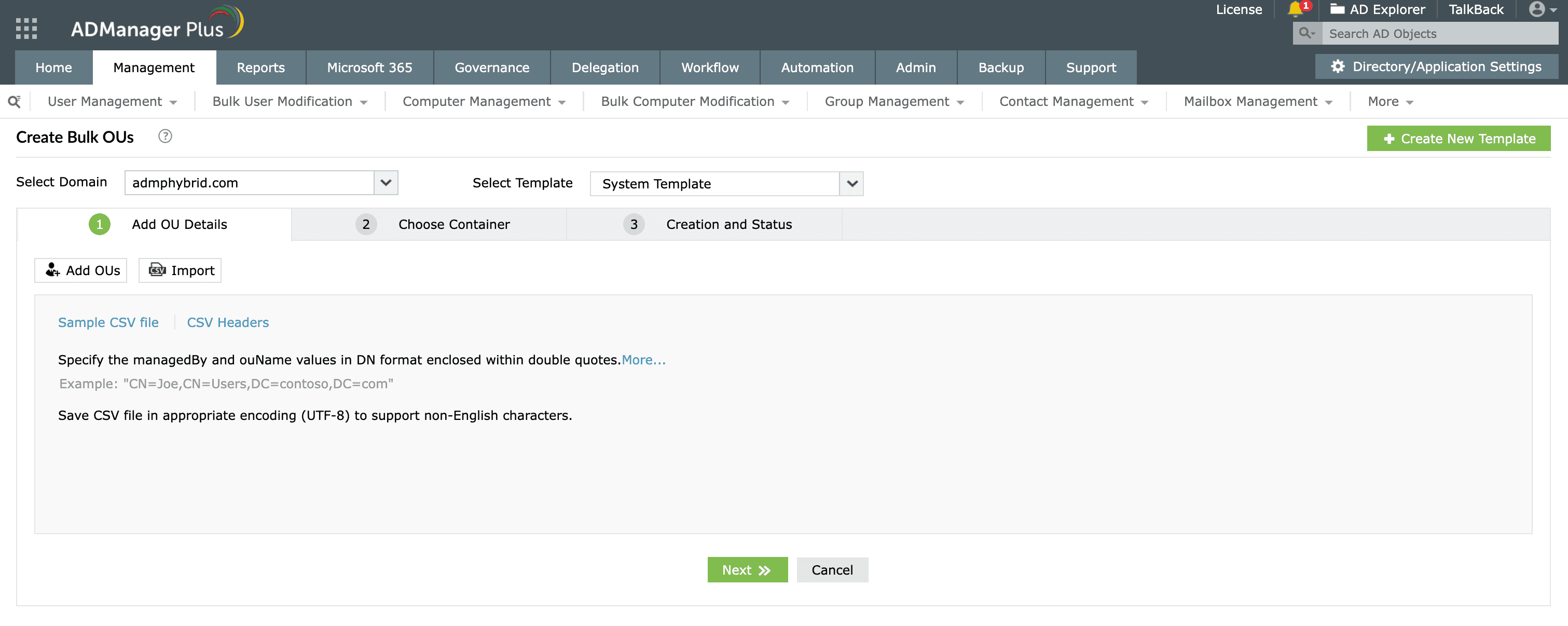
For many OUs at once, the same OU Management section takes a CSV of names and attributes, or a creation template that stamps the same properties onto every OU.
ADUC and PowerShell both create OUs reliably, but each shows its limits as the directory and the team grow:
ADManager Plus is a unified tool for managing and reporting on AD, Microsoft 365, and Exchange, and OU creation is just a small part of what it does.
Organizational units (OUs) sit in the Active Directory Users and Computers (ADUC) console tree, under the domain. Standard OUs like domain controllers (DCs) show up by default; to see every container, turn on View > Advanced Features. To get a list of all OUs with PowerShell, run Get-ADOrganizationalUnit -Filter *.
In ADUC, turn on View > Advanced Features, open the OU's Properties, select the Attribute Editor tab, and locate the distinguishedName attribute. With PowerShell, run the following command:
Get-ADOrganizationalUnit -Filter * | Select-Object Name, DistinguishedName
to see every OU with its full path, or filter by name for one.
ADManager Plus simplifies this with prebuilt OU reports that list OU properties, including the distinguished name.
The "protect container from accidental deletion" option sets the ProtectedFromAccidentalDeletion flag, which stops the OU from being moved or deleted until you clear it. To delete a protected OU later, clear the flag first, either on the Object tab in ADUC (with Advanced Features on) or with Set-ADOrganizationalUnit using PowerShell.
You can create multiple OUs at once by using PowerShell. Put the OUs in a CSV with Name and Path columns, then pipe it through New-ADOrganizationalUnit in a ForEach-Object loop, ordered so parent objects come before their children. ADManager Plus does bulk creation from a CSV or template through its GUI, without any scripts.
A Microsoft Entra Domain Services (formerly Azure AD Domain Services) managed domain doesn't give you a DC to log into. Instead, you create custom OUs from a domain-joined management virtual machine (VM), using ADUC or New-ADOrganizationalUnit in PowerShell, while signed in as a member of the AAD DC Administrators group.
Microsoft owns the built-in AADDC Users and AADDC Computers OUs, but any custom OUs you create for your own objects are yours to manage.

