Direct Inward Dialing: +1 408 916 9393
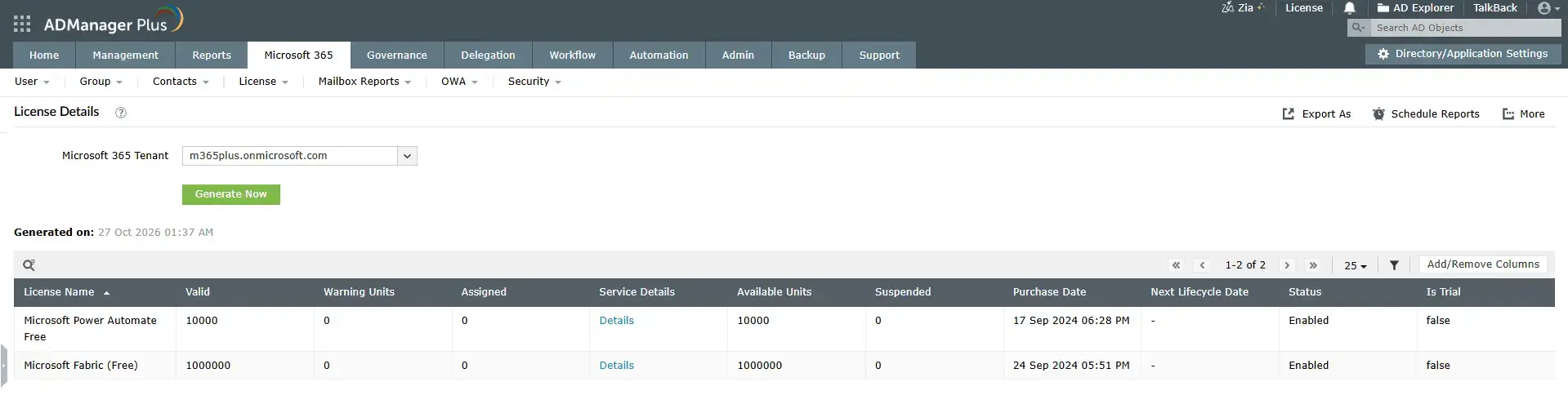
Generate a Microsoft 365 license usage report showing how many licenses each subscription holds, how many are assigned, and who holds them. Use the Microsoft 365 admin center, Microsoft Graph PowerShell, or ManageEngine ADManager Plus.
Install-Module Microsoft.Graph -Scope CurrentUser
Connect-MgGraph -Scopes "User.Read.All", "Organization.Read.All"
$skus = Get-MgSubscribedSku -All
$skus | Select-Object SkuPartNumber, ConsumedUnits, @{ Name = "PurchasedUnits"; Expression = { $_.PrepaidUnits.Enabled } }, @{ Name = "AvailableUnits"; Expression = { $_.PrepaidUnits.Enabled - $_.ConsumedUnits } }$skuLookup = @{}
$skus | ForEach-Object { $skuLookup[$_.SkuId] = $_.SkuPartNumber }
Get-MgUser -Filter 'assignedLicenses/$count ne 0' -ConsistencyLevel eventual -CountVariable licensedCount -All -Property DisplayName, UserPrincipalName, AccountEnabled, AssignedLicenses | Select-Object DisplayName, UserPrincipalName, AccountEnabled, @{ Name = "Licenses"; Expression = { ($_.AssignedLicenses.SkuId | ForEach-Object { $skuLookup[$_] }) -join "; " } } | Export-Csv -Path "C:\Reports\M365LicensedUsers.csv" -NoTypeInformationGet-MgUserLicenseDetail -UserId "user@contoso.com"
Look up the subscription's SkuId, then filter users on it.
$sku = Get-MgSubscribedSku -All | Where-Object SkuPartNumber -eq "SPE_E5"
Get-MgUser -Filter "assignedLicenses/any(x:x/skuId eq $($sku.SkuId))" -ConsistencyLevel eventual -CountVariable skuUserCount -All
AssignedByGroup is empty for direct assignments and holds the group's ID for licenses inherited from a group.
Get-MgUser -UserId "user@contoso.com" -Property LicenseAssignmentStates |
    Select-Object -ExpandProperty LicenseAssignmentStates |
Select-Object SkuId, AssignedByGroup, State| Parameter | Description |
|---|---|
| -Scopes | The Microsoft Graph permissions to request for the session. |
| -TenantId | The tenant to connect to. |
| -ClientId | The application (client) ID of the app registration used for app-only sign-in. |
| -CertificateThumbprint | The thumbprint of the certificate used for app-only sign-in. |
| Parameter | Description |
|---|---|
| -All | Returns all subscriptions instead of a single page of results. |
| -Property | Returns only the listed properties, such as SkuPartNumber and ServicePlans. |
| Parameter | Description |
|---|---|
| -Filter | Returns users that match an OData filter, such as assignedLicenses/$count ne 0. |
| -ConsistencyLevel | Set to eventual for advanced queries on properties such as assignedLicenses. |
| -CountVariable | Stores the number of matching users in the named variable and is used with advanced queries. |
| -All | Returns all matching users instead of a single page of results. |
| -Property | Returns the listed properties, such as AssignedLicenses and AccountEnabled. |
| -UserId | The object ID or user principal name of a single user. |
| Parameter | Description |
|---|---|
| -UserId | The object ID or user principal name of the user whose license details you want. |
| -Property | Returns only specific properties of the license details, such as ServicePlans. |
This script counts how many users hold each license in every department, limited to the licenses listed in $includeSkus.
Connect-MgGraph -Scopes "User.Read.All", "Organization.Read.All" -NoWelcome
# SkuPartNumbers to count. Leave empty to count every license.
$includeSkus = "SPE_E3", "SPE_E5"
$skuLookup = @{}
Get-MgSubscribedSku -All | ForEach-Object { $skuLookup[$_.SkuId] = $_.SkuPartNumber }
$userQuery = @{
    Filter = 'assignedLicenses/$count ne 0'
    ConsistencyLevel = "eventual"
    CountVariable = "licensedCount"
    All = $true
    Property = "DisplayName", "Department", "AssignedLicenses"
}
$licensedUsers = Get-MgUser @userQuery
$assignments = foreach ($user in $licensedUsers) {
    $department = if ($user.Department) { $user.Department } else { "(None)" }
    foreach ($license in $user.AssignedLicenses) {
        $sku = $skuLookup[$license.SkuId]
        if ($includeSkus -and $sku -notin $includeSkus) { continue }
        [pscustomobject]@{ Department = $department; License = $sku }
    }
}
$report = $assignments | Group-Object Department, License | ForEach-Object {
    [pscustomobject]@{
        Department = $_.Group[0].Department
        License = $_.Group[0].License
        Users = $_.Count
    }
} | Sort-Object Department, License
$report | Format-Table -AutoSize
$report | Export-Csv -Path "C:\Reports\LicenseCountByDepartment.csv" -NoTypeInformation
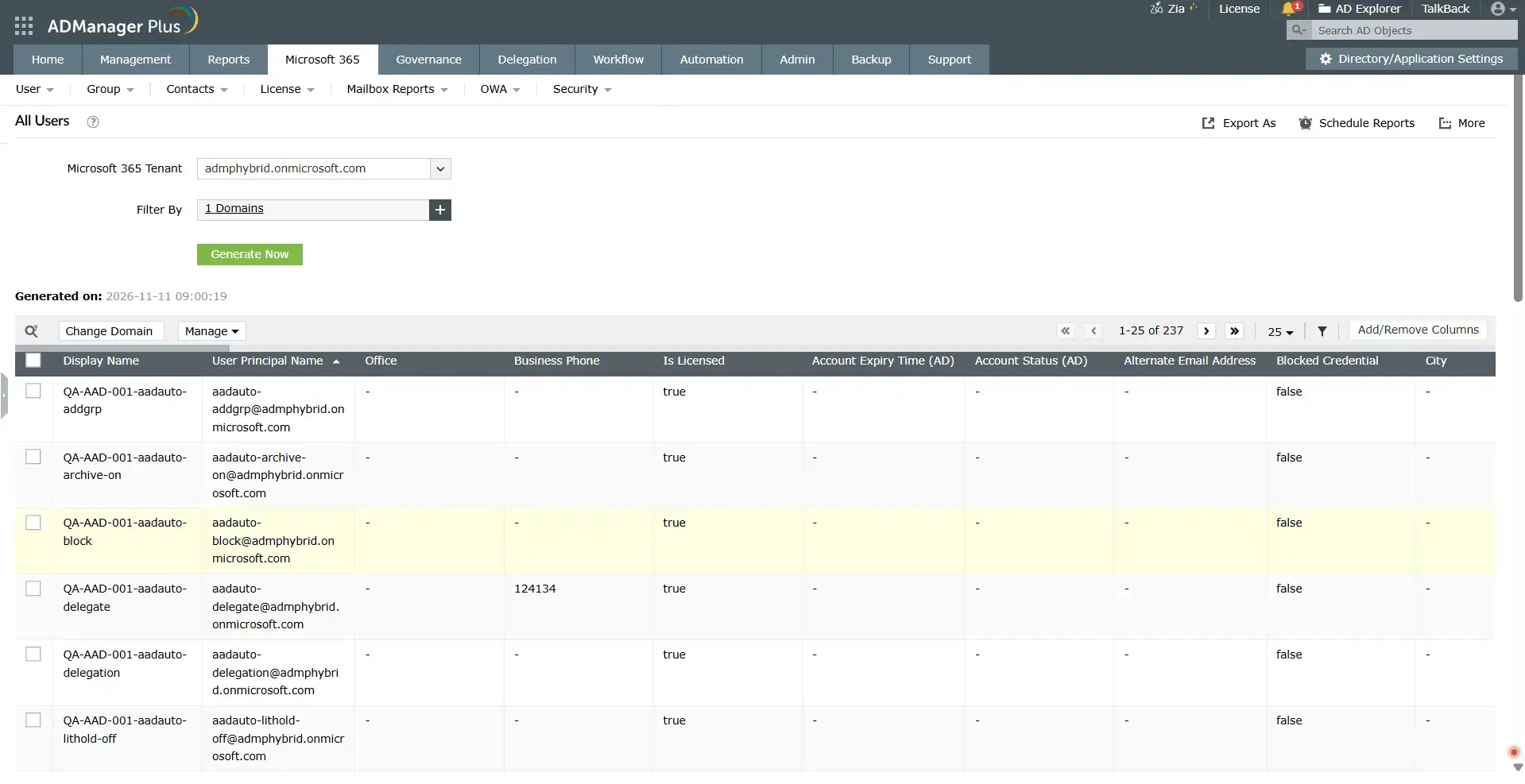
Use the Microsoft 365 user reports in ADManager Plus to count users per license by department:
This script lists every licensed user with the last sign-in time and the assigned licenses, and it needs the AuditLog.Read.All scope and a Microsoft Entra ID P1 or P2 license.
Connect-MgGraph -Scopes "User.Read.All", "AuditLog.Read.All", "Organization.Read.All" -NoWelcome
$skuLookup = @{}
Get-MgSubscribedSku -All | ForEach-Object { $skuLookup[$_.SkuId] = $_.SkuPartNumber }
$properties = "DisplayName", "UserPrincipalName", "AccountEnabled", "AssignedLicenses", "SignInActivity"
$users = Get-MgUser -All -Property $properties | Where-Object { $_.AssignedLicenses.Count -gt 0 }
$report = foreach ($user in $users) {
    $signIn = $user.SignInActivity.LastSignInDateTime
    $lastSeen = if ($signIn) { $signIn.ToString("yyyy-MM-dd") } else { "None recorded" }
    $licenses = ($user.AssignedLicenses.SkuId | ForEach-Object { $skuLookup[$_] }) -join "; "
    [pscustomobject]@{
        DisplayName = $user.DisplayName
        UserPrincipalName = $user.UserPrincipalName
        AccountEnabled = $user.AccountEnabled
        LastSignIn = $lastSeen
        Licenses = $licenses
    }
}
$report = $report | Sort-Object LastSignIn
$report | Format-Table UserPrincipalName, AccountEnabled, LastSignIn, Licenses -AutoSize
$report | Export-Csv -Path "C:\Reports\LastSignInWithLicenses.csv" -NoTypeInformation
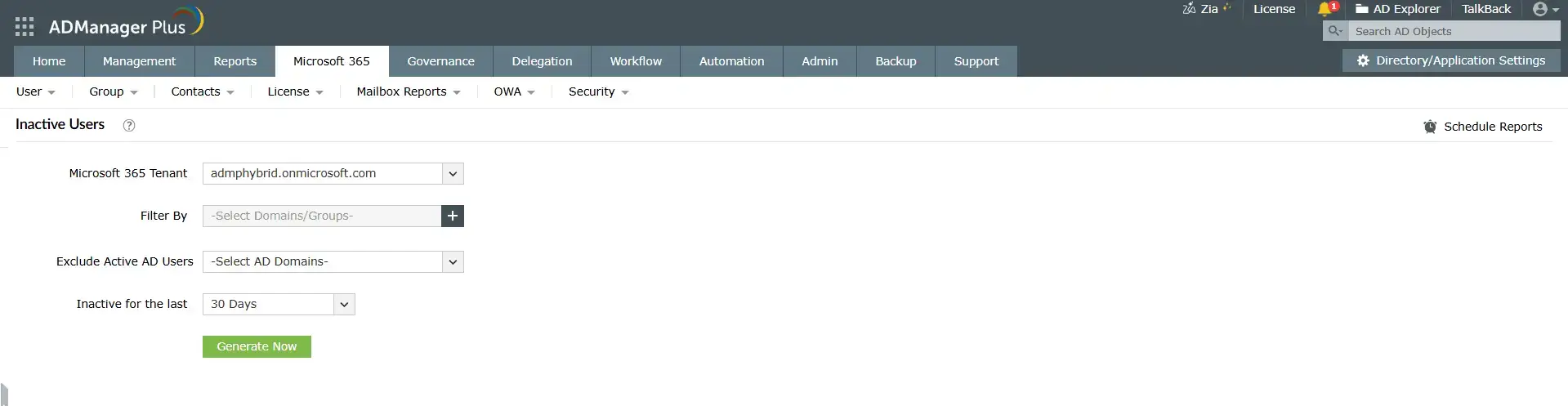
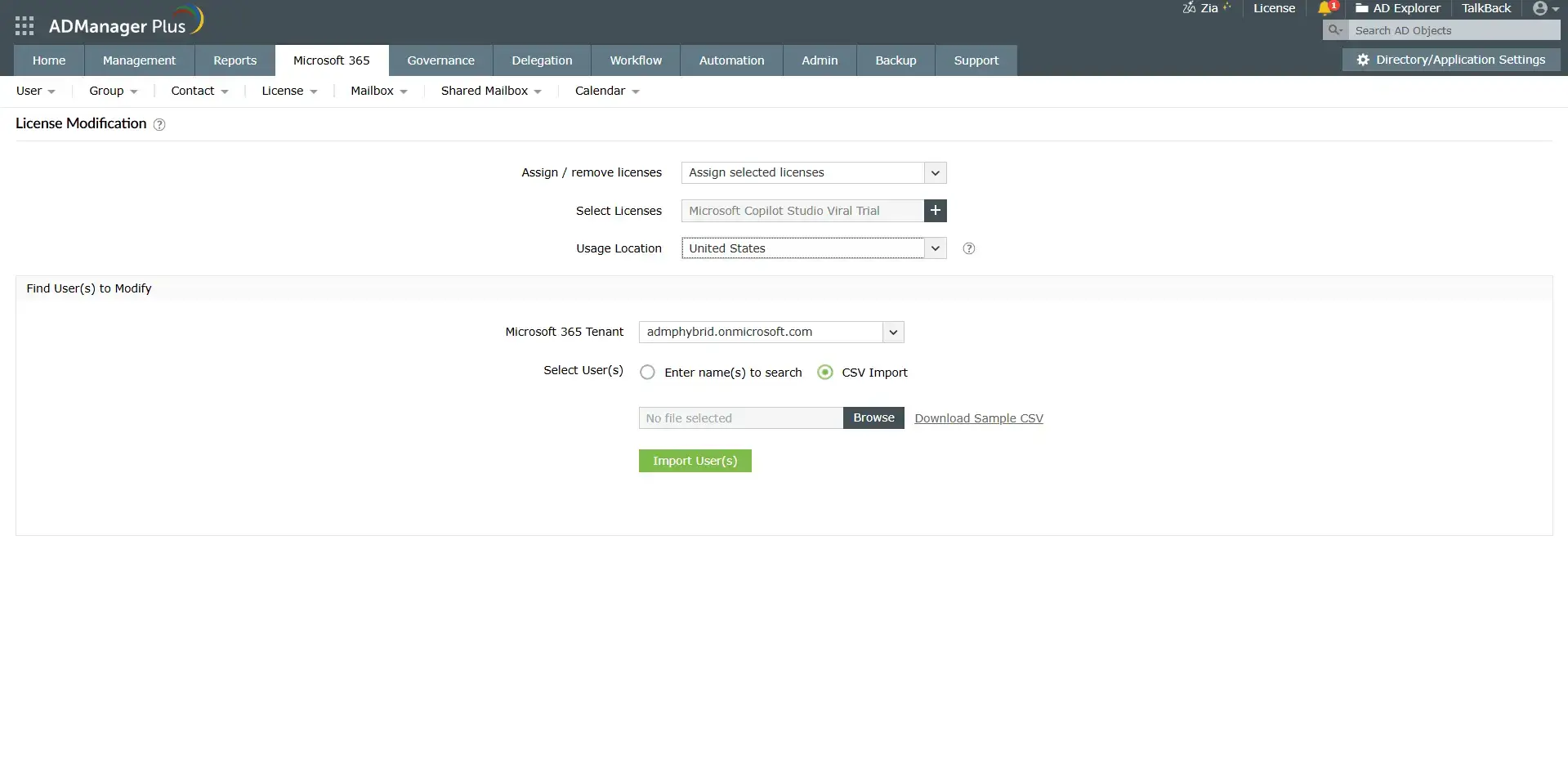
ADManager Plus pairs the Inactive Users report with license management to show last logon and licenses together:
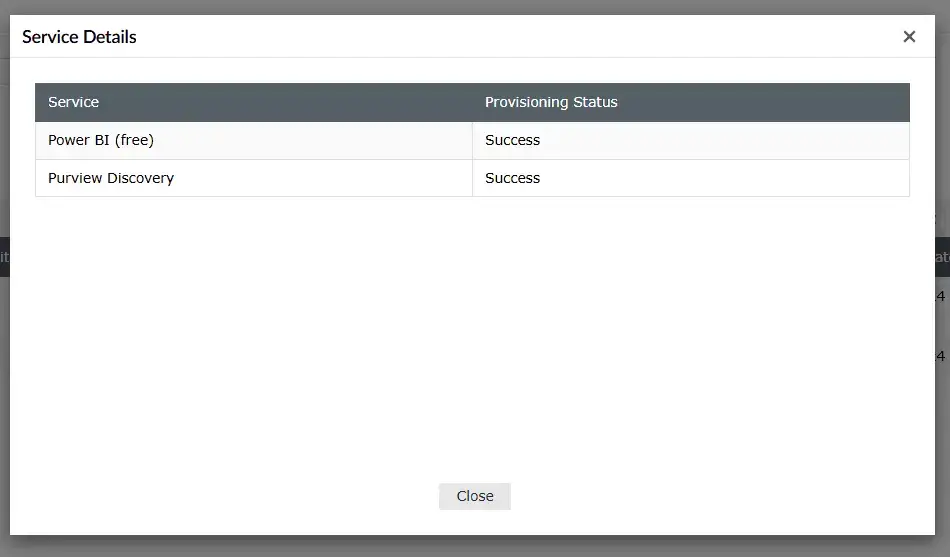
In the Microsoft 365 admin center, go to Billing > Licenses and open the Subscriptions tab to see the available and assigned licenses for each subscription. With PowerShell, run Get-MgSubscribedSku and subtract ConsumedUnits from PrepaidUnits.Enabled. ADManager Plus lists the same figures in its License Details report, along with warning, suspended, and locked-out units.
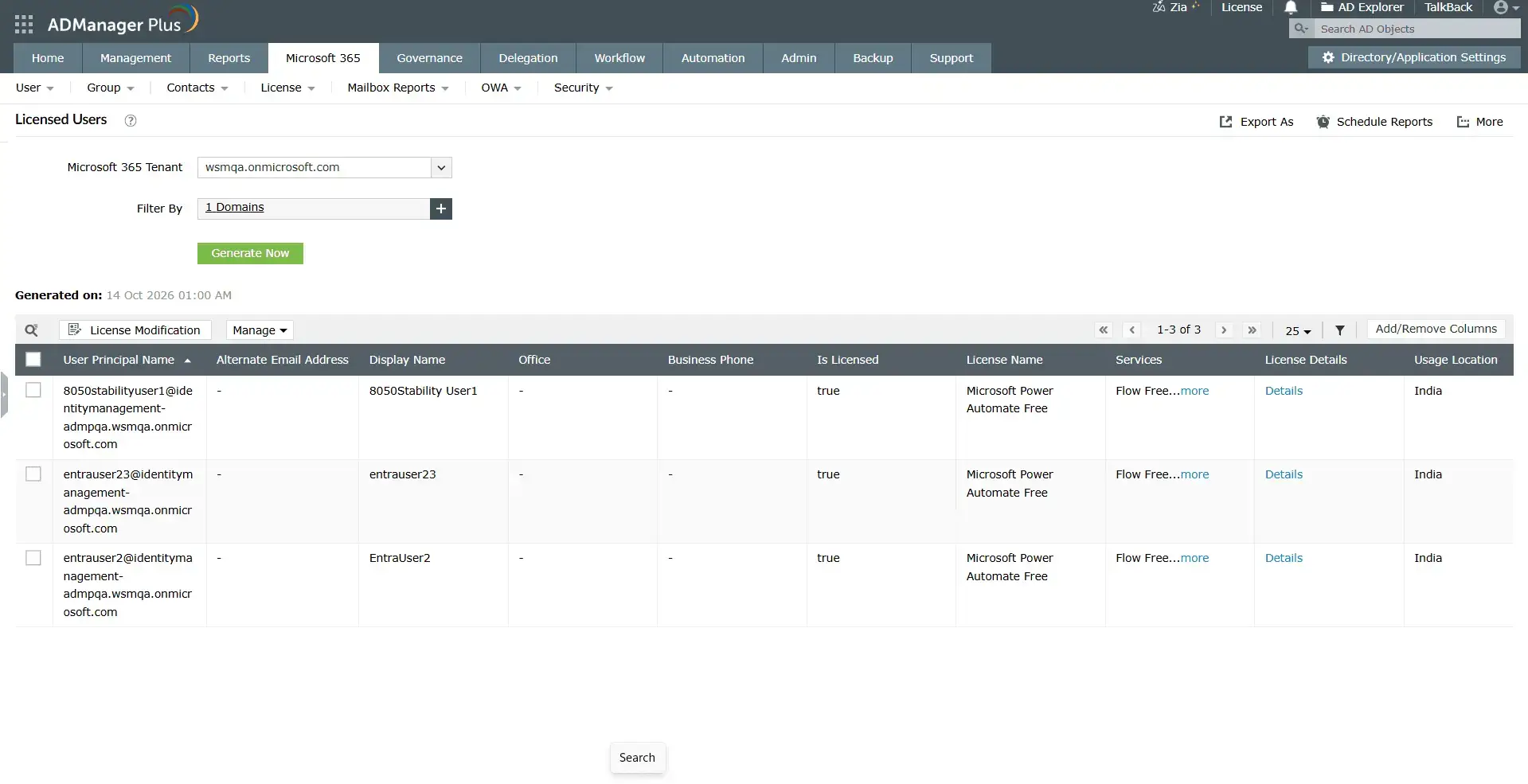
Run Get-MgUserLicenseDetail with the user's ID or user principal name to get the license details of a user. In ADManager Plus, open the Licensed Users report and click Details under the License Details column.
No. Microsoft retired the MSOnline PowerShell module between April and May 2025, so scripts that use Get-MsolUser stopped working. Get-MgUser with the AssignedLicenses property and a subscription lookup, as shown in the steps above, returns the same data.
Connect with the User.Read.All and Organization.Read.All scopes, as in the steps above. Microsoft lists LicenseAssignment.Read.All as the least privileged permission for reading subscriptions and per-user license details, and the -Scopes parameter of Connect-MgGraph accepts it. Listing users with Get-MgUser still needs User.Read.All.
The admin center exports usage report data as CSV, and Export-Csv does the same for the PowerShell scripts above. ADManager Plus exports its license reports as CSV, PDF, XLSX, or HTML, and its Microsoft 365 reports can also be scheduled and emailed.
The signed-in account or the consented scopes do not cover the data the command reads. Run Disconnect-MgGraph, reconnect with User.Read.All and Organization.Read.All (or User.ReadWrite.All for use case 2), grant admin consent if prompted, and confirm the account holds a role that can read license data.
A filter on assignedLicenses/$count is an advanced query. Add -ConsistencyLevel eventual and -CountVariable to the command, as in step 3 of the PowerShell steps.
Set-MgUserLicense cannot remove a license that comes from group-based licensing, which affects use case 2. Remove the user from the licensed group and run the script again. The Status column of the log lists the affected users.
Microsoft Graph throttles large numbers of per-user calls, such as Get-MgUserLicenseDetail inside a loop. Use Get-MgUser with the AssignedLicenses property and a subscription lookup, as in step 3 of the PowerShell steps, to avoid one request per user.
Send-MgUserMail needs the Mail.Send application permission with admin consent, and the address in -UserId must belong to a mailbox in your tenant. Run LicenseUsageReport.ps1 manually from a PowerShell session to see the error message.