Direct Inward Dialing: +1 408 916 9393
A dynamic distribution group (DDG) is a mail-enabled group in Exchange Online whose membership comes from a recipient filter rather than a fixed list. Being able to retrieve these groups, to list every one in the tenant, find a specific group, and read the filter that defines it, is the basis for auditing mail flow, documenting how groups are scoped, and cleaning up groups that are no longer needed.
PowerShell does this with the Get-DynamicDistributionGroup cmdlet, which returns the groups and their properties. This guide covers how to list and find dynamic distribution groups, and do the same through the Exchange admin center and ManageEngine ADManager Plus.
Before you perform any action, a few things need to be in place:
Install-Module -Name ExchangeOnlineManagement
Import the module and connect to Exchange Online PowerShell using an account with the required permissions:
Import-Module ExchangeOnlineManagement
Connect-ExchangeOnline -UserPrincipalName admin@zylker.onmicrosoft.com
When you run without an identity, Get-DynamicDistributionGroup returns all dynamic distribution groups in the organization. By default, the result stops at 1,000 objects, so add -ResultSize Unlimited to list every group in a larger tenant:
Get-DynamicDistributionGroup -ResultSize Unlimited |
Format-Table Name, PrimarySmtpAddress, RecipientContainer -AutoSizeTo retrieve a single group, pass its name, alias, email address, or distinguished name to -Identity:
Get-DynamicDistributionGroup -Identity "Marketing Team"
When you only know part of the name, -Anr (ambiguous name resolution) matches on name, alias, and related fields, and -ManagedBy returns the groups owned by a particular person. For anything more specific, -Filter takes a condition on the groups' own properties:
# Partial-name match
Get-DynamicDistributionGroup -Anr "Marketing"
# Groups owned by a specific user
Get-DynamicDistributionGroup -ManagedBy "jsmith@zylker.com"
# Groups whose name starts with "Sales"
Get-DynamicDistributionGroup -Filter "Name -like 'Sales*'"
The two properties that define how a dynamic distribution group is scoped are RecipientFilter and RecipientContainer. Pipe a group to Format-List to read them, along with the recipient types it includes:
Get-DynamicDistributionGroup -Identity "Marketing Team" |
    Format-List Name, RecipientFilter, RecipientContainer, IncludedRecipients, RecipientTypeDetails
RecipientFilter holds the OPATH filter that determines membership. A group created with a custom filter shows its full OPATH expression here (for example, a condition on RecipientTypeDetails and Department), while a group built from pre-canned conditions shows those in the IncludedRecipients and Conditional properties instead. RecipientContainer shows the organizational unit (OU) the filter is scoped to if the group is limited to one branch of the directory rather than the whole tenant. Reading these tells you exactly who a group targets without opening the admin center.
Reading a filter often leads to correcting it. The companion cmdlet Set-DynamicDistributionGroup changes a group's filter or properties; for example, to repoint a group at a new OPATH condition:
Set-DynamicDistributionGroup -Identity "Marketing Team" `
-RecipientFilter "(RecipientTypeDetails -eq 'UserMailbox') -and (Department -eq 'Marketing')"To document every group and its filter, select the properties you want and pipe them to Export-Csv with a full file path. This produces a complete inventory, one row per group, with the filter and owner of each, ready for an audit or a review. Adding -Encoding UTF8 keeps names with non-ASCII characters intact.
Get-DynamicDistributionGroup -ResultSize Unlimited |
    Select-Object Name, PrimarySmtpAddress, RecipientFilter, RecipientContainer, ManagedBy |
Export-Csv -Path "C:\Reports\DDG-Inventory.csv" -NoTypeInformation -Encoding UTF8Because a dynamic distribution group has no stored member list, listing who belongs to it is a separate operation from retrieving the group: You resolve the group's filter into the recipients it currently matches, or use the Get-DynamicDistributionGroupMember cmdlet in Exchange Online.
The parameters below are used for retrieving dynamic distribution groups in Exchange Online PowerShell.
| Parameter | Description |
|---|---|
| -Identity | Retrieves a single group by name, alias, email address, or distinguished name. |
| -Anr | Matches groups on a partial name through ambiguous name resolution. |
| -ManagedBy | Returns the groups owned by a specified user. |
| -Filter | Filters the returned groups by their own properties, such as Name or RecipientContainer. |
| -ResultSize | Sets how many groups to return; Unlimited overrides the default 1,000-object cap. |
| -RecipientTypeDetails | Filters by the recipient subtype where applicable. |
| RecipientFilter / RecipientContainer | Group properties, read with Format-List, that define membership and OU scope. |
If you prefer a graphical view, the Exchange admin center lists dynamic distribution groups for inspection:
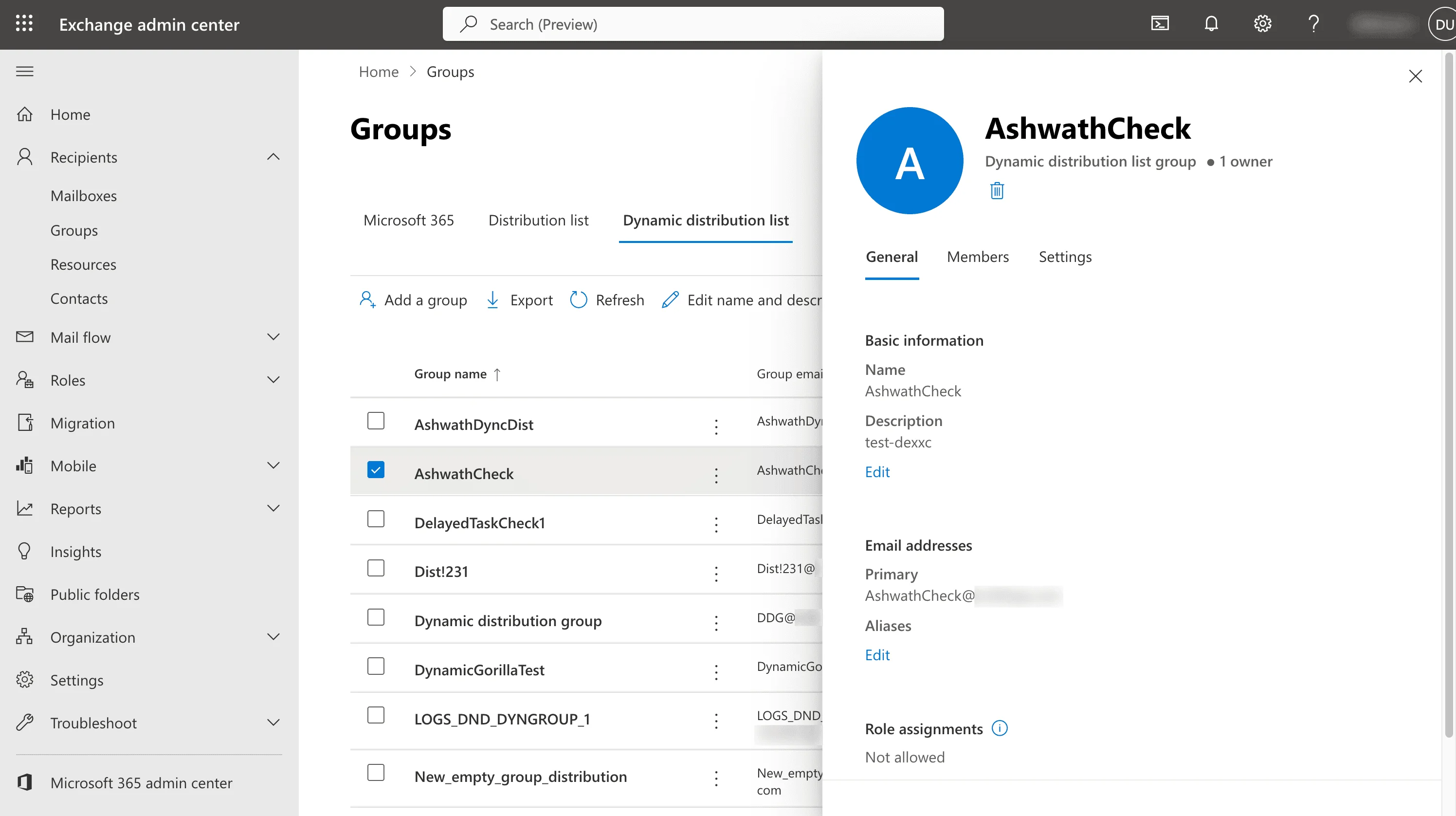
The admin center is convenient for inspecting one group, but it has no built-in way to export an inventory of every group, which is where the PowerShell export above or ADManager Plus are better fits.
ADManager Plus is a unified AD, Exchange, and Microsoft 365 management and reporting tool with prebuilt reports for distribution and dynamic distribution groups, so you can list every group and its properties across a tenant without scripting.
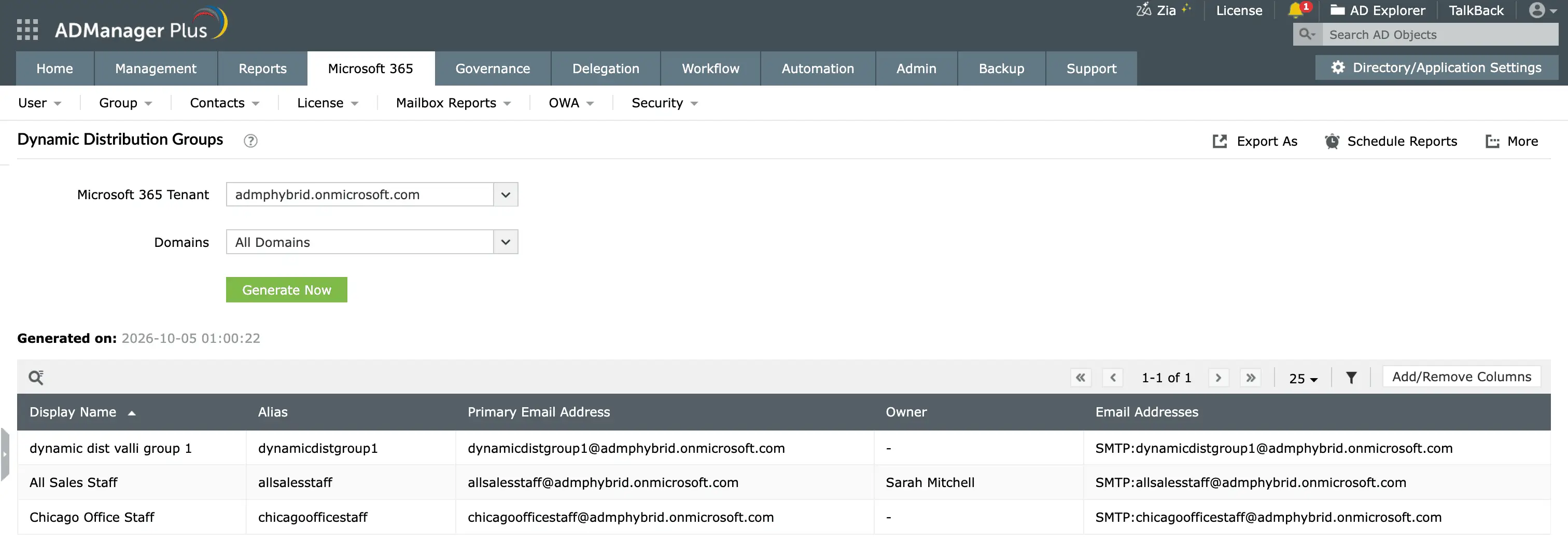
Both native methods retrieve dynamic distribution groups reliably, but each has limits that show at scale:
ADManager Plus replaces scripts and one-off portal work with a single console for AD, Microsoft 365, and Exchange management and reporting:
A dynamic distribution group's membership isn't stored on the group, so it's retrieved separately, by resolving the group's filter or using the Get-DynamicDistributionGroupMember cmdlet.
A standard distribution group has a fixed member list that an administrator maintains. A dynamic distribution group has no stored membership; its members are calculated from a recipient filter each time mail is sent to it, so the group stays current on its own as recipients change. You retrieve a standard group with Get-DistributionGroup and a dynamic one with Get-DynamicDistributionGroup.
Read its RecipientFilter and RecipientContainer properties by running the command below:
Get-DynamicDistributionGroup -Identity "Marketing Team" |
    Format-List Name, RecipientFilter, RecipientContainer
RecipientFilter holds the OPATH expression that defines membership and RecipientContainer shows the OU the filter is limited to, if any.