How to troubleshoot event ID 7031 that indicates a service crash in Windows
Last updated on:Quick answer:
What is Event ID 7031?
Windows Event ID 7031 is logged by the Windows Service Control Manager (SCM) when a service terminates unexpectedly, the service crashed, and SCM has a recovery action configured for it.
Fastest fix: Open Event Viewer → Windows Logs → System, find the 7031 event, note the service name, then check that service's own logs and the Application log at the same timestamp to find why it crashed. Most cases resolve by fixing the service account or permissions, a missing dependency, a corrupt executable, or a resource/timeout issue.
How to read the message: The [Service Name] service terminated unexpectedly. It has done this [X] time(s). The following corrective action will be taken in [Y] milliseconds: [Action]. — [X] is how many times it has crashed since the counter last reset (a high or climbing [X] means a recurring problem, not a one-off); [Y]/[Action] is what SCM will do next, e.g. restart the service.
In this page
Why does event ID 7031 occur?
Event ID 7031 is a system error logged by Windows when a service unexpectedly terminates. This event is a clear indication that a service has crashed or stopped abruptly, potentially affecting system stability or application functionality. The occurrence of event ID 7031 usually points to underlying issues such as software bugs, resource constraints, misconfigurations, or dependency failures between services. It can also be triggered by external factors like malware. Understanding and addressing the root cause of this event is essential to maintain smooth system operations and avoid further disruptions.
This article explores the reasons for the occurrence of this event and ways to troubleshoot it.
Services crashing without warning?
Spot Event 7031 across your servers, see which services fail, and get alerted the moment they do.
Format of event ID 7031
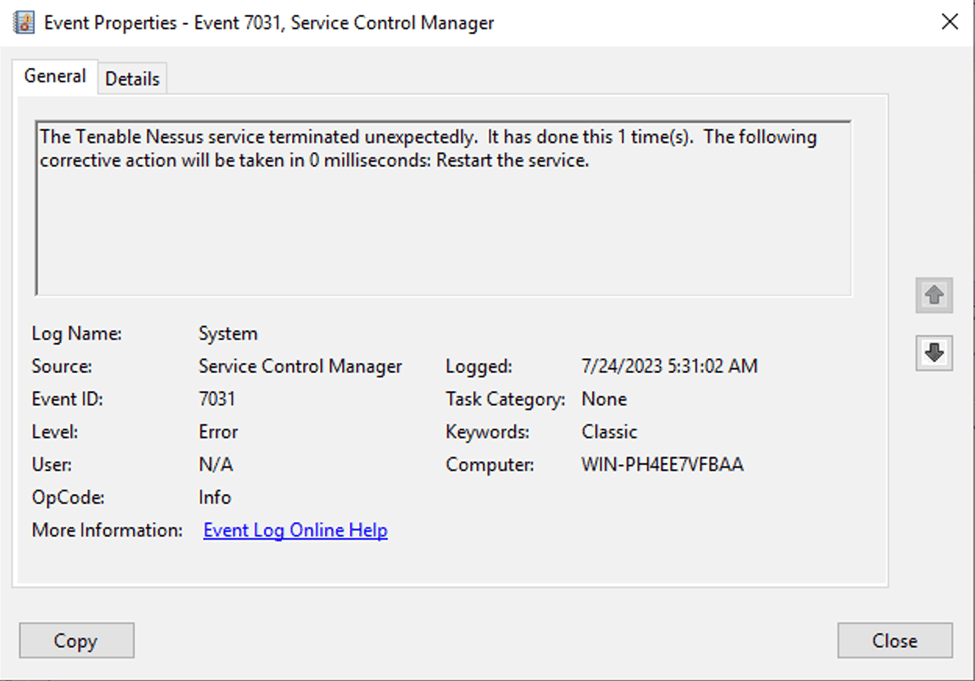
Before reading about the reasons for the occurrence of service crashes, let's explore the format of event ID 7031 as logged in the Windows Event Viewer by the Service Control Manager (SCM).
            Log Name: System
            Source: Service Control Manager
            Event ID: 7031
            Level: Error
            User: N/A
            OpCode: Info
            Task Category: None
            Keywords: Classic
            Computer: [Computer Name]
            Description: The [Service Name] service terminated unexpectedly. It has done this [X] time(s). The following corrective action will be taken in [Y] milliseconds: [Action to be Taken].
How to troubleshoot event ID 7031
The first step to understand the root cause of service crashes and troubleshoot them is to check and analyze Windows event logs. This includes checking for specific error messages in the logs relevant to service crashes.
Event ID 7031 is logged by the SCM when a service terminates unexpectedly. Below is a table that outlines common errors associated with event ID 7031, along with specific error messages, descriptions, and troubleshooting tips.
| Error category | Errors | Description | Troubleshooting tips |
| Configuration errors | Service Disabled | The service is manually disabled. |
|
| Incorrect Service Configuration | Misconfiguration in service settings (for example, incorrect paths, parameters, or dependencies). |
|
|
| Dependency errors | Dependent Service Not Running | A service required by the dependent service is not running or has encountered an issue. |
|
| Resource errors | File or Resource Access Issues | The service could not access necessary files or directories, possibly due to insufficient permissions or missing files. |
|
| Hardware or System Resource Issues | The service is consuming too much CPU, memory, or other resources, causing it to fail. |
|
|
| Network errors | Network Issues Preventing Service Operation | Network issues (for example, DNS, firewall, or connectivity) are preventing the service from accessing necessary resources. |
|
| Permission errors | Insufficient Permissions | The service lacks necessary permissions to run or access required resources. |
|
| Service Account Password Expired or Changed | The password for the service account has expired or was changed, and the new credentials haven't been updated. |
|
|
| Software errors | Service-Specific Error | The service did not start due to a service-specific error. |
|
| Corrupt or Missing Executable File | The service's executable file is missing or has been corrupted. |
|
|
| Service Crashed Unexpectedly | The service terminated abruptly without a clear indication of the cause. |
|
|
| Service Termination Timeout | The service failed to terminate within the specified time, leading to its forced termination. |
|
|
| Software Bugs or Incompatibility | The service encountered a software bug or incompatibility issue. |
|
|
| Redundancy errors | The service cannot be started because it is already running. | The service is already running and cannot be started multiple times. |
|
How ManageEngine EventLog Analyzer helps analyzing and troubleshooting event ID 7031
ManageEngine EventLog Analyzer, is a comprehensive log management and IT compliance tool that helps you efficiently manage and analyze Windows event logs.
This log management tool centralizes event logs from across all Windows sources in your network and facilitates easy forensic analysis and troubleshooting. EventLog Analyzer comes with predefined reports such as Services Stopped to view all the service stops across all your Windows devices. Further, with the solution's real-time alerting console, get alerted for frequent service crashes on specific devices or any critical service crashes across your Windows infrastructure.
Frequently asked questions about event ID 7031
Event ID 7031 means a Windows service terminated unexpectedly. It is logged by the Service Control Manager (SCM) in the System log when a running service crashes and a recovery action is configured for it. The event names the affected service, the "it has done this X time(s)" failure count, and the corrective action SCM will take next.