- Home
- Logging Guide
- Linux logging guide
Linux logging: A complete guide
In this page
- What are Linux logs?
- Types of Linux log files and their uses
- How Linux logs are stored
- Where to find Linux logs
- How syslog stores log files
- Viewing syslog files
- How journald stores log files
- Viewing journald logs
- Why you should be monitoring Linux logs
- How you can leverage Linux logs with a log management solution
- Investigate and troubleshoot Linux issues faster with ManageEngine EventLog Analyzer
Linux is a free, open-source operating system (OS) that has become widely adopted in computing. It is used on various devices, from desktops and laptops to servers, mainframes, mobile devices, and embedded systems.
Like all OSs, Linux performs logging to provide data about kernel events and all the user actions that are performed on your servers. This highlights the significance of managing Linux log files to maintain system health and security. In this article, we will go through what Linux logs are, their importance, their types, how they are located, a few commands to search through the logs in your system, and how they can be used to understand network events.
What are Linux logs?
Linux logs are digital records of events that provide a complete overview of the timeline of activities for applications, systems, and services running in the Linux OS. Whenever your system runs into a critical issue, you can analyze the log entries to identify the cause of the problem and find a work-around.

Types of Linux log files and their uses
In a Linux environment, log files are classified primarily into four types:
1) Application logs
- These logs are generated by specific applications running in the system, such as web servers (e.g., Apache logs in /var/log/apache2/), database servers (e.g., MySQL logs in /var/log/mysql/), and mail servers (e.g., mail logs in /var/log/mail/).
- They provide insights into application-specific errors, performance issues, and security events.
2) Event logs
- Logs that capture specific events or activities in the system, such as security events or system changes, are called event logs. These logs are important for root cause analysis of security incidents.
3) Service logs
- These logs are generated by system services, such as cron jobs (/var/log/cron), printing services (/var/log/cups), and daemon activities (/var/log/daemon.log).
- They help in monitoring and troubleshooting service-related issues.
4) System logs
- System logs capture general system activities, including startup messages, kernel events, and system errors. Key files include /var/log/syslog, /var/log/messages, and /var/log/kern.log.
- They are essential for diagnosing system-wide issues, monitoring system health, and troubleshooting kernel-related problems.
How Linux logs are stored
Linux logs are stored in two different formats: syslog and journald. syslog messages are basically written and stored in easily readable form (i.e., plaintext), whereas journald logs are stored in a binary format that is readable by the journalctl command.
journald provides structured and indexed log data, making it easier to query and analyze logs. It offers built-in support for centralized logging facilities, automatically rotates and compresses log files (helping you manage disk space efficiently), and supports real-time log monitoring.
By contrast, syslog allows for more granular control using standard Linux tools like grep, awk, and tail. It is widely supported by various log management tools and can be easily integrated with other systems.
Where to find Linux logs
Linux logs are primarily stored in the /var/log directory and its subdirectories. This directory contains a wide range of log files for various system processes, applications, and services. Let's review the list of locations where you can find Linux logs:
- /var/log/syslog: General system messages, including notifications from system services and application errors
- /var/log/auth.log: Authentication-related event logs, useful for troubleshooting security issues
- /var/log/kern.log: Kernel messages, including hardware-related information and kernel module logs
- /var/log/messages: A standard system log file containing informational and non-critical messages
- /var/log/audit/audit.log: Audit logs for security auditing purposes
- /var/log/httpd or /var/log/apache2: Apache HTTP Server logs
- /var/log/mysql.log or /var/log/mysqld.log: MySQL database logs
How syslog stores log files
syslog is a widely used standard for message logging in Linux and other Unix-like systems. It collects logs from various system processes and applications, storing them primarily in the /var/log directory.
The syslog daemon, such as rsyslog or syslog-ng, is responsible for collecting, processing, and storing log messages. It runs in the system and manages log collection based on configuration rules. The configuration files (typically /etc/rsyslog.conf or /etc/syslog.conf) define how logs are processed and stored.
Viewing syslog files
There are several ways to view your syslog messages, all executed from the command-line interface. Let's identify the list of commands that enable the viewing of log files:
- Navigate to the log directory by executing this command:
- Open the syslog file with this:
- Use arrow keys or the space bar to scroll through the file. Press Shift+Gto jump to the end of the file.
- Display the entire syslog file with this:
- View the last few lines of the syslog with this:
- Filter logs by a specific keyword with this:
cd /var/log
sudo less /var/log/syslog
sudo cat /var/log/syslog
sudo tail /var/log/syslog
sudo grep keyword /var/log/syslog How journald stores log files
journald store logs in a binary format, which provides more efficient storage and faster querying capabilities compared to plaintext logs used by syslog. Logs are stored in /var/log/journal/ or in memory, based on the configuration.
Settings for journald can be customized in the /etc/systemd/journald.conf file, allowing control over the log size, retention, and other parameters.
Viewing journald logs
- For systems using systemd, journalctl is used to view journald logs. To view all logs, use this command:
- To monitor logs as they are generated, use this:
- To view logs for a specific service, like sshd, use this:
sudo journalctl
sudo journalctl -f
sudo journalctl -u sshd Why you should be monitoring Linux logs
- Troubleshooting and debugging: Linux logs help in identifying errors and anomalies, allowing administrators to pinpoint causes and resolve issues efficiently by providing detailed records of system events.
- Security monitoring: Logs record security events, such as login attempts and firewall activities, which are crucial for detecting and responding to security threats. Logs help you detect unauthorized access attempts and potential security breaches before they escalate.
- Proactive system management: By analyzing logs, administrators can anticipate potential issues before they occur, enabling proactive management. This helps in faster threat detection and incident response times.
- Compliance and auditing: Logs provide a historical record of system activities, which is essential for complying with regulations like HIPAA, the GPDR, SOX, and SOC 2.
How you can leverage Linux logs with a log management solution
Managing Linux logs is a difficult task without a dedicated log management solution that eases the job for you. With a log management solution, you get to:
- Aggregate your logs in one location and scale your storage easily.
- Maintain access to your log files by archiving them.
- Zero in on logs that can help you troubleshoot an issue faster.
- Correlate logs to identify a pattern of suspicious events and deploy security measures.
- Use an intuitive dashboard to get a quick glance at the most important events.
- Search through a large volume of logs easily with advanced search capabilities.
- Adhere to compliance requirements easily with audit-ready reports.
Investigate and troubleshoot Linux issues faster with ManageEngine EventLog Analyzer
ManageEngine EventLog Analyzer is a comprehensive log management solution that effectively monitors your Linux environment. It acts as a centralized server that parses syslog messages from all Linux distributions seamlessly to keep tabs on the Linux environment's performance and health and ensure security.
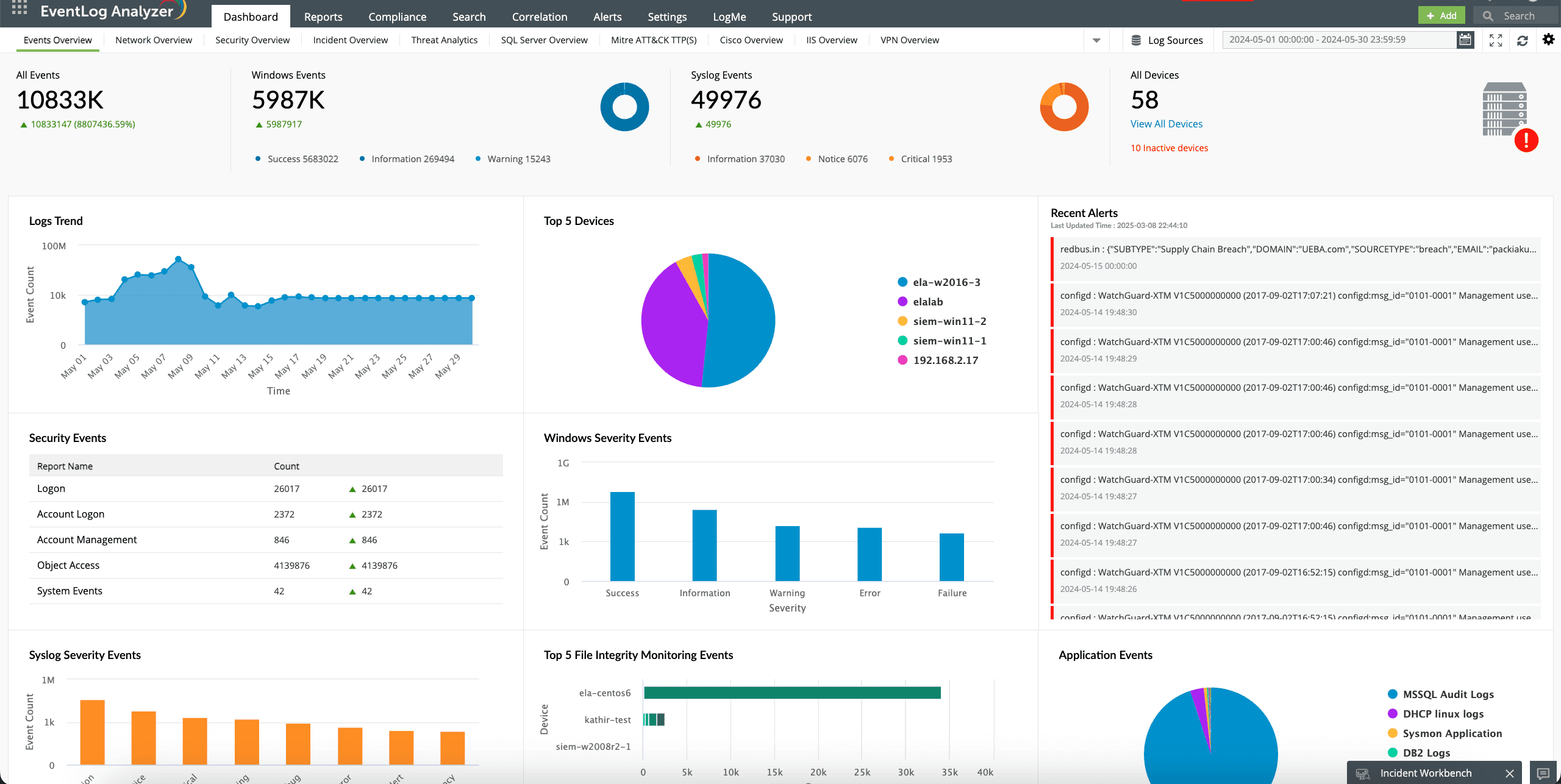
EventLog Analyzer's intuitive dashboard allows you to explore and visualize stored logs in the form of graphs and charts for easier understanding of the timeline of system, user, and application behavior (Fig. 1).
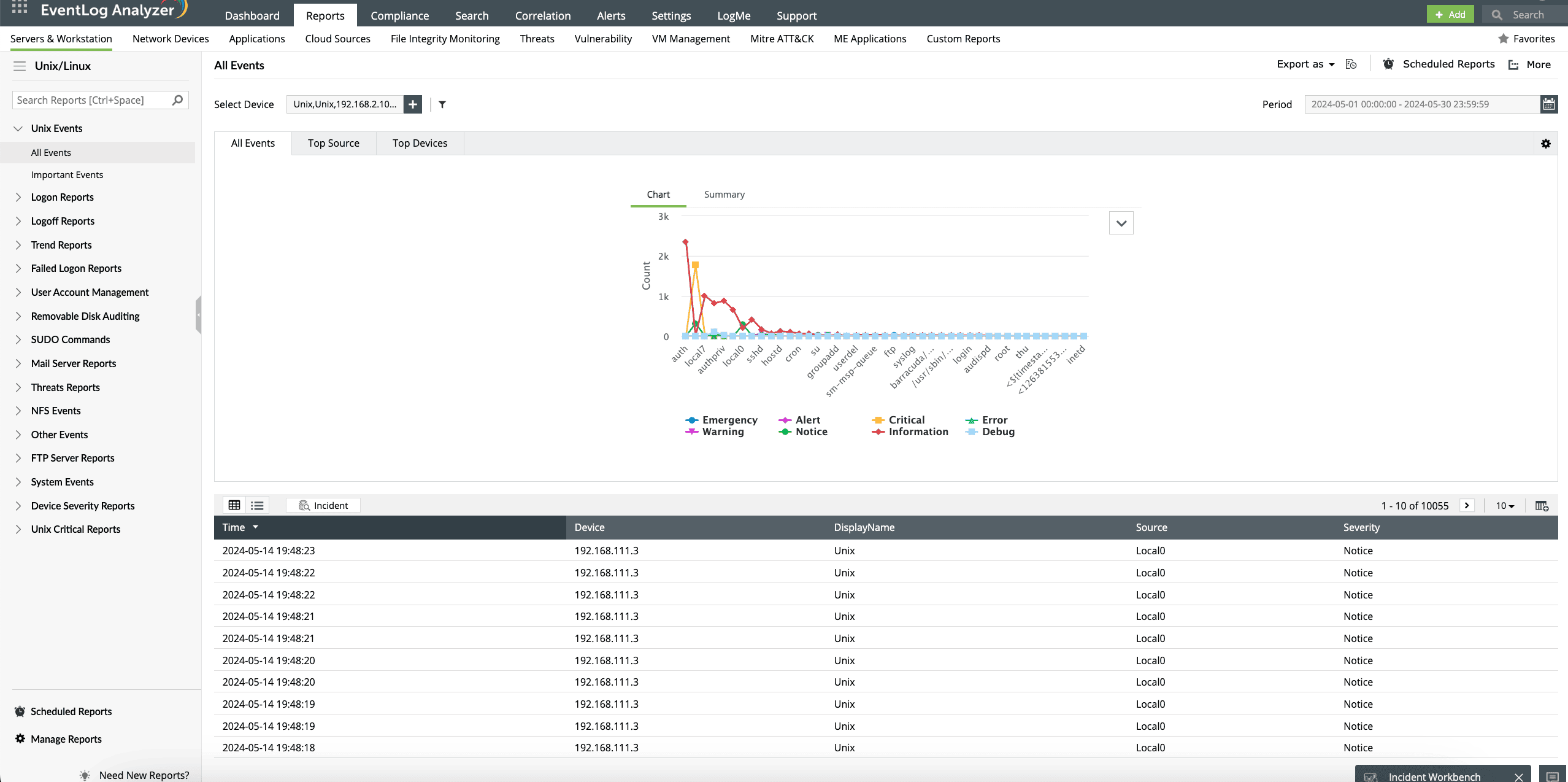
The solution offers predefined reports for Linux OS logs on the Unix/Linux tab (Fig. 2). It helps you:
- Analyze the login trends of Linux devices in your network.
- Audit user account activities, like failed password changes and failed user additions.
- Identify critical events, like low disk space, forced shutdowns, and syslog stoppages.
- View sudo command executions.
- Pinpoint potential threats by tracking actions on FTP and mail servers.
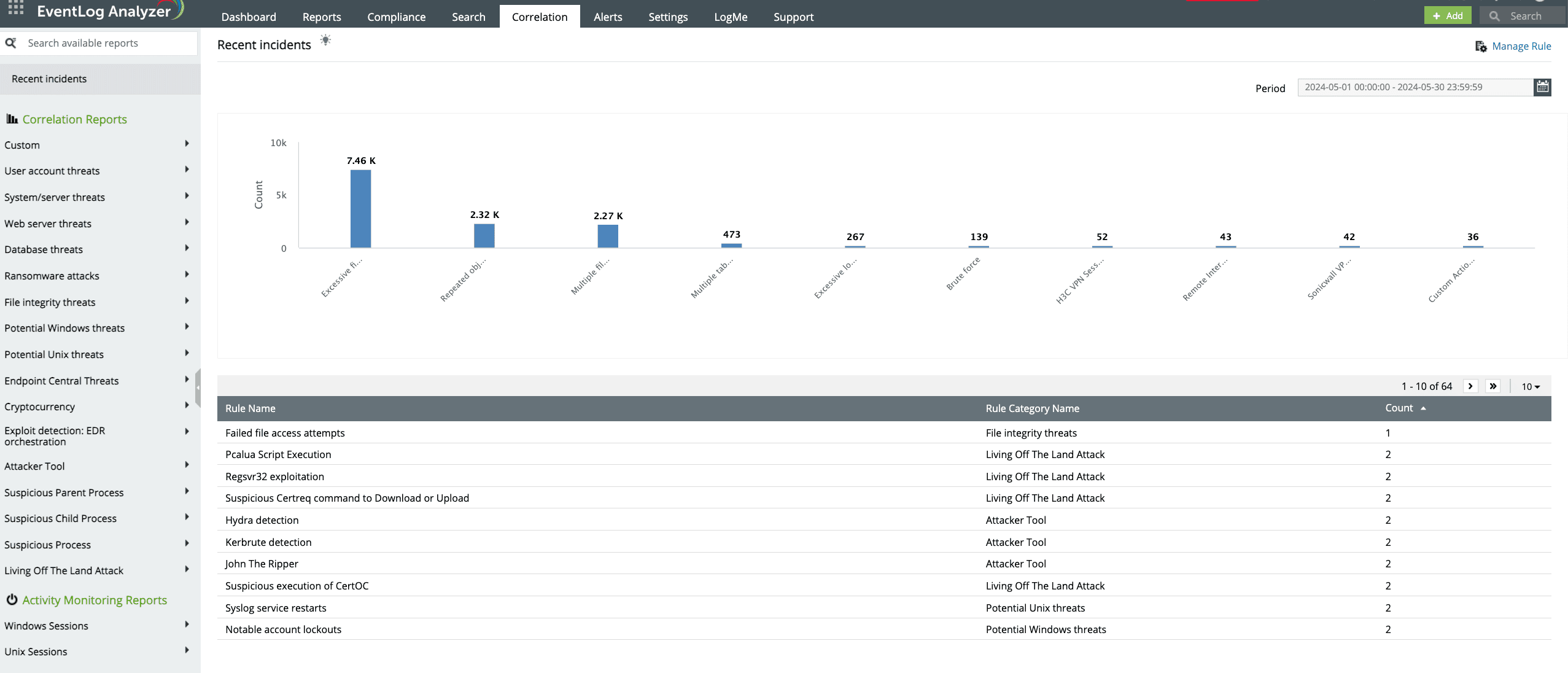
EventLog Analyzer's correlation engine groups multiple events across your Linux systems in the network. This helps you easily detect brute-force attacks, ransomware, account lockouts, and more. It allows for faster threat detection and greatly reduces incident response times (Fig. 3).
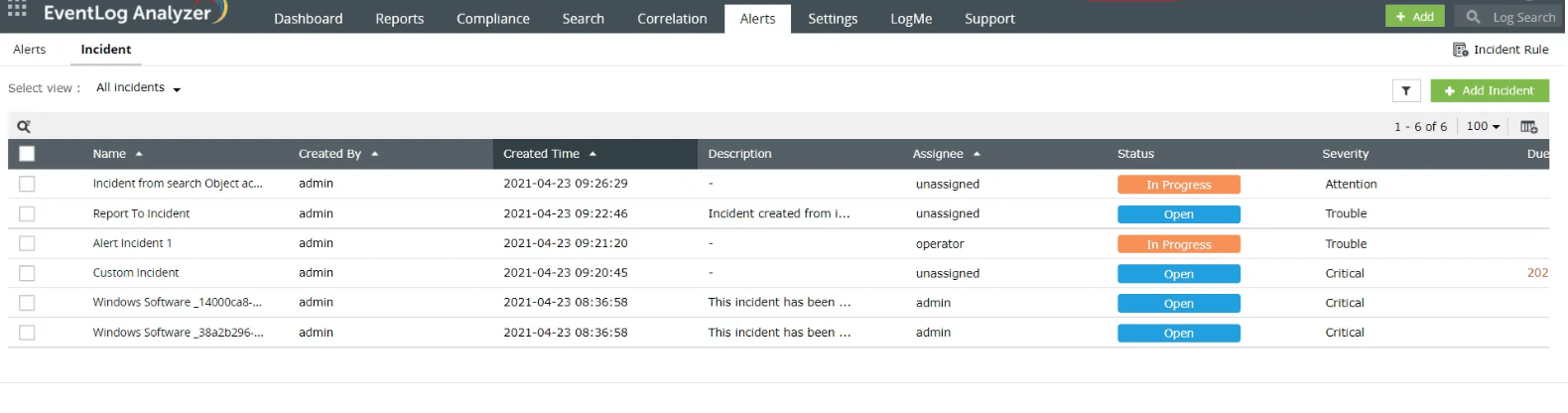
EventLog Analyzer allows you to build incident workflows for security alerts defined by specific criteria (Fig. 4). So, when an alert is triggered, the workflows are automatically executed. The workflows support integrations with other ticketing tools to expedite incident resolution.
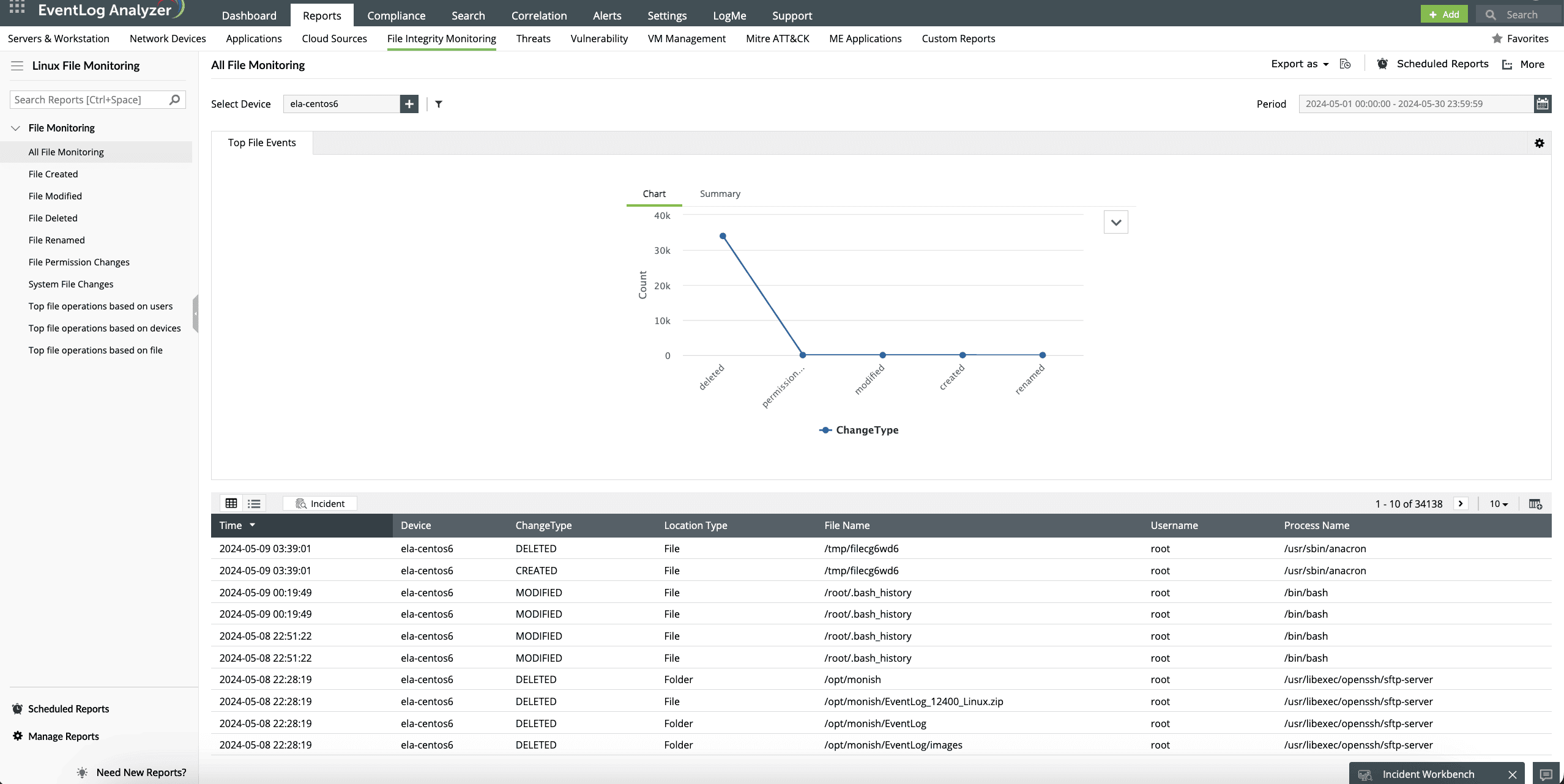
The solution's file integrity monitoring (FIM) capability helps administrators track permission changes, unauthorized access to critical files within Linux systems, and suspicious file activities (Fig. 5).
Comply with regulatory mandates such as the PCI DSS, the GDPR, HIPAA, FISMA, SOX, and the GLBA with the audit-ready reports available.