General Module
Backup and Restore
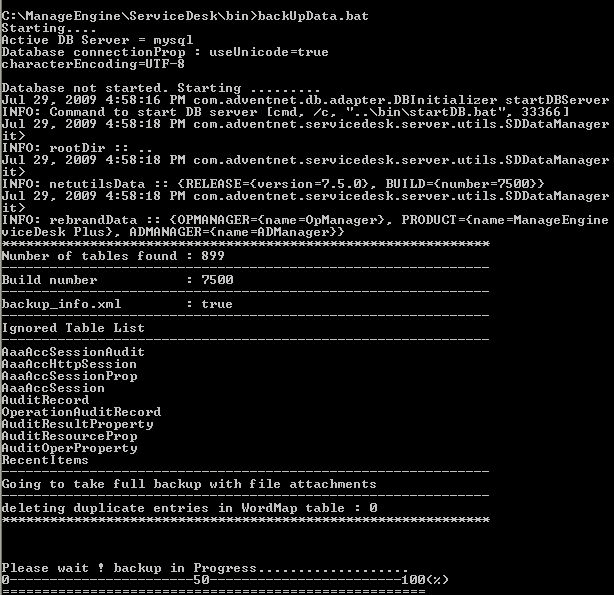
- What are the steps to perform a manual backup in AssetExplorer?The following instructions is to perform a manual backup in AssetExplorer,
Step 1: Stop ManageEngine service.
Step 2: From the command prompt, go to [AssetExplorer-Home]\bin directory and execute backUpData.bat command to start the backup.
Where, -Home -> C:\ManageEngine\AssetExplorer [ Screenshot ]
Once the backup is complete, a backup file with .data extension is placed in the Backup folder under Home directory. This backup file contains information such as, the Build number of , and also the date and time when the backup was performed.
The format of the backup file is shown below,
Backup_ AssetExplorer_ [Build number] _Month _date _ Year _ Hour _Minutes
For example, a backup taken in version 5.6.0 and Build 5606 of looks like this
backup_AssetExplorer_5606_fullbackup_02_24_2009_07_51.data - How can I perform a backup of the database alone without the file attachments in AssetExplorer?AssetExplorer is designed in such a way that the file attachments are not stored in the database. The attachments are stored in the file attachments folder of the installation directory (C:\ManageEngine\AssetExplorer). If there are lots of attachments in your AssetExplorer installation you can save time by performing a backup without file attachments (i.e.) backup of the database alone.
Step 1: Stop ManageEngine service.
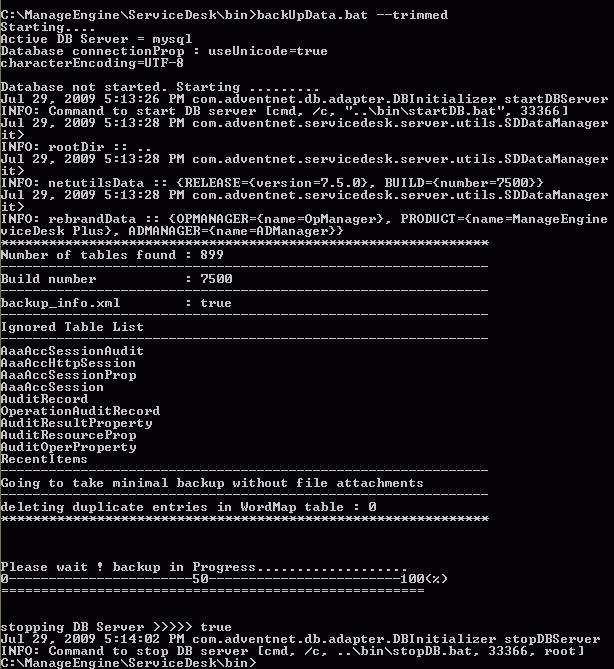
Step 2: From command prompt, go to [AssetExplorer-Home]\bin directory and execute backUpData.bat --trimmed command to start the database backup.
where, Home -> C:\ManageEngine\AssetExplorer [ Screenshot ]
Once the backup is complete, a backup file with .data extension is placed in the Backup folder under Home directory. This backup file contains information such as, the Build number of , and date and time when the backup was performed. Here is the format of the backup file.
Backup_ AssetExplorer_ [Build number] _database_Month _date _ Year _ Hour _Minutes
For example, a trimmed backup taken in version 5.6.0 and Build 5606 of looks like this
backup_AssetExplorer_5606_database_02_24_2009_08_30.data - How do I restore the backup data?The following instructions is to restore the backup data.
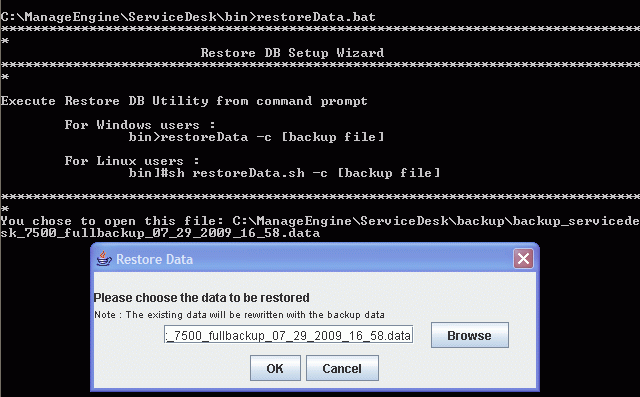
Step 1: From the command prompt, go to [AssetExplorer-Home]\bin directory and execute the command restoreData.bat. Choose the backup file while prompted and select OK. [ Screenshot ]
NOTE: Please note that when you perform a restore, the existing data will be overwritten with the data in the backup file (i.e.) the restore process is not incremental and will not add information over the existing data.
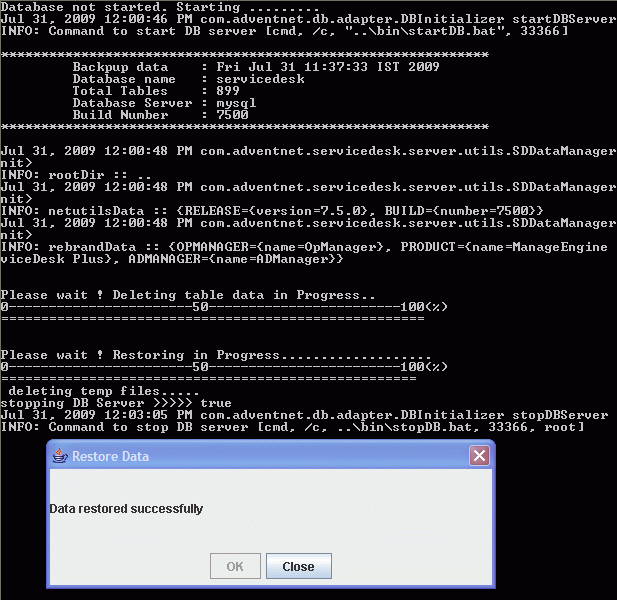
Step 2: Once the restore is complete, a Java UI pops up saying the data restore is successful as shown below. You can click Close and start the application. [ Screenshot ] - How do I schedule to perform automatic backup?You can configure backup scheduling, to perform backup of all the files on a regular interval.
- Click Admin -> Backup Scheduling under General block -> Edit Scheduling link on the right hand side of the page.
- Enable backup scheduling by clicking the enable button.
- Select the number of days from the combo box to schedule the backup process. For every n number of selected days the backup will be taken for the available data.
- Specify the Start Backup date using the calendar and also select the time in hrs and mins from the combo box. This is a mandatory field.
- In case of backup failure specify the notify email address in the given text field. This is a mandatory field.
- Select either or both the Attachment Files and Database option to take the back up. This is a mandatory field.
- Specify the Backup location in the given text field to store the backup data.
- Save the changes.
- How do I schedule a backup over a network share?You can configure a backup scheduling over a network share,
- Click Admin -> Backup Scheduling under General block -> Edit Scheduling link on the right hand side of the page.
- Set the Backup location as \\Network server name\backup.
NOTE: Please provide full access rights to the folder where you want to copy the backup.
- Should the backup-restore operations be done for DC separately?Yes. It is recommended to take backup of DC and please refer the link for more details.
- If the DC is installed only for scan purpose will the DC services be automatically started / stopped along with AE ?Yes, the DC service will automatically start and stop whenever the AE service starts or stops.
 Screenshot
 Screenshot
 Screenshot
 Screenshot
Upgrading AssetExplorer
- How do I upgrade to the latest Version and Build of AssetExplorer?The following instructions is to upgrade AssetExplorer.
Step 1: Stop ManageEngine AssetExplorer service.
Step 2: Take a backup of the existing build for safety reasons.
From command prompt, move to [AssetExplorer-Home]\bin directory and execute backUpData.bat. This will start the backup.
cmd>[AssetExplorer Home]\bin
cmd>backUpData.bat
where, AssetExplorer Home -> C:\ManageEngine\AssetExplorer
NOTE: Taking a backup is essential to revert to the existing build without any loss of data if the upgrade fails due to unexpected reasons. The backup is stored under Backup folder in AssetExplorer Home directory.
Step 3: Download the hot fix or ppm file from the link provided below,
https://www.manageengine.com/products/asset-explorer/service-packs.html
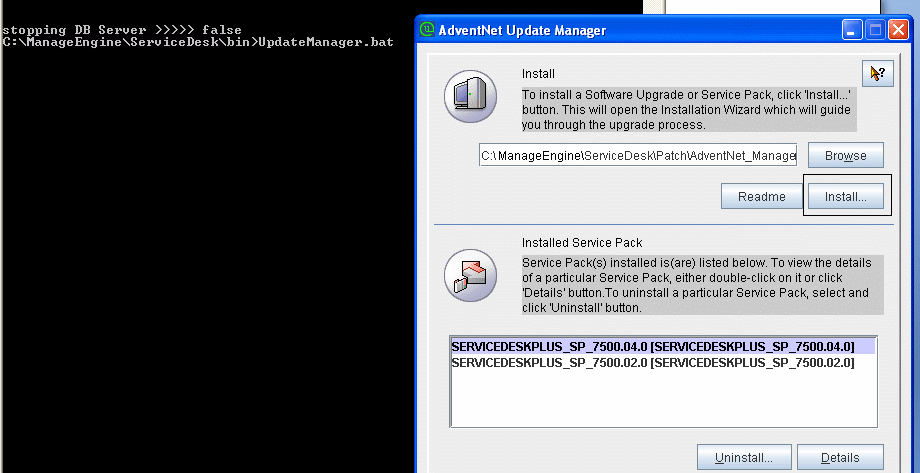
Step 4: Go to [AssetExplorer Home]\bin and execute the file UpdateManager.bat. A Java UI pops up where you can browse for the location of the hot fix and click install to start the installation process.
cmd> UpdateManager.bat [ Screenshot ]
Note: If you are planning on performing multiple upgrades, please make sure to start and stop the application once after successfully applying a service pack, make a backup of this upgraded version and then proceed with the next service pack. - How do I upgrade AssetExplorer in LINUX??Please visit the website mentioned below to download the ppm files for upgrading to the latest version of AssetExplorer.
https://www.manageengine.com/products/asset-explorer/service-packs.html
This website also contains instructions to apply the service pack. Here are the detailed instructions for upgrade.
Step 1: Shut down AssetExplorer Server.
Step 2: Take a back up of the existing build for security reasons.
The step to take a backup of the data in Linux is given below,- Go to the installation folder. [The default installation folder is /opt/ManageEngine/AssetExplorer/. The installation folder will now be referred as AssetExplorer-Home]
# cd [AssetExplorer-Home]/bin - Invoke the backUpData.sh script
# sh backUpData.sh
This will take a backup of the existing configuration and the backup data will be stored under
[AssetExplorer-Home]/backup/BackUp_Version_MONdd_yyyy_hh_mm/
BackUp_Version_MONdd_yyyy_hh_mm.data
An example would be,
/opt/ManageEngine/AssetExplorer/BackUp_5501_AUG15_2006_17_32/
BackUp_sdp_5501_AUG15_2006_17_32.data
Step 3: Save the hotfix from the link mentioned below,
https://www.manageengine.com/products/asset-explorer/service-packs.html
Step 4: Run the script UpdateManager.sh in the <AssetExplorer-home>/bin folder. From the Update Manager tool click "Browse" to select the Service Pack file (ManageEngine_AssetExplorer_0_0_SP-x_0.ppm file that you had downloaded) and then click "Install...". Follow the on-screen instructions to apply the Service Pack / Hotfix.
Step 5: Once the upgrade is complete, start AssetExplorer Server.
Command line option to apply a patch in Linux
To install a patch from console or command line,
Easiest option:
sh UpdateManager.sh -c
And it will guide the user through the steps.
Here are the other options:
sh UpdateManager.sh -u server/default/conf -c -option i -ppmPath <Patch file path including patch file name> -h <Product Home>
To un-install a patch: sh UpdateManager.sh -u server/default/conf -c -option u -h <Product Home> -version <Patch version>
To view installed patch versions: sh UpdateManager.sh -u server/default/conf -c -option v -h <Product Home>
To run UPDATEMANGER.bat from konsole mode: UpdateManager.sh -c -option i ppmPath <Path where PPM is downloaded> -h C:\ManageEngine\AssetExplorer - Go to the installation folder. [The default installation folder is /opt/ManageEngine/AssetExplorer/. The installation folder will now be referred as AssetExplorer-Home]
- Should DC be upgraded separately for subsequent service packs?While upgrading AE to later versions, few upgrades might require DC also to be upgraded in order to be compatible. In such cases, post-upgrade a message would be displayed on the top banner in AE, that DC also has to be upgraded with the compatible build number and the service pack link. This upgrade has to be performed manually
- How to upgrade the DC agentThe agent will get updated automatically by the application as soon as a new agent gets released.
- 6970 TLS support documentation
AssetExplorer, from version 6970 onwards, will only support TLS versions 1.3 and 1.2. The older protocols, such as TLSv1 and TLSv1.1 will not be supported going forward.
Mandatory configurations before moving to 6970:
- If you are on any version earlier than AssetExplorer 6970, please select TLSv1.2 under Admin > Security Settings.
- If you have integrated or configured AE to communicate with any other application, check if its working with only TLSv1.2. Also for seamless functioning, make sure to enable TLSv1.2 in mail server or other integrated application servers as well.
Recommended configurations after upgrading to 6970:
- Go to Admin > Security Settings and select TLSv1.3 and save the settings to enable TLSv1.3.
Configuring Internet Settings for TLSv1.3 ( or TLSv1.2 ) in Server machine:
- Go to Start > Internet Options.
- Under Internet Properties, select Advanced
- Under Security, enable the following options
- Use TLS 1.2
- Use TLS 1.3
- How to upgrade missing entries in JRE native file?
- Go to the location <ASSETEXPLORER HOME>\jre\lib\security.
- Open the file java.security.
- Add the entries TLSv1,TLSv1.1 in jdk.tls.disabledAlgorithms as mentioned in the below screenshot.

 Screenshot
LINUX
- How do I install AssetExplorer on a Linux machine?Following are the steps given below to install and setup ManageEngine AssetExplorer on a Linux machine.
Step 1: Download the AssetExplorer_Linux.bin file.
Step 2: Execute AssetExplorer_Linux.bin from the console and follow the on screen instructions.
./AssetExplorer_Linux.bin
NOTE: You require execute permissions for executing the .bin type files.
Manually start AssetExplorer application after the installation process:
Step 1: Go to /bin directory and execute run.sh file as given below,
$ sh run.sh
Step 2: To start the web client, open a web browser and type the following in the address field,
http://localhost:8080
Here, you need to replace the localhost with the corresponding server name where the AssetExplorer web server is running and the port number 8080 should be replaced with the actual port where the server is running. - How do I install AssetExplorer on a Linux machine without GUI?Follow the steps given below to install AssetExplorer on a Linux machine without GUI or on a Linux machine from windows desktop,
# chmod 755 ManageEngine_AssetExplorer_5_Linux.bin
# ./ManageEngine_AssetExplorer_5_Linux.bin console - How do I install AssetExplorer as Linux Service?
1. Get the assetexplorer.txt file available here.
2. Create a file called assetexplorer under /etc/init.d/ and copy the following script in it.
bcp assetexplorer.txt /etc/init.d/assetexplorer
3. Edit the file and modify the MDIR variable to the bin folder in the product directory. For example, MDIR=/home/guest/ManageEngine/assetexplorer/bin. To edit the file, type vi assetexplorer.txt on the Vim editor.
4. Get the Execute permission for assetexplorer startup script by using the command:
chmod +x assetexplorer
5. Create a blank file under /var/log for application login purposes by using the command: touch /var/log/assetexplorer.log.
6. To add the script as a startup process, use the command: systemctl start assetexplorer or service assetexplorer start.
- Is it possible to scan windows workstation if AssetExplorer is installed on a Linux machine?No, it is not possible to scan windows workstation if AssetExplorer is installed on a Linux machine. When AssetExplorer is installed on Linux, it scans only Linux workstations.
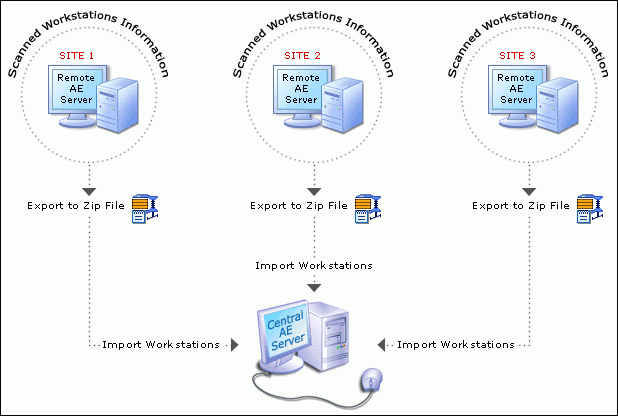
But by using the Distributed Asset scan functionality of AssetExplorer, you can install the Probe in a windows machine using which you can scan windows workstations, export the information in a zip format and import the information into AssetExplorer Linux server.
Here is how Distributed Asset scan functionality works.
AssetExplorer helps you scan assets distributed across multiple sites (i.e.) assets which are not connected to the network (or) assets which are not reachable from the central AssetExplorer server. This can be done with the help of Asset Explorer Probe which can be installed in the remote network which helps to scan the assets in the remote network, export the asset information into a zip file and then import the information into the Central AssetExplorer server. [ Screenshot ]
In order to use Distributed Asset Scan feature we have to understand the following terms.- Central Server: Your AssetExplorer installation is the Central server where you have the Central Asset database.
- Remote server (or) Asset explorer Probe: You can install Asset explorer Probe as Remote server in your remote network where you would like to scan assets. You will be able to scan and export the Asset information from the Remote server and import it in your Central AssetExplorer server.
You can download and Install AssetExplorer Probe in the remote network by downloading the exe file from the website below.
https://www.manageengine.com/products/asset-explorer/download.htmlAfter installation when you start the application and connect to the client for the first time, it will prompt you to run either as a Central server or Probe (Remote server). Choose Remote server. You will be able to scan assets and perform scan configuration in Remote server as you do in AssetExplorer.
You can then export scanned Asset information from the Remote server under Admin -> Distributed Asset Scan. This will export the scanned Asset information as a zip file. These exported assets can be imported into your central AssetExplorer server under Admin --> Distributed Asset Scan.By doing this we have a track of all our Assets in the organization in one place which makes it easier for us the manage them. Also Distributed asset scan functionality helps to reduce the load in AssetExplorer server.
Customers interested in using the Distributed scan feature can get the AssetExplorer Probe (Remote server) license from our licensing team (This license will be equivalent to the number of nodes purchased for AssetExplorer) which can be applied in the Asset explorer Remote server installations.
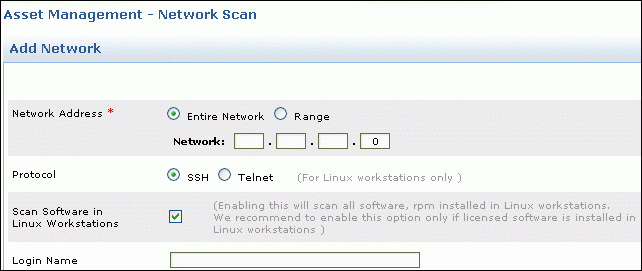
- Does AssetExplorer scan the softwares installed in a Linux machines?From v 7.5 and above, AssetExplorer does scan softwares installed in Linux machine. Enable the check box which says Scan Software in Linux Workstations under Admin -> Network scan. [ Screenshot ]
- How can I connect to MYSQL database on a Linux machine?Install the MYSQL client which supports your Linux version. Once this is accomplished, make sure that the command "mysql" is in path. (Most often, mysql should be under path, if not, you may add the complete path to mysql command under PATH variable in the bashrc file.
Once this is done, you may try the following:
# cd [AssetExplorer-Home]/mysql/bin
# mysql -u root -S ../tmp/mysql.sock AssetExplorer -A - Is it possible to scan devices if ServiceDesk Plus is installed on a Linux machine?
If AssetExplorer is installed in a Non - Windows server like say, Linux, then DC has to be installed manually in another Windows machine (as currently DC supports windows OS only). This DC installation has to be integrated with AE under Admin. Once integrated, agent deployment can be done from DC installation and refer the links below for more details.
 Screenshot
 Screenshot
Database
- What are the Databases supported by AssetExplorer?MYSQL and MSSQL are the supported databases.
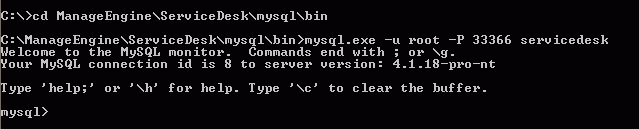
- How can I connect to MYSQL database of AssetExplorer?AssetExplorer uses MYSQL as its default database. You can connect to the database through the following commands,
cmd> cd C:\ManageEngine\AssetExplorer\mysql\bin
cmd> mysql.exe -u root -P 33376 AssetExplorer
"AssetExplorer" is the name of the database. 33376 is the port on which AssetExplorer database runs. AssetExplorer uses root account to connect to the database and does not use any password. You can connect to MYSQL database only from the server console. [ Screenshot ] - By default, MYSQL database of AssetExplorer can be connected only from the server machine. But how can I connect to MYSQL database of AssetExplorer from another machine in the network?The instructions given below is to connect to MYSQL database from another machine in the network.
Execute the following commands from AssetExplorer server console,
cmd> cd C:\ManageEngine\AssetExplorer\mysql\bin
cmd> mysql.exe -u root -P 33376 AssetExplorer
mysql> grant usage on AssetExplorer.* to root@'hostname-or-ipaddress';
mysql> grant ALL on AssetExplorer.* to root@'hostname-or-ipaddress';
mysql> flush privileges;
The hostname-or-ipaddress is the machine from where you wish to connect to AssetExplorer database.
To access the database from another machine, use the commands,
cmd> mysql.exe -u root -P 33376 AssetExplorer -h[servername-or-ipaddress-of-AssetExplorer-server] - By default, AssetExplorer installs a MYSQL database on the server during the product installation. But I require the application and database to reside on different servers. Is it possible for AssetExplorer to use a different MYSQL database on a separate server instead of the default server installed?This is a scenario applicable only if you do not want to use the default MYSQL database which AssetExplorer installs during the product installation, and you have a separate server having MYSQL version 4.1.12 installed on it.
NOTE: MYSQL version has to be v 4.1.12. as other versions are not supported at this point of time.
Make the following changes on the product installation
Step 1: Edit the [AssetExplorer-Home]\bin\startdb.bat file and change "33376" to the port on which the default MySQL runs.
Step 2: Edit the [AssetExplorer-Home]\bin\stopdb.bat file and change "33376" to the port on which the default MySQL runs.
Step 3: a) Edit the [AssetExplorer-Home]\server\default\deploy\mysql-ds.xml file and change "33376" to the port on which the default MySQL runs.
b) Change "localhost" to the ipaddress or hostname of the server on which MySQL runs, if you want to change the host.
Step 4: Edit the [AssetExplorer-Home]\server\default\conf\nms-service.xml file and change the StartDBServer attribute to "false".
<attribute name="StartDBServer">false/<attribute>
Step 5: Create a database "AssetExplorer" which can be accessed from the port on which the default MySQL runs.
mysql\> create database AssetExplorer;
NOTE: AssetExplorer Home -> C:\ManageEngine\AssetExplorer - Is it possible to integrate Crystal reports XI to the MYSQL database of AssetExplorer?Yes it is possible to integrate Crystal reports with AssetExplorer. Refer the link provided below which will help you with the integration.
https://forums.manageengine.com/topic/is-it-possible-generate-report-using-excel-or-crystal-report#25138 - Is the database schema of AssetExplorer available?The database schema is accessible from within the AssetExplorer application.
Go to Reports -> New Query report -> Select the module you want to report on, from the Table Schema drop down list and press the Get button which will give you the Schema. - How do I convert the database from MYSQL to MSSQL?The following is the procedure to migrate your AssetExplorer database from MYSQL to MSSQL.
Step 1: Stop ManageEngine AssetExplorer service.
Step 2: Take a backup of the existing data and configuration under MYSQL database.
From command prompt, go to [AssetExplorer-Home]\bin directory and execute backUpData.bat command to start the data backup.
cmd> [AssetExplorer Home]\bin
cmd> backUpData.bat
where, AssetExplorer Home -> C:\ManageEngine\AssetExplorer. This backup will be stored under the Backup folder in AssetExplorer Home directory.
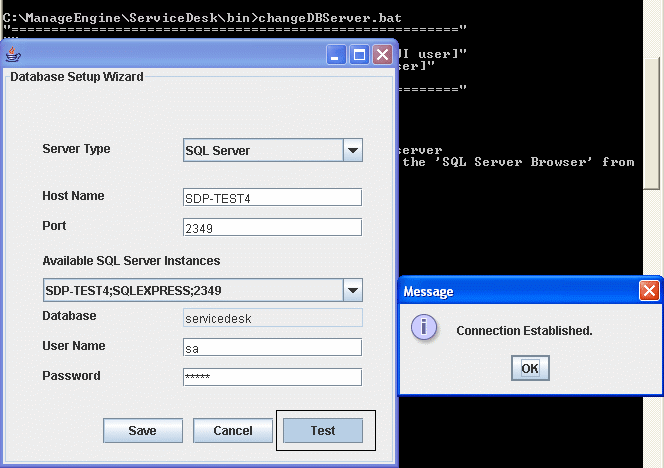
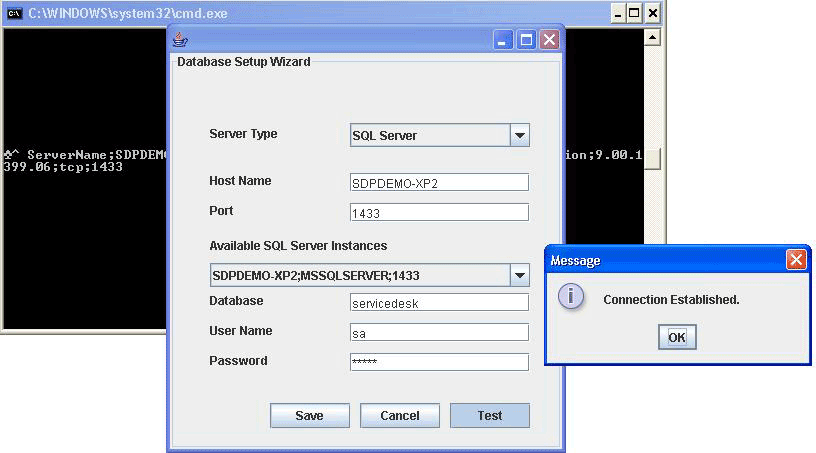
Step 3: Invoke ChangeDBServer.bat under [AssetExplorer-Home]\bin folder. [ Screenshot ]
Step 4: Provide the details of the SQL server (i.e.) Host name, username and password and click Test, By doing this, we will be able to check the connectivity with the SQL server. The message should say connection established as displayed above. Then click Save.
Step 5: Start and stop the AssetExplorer server once.
NOTE: A database called AssetExplorer would be created in the SQL server.
Step 6: Now invoke restoreData.bat under [AssetExplorer-Home]\bin folder. The data should now be restored under your MSSQL server instance. Follow the on screen instructions to restore the latest backup data performed in step 2. [ Screenshot ]
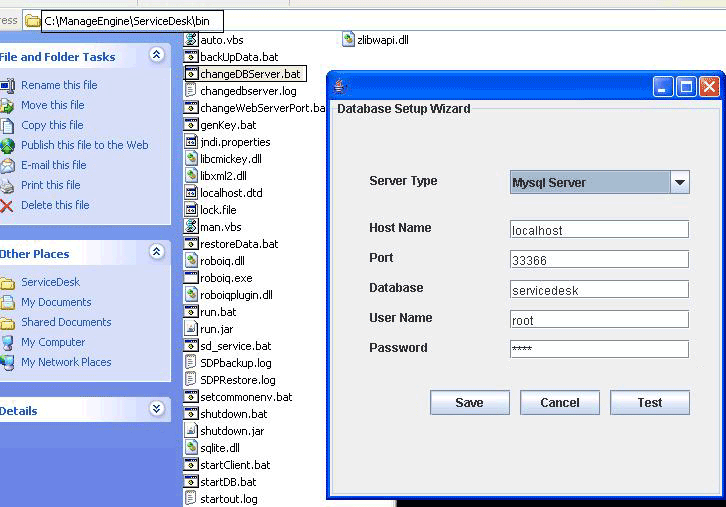
Step 7: Start ManageEngine AssetExplorer service once the restore process is complete. - How do I change the account and password of the SQL server that connects AssetExplorer?From the command prompt, execute the Changedbserver.bat file under C:\ManageEngine\AssetExplorer\bin directory. Enter the credentials and test the connection. [ Screenshot ]
- What is the default password for the MYSQL database? How do I change this password?By default, the MYSQL password for the root user is a blank password. To set a different password for the root user, follow the instructions given below,
Step 1: Navigate to the bin directory from the command prompt (C:\ManageEngine\AssetExplorer\mysql\bin).
Step 2: Connect to the MYSQL Database.
To know how to connect to the MYSQL database, refer the link given below,
https://www.manageengine.com/products/asset-explorer/faq-general-modules.html#database2
Step 3: Execute the command
SET PASSWORD FOR 'root'@'localhost' = PASSWORD('test');
In the above command "test" is the password.
Step 4: Navigate to the bin directory on the installation folder and double click on the Changedbserver.bat file. When the java window pops up, enter your password and save the configuration.
Note: The password should be the same as set in Step 3. [ Screenshot ]
Step 5: Add the following parameter to the StopDB.bat
if "%PASSWORD%" == "" set PASSWORD=test [Where "test" is the password].
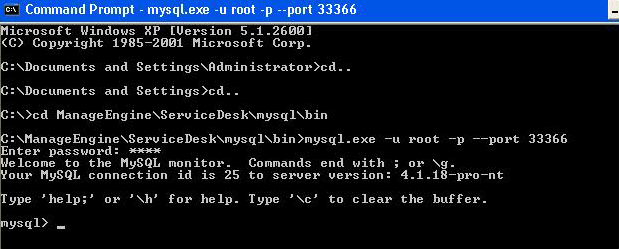
Step 6: Now you can connect to the database by navigating to the bin directory (C:\ManageEngine\AssetExplorer\mysql\bin) from the command prompt and execute the command
mysql.exe -u root -p --port 33376
Enter the password when requested for. [ Screenshot ] - How to change the Endpoint Central database from Postgres to MSSQL?
 Screenshot
 Screenshot
 Screenshot
 Screenshot
 Screenshot
HTTPS and SSL Support for AE:
- Will DC be installed in HTTPS mode?
By default DC would be installed in both HTTP and HTTPS mode. But when DC is integrated with AE, it uses HTTP mode. However, DC can be changed to the HTTPS mode .
Refer the link for more details.
Moving AssetExplorer
- How do I move AssetExplorer from one server to another server?Following are the steps to move data from the existing server to a new server,
Step 1: Stop ManageEngine AssetExplorer service.
Step 2: Kindly Upgrade AssetExplorer if required. Refer to the link below to check if you are in the latest version;
https://www.manageengine.com/products/asset-explorer/service-packs.html
Refer to the section UPGRADING AssetExplorer of FAQ for detailed instructions for upgrade.
Step 3: Now start and stop the ManageEngine AssetExplorer service once after the upgrade process.
NOTE: If you are planning on performing multiple upgrades, please make sure you start and stop the application, and perform a backup before each and every upgrade.
Step 4: From command prompt, go to [AssetExplorer-Home]\bin directory and execute backUpData.bat command to start the data backup.
Once the backup is complete, a backup file with .data extension is placed in the Backup folder under AssetExplorer Home directory. This backup file contains information about the Build number of , and the date and time of when the backup was performed. Here is the format of the backup file.
Backup_ AssetExplorer_ [Build number] _Month _date _ Year _ Hour _Minutes
For example, a backup taken in version 5.6.0 and Build 5606 of looks like this
backup_AssetExplorer_5606_fullbackup_02_24_2009_07_51.data
Step 5: Install on the new server.
Step 6: Copy the backup folder from the old server to [AssetExplorer-Home] in the new server.
Step 7: To restore the backed up data, Go to [AssetExplorer-Home]\bin directory and execute restoreData.bat. Choose the backup file while prompted. See example below:
cmd> [ Home]\bin
cmd> restoreData.bat
where, AssetExplorer Home -> C:\ManageEngine\AssetExplorer [ Screenshot ]
Step 8: Start the server once after restoring the data in the new server.
NOTE: Data can be restored only across same builds of version. i.e. data backed up in 5606 build of can be restored only in 5606 build. Please check if the old build and new build are of same build versions.
Build version can be checked- By clicking on the About link in the application [OR]
- From buildInfo.xml file under <AssetExplorer Home>/server/default/conf directory.
If the old build is a different build, then the same build needs to be installed in new server. You can download earlier builds of from our Archives website https://archives.manageengine.com/asset-explorer/
- If I'm using MSSQL as database, how should I go about moving the application from one server to another but using the same database?Since you are using MSSQL, the database remains on the SQL server. So all you have to do is install the same version and build of on the new server and point the database to the SQL server while installing the product.
You can check your current version and build of by- Clicking on the About link in the application [OR]
- Build version can be checked from buildInfo.xml file under <AssetExplorer-home>/server/default/conf directory where, AssetExplorer Home -> C:\ManageEngine\AssetExplorer
You can download all versions of from our Archives website https://archives.manageengine.com/asset-explorer/
The way is designed is that it does not store attachments in the database. They are stored in the file attachments folder of the installation directory (C:\ManageEngine\AssetExplorer)
You would have to copy the following folders to the new server from the existing server in order to retain the file attachments.- Custom
- Inline images
- File attachments
- How do I move installation to a different drive on the same server?Follow the instructions below to move installation to a different drive on the same server.
Step 1: Stop ManageEngine service.
Step 2: De-Register Service: C:\ManageEngine\AssetExplorer\bin> sd_service.bat -r ..\server\default\conf\wrapper.conf
Step 3: Copy installation folder [ManageEngine\AssetExplorer] to another drive say D:
Step 4: Re-Register service: D:\ManageEngine\AssetExplorer\bin> sd_service.bat -i ..\server\default\conf\wrapper.conf
Step 5: Start the service.
NOTE:Make sure you have taken the backup first using backUpData.bat in ManageEngine\AssetExplorer\bin before you perform the procedure. - How can I move Windows server to Linux server?Following are the steps to move Windows server to Linux server.
Step 1: Take a trimmed backup using the commands below,
cmd> cd [AssetExplorer-Home]\bin
cmd> backupdata.bat --trimmed
The backup will now be created under [AssetExplorer-Home]\backup
Step 2: Copy the following folders and replace it in the same location of the another server.
Fileattachments, inlineimages, customimages under AssetExplorer[home].
Step 3: To restore the backed up data, Go to [AssetExplorer-Home]\bin directory and execute sh restoredata.sh. Choose the backup file while prompted.
Step 4: Start the server once after restoring the data in the new server.
Step 5: Connect to the database and execute the query below.
update sdeskattachment set ATTACHMENTPATH = replace(ATTACHMENTPATH, '\\', '/'); - How can I build a test environment for AssetExplorer?Building a test environment is very helpful while upgrading . When you are planning to upgrade to the latest version, it is highly advisable to try the upgrade on the test environment first so that you will be confident about the upgrade on the Production server.
Step 1: Stop ManageEngine AssetExplorer service on the production server.
Step 2: From command prompt, go to [AssetExplorer-Home]\bin directory and execute backUpData.bat command to start the data backup. Where, Home -> C:\ManageEngine\AssetExplorer
Once the backup is complete, a backup file with .data extension is placed in the Backup folder under Home directory. This backup file contains information such as, the Build number , and the date and time when the backup was performed. Here is the format of the backup file.
"Backup_ AssetExplorer_ [Build number] _Month _date _ Year _ Hour _Minutes"
For example, a backup taken in version 5.6.0 and Build 5606 of looks like this
backup_AssetExplorer_5606_fullbackup_02_24_2009_07_51.data
Step 3: Install on the new server.
Data can be restored only across same builds of version. (i.e.) data backed up in 5606 build of can be restored only in 5606 build. Please check if the old build and new build are of same build versions.
Build version can be checked,- By clicking on the About link in the application. [OR]
- From buildInfo.xml file under <AssetExplorer-home>/server/default/conf directory.
If the old build is a different build, then the same build needs to be installed in new server. You can download earlier builds of from our Archives website https://archives.manageengine.com/asset-explorer/
Step 4: Copy the backup taken from the production server to the Test server.
Step 5: To restore the backed up data, Go to [AssetExplorer-Home]\bin directory and execute restoreData.bat. Choose the backup file while prompted as in the screen shot given below,
cmd> [ Home]\bin
cmd> restoreData.bat [ Screenshot ]
Step 6: Start the server once after restoring the data in the Test server.
Step 7: Stop mail fetching immediately after applying production data to your test server. You don't want it stealing emails that should be going into your production system. (Admin --> Mail server settings --> Stop fetching).
Was your question answered here?
Check the other FAQ modules or you can contact our support team at