Service pack installation for DataSecurity Plus

Find your service pack


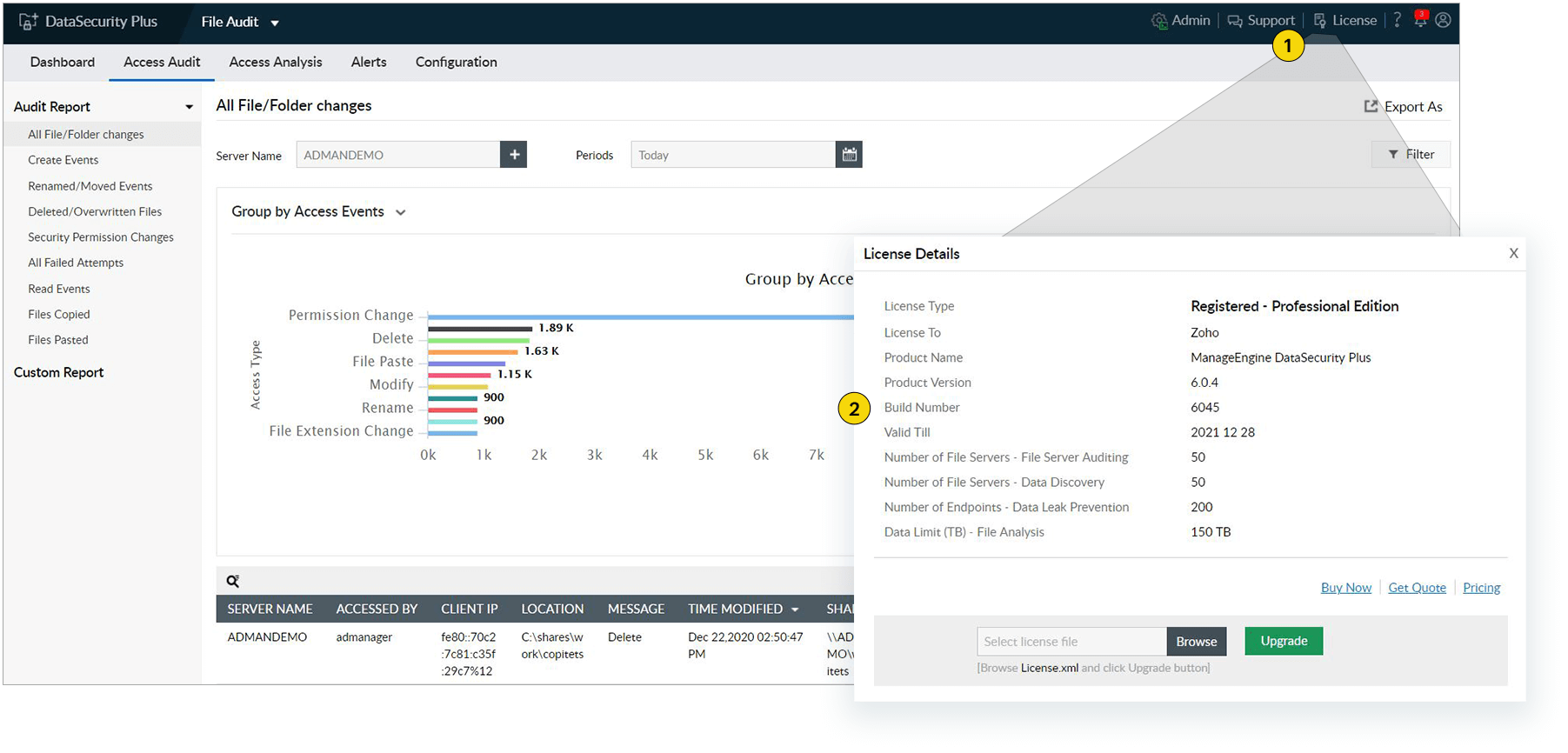
How do I find my current build number?

Service packs

If your build number is Update to build number SHA256 Checksum hash value
6200 to 6290
c98495bfe3b2e4fe64aae8a54861
6127 to 6190
e8aabce8454bba765936c793d3e04966ec1749e7692c538ca3c36dde60e99999
6082 to 6126
A68B4A83BAE1E0E94AC859EA7BEB429A7F1CBEE8FCA54D0CF4042EAA42AD7331
6021 to 6081
f2cb2c6ca488420851500b06eddfb850d53cce650255799528838c689b1fad43
6000 to 6020
a3bf5772bae2c675037947fcb63d4d3229b3c8c779b97371350d729dee79a28b

Instructions to apply the service pack

1. Stop DataSecurity Plus
  • Stop DataSecurity Plus — Go to Start > Run. Type in services.msc. In the Services window that opens, right-click the ManageEngine DataSecurity Plus service and select Stop. Also, make sure that the ManageEngine DataSecurity Plus – DataEngine XNode service has stopped running.
  • Stop the DataSecurity Plus database. Go to Start > Command Prompt. Right-click the Command Prompt and choose Run as administrator.

    Navigate to <Installation_directory>\DataSecurity Plus\bin and execute StopDB.bat.

2. Back up DataSecurity Plus installation and audit data

Back up the existing DataSecurity Plus installation using any of the methods below:

Option 1

Zip the contents of the product installation folder <ME_Installation_directory>\ManageEngine\DataSecurity Plus.

Option 2

Take a backup of the database.

  • Go to Start > Command Prompt. Right-click the Command Prompt and choose Run as administrator.
  • Navigate to <Installation_directory>\DataSecurity Plus\bin and execute backupDB.bat.

Option 3

Take a snapshot of the server where DataSecurity Plus is installed.

3. Update to the latest build.

Before applying the PPM, ensure that at least 2 GB of free disk space is available. Then, follow these steps:

  1. 1. Go to the <ME_Installation_directory>\ManageEngine\DataSecurity Plus\bin folder. Open the Command Prompt as an administrator and run the UpdateManager.bat file.
  2. 2. Click Browse and choose the downloaded PPM file.
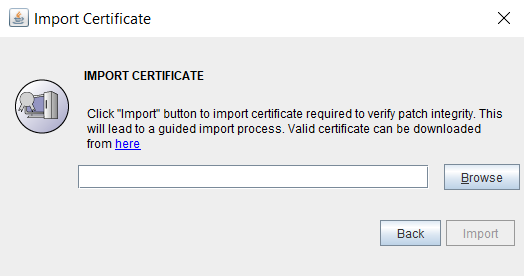
  3. 3. Click Install to start the installation process. If you are upgrading to version 6127 or above, the Import Certificate dialog box appears. Import certificate
  4. 4. Click here to download the certificate safely. Note: The certificate is applied as a security measure to avoid the risk of a tampered service pack (PPM) file.
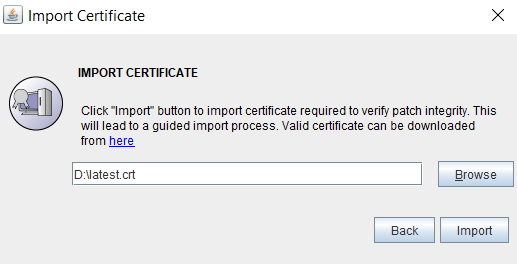
  5. 5. Click Browse and locate the certificate. Import certificate
  6. 6. Click Import. Follow the on-screen instructions and continue the upgrade process. Note: This is a one-time process and the certificate will be automatically applied during future upgrades.

Contact our support executives anytime for assistance in updating DataSecurity Plus to its latest version.

Email Download Link