Download & Upload Restriction
Block or condition file downloads and uploads through the browser to keep transfers to trusted sources.
Overview
Why file activity needs restricting
Malicious sites push harmful downloads; uncontrolled uploads leak data the other way.
The risk of unrestricted file activity
Restricting file activities such as downloads and uploads from untrusted websites is essential to safeguarding computers and sensitive data. Malicious websites often host harmful files — viruses, malware, ransomware — that can compromise systems, steal confidential information, or cause operational disruptions. Uncontrolled uploads can equally lead to accidental or intentional data leakage.
These incidents can result in data loss, financial fraud, compliance violations, and other serious consequences. Enforcing file activity restrictions significantly reduces the risk of cyberattacks and data exfiltration.
Configuration
Restricting browser file activities
Block downloads and uploads outright, or condition them on domain, size, type, or time.
Create a File Activity Restriction policy
- Go to Browsers → Policies → File Activity Restriction.
- Click Create Policy.
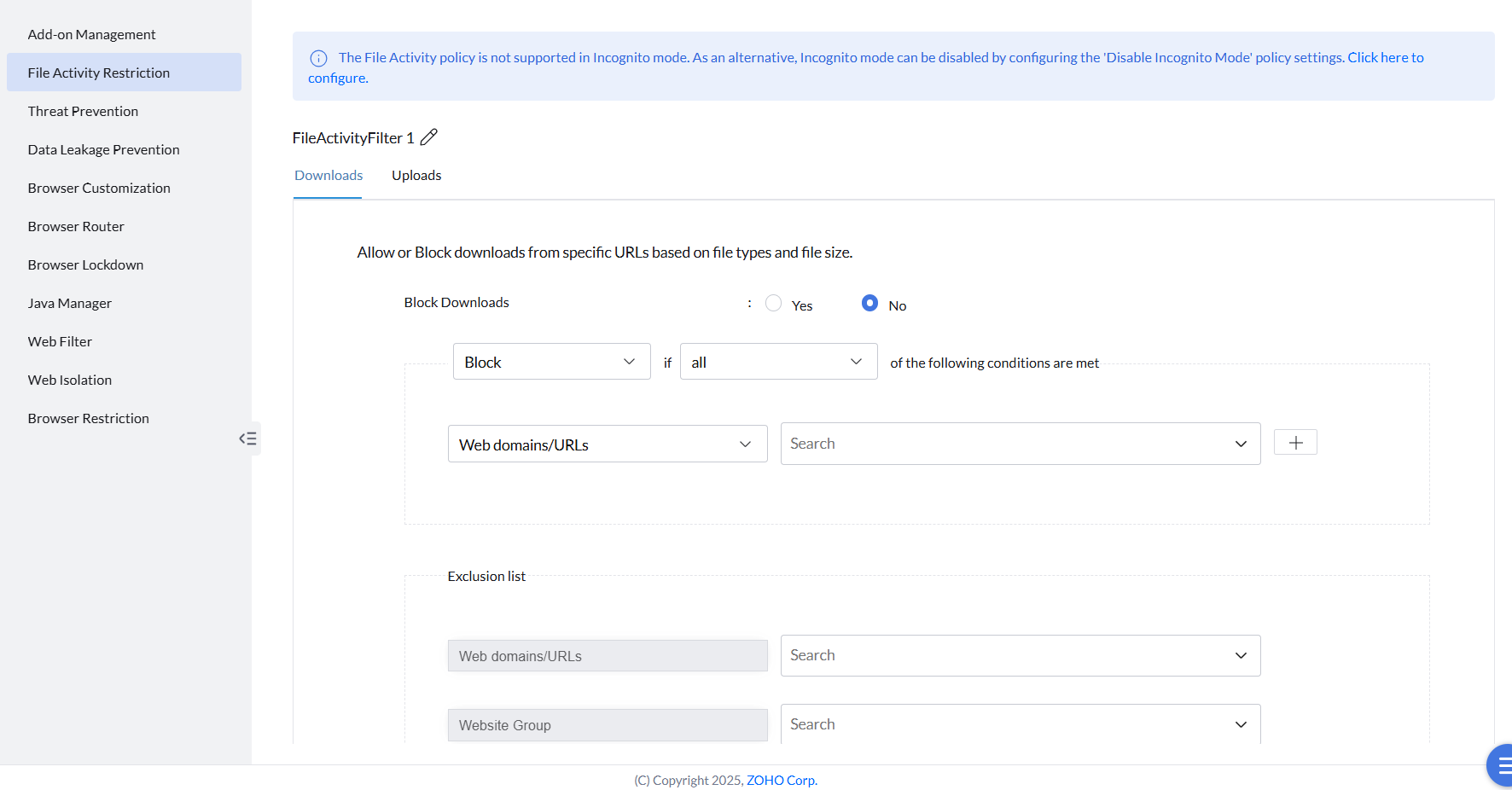
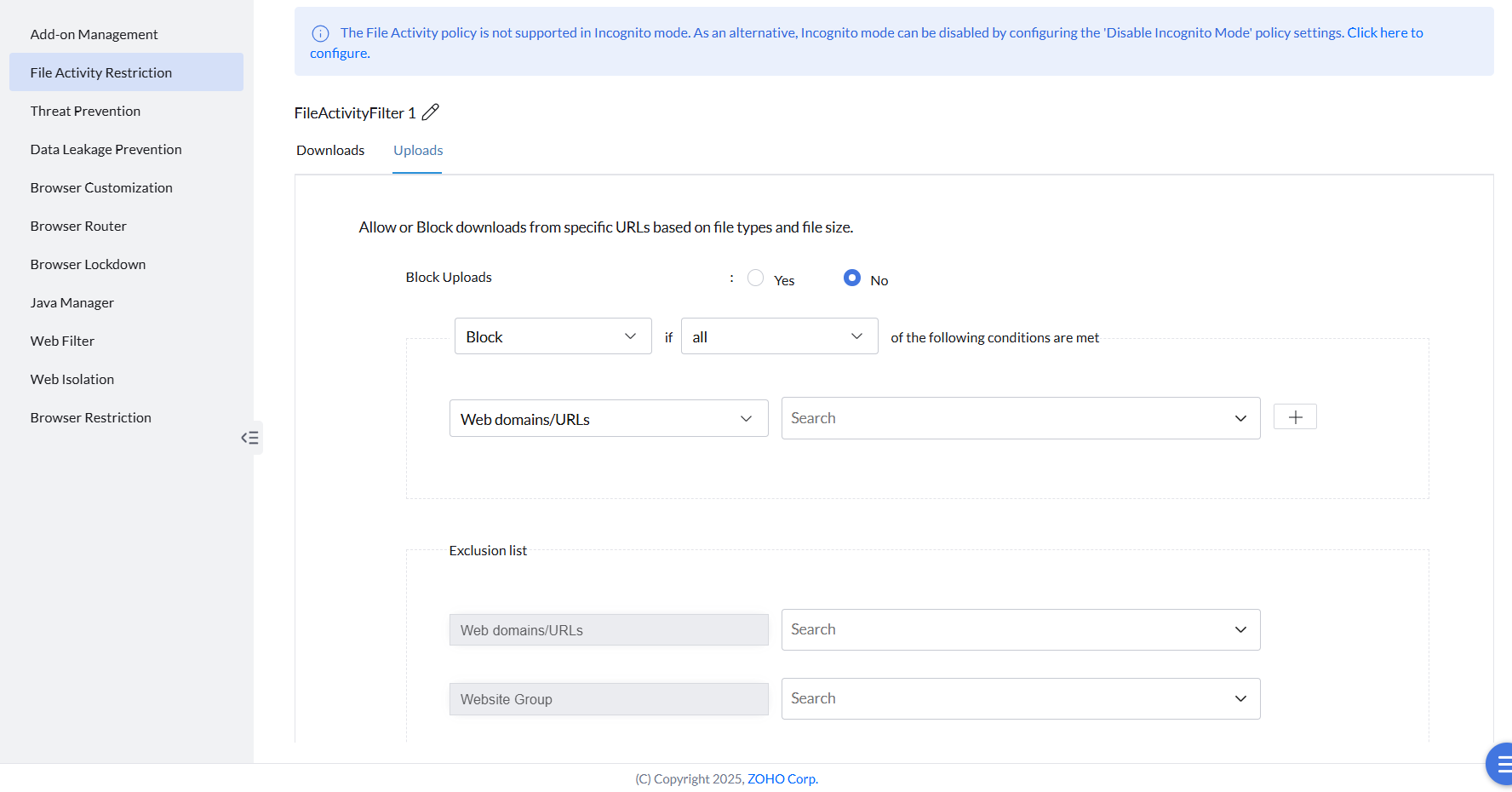
- Go to the respective section to restrict downloads or uploads.
- Click Yes against Block Downloads or Block Uploads to block all downloads or uploads respectively.
Restricting based on specific conditions
Instead of blocking everything, downloads and uploads can be restricted based on conditions — a transfer is blocked if any or all of the specified conditions are met.
- Web Domains/URLs — the tab URL or the download URL.
- Web Groups — any web groups already created.
- File Size — specified in bytes (e.g. 4KB = 4000 bytes).
- File Types — specified as file extensions (e.g. .pdf, .exe).
- Time Limit — specified in 24-hour format (e.g. 10:00:00).
- Generative AI Sites — Allow/Block file activity on Generative AI sites such as ChatGPT, Gemini, etc. (Feature is currently in closed beta — reach out to endpointcentral-support@manageengine.com for access.)
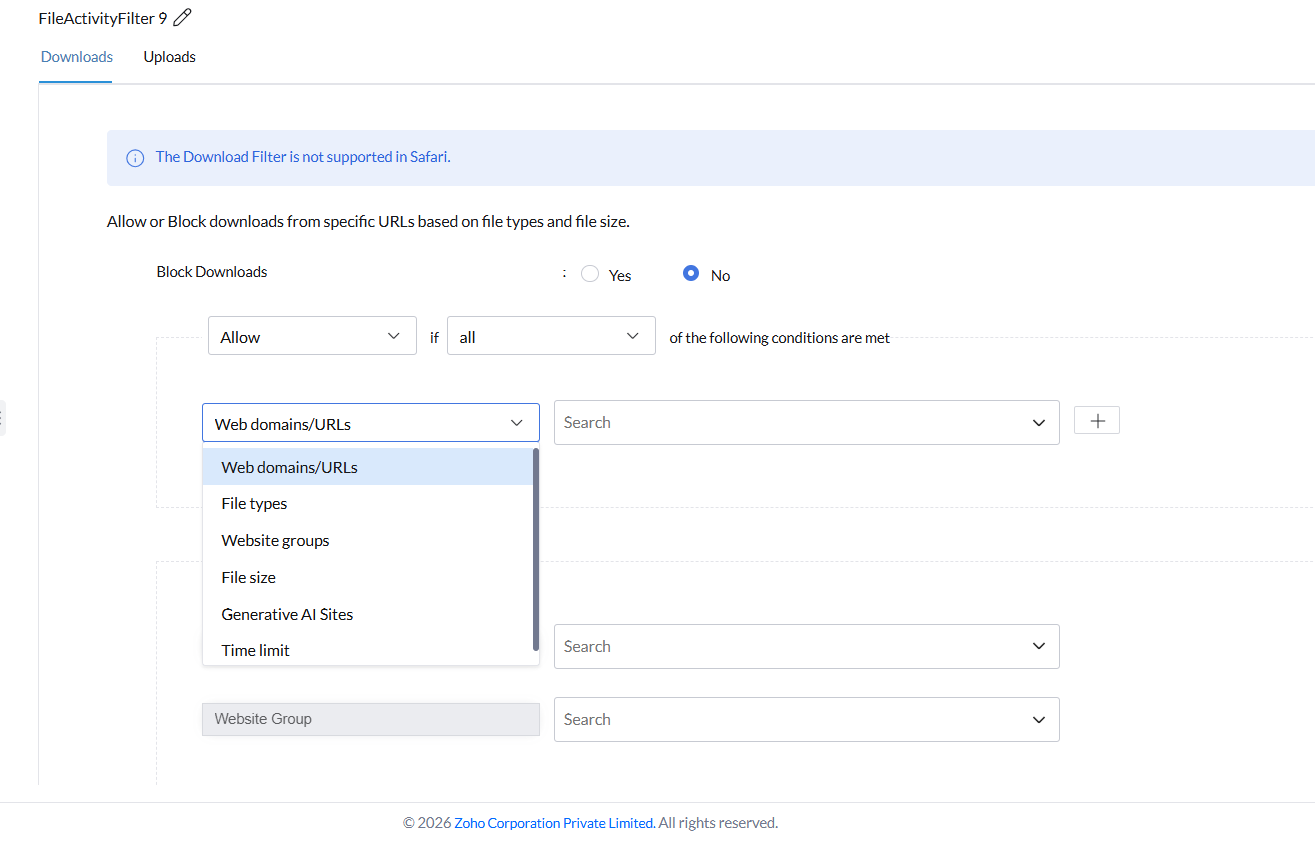
Configuring file activity restriction conditions.
Specific items can be excluded from the restriction by listing them in the Exclusion List.
Customizing the block page
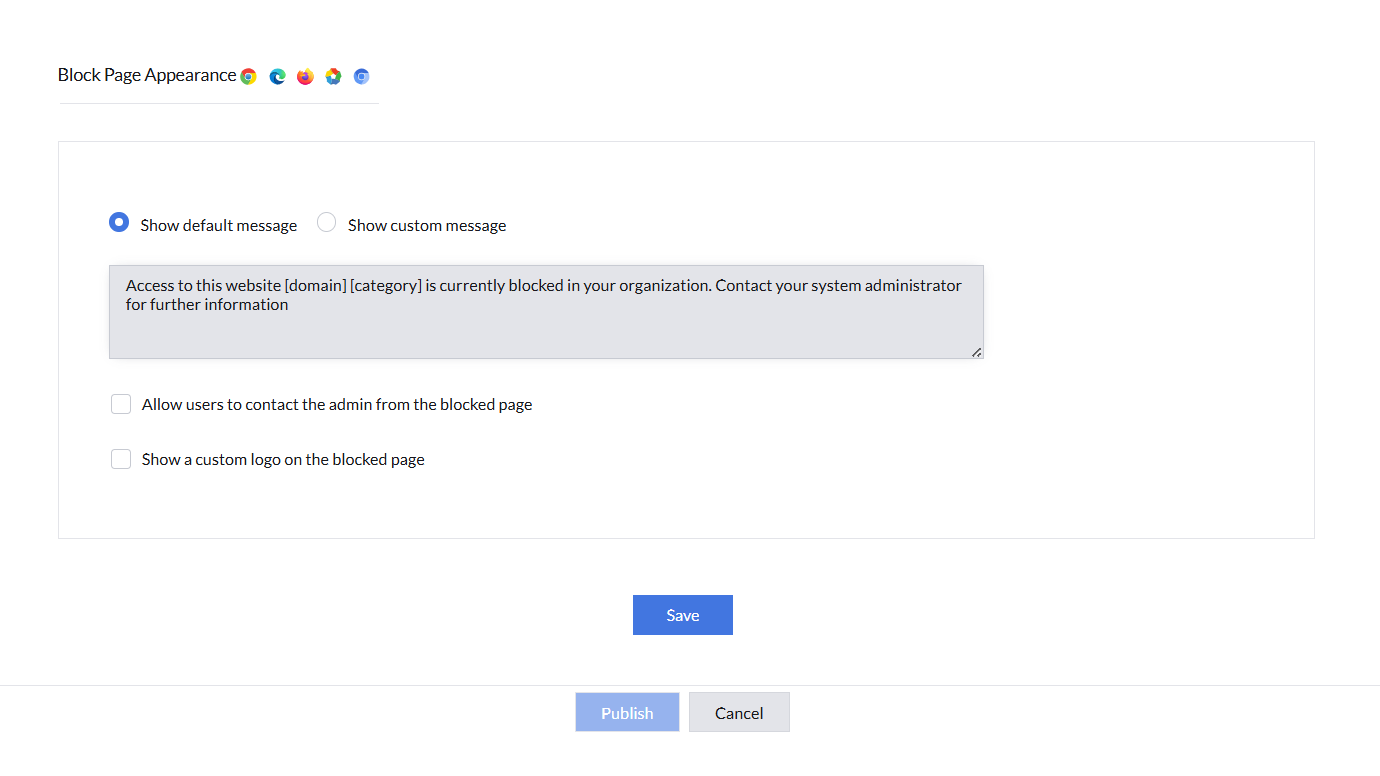
The block page shown to users can use the default message or a customized message and logo, with an option to let users contact the administrator directly from that page.
Deploy the policy with the computers or groups it should apply to.